OVERVIEW
This document describes how permissions are managed within DigTix. There are two main types of permissions:
- Permissions to access data e.g. a user may only be able to see data that pertains to them or their team, but not others or other teams.
- Permissions to perform actions e.g. a user can run one type of report but is unable to run another type of report.
Both types of permissions are critical to the successful operation of DigTix.
DATA PERMISSIONS
Data permissions govern what work order (tickets, incidents, etc) data each user has access to and what work order data each user does not have access to. The access of work order data is based on two factors, both of which are defined in the user’s DigTix profile which can be found in the “Users” section of the “Administration” page:
- The user’s configured "Manager".
- The user’s “Data Permissions” setting.
Every user within DigTix must have a manager. A manager may have one or more subordinates. A user may not be their own manager. This manager to subordinate relationship is the same relationship seen in the organization of most companies. Such a hierarchy which can be thought of as a “family tree”. The highest level user “branches” to one or more subordinates (“children”). These subordinates may also be managers (“parents”) to other subordinates (“grandchildren”), and so on.
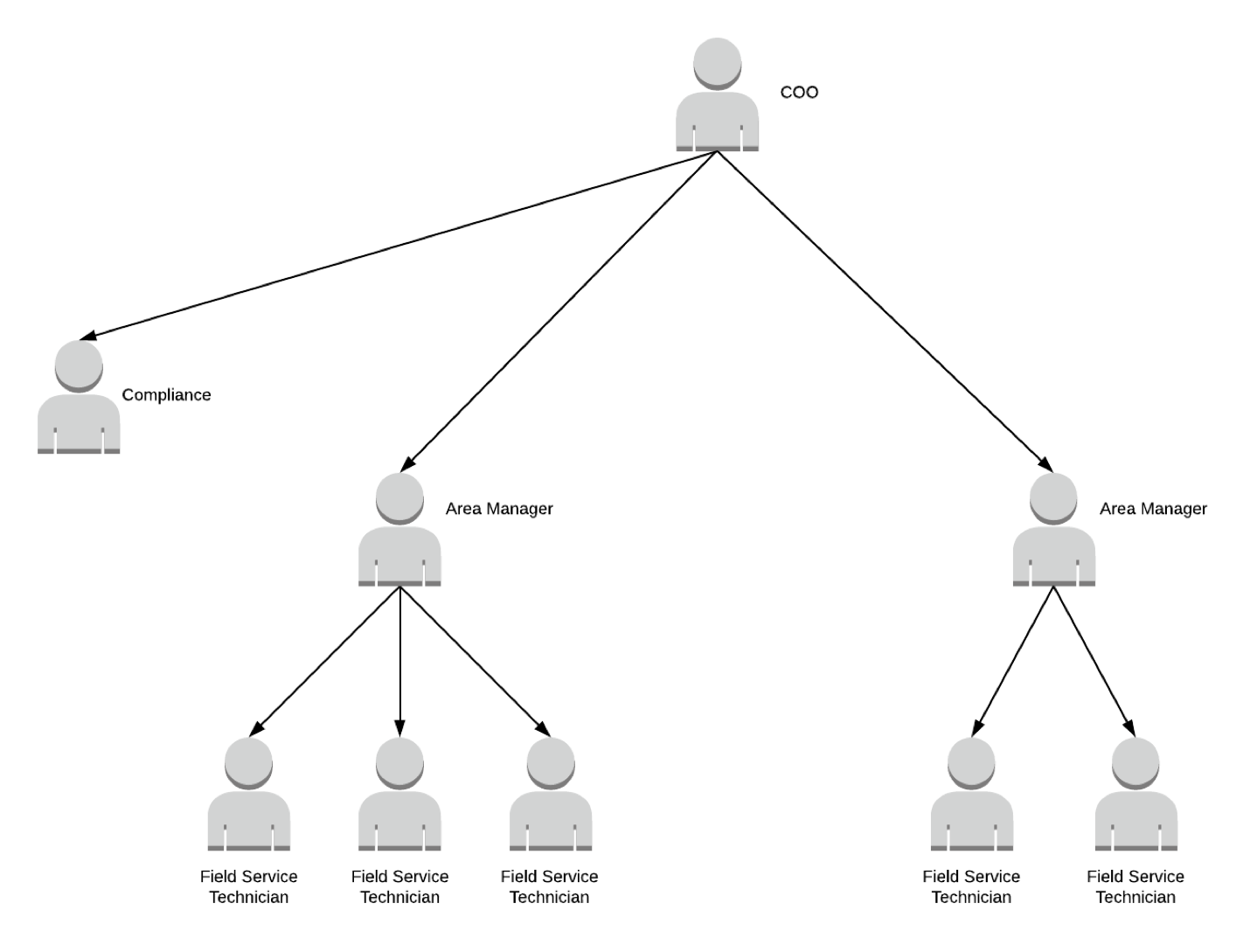
Figure 1: Manager to Subordinate / Family Tree Relationship
Every user within DigTix must also be defined with a “Data Permissions” setting. There are several Data Permission settings within DigTix. Some Data Permissions associate a user to an organization such as a Facility Owner, One Call Center, or Excavator. These Data Permissions are for “Third Party Users” which must be licensed according to the DigTix license agreement. These Data Permissions allow access only to DigTix data which is associated with that third party:
- A “Facility Owner” user may only see work orders which are linked to that Facility Owner’s member codes.
- A “One Call Center” user may only see work orders which originate from that One Call Center.
- An “Excavator” user may only see work orders which involve that Excavator.
Other Data Permissions define the data users can see based on their position within the manager to subordinate hierarchy:
- “Strict View” users only have access to work orders assigned directly to them.
- “Limited View” users have access to work orders assigned directly to them or their subordinates (children), subordinates’ subordinates (grandchildren), and so on.
- “Expanded View” users have access to work orders assigned directly to them or anybody that has the same manager as them (siblings) and any of their subordinates (children, nephews), their surbordinates’ subordinates (grandchildren, grand nephews), and so on.
- “Expanded Plus View” users have access to work orders assigned directly to them or anybody that has the same manager as their manager (siblings, uncles) and any of their subordinates (children, nephews, cousins), their subordinates’ subordinates (grandchildren, grand nephews, second cousins), and so on.
- “Full View” users have access to every work order within the system.
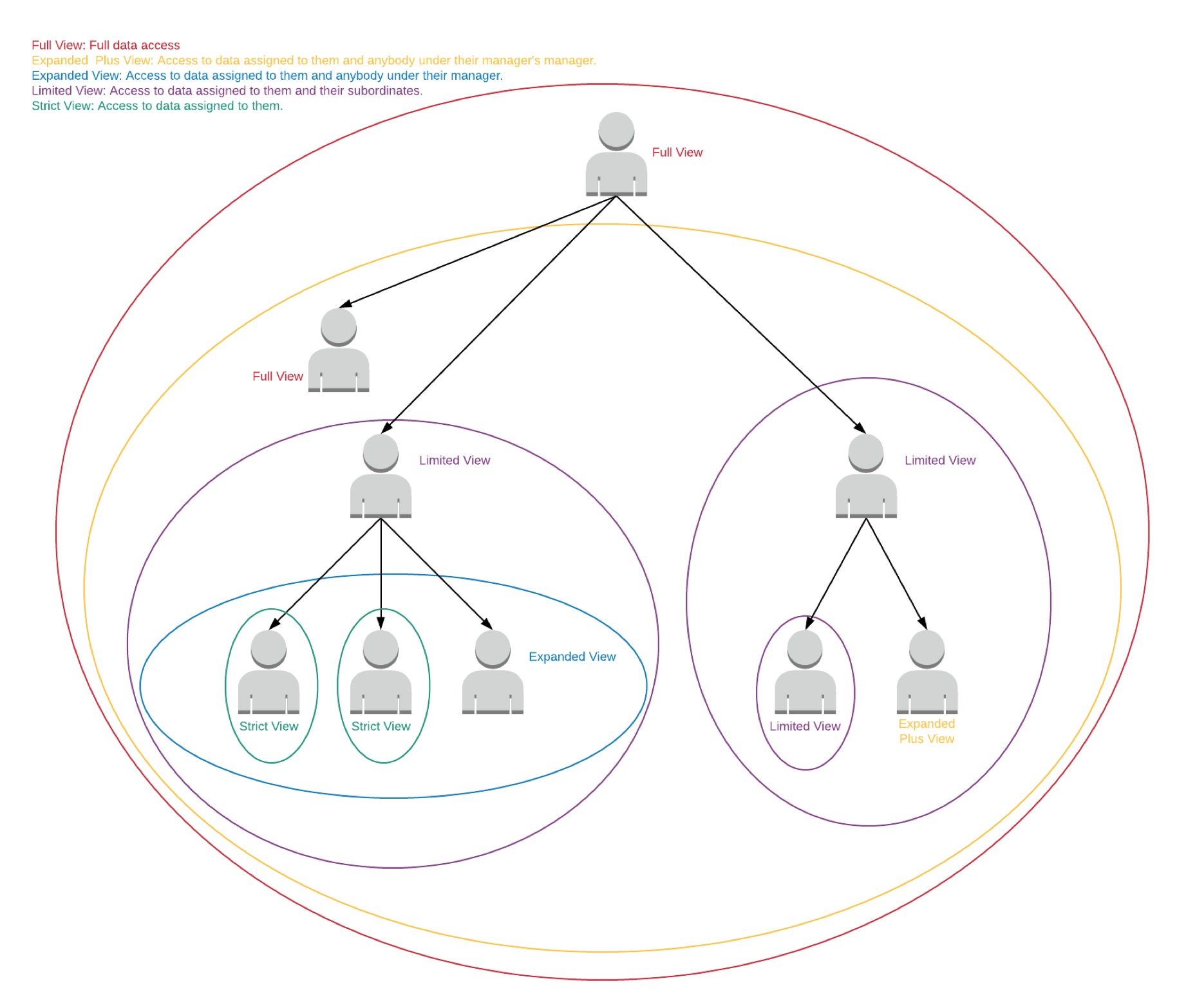
Figure 2: Data Permissions Grant Data Access to the Family Tree
Both the manager to subordinate hierarchy and “Data Permissions” setting combines to provide each DigTix user with what data they have permission to view and interact with.
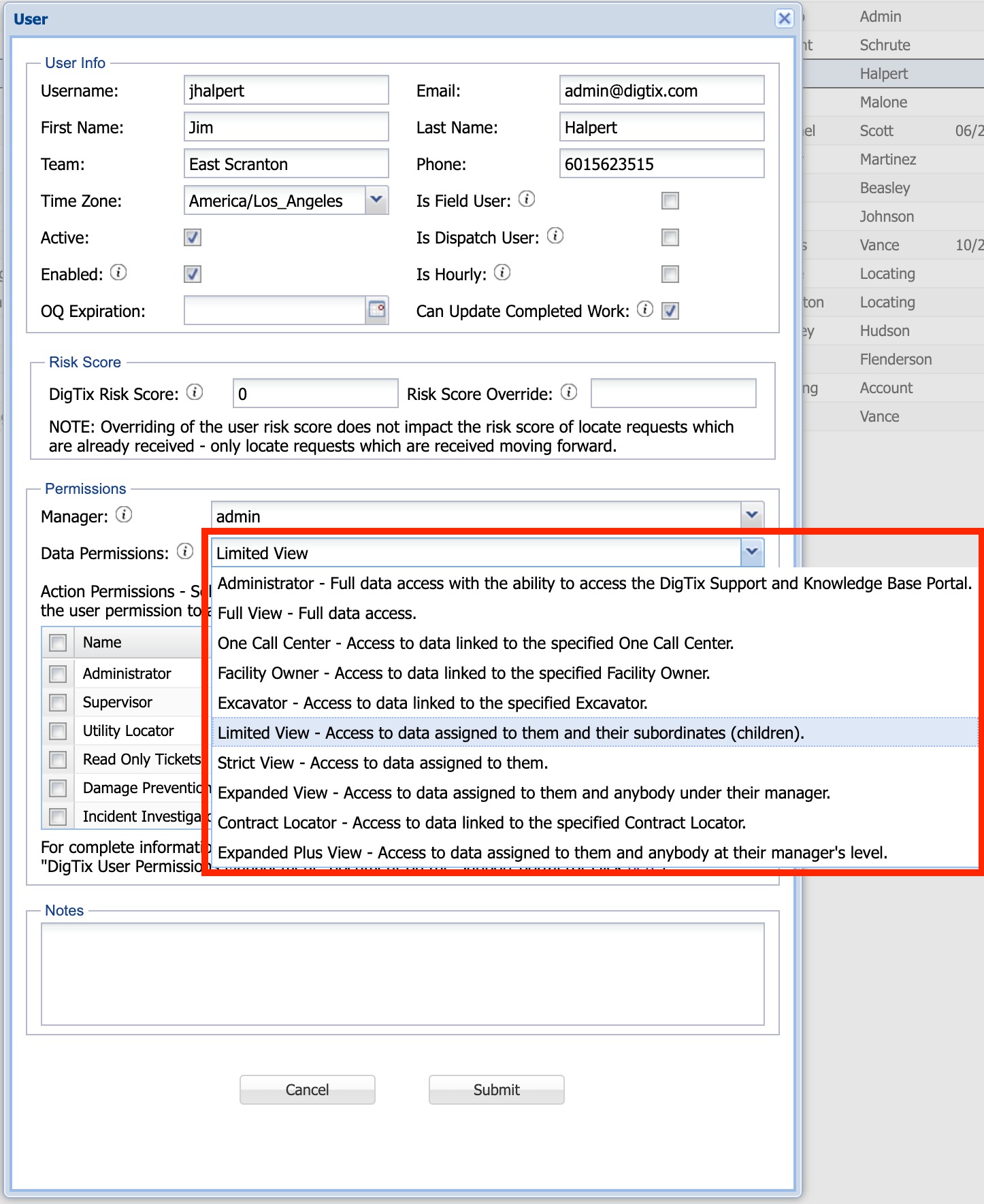
Figure 3: Configuring a User's Data Permissions
ACTION PERMISSIONS
Action permissions govern what actions each user can and cannot perform within DigTix. Every action that can be performed within DigTix can be granted to one or more “Permission Groups”. Several permission groups are defined within DigTix out of the box:
- Read Only: Read-only access to locate request tickets and incidents. The creation, update, and deletion of data is not possible.
- Utility Locator: Can update utility locate tickets, apply close codes, manage attachments, etc. for those tickets.
- Incident Investigator: Can update incidents, manage attachments, etc. for those incidents.
- Supervisor: Everything a Utility Locator can do plus fleet tracking and other supervisory tasks.
- Administrator: Can do everything. This includes running of reports, defining new users and assignment areas, and more.
These standard permission groups are designed to provide a starting point however they may be modified by granting or revoking DigTix actions as the organization sees fit through the “Group Permissions” section of the DigTix Administration page.
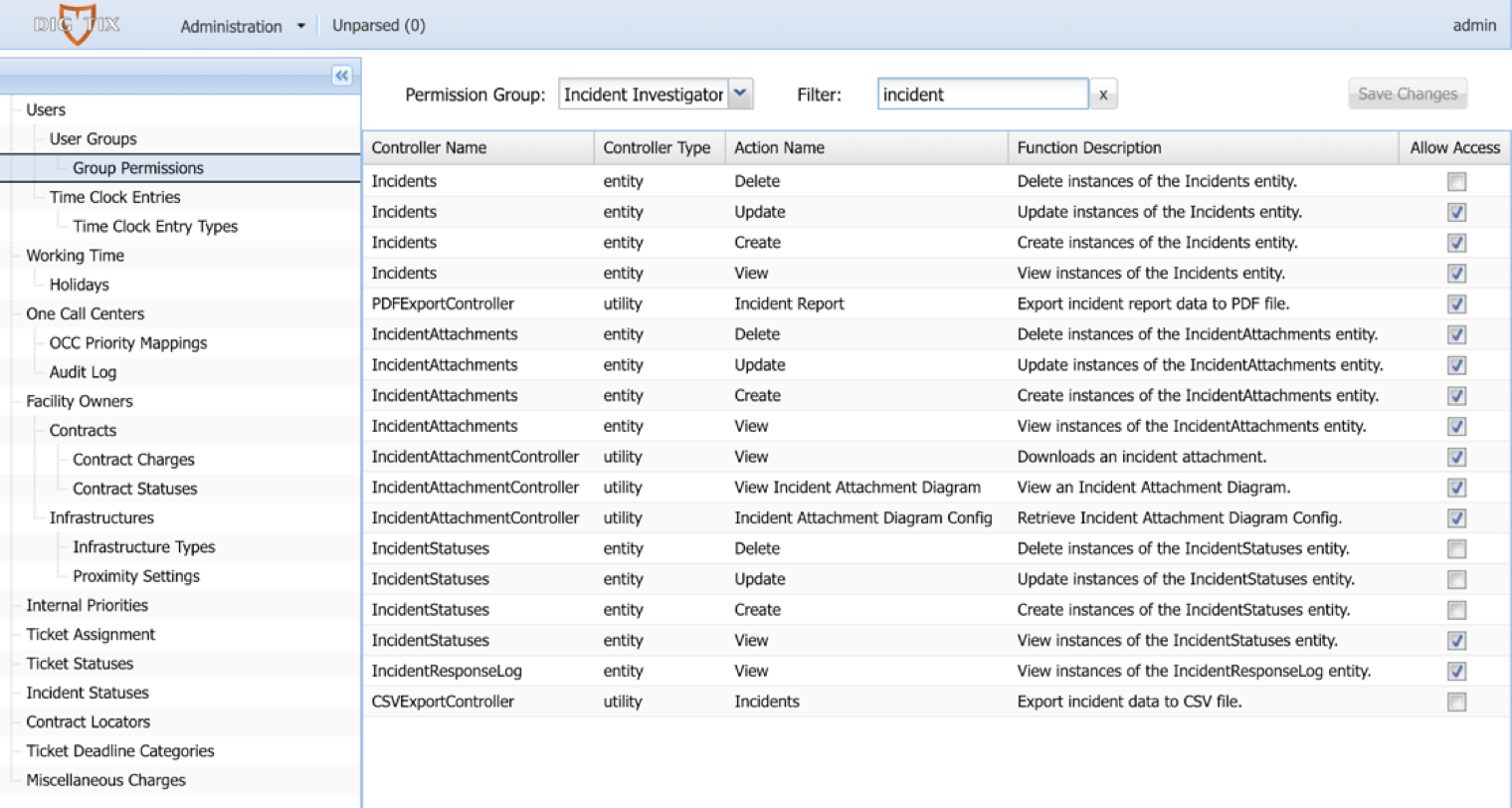
Figure 4: Granting and Revoking Permissions for a Permission Group
Additional permission groups may be created on an as needed basis to support various users and user groups within the organization. This can be done through the “User Groups” section of the DigTix Administration page.
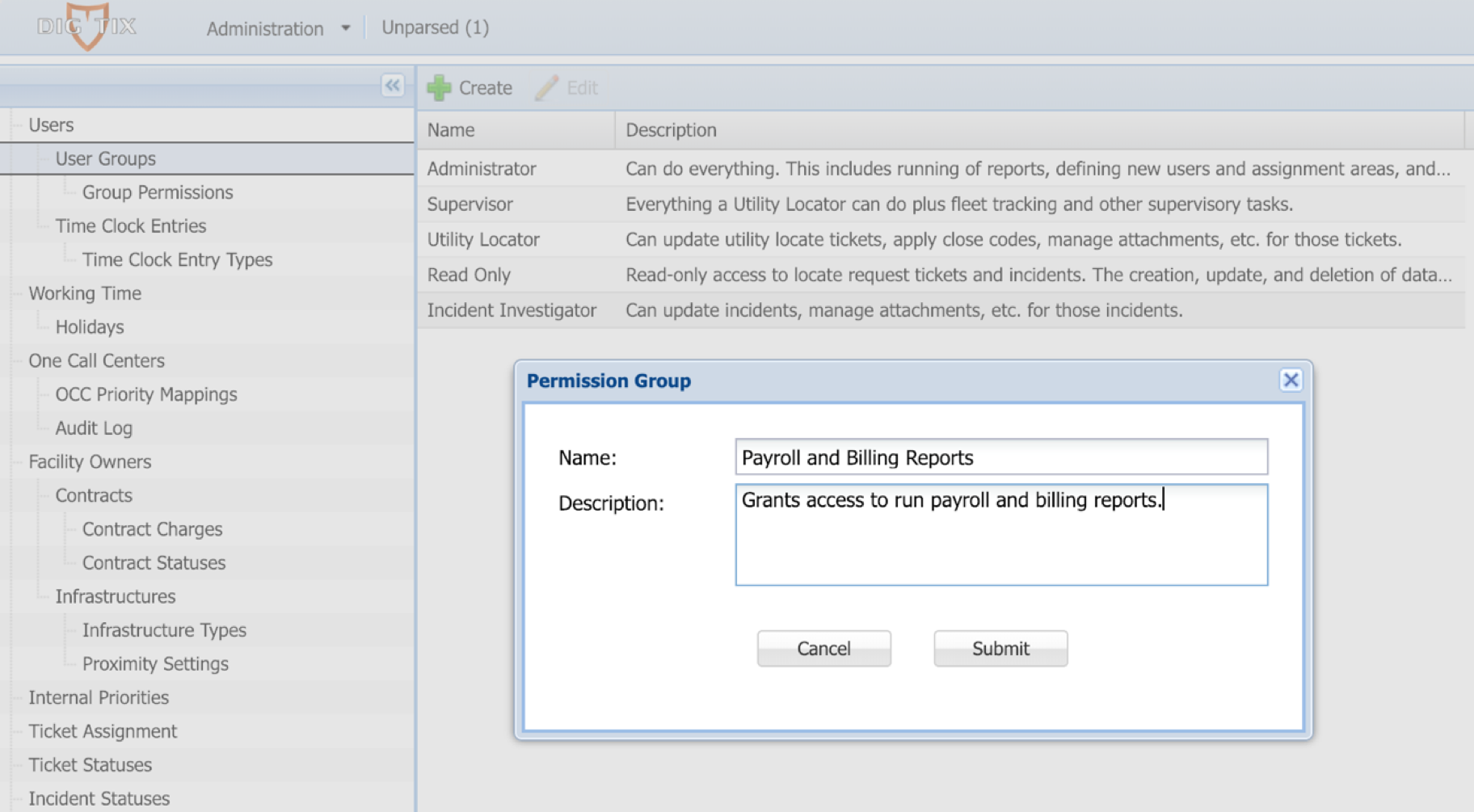
Figure 5: Defining a New User Permission Group
Once permission groups have been defined, users may be linked to those permission groups through the “Users” section of the DigTix Administration page. Users may belong to one or more permission groups. The linking of a user to a permission group grants access to all of the DigTix actions within that permission group, allowing the user to perform the appropriate functions within DigTix.
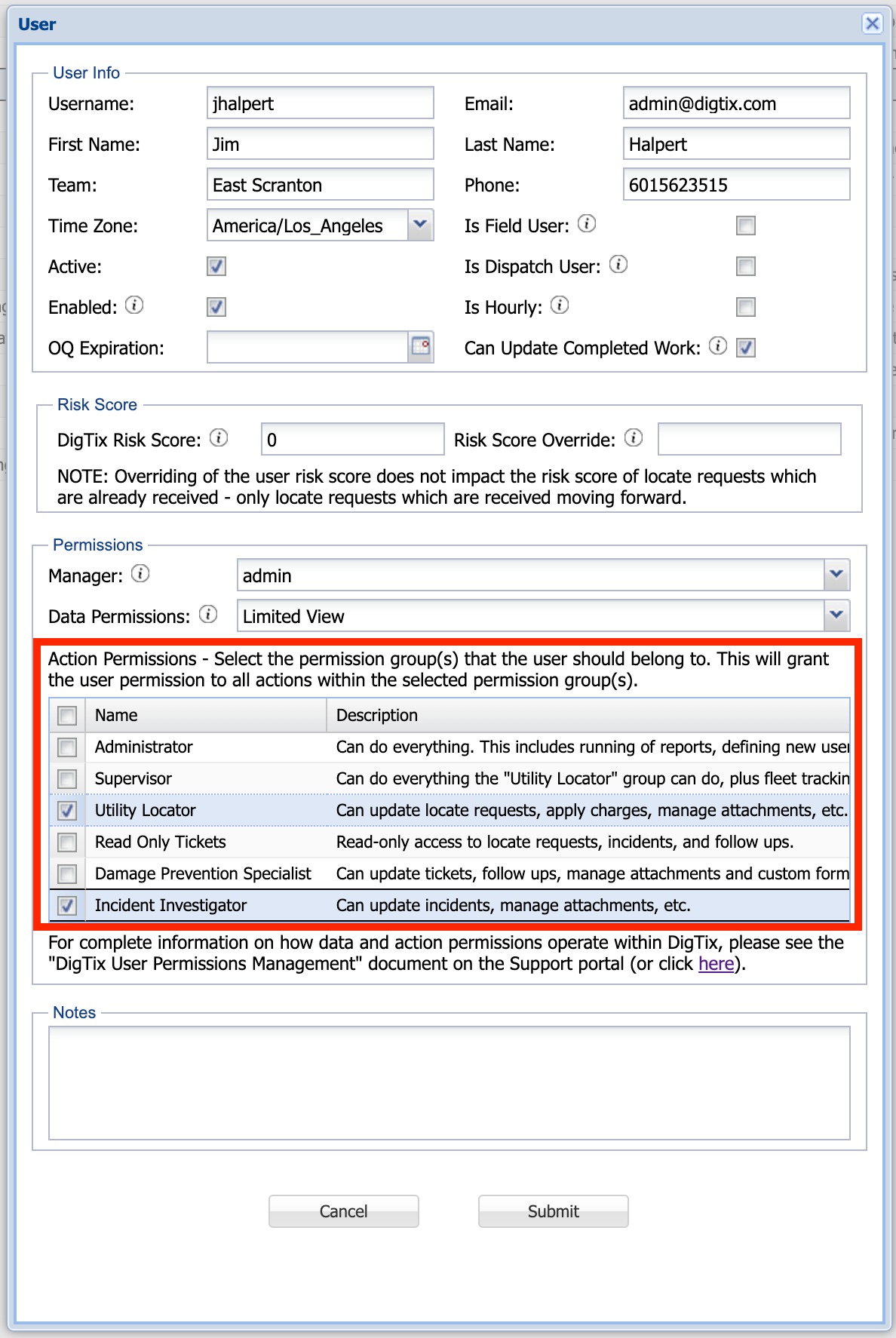
Figure 6: Setting Action Permissions by Selecting Permission Group(s)
Was this article helpful?
That’s Great!
Thank you for your feedback
Sorry! We couldn't be helpful
Thank you for your feedback
Feedback sent
We appreciate your effort and will try to fix the article