This How-to article explains the steps to connect to your new vendor locating service.
Instructions to create a new contractor
Administration area tool usage step-by-step
- Step 1:Open the Administration page
- Step 2: Populate user information
- Step 3: Setting up Alerts
- Step 4: Automatic Dispatch (optional)
Step 1: Open the Administration page
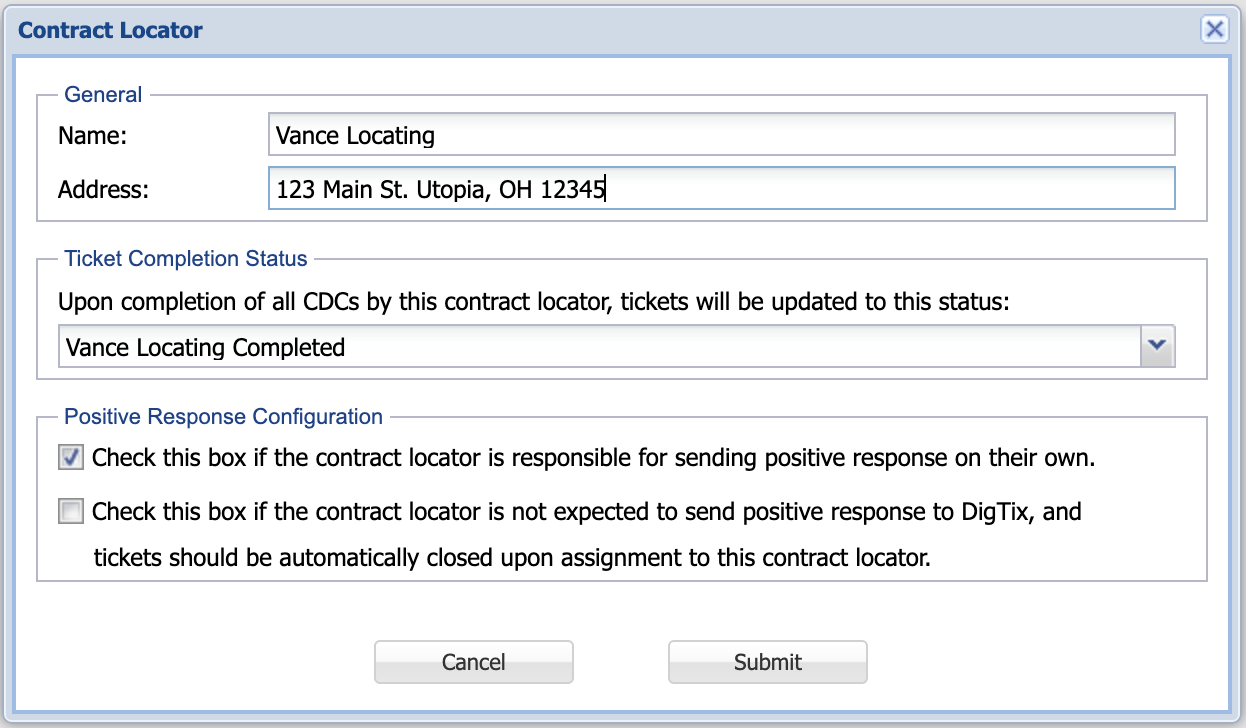
- Navigate to the "Contract Locators" section of the DigTix Administration page. Click "Create" and configure the options for the new Contract Locator.
Step 2: Populate user information
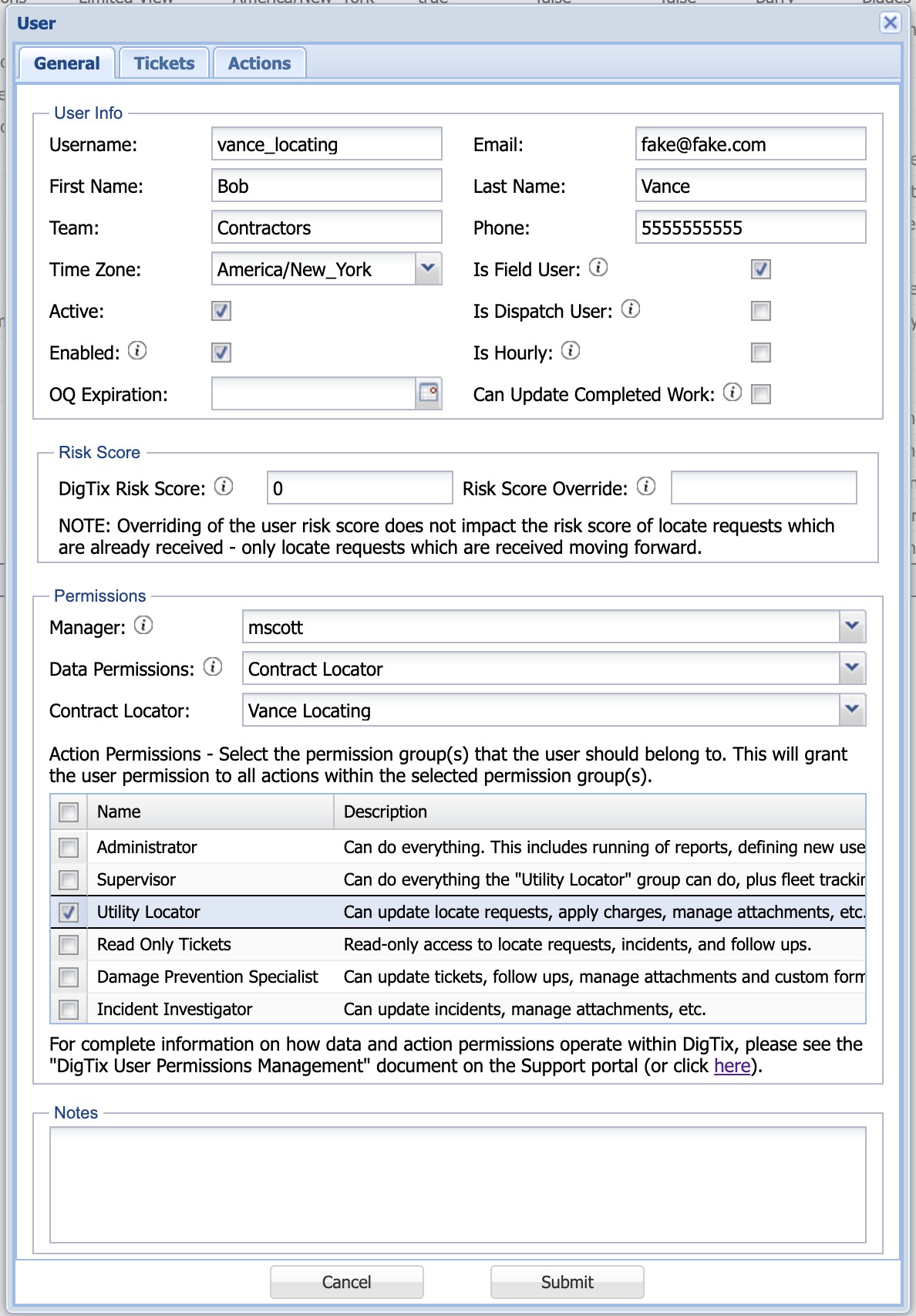
- Navigate to the "Users" section of the DigTix Administration page. Click "Create" and configure the options for a user which will represent the contract locating company as shown below:
- The "Email" field of the user configuration should be configured with the email address which will be used to receive locate requests for that contract locator.
- When the user is created, an email will be sent to the specified email address. This email will contain the specified username and the password which should be used when issuing positive responses to the DigTix Positive Response Service ("PRS"). For more information, see DigTix Positive Response Service API Endpoint.
- The "Data Permissions" field should be configured with "Contract Locator" with the "Contract Locator" field configured with the name of the contract locator that was configured in step 1 above.
- The "Action Permissions" field should have the "Utility Locator" permission group selected. This will provide the contract locator with the permissions necessary to complete locate requests via the DigTix PRS.
Step 3: Setting up Alerts
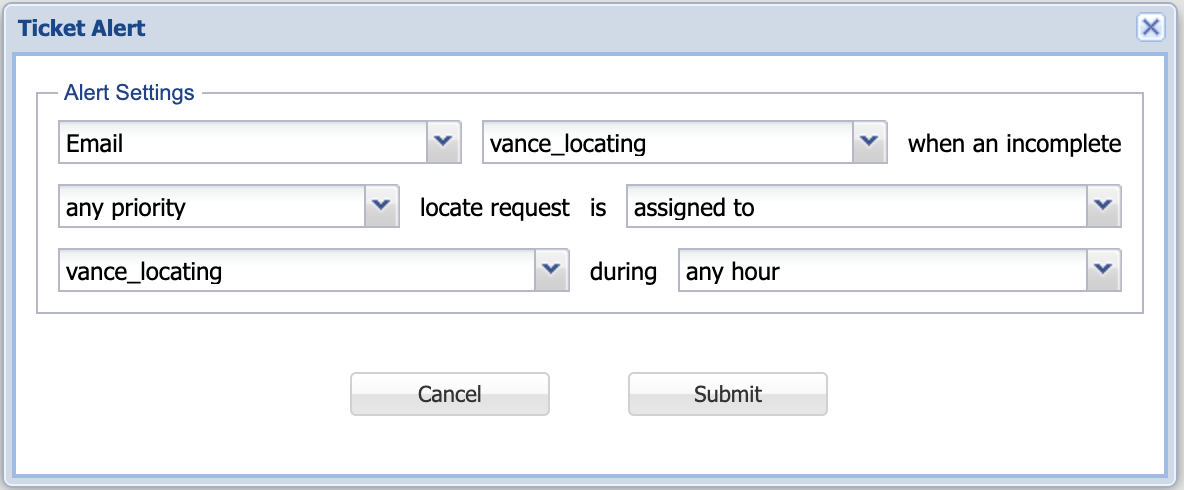
- Navigate to the "Alerts" section of the DigTix Administration page. Click on the "Create" button and configure the alert such that the user that was configured in step 2 is emailed for any locate request is assigned to them during the appropriate hours. This will effectively dispatch any locate request assigned to the contract locator via the email address configured in step 2.
Step 4: Automatic Dispatch (optional)
- (OPTIONAL) If automatic dispatch is desired, navigate to the "Ticket Assignment" section of the DigTix Administration page. Configure the necessary assignment rules such that locate requests are automatically assigned to (and therefore dispatched) to the contract locator for completion and responding via the DigTix PRS.

Was this article helpful?
That’s Great!
Thank you for your feedback
Sorry! We couldn't be helpful
Thank you for your feedback
Feedback sent
We appreciate your effort and will try to fix the article