Purpose/Overview
The One-Off Payment workflow is used to create payments that are not part of a standard recurring payment schedule. These payments are typically created for special circumstances where the payment amount is already known and does not require system-generated calculations.
Common examples include:
- Crop damage compensation
- Reimbursement payments
- Goodwill payments
- Settlement amounts
- Other ad hoc financial obligations associated with an agreement
The workflow supports both:
- Single payments that are issued one time.
- Recurring payments that are issued on a defined schedule for a specified period.
Once a One-Off Payment request is submitted and approved, the payment is automatically scheduled and becomes available for tracking and management within the system.
Navigation Path:
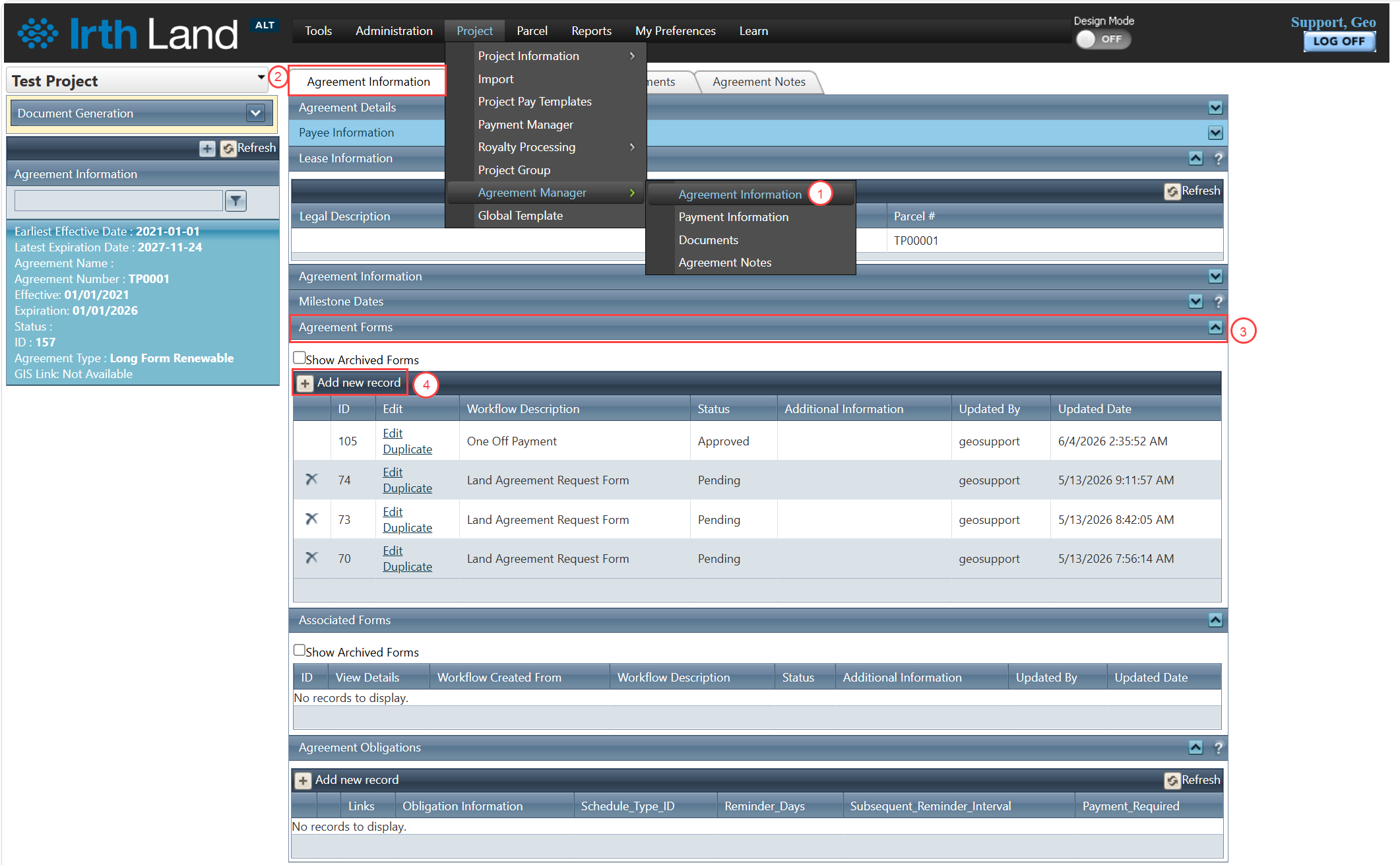
To access this feature: Project > Agreement Manager > Agreement Information Tab > Agreement Forms Panel
Things to Know:
- One-Off Payments are intended for payments that do not require system-generated calculations.
- Required fields are identified with a red asterisk (*).
- Depending on your organization's configuration, additional payment-related fields may be required.
- Payment requests must be submitted for approval before they can be scheduled and processed.
Key Benefits/Use Cases:
Ad Hoc Compensation Payments
Create one-time payments for situations such as crop damage, land restoration, or other compensation obligations where the payment amount is predetermined.
Reimbursement Requests
Issue payments to reimburse landowners or payees for approved expenses associated with an agreement.
Scheduled Special Payments
Create recurring payments for a specific duration when payments fall outside the standard payment schedule but must be distributed on a recurring basis.
How It Works:
Follow these steps to create a One-Off Payment:
Step 1: Open the required agreement in Agreement Manager.
Step 2: Navigate to the Agreement Information tab.
Step 3: Locate the Agreement Forms panel.
Step 4: Click Add New Record to create a new workflow request.
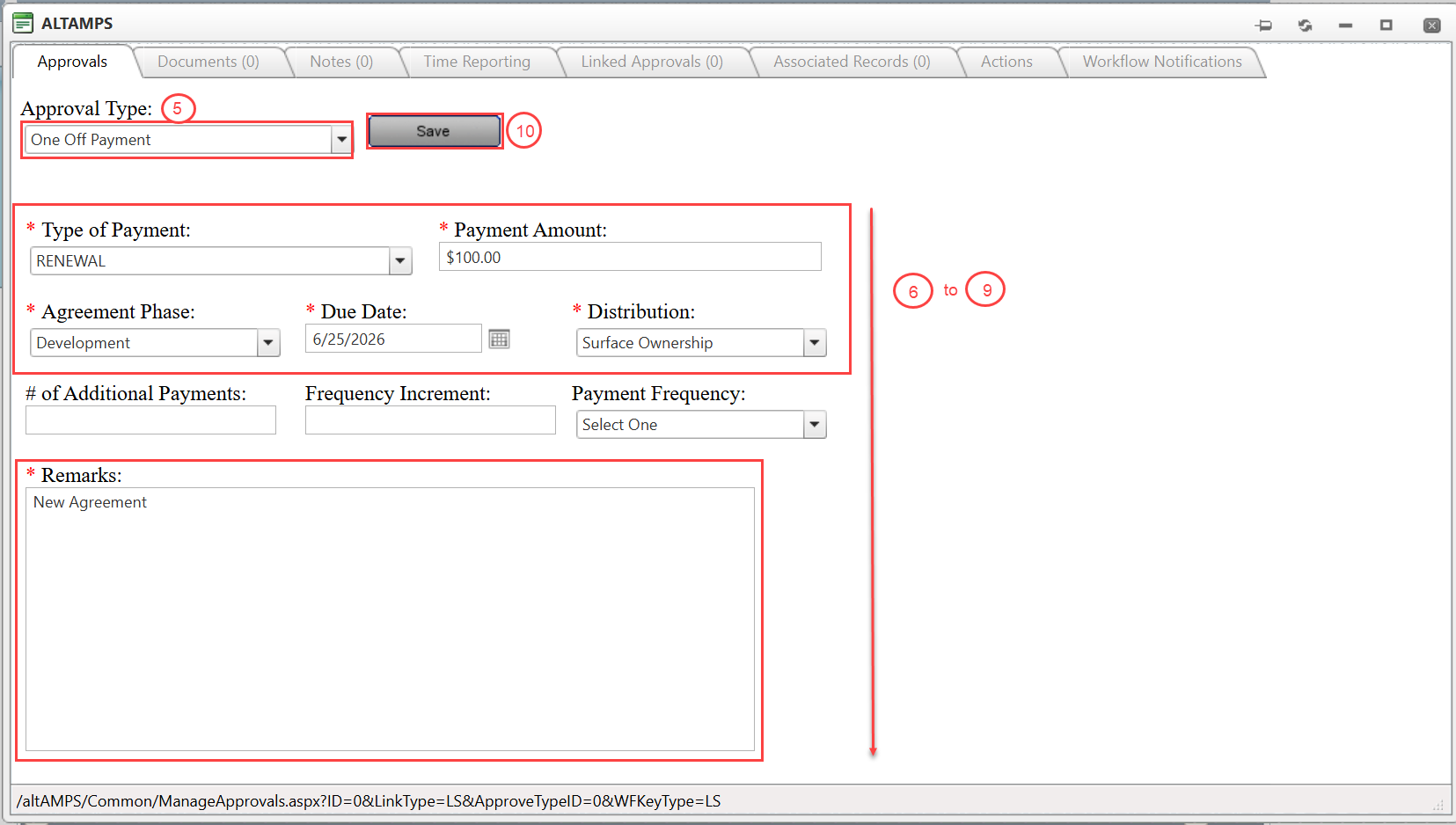
Step 5: From the Approval Type dropdown list, select One-Off Payment.
Step 6: Complete all required fields marked with a red asterisk (*). Complete any additional payment-related fields required by your organization's configuration.
Step 7: Enter the payment details, including:
- Payment amount
- Payment date
- Distribution method
- Supporting information required for approval
Step 8: Select the appropriate Distribution option.
Ownership-Based Distribution
- Uses the ownership percentages defined within the agreement.
- Automatically distributes the payment amount among landowners based on their ownership percentages.
Specific Landowner/Payee Distribution
- Displays the individual landowners or payees associated with the agreement.
- Selecting a specific payee allocates 100% of the payment amount to that individual.
Step 9: Review all entered information for accuracy.
Step 10: Click Save to store the payment request.
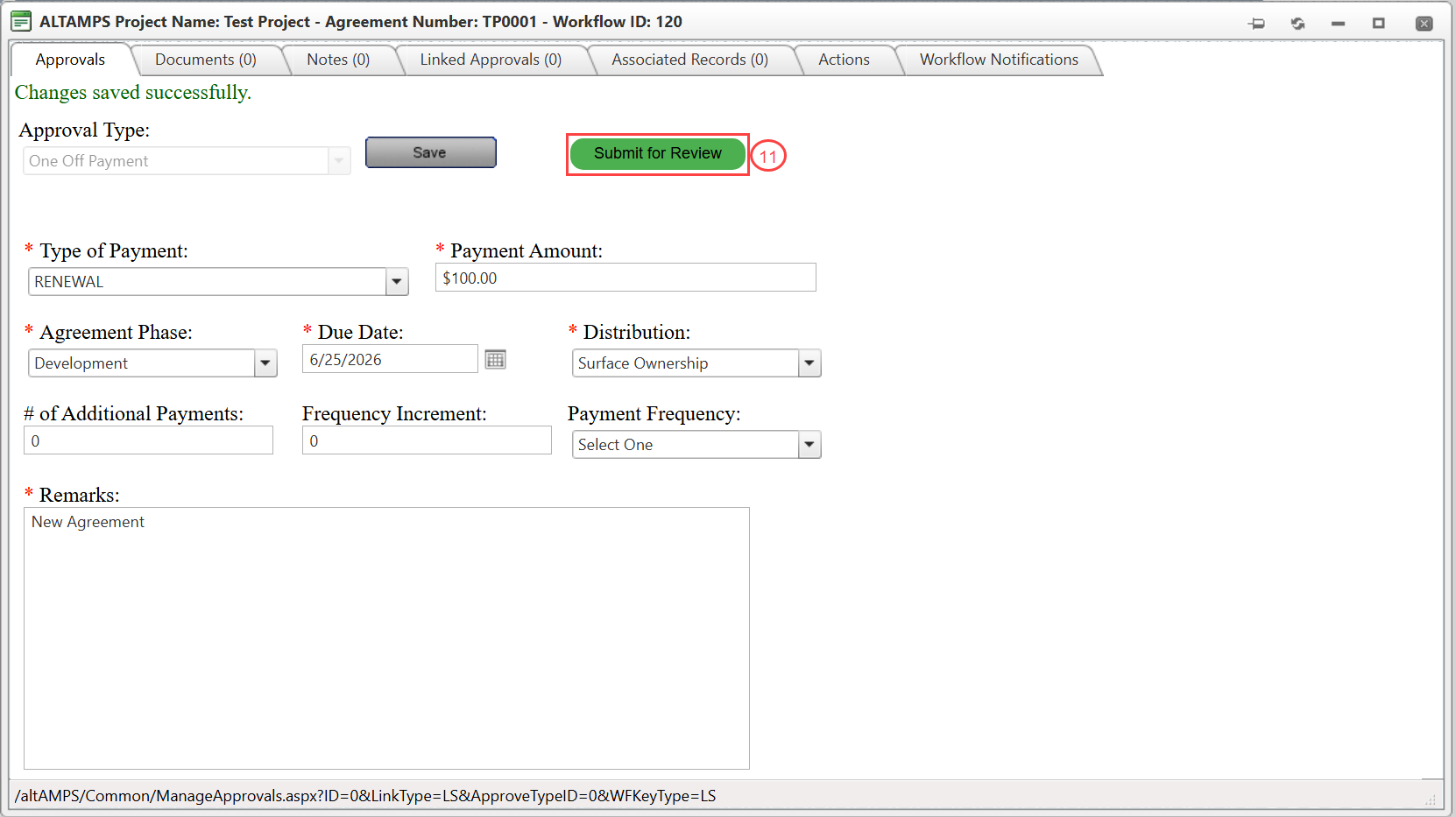
Step 11: Click Submit for Review to begin the approval process.
Related Features/Next Steps:
- Voiding a One-Off Payment Workflow
- Applying Payment Templates to Agreements
- Creating a Payment Template
FAQ/Troubleshooting:
Q: What types of payments can be created using the One-Off Payment workflow?
A: The workflow can be used for one-time or recurring payments that are not part of a standard payment schedule, such as crop damage compensation, reimbursements, goodwill payments, and settlement payments.
Q: What is the difference between Ownership-Based Distribution and Specific Landowner/Payee Distribution?
A: Ownership-Based Distribution allocates payment amounts according to ownership percentages defined in the agreement. Specific Landowner/Payee Distribution allocates 100% of the payment amount to the selected individual payee.
Q: What happens after a One-Off Payment is submitted?
A: After approval, the payment is automatically scheduled and becomes available for tracking and management within the system.
Questions? Contact us!

Was this article helpful?
That’s Great!
Thank you for your feedback
Sorry! We couldn't be helpful
Thank you for your feedback
Feedback sent
We appreciate your effort and will try to fix the article