Purpose/Overview
The Create Application Requests feature enables users to log and manage complaints or forms within the system and link them to relevant records such as Property, Lease/Agreement, and Property Management. It also provides a structured way to document communication and correspondence with landowners.
This feature is particularly useful for teams managing land, property, or lease operations, ensuring that all application-related data is centralized, traceable, and connected to the appropriate records. It improves data organization, streamlines approval workflows, and enhances visibility across associated entities.
Navigation Path:
To access this feature: Tools > Create Application Requests
Things to Know:
- Users must have appropriate permissions to create, edit, or duplicate application requests.
- Application Requests are tied to workflows (Application WF), so selecting the correct workflow is critical.
- Records can only be associated after the initial save of the application request.
- Once approved, the application form is automatically linked to associated records and becomes visible in the Associated Forms panel.
Key Benefits/Use Cases:
- Centralized Complaint Management: Log complaints or requests and link them to properties, leases, or projects for better tracking and accountability.
- Improved Record Association: Easily associate application requests with multiple records (tracts, leases), ensuring all related data is connected.
- Streamlined Workflow & Approvals: Use predefined workflows (Application WF) to manage approvals and ensure consistent processing of requests.
How It Works:
Follow these steps to create and manage an application request:
Create a New Application Request
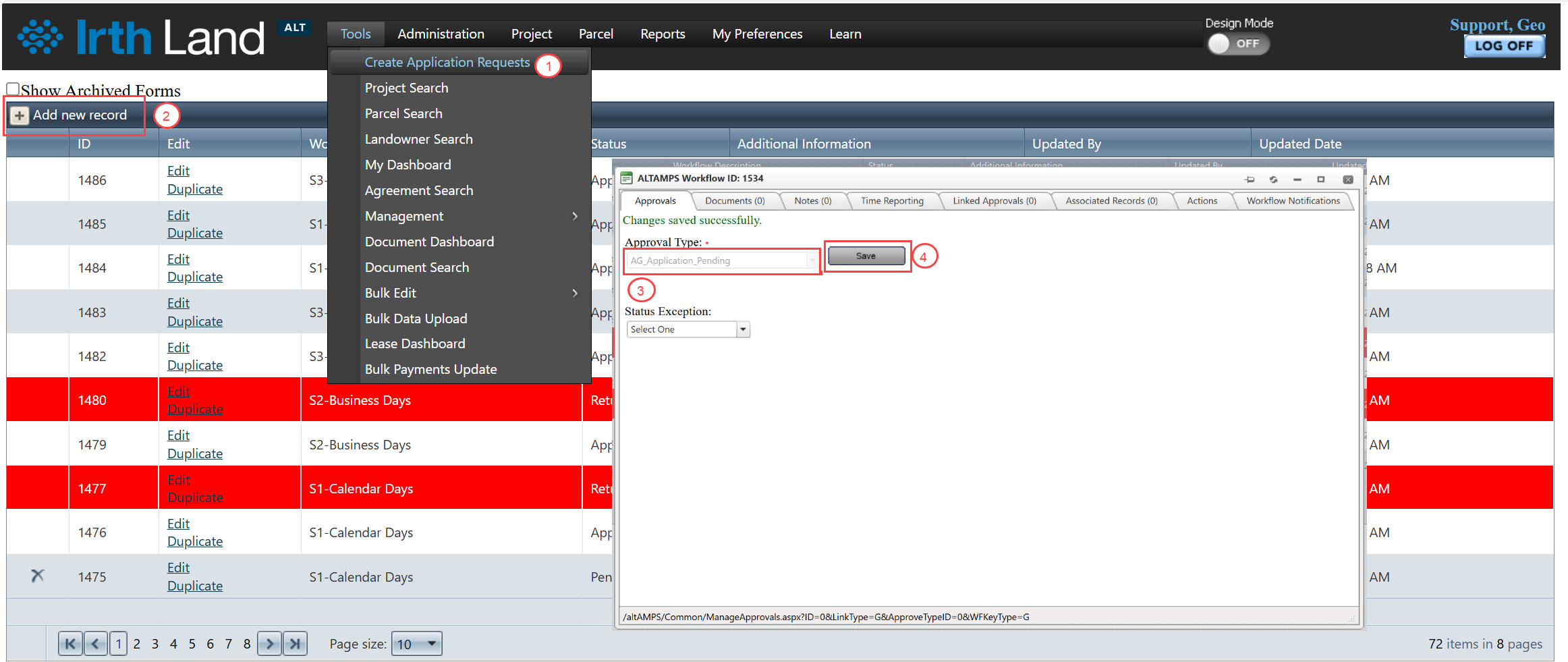
- Navigate to Tools > Create Application Requests.
- Click Add New Record.
- Select the Application WF from the Approval Types dropdown.
- Click Save.
Associate Records
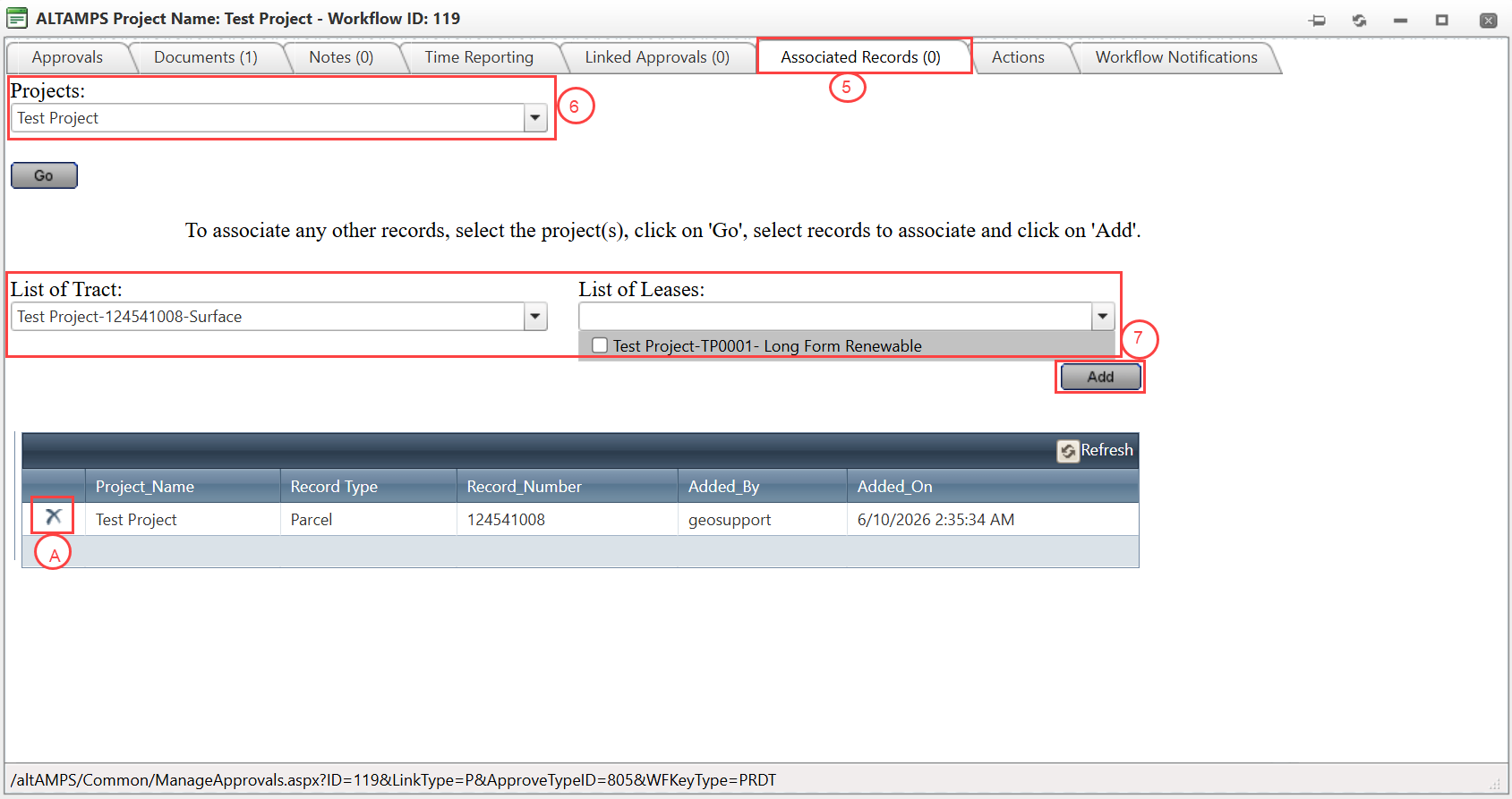
- Navigate to the Associated Records tab.
- To associate a project:
- Select a project from the dropdown.
- Click Add.
- To associate records from a project:
- Select a project and click Go.
- The system will load List of Tracts and List of Leases.
- Select the required tracts and leases using checkboxes.
- Click Add to include them in the grid.
- To remove an associated record:
- Click the X icon in the grid.
Manage Existing Requests
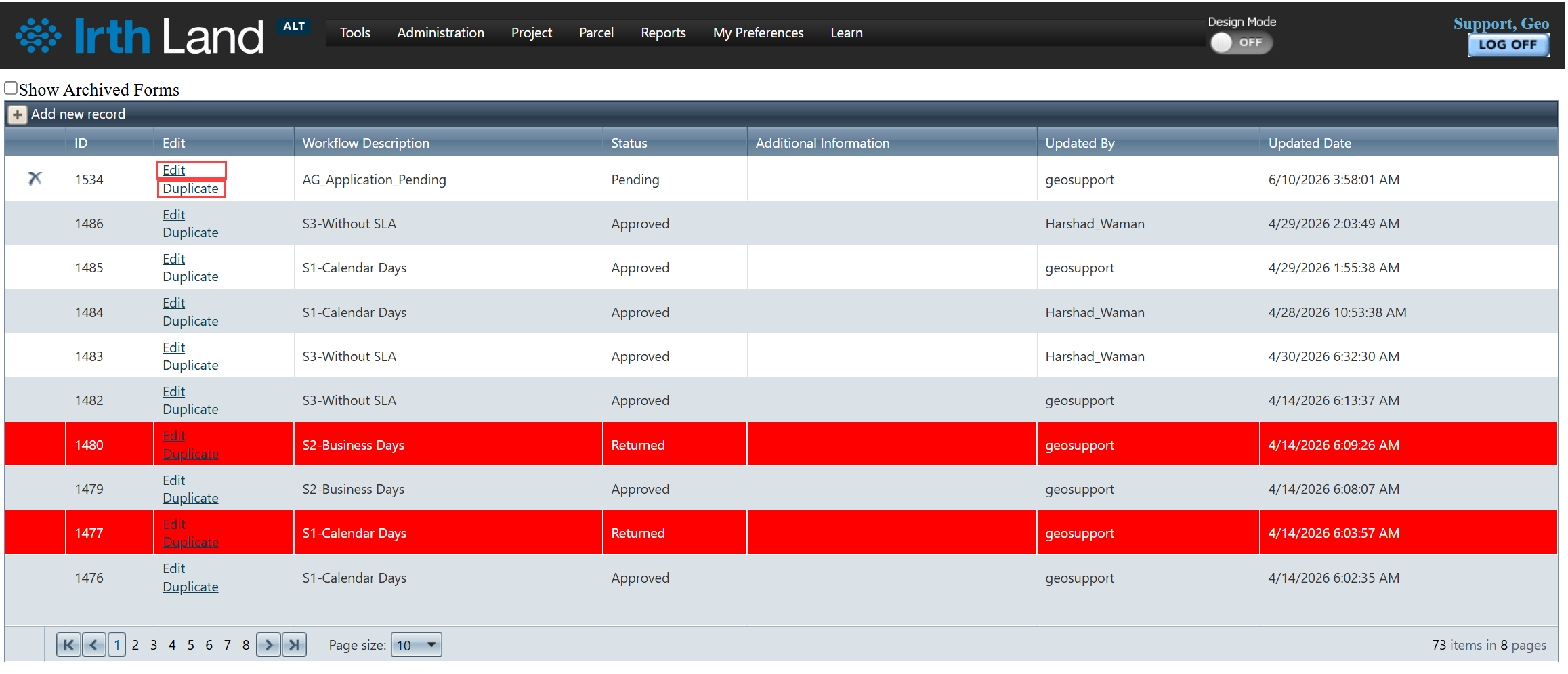
- Click Edit to modify an existing application request.
- Click Duplicate to create a copy of an existing request.
Final Step
- Once the form is approved:
- The application request is automatically linked to the selected records.
- It becomes visible in the Associated Forms panel of those records.
Project Deletion Workflow (Only ROW)
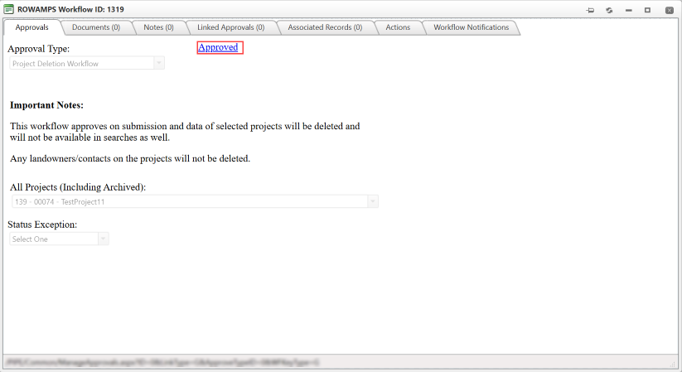
This workflow is used to delete projects. It will be immediately approved on submission
Steps:
- Select Project Deletion Workflow option from the Approval Types dropdown
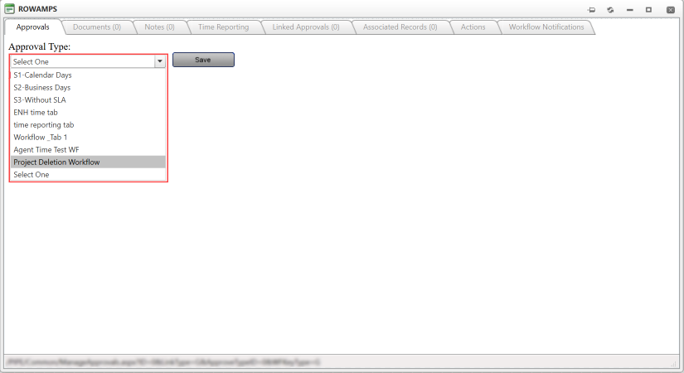
- Select one or multiple projects to be deleted.
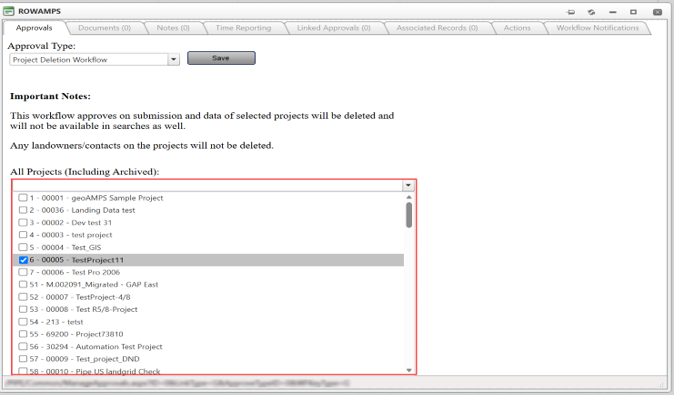
- Click on Save button.
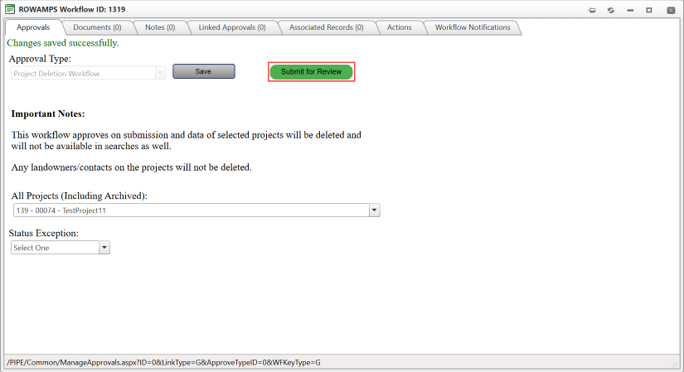
- Submit workflow.
- Workflow will be automatically approved (No approval steps required)
Note:
Data of selected projects will be deleted, and projects will not appear in search.
- Once a project is deleted, the project cannot be restored.
- Please ensure projects and related data are not needed before submitting this workflow.
- If the deletion process encounters an error, all changes are automatically rolled back to maintain data integrity.
- Deletion actions are logged to provide accountability and support compliance requirements.
- Only authorized users with the appropriate permissions can access and execute the workflow
Related Features/Next Steps:
FAQ/Troubleshooting:
Q: Why can’t I associate records before saving the application request?
A: The system requires the application request to be saved first so that it can generate a record ID for linking associated records.
Q: Why are my associated records not appearing in the grid?
A: Ensure you have selected a project and clicked Go to load the tract and lease lists before selecting and adding them.
Q: When does the application request appear in associated records?
A: The application request is only added to associated records after it has been successfully approved.
Questions? Contact us!

Was this article helpful?
That’s Great!
Thank you for your feedback
Sorry! We couldn't be helpful
Thank you for your feedback
Feedback sent
We appreciate your effort and will try to fix the article