Purpose/Overview
Two-Factor Authentication (MFA) adds an extra layer of security to user accounts by requiring users to verify their identity using an authentication code sent to their registered email address during login.
MFA helps protect user accounts against unauthorized access, even if a password is compromised. It is supported in both the Web and GIS applications.
Navigation Path:
To configure MFA: Web > Administration > Security > User Accounts
To use MFA: Web Application Login / GIS Application Login
Things to Know:
Email Address Required: A valid email address must be configured for the user account before enabling MFA.
Configuration: MFA is enabled by selecting Email in the Two Factor Authentication Method dropdown.
Login Verification: When MFA is enabled, users must enter an authentication code received by email after submitting their username and password.
Supported Applications: MFA applies to both the Web and GIS applications.
Optional Feature: MFA can be disabled by unselecting Email in the Two Factor Authentication Method dropdown.
Save Requirements: Changes to the MFA configuration must be saved using the Update/Insert button.
Key Benefits/Use Cases:
Enhanced Account Security: Adds an additional verification step to reduce the risk of unauthorized account access.
Email-Based Verification: Allows users to verify their identity using a code sent to their registered email address without requiring a separate authenticator application.
Consistent Security Across Applications: Provides an additional authentication step when accessing both the Web and GIS applications.
Flexible Configuration: Allows administrators to enable or disable MFA for individual user accounts as needed.
How It Works:
1. Enable MFA for a User Account
Navigate to Administration > Security > User Accounts in the Web application.
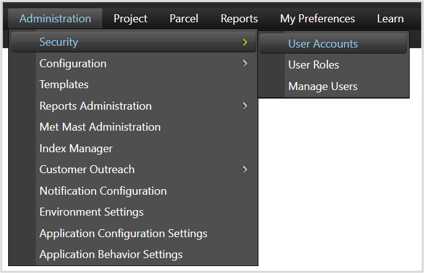
Open an existing user account or create a new account.
Locate the Two Factor Authentication Method dropdown.
Select Email from the dropdown.
Enter a valid email address in the Email field.
Click Update/Insert to save the changes.
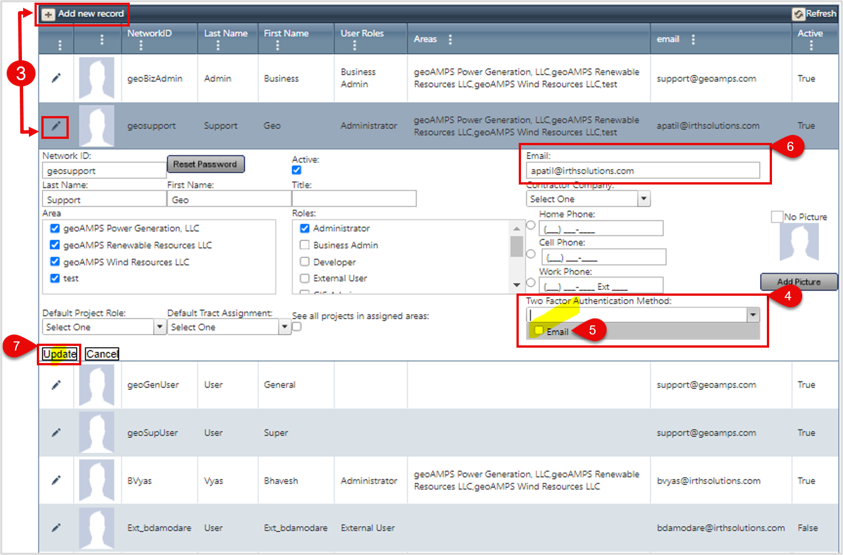
The account is saved successfully when the required email information is provided.
Important: If you select Email without entering an email address, the system displays the following error:
“Email info is required to turn ON two factor authentication.”
The user account cannot be inserted or updated until the required email information is provided.
2. Log In to the Web or GIS Application Using MFA
Open the login page of either the Web or GIS application.
Enter your username and password, then click Login.
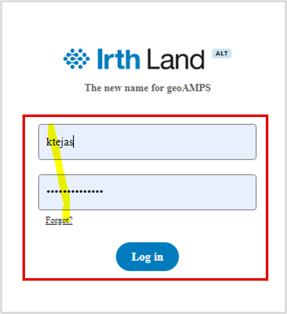
On the Authentication Code screen, click Get Code.
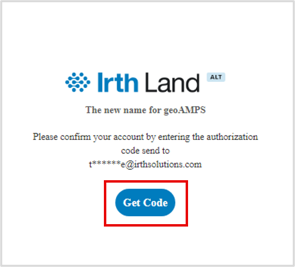
Open your registered email inbox and locate the email with the subject Authentication Code.
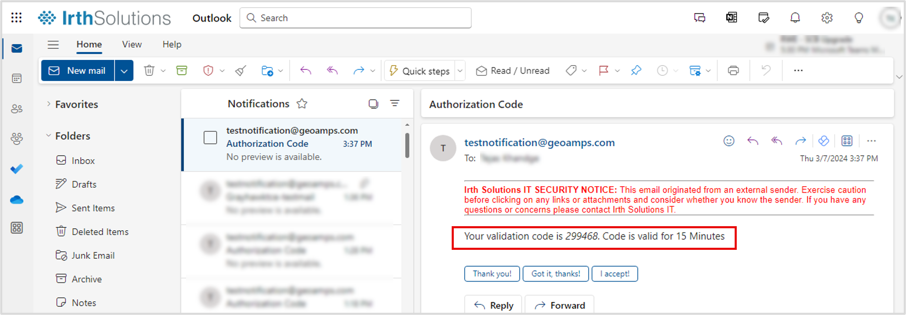
Retrieve the authentication code from the email.
Return to the application and enter the code in the Authentication Code field.
Click Submit.
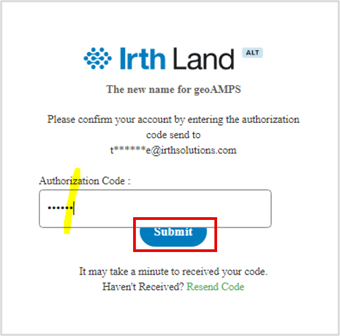
Once the code is accepted, you will be logged in to the selected application successfully.
3. Disable MFA for a User Account
Navigate to Administration > Security > User Accounts in the Web application.
Open the relevant user account.
Locate the Two Factor Authentication Method dropdown.
Unselect Email.
Click Update/Insert to save the changes.
MFA will be disabled for the account. The user can then log in to the Web and GIS applications using their username and password without the email authentication code step.
The registered email address can remain in the user account even when MFA is disabled.
FAQ/Troubleshooting:
Q: What happens if I enable MFA without entering an email address?
A: The system displays the error “Email info is required to turn ON two factor authentication.” The user account cannot be inserted or updated until an email address is provided.
Q: How do I receive the authentication code?
A: On the Authentication Code screen, click Get Code. The system sends an email containing the authentication code to the user's registered email address. Check your inbox for an email with the subject Authentication Code.
Q: Can I use MFA in both the Web and GIS applications?
A: Yes. When MFA is enabled for your account, email-based authentication is required when logging in to both applications.
Q: Can MFA be disabled for a user account?
A: Yes. Navigate to Administration > Security > User Accounts, open the user account, unselect Email in the Two Factor Authentication Method dropdown, and click Update/Insert.
Q: Can I save a user account without enabling MFA?
A: Yes. Leave the Two Factor Authentication Method dropdown unselected. A registered email address can remain in the account without enabling MFA.
Q: What should I do if I do not receive the authentication code email?
A: Verify that the email address registered in your user account is correct, check your inbox and spam or junk folders, and try clicking Get Code again. If the issue persists, contact your system administrator or support team.
Questions? Contact us!

Was this article helpful?
That’s Great!
Thank you for your feedback
Sorry! We couldn't be helpful
Thank you for your feedback
Feedback sent
We appreciate your effort and will try to fix the article