Purpose/Overview
Overview Video (click this link)
Field technician's time is one of the most valuable resources in the damage prevention process. Not every locate request requires an on-site visit, so quickly reviewing and routing tickets helps ensure field resources are focused where they are needed.
Irth Screen is a dedicated screening workspace that allows office screeners to review tickets one at a time and determine the appropriate next action. The workspace brings ticket information, risk indicators, mapping, related records, attachments, activity history, comments, and assignment options together in a single view.
Screeners can clear a ticket, assign it to the recommended user, assign it to another person or folder, or add comments and supporting files. After an action is completed, the next available ticket is presented automatically, creating a continuous screening workflow.
Intended Users
- Ticket Screeners
- Damage Prevention Coordinators
- Locate Coordinators
- Supervisors responsible for ticket triage
By streamlining ticket review and assignment, Irth Field Screen helps reduce unnecessary navigation, improve screening efficiency, and keep field technicians focused on work that requires their expertise.
Navigation Path:
To access this feature: Login > Tickets > Screen
Things to Know:
Permissions
- Users must have permission to access the Screen work mode.
- Assignment actions are limited by the user's security permissions.
- Users can only assign tickets to people or folders available to them
Expected Behaviors
- Ticket are presented one at a time for a review.
- After an action is completed, the next available ticket automatically opens.
- Ticket information is displayed in a single workspace.
- Comments and attachments can be added as part of the available ticket actions.
- The interactive map provides the ticket location and available map information.
- The Your Day panel provides a running view of screening progress.
Key Benefits/Use Cases:
Screen Tickets Efficiently
Review ticket information, risk indicators, comments, and the map from a single workspace before deciding what action to take.
Clear Tickets
When a ticket does not require further field assignment, screeners can select Clear, add an optional comment or attachment, and submit the response.
Assign Tickets
Tickets requiring field work can be assigned directly to the recommended user or routed to another person or folder.
Manage High-Volume Work
The one-ticket-at-a-time workflow automatically presents the next ticket after each completed action, helping screeners maintain a consistent workflow throughout the day.
How It Works:
Follow these steps to process tickets in Irth Screen.
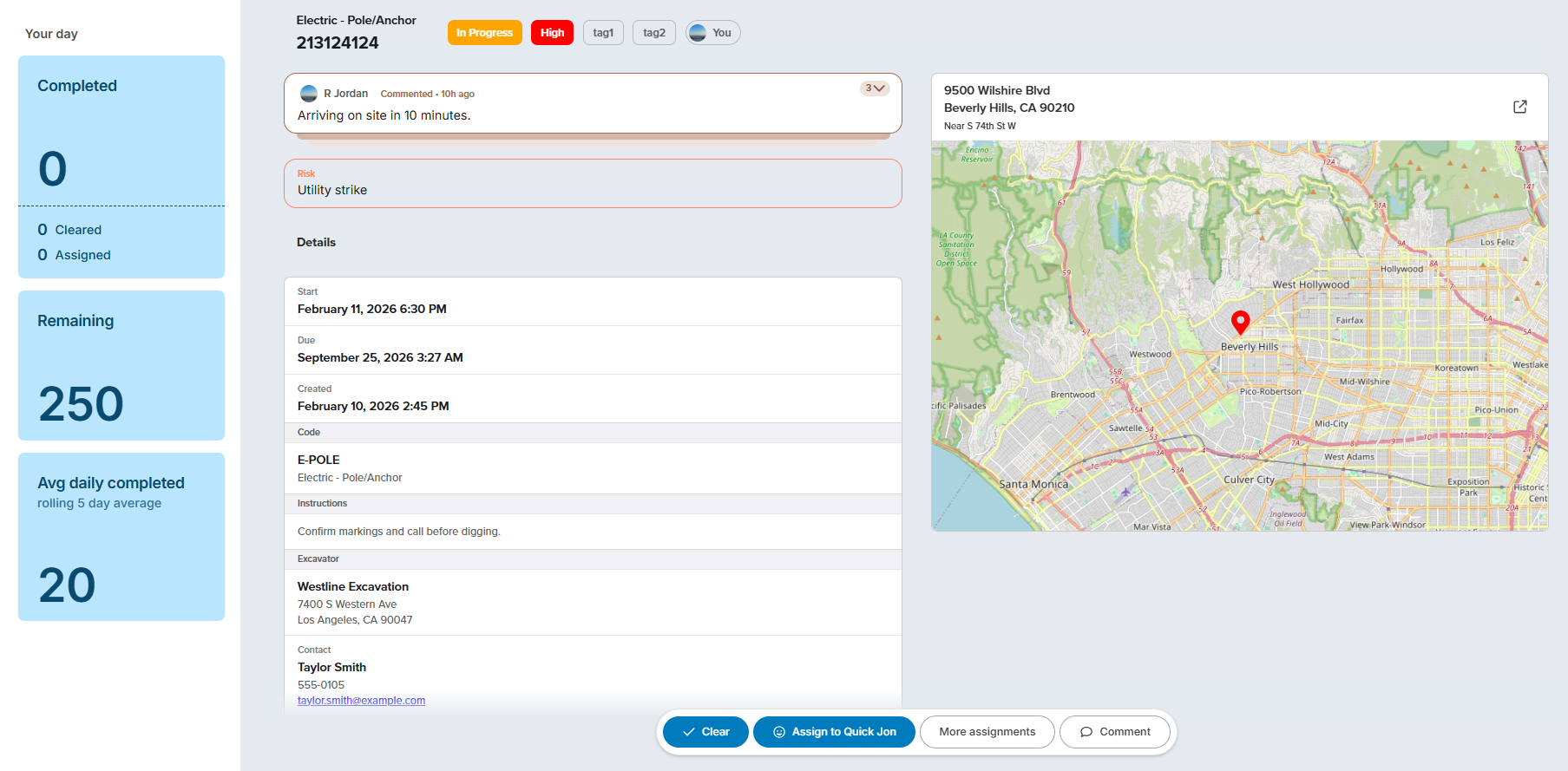
Step 1 – Review the Ticket
Open Irth Screen.
The next available ticket is automatically displayed.
Review the information presented on the screen, including:
- Ticket type and ticket number
- Current ticket status
- Priority
- Tags
- Current assignment
- Recent comments
- Risk information
- Schedule information
- Ticket code
- Instructions
- Excavator information
- Contact information
- Locate information
- Interactive map
The Your Day panel also displays your current progress, including:
- Completed tickets
- Cleared tickets
- Assigned tickets
- Remaining tickets
- Average daily completed tickets
Step 2 – Review the Ticket Details and Map
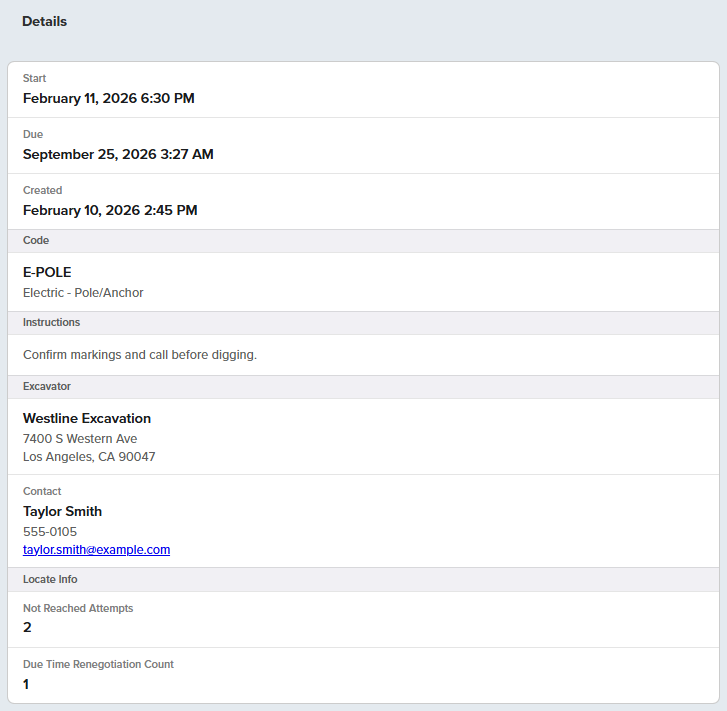
Review the Details section for key ticket information, including:
- Schedule
- Code
- Instructions
- Excavator and contact information
- Locate information
Use the Map to review the ticket location and surrounding area before deciding how to proceed.
Step 3 – Review Attachments and Related Information
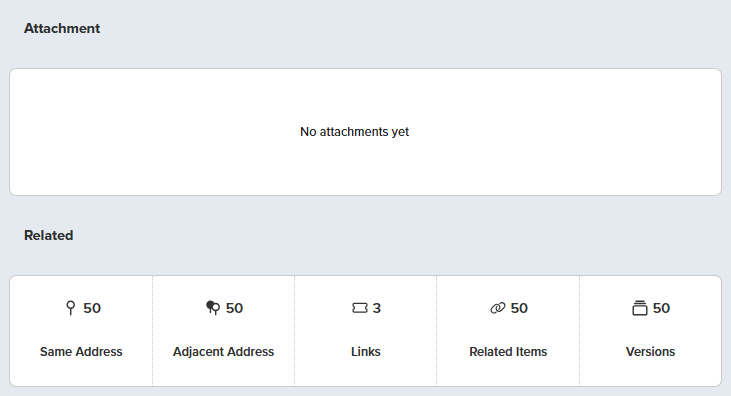
The Attachment section displays files associated with the ticket. If no files are available, the section displays No attachments yet. The Related section provides access to additional ticket information, including:
- Same Address
- Adjacent Address
- Links
- Related Items
- Versions
Select the appropriate option to review additional information associated with the ticket.
Step 4 – Assign to the Recommended User
After reviewing the ticket, select the appropriate action:
- Clear – Add a comment or attachment, then select Submit response.
- Assign to Recommended User – Add a comment or attachment, then select Assign.
- More Assignments – Select People or Folder, search for the appropriate assignee, and complete the assignment.
- Comment – Add a comment and optional attachment, then select Submit.
After the action is completed, the next available ticket automatically opens.

Step 5 – Continue to the Next Ticket
After the ticket action is completed:
- The current ticket is processed.
- The ticket is removed from the active screening workflow.
- The Your Day statistics are updated.
- The next available ticket automatically opens.
This continuous workflow allows screeners to move from one ticket to the next without returning to a separate queue.
Related Features/Next Steps:
FAQ/Troubleshooting:
Q: Why does the next ticket automatically appear after I complete an action?
A: Irth Screen is designed as a continuous workflow. After a ticket is processed, the next available ticket automatically opens so screeners can continue working without returning to a separate queue.
Q: Can I add a comment when clearing or assigning a ticket?
A: Yes. Both the Clear and Assign workflows provide a comment field where additional ticket information can be recorded.
Q: Can I attach files while clearing or assigning a ticket?
A: Yes. The Clear and Assign windows provide an area where files can be selected or added as supporting documentation.
Q: Can I assign a ticket to someone other than the recommended user?
A: Yes. Select More assignments, choose People, and search for the appropriate user.
Q: Can I assign a ticket to a folder?
A: Yes. Select More assignments, switch to Folder, and select the appropriate folder.
Q: What information can I review before making a screening decision?
A: The workspace provides ticket status, priority, comments, risk information, schedule, codes, instructions, excavator and contact information, locate information, attachments, related records, activity history, and the interactive map.
Q: What does the Risk section show?
A: The Risk section highlights risk information associated with the ticket, such as the Utility strike indicator shown in the updated interface.
Q: What does the Related section provide?
A: The Related section provides access to Same Address, Adjacent Address, Links, Related Items, and Versions associated with the ticket.
Q: What does the Your Day panel show?
A: The Your Day panel provides a summary of screening activity, including completed tickets, cleared tickets, assigned tickets, remaining tickets, and the average daily completed count.
Questions? Contact us!

Was this article helpful?
That’s Great!
Thank you for your feedback
Sorry! We couldn't be helpful
Thank you for your feedback
Feedback sent
We appreciate your effort and will try to fix the article