Purpose/Overview
The Bulk Project Assignments feature allows administrators and authorized users to assign one or more users to multiple projects simultaneously. Instead of opening each project individually and assigning users one at a time, this feature streamlines the assignment process by enabling bulk updates directly from the Project Search results.
This functionality is particularly useful when multiple projects require the same project team members or roles, helping reduce manual effort, improve consistency, and save time when managing project resources.
Navigation Path:
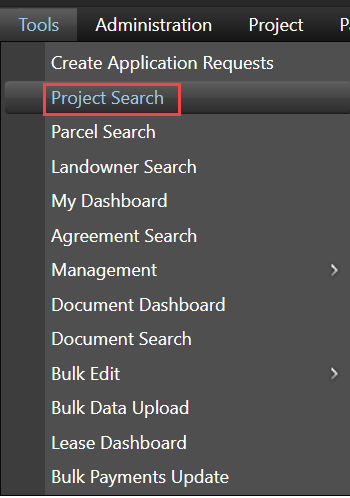
To access this feature: Tools > Project Search > Bulk Assignment Option
Things to Know:
- Users must have the appropriate permissions to access Project Search and perform project assignments.
- Projects must be located through a search before bulk assignment options become available.
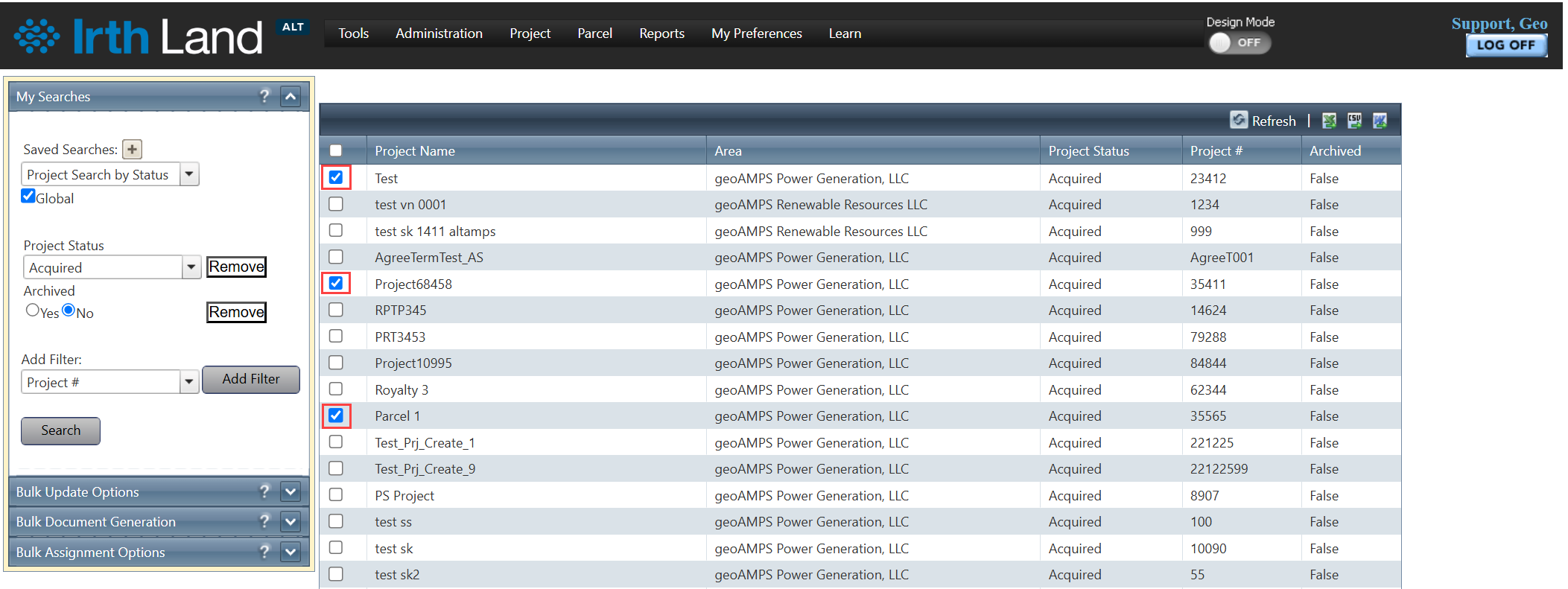
- Multiple project records can be selected from the Project Search Summary grid using the available checkboxes.
- Assignments are applied to all selected projects when the changes are saved.
Key Benefits/Use Cases:
Assign Resources to Multiple Projects
Assign the same user or team members to several projects at once, eliminating the need to update each project individually.
Standardize Project Roles
Apply consistent project roles across multiple projects to ensure proper access and responsibility assignments.
Save Administrative Time
Reduce repetitive manual updates by performing project assignments in a single bulk operation.
How It Works:
Follow these steps to assign users to multiple projects simultaneously:
Step 1: Run a Project Search
Navigate to Tools > Project Search and run a search to locate the project records you want users to be added.
Step 2: Select Projects
Use the checkboxes in the Project Search Summary grid to select one or more projects that require user assignments.
Step 3: Open Bulk Assignment Options
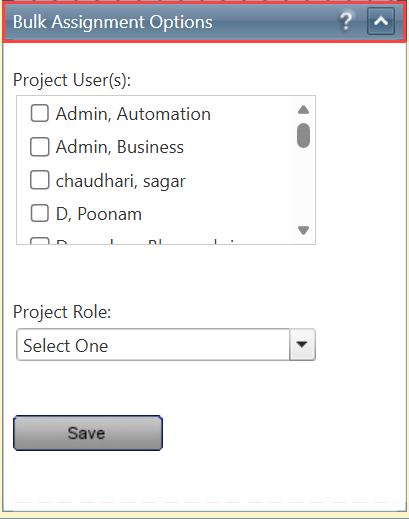
Click the Bulk Assignment Options Panel.
Step 4: Select Users and Roles
- Select the Project User(s) to assign using the available checkboxes.
- Choose the appropriate Project Role from the dropdown list.
- Click Save.
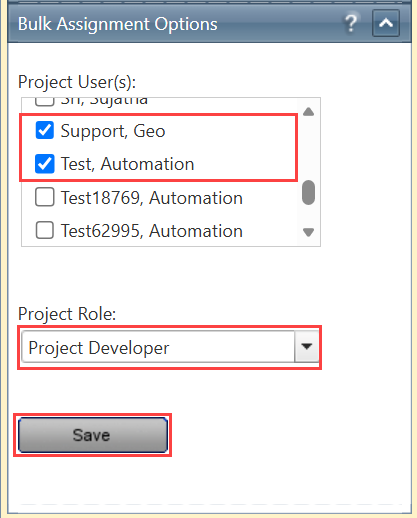
The selected users and roles are assigned to all selected projects.
Related Features/Next Steps:
FAQ/Troubleshooting:
Q: Why can't I see the Bulk Assignment Options Panel?
A: Ensure that at least one project has been selected from the Project Search Summary grid and that you have the required permissions.
Q: Can I assign multiple users at the same time?
A: Yes. The Bulk Assignment Options Panel allows you to select multiple project users before saving.
Q: What happens if a selected user is already assigned to a project?
A: The system will process the assignment according to configured project assignment rules and existing project memberships.
Q: Can I use saved searches to repeatedly assign users to similar project groups?
A: Yes. Saved searches allow you to quickly locate the same set of projects for future bulk assignment activities.
Questions? Contact us!

Was this article helpful?
That’s Great!
Thank you for your feedback
Sorry! We couldn't be helpful
Thank you for your feedback
Feedback sent
We appreciate your effort and will try to fix the article