Purpose/Overview
Escalating payments allow payment rates to automatically increase over time according to predefined rules. This feature eliminates the need to create separate payment templates for each payment year and simplifies the management of long-term agreements.
Escalation rules are configured using variables and formulas within the payment template. When a payment is generated, the system identifies the applicable payment year and automatically applies the corresponding payment rate.
Escalating payment structures are commonly used for lease agreements where annual payment amounts increase throughout the contract term.
Navigation Path:
To access this feature: Payment Calculation > Tag Lookup > Variables
Key Benefits/Use Cases:
Simplified Long-Term Payment Management
Configure payment escalation rules once and allow the system to automatically apply the correct payment rate for each payment year.
Reduced Template Maintenance
Eliminate the need to create and maintain separate payment templates for each year of an agreement.
Automated Lease Payment Adjustments
Support lease agreements with scheduled annual payment increases by automatically calculating the appropriate payment amount based on the agreement period.
How It Works:
Follow these steps to configure variables for escalating payment calculations:
Step 1: Access Variables Configuration
- Navigate to Payment Calculation > Tag Lookup > Variables.
- Click Add New to create a new variable.
- Alternatively, select an existing variable from the dropdown list to modify its configuration.
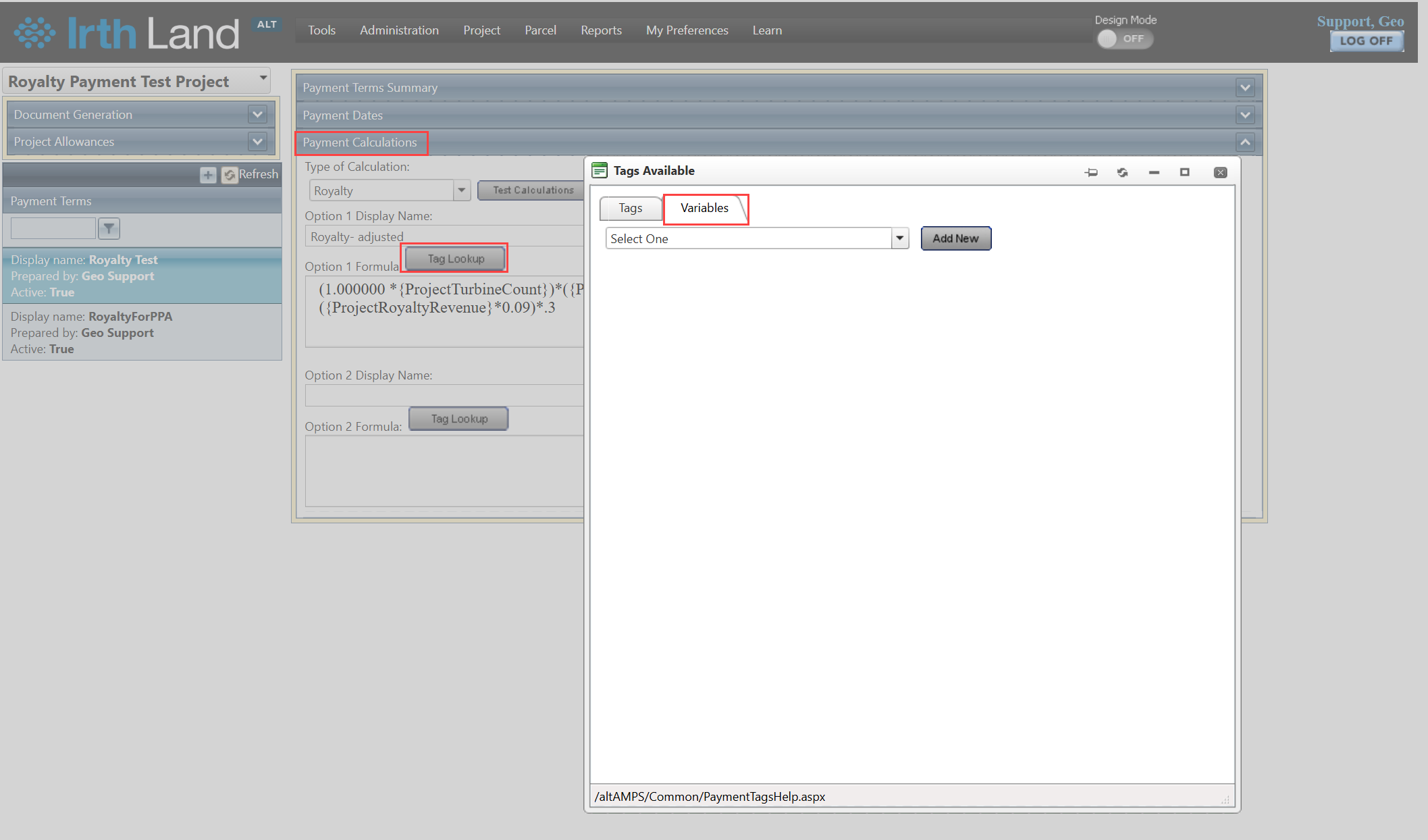
- Alternatively, select an existing variable from the dropdown list to modify its configuration.
Step 2: Create a Variable
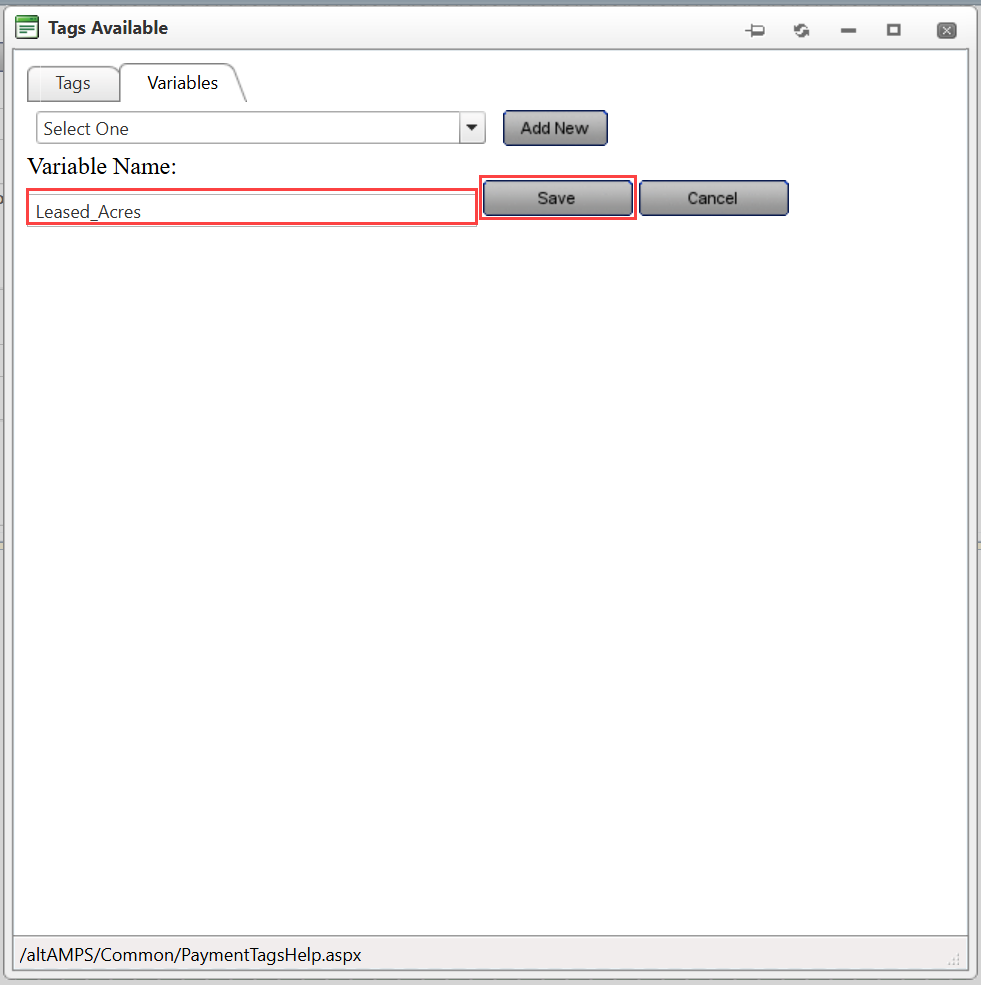
- In the Variable Name field, enter the desired name.
- Click Save to create and store the variable.
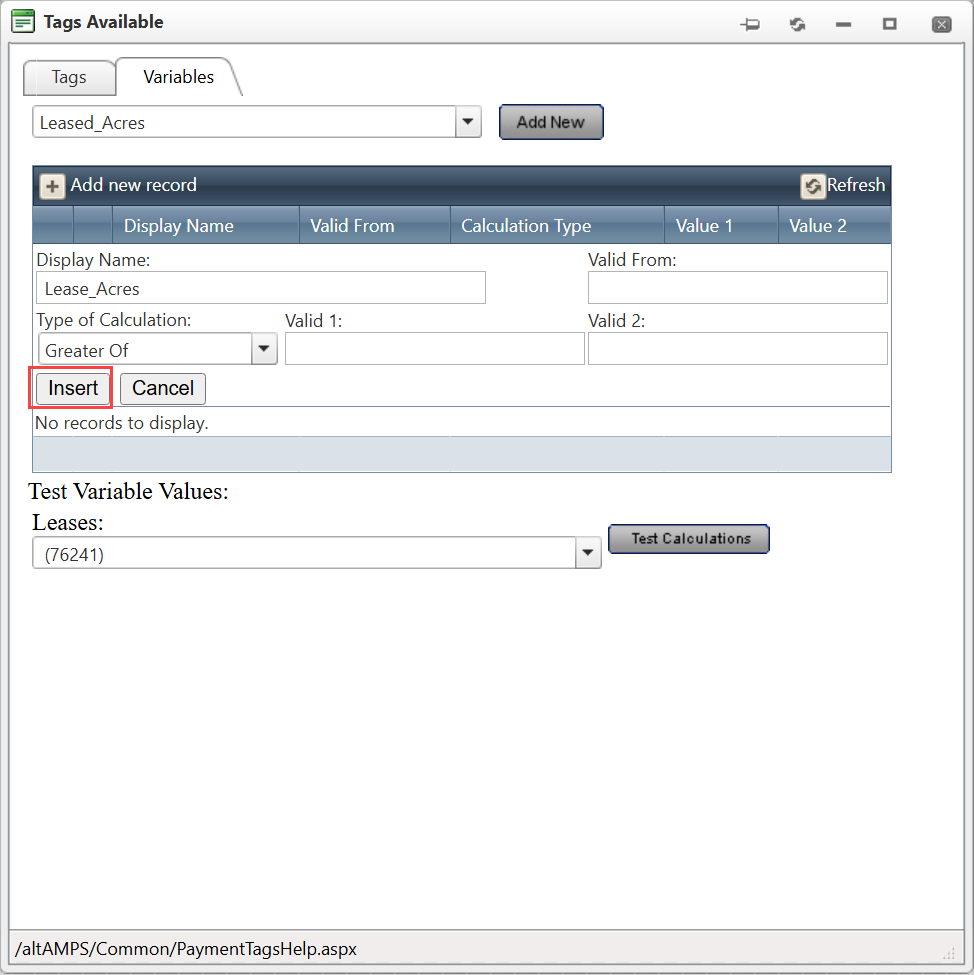
Step 3: Configure Payment Period Details
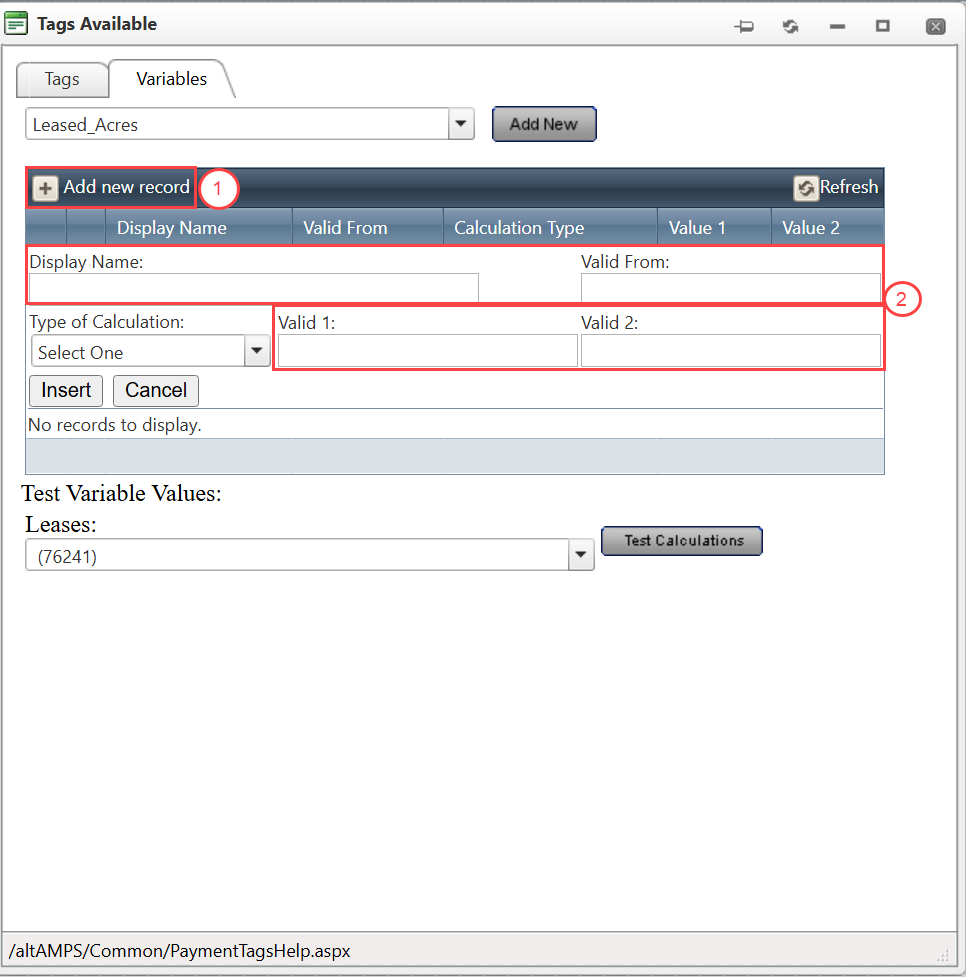
- Click Add New Record.
- Complete the required fields:
- Display Name – Enter a descriptive name for the payment period.
- Valid From – Specify the effective start date for the payment period.
- Value 1 and/or Value 2 – Enter the values used during the calculation process.
Step 4: Select Calculation Method
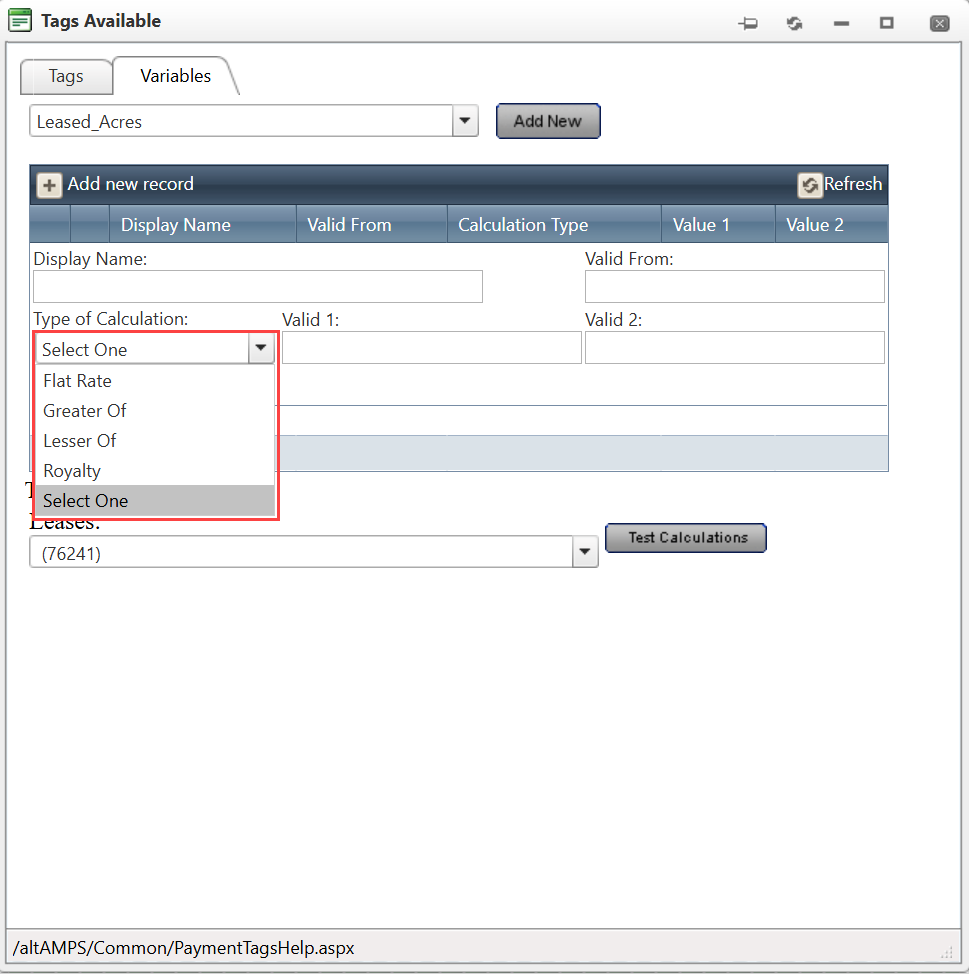
- From the Type of Calculation dropdown list, select the appropriate calculation method for the variable.
Step 5: Save the Configuration
- Click Insert to save the payment period and calculation details.
Step 6: Test the Calculation
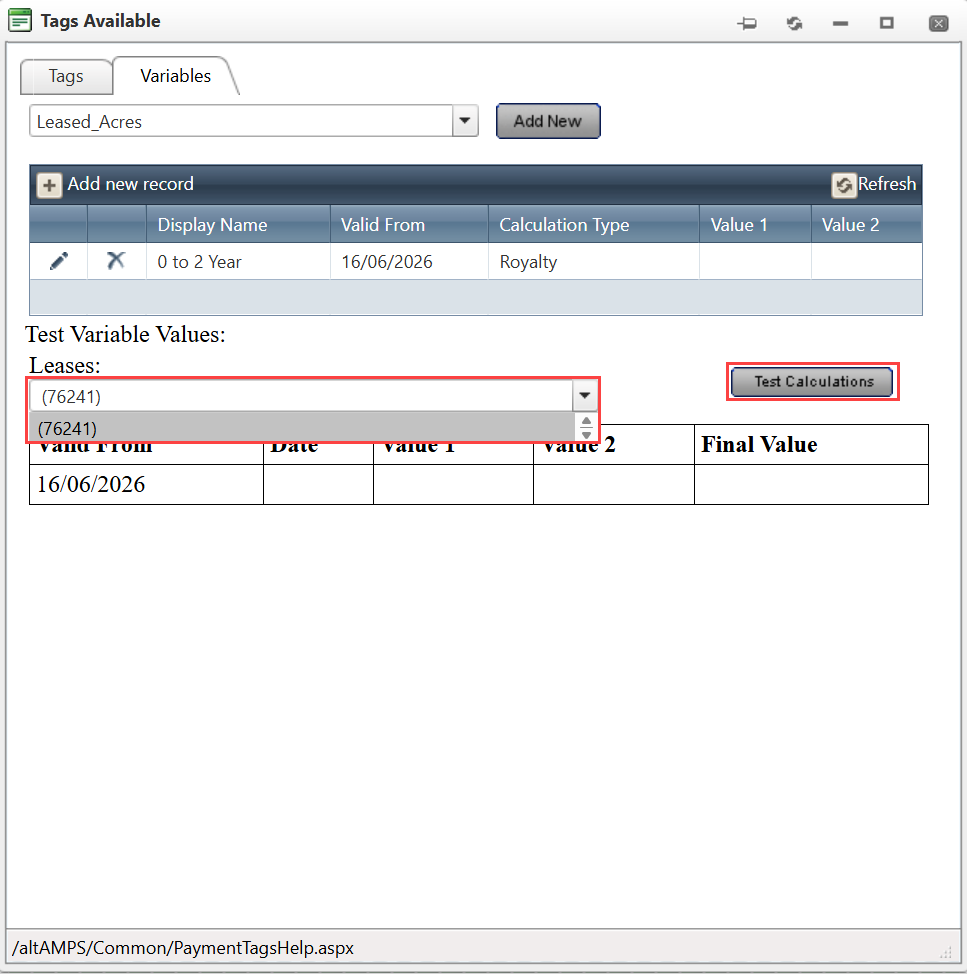
- Select a lease from the Lease dropdown list.
- Click Test Calculation.
- Review the results displayed by the system to verify that the variable and escalation calculations are configured correctly.
Related Features/Next Steps:
FAQ/Troubleshooting:
Q: What is the purpose of escalating payments?
A: Escalating payments automatically increase payment rates over time based on predefined rules, reducing manual maintenance and ensuring accurate long-term payment calculations.
Q: Do I need separate payment templates for each payment year?
A: No. Escalation rules allow a single payment template to apply different rates based on the payment year, eliminating the need for multiple templates.
Q: How can I verify that my escalation configuration is working correctly?
A: Use the Test Calculation option after selecting a lease. The system will execute the calculation using the configured variable and display the results for validation.
Questions? Contact us!

Was this article helpful?
That’s Great!
Thank you for your feedback
Sorry! We couldn't be helpful
Thank you for your feedback
Feedback sent
We appreciate your effort and will try to fix the article