Purpose/Overview
The Survey tab provides a centralized view of all survey-related information for a specific parcel or project. It enables users to monitor survey assignments, track progress, and manage permission statuses efficiently throughout the survey workflow.
This feature is designed for project managers, survey coordinators, and field teams who need visibility into survey activities and communication with property owners or stakeholders. It helps ensure that surveys are properly assigned, tracked, and completed while maintaining a clear audit trail of permissions and interactions.
Navigation Path:
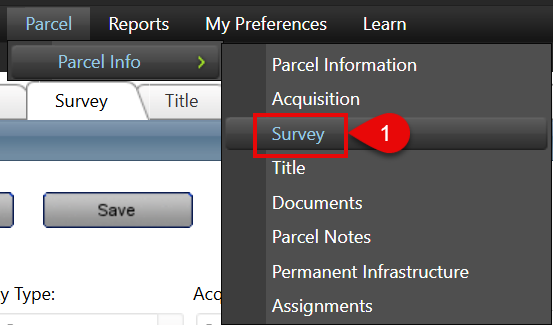
To access this feature: Parcel > Parcel Info > Survey
Things to Know:
- Users must have appropriate permissions to view or update survey-related details.
- Survey status and permission dates should be updated regularly to reflect real-time progress.
- If permission is denied, survey activities cannot proceed unless reinitiated or overridden based on business rules.
- The tab serves as a tracking tool and does not initiate survey workflows independently.
Key Benefits/Use Cases:
- Survey Assignment Tracking: Easily identify which survey company and agent are responsible for a parcel, ensuring accountability and clarity.
- Permission Management: Track whether survey permissions are granted or denied, helping teams avoid unauthorized survey activities and delays.
- Progress Monitoring: Monitor survey status (Assigned, In Progress, Completed, Cancelled) to keep projects on schedule and identify bottlenecks early.
How It Works:
Follow these steps to view and manage survey details:
Step 1: Navigate to Parcel > Parcel Info > Survey.
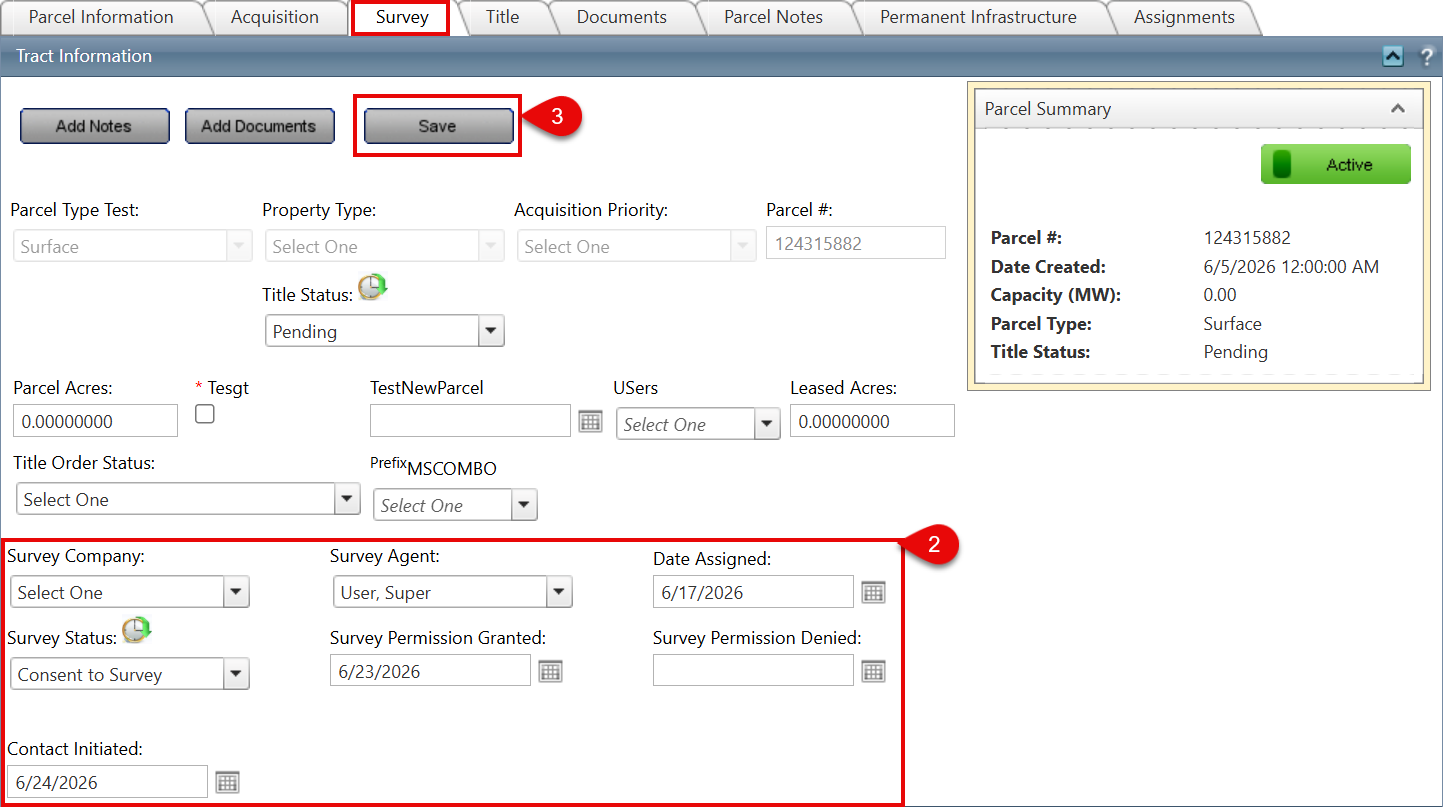
Step 2: Review or update the following fields:
- Survey Company: Name of the assigned survey company or contractor.
- Survey Agent: Individual responsible for conducting the survey.
- Date Assigned: Date the survey task was assigned.
- Survey Status: Current status of the survey (e.g., Assigned, In Progress, Completed, Cancelled).
- Survey Permission Granted Date: Date when survey permission was approved.
- Survey Permission Denied Date: Date when survey permission was denied (if applicable).
- Contact Initiated Date: Date when initial communication was made with the property owner or stakeholder.
Step 3: Save updates (if applicable) to ensure all survey information is current and accurately reflects field activity.
Related Features/Next Steps:
FAQ/Troubleshooting:
Q: Why is the survey not progressing even after assignment?
A: Ensure that survey permission has been granted. If permission is denied or not recorded, the survey cannot proceed.
Q: Can both permissions granted and denied dates be filled?
A: No, only one should be applicable based on the outcome of the permission request.
Q: What should I do if the survey status is not updating?
A: Verify user permissions and ensure changes are saved correctly. If the issue persists, check for workflow or system restrictions.
Questions? Contact us!

Was this article helpful?
That’s Great!
Thank you for your feedback
Sorry! We couldn't be helpful
Thank you for your feedback
Feedback sent
We appreciate your effort and will try to fix the article