Purpose/Overview
The Grantor/Grantee feature allows users to record and manage information about parties involved in land rights transactions.
A Grantee is the individual or organization that receives rights or interests in a property, such as through an easement, lease, or land agreement. Capturing this information ensures accurate tracking of ownership interests and supports legal, operational, and reporting requirements.
This feature is intended for users managing parcel records who need to maintain clear and structured documentation of land ownership and rights.
Navigation Path:
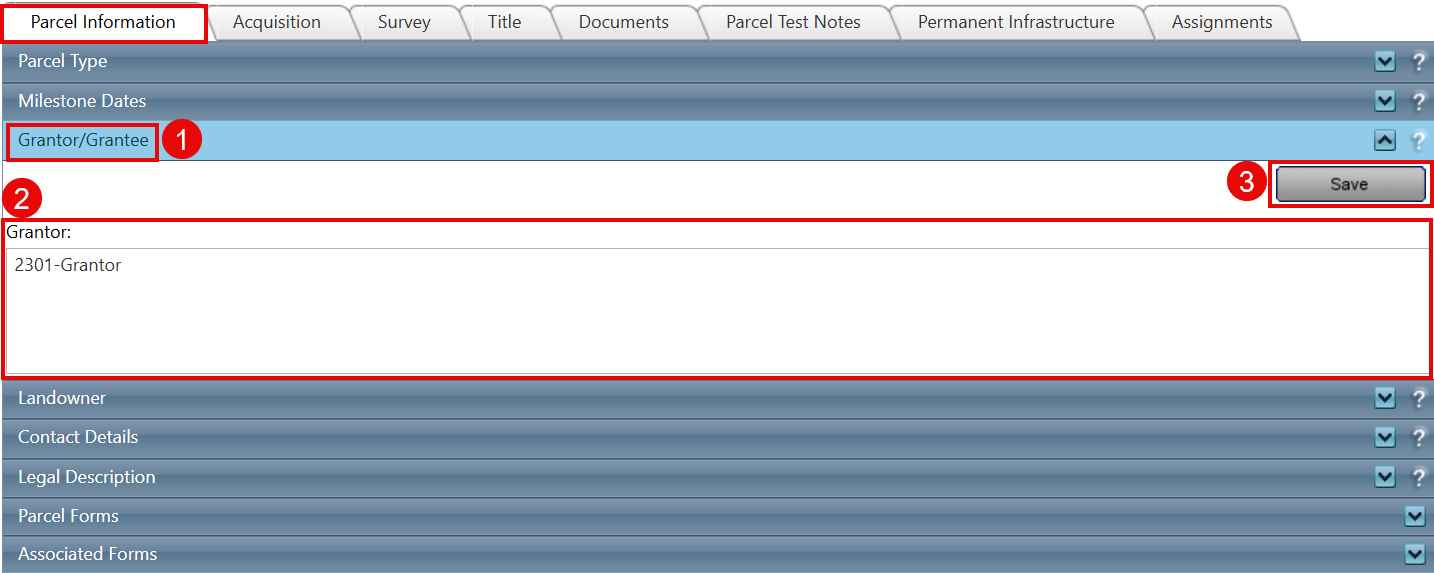
To access this feature: Parcel Info > Parcel Information > Grantor/Grantee
Key Benefits/Use Cases:
- Track Land Rights Ownership: Maintain accurate records of who holds rights or interests in a parcel, improving data reliability and audit readiness.
- Support Legal Documentation: Ensure all grantor and grantee details are properly documented for compliance and legal reference.
- Centralized Parcel Information Management: Keep all relevant ownership and rights information in one place within the Parcel Information panel
How It Works:
Follow these steps to add grantor/grantee information:
- Navigate to Grantor/Grantee Section
Go to Parcel Info > Parcel Information > Grantor/Grantee. - Enter Information
Input the required grantor and/or grantee details in the provided fields. - Save the Information
Click Save to store the entered data. - Verify Entry
The grantor/grantee information will now be visible on the Parcel Information panel.
Related Features/Next Steps:
FAQ/Troubleshooting:
Q: Where can I view the saved grantor/grantee information?
A: The information is displayed in the Parcel Information panel after saving.
Q: What does a grantee represent?
A: A grantee is the person or organization that receives rights or interests in land, such as through an easement or lease.
Q: What happens if I do not save the information?
A: The entered details will not be stored or reflected in the Parcel Information panel unless you click Save.
Questions? Contact us!

Was this article helpful?
That’s Great!
Thank you for your feedback
Sorry! We couldn't be helpful
Thank you for your feedback
Feedback sent
We appreciate your effort and will try to fix the article