Purpose/Overview
The Landowner Information feature is used to store, manage, and maintain details of individuals or entities who own land parcels within the system. It provides a centralized repository for ownership data, ensuring consistency and accuracy across all parcels.
This feature helps users efficiently track ownership types and percentages, especially in scenarios where a single landowner is associated with multiple parcels. By leveraging the Entity Database, it eliminates duplicate data entry and ensures updates are reflected system wide.
Navigation Path:
To access this feature: Parcel > Parcel Info > Parcel Information > Landowner Panel
Things to Know:
- Landowner information is stored in a centralized Entity Database, preventing duplicate entries.
- Ownership is categorized into three types:
- Surface Ownership
- Wind Ownership
- Crop Ownership
- Ownership values are stored as decimals where:
- 1 = 100% ownership
- Updates made to a landowner’s details automatically reflect across all associated parcels.
- Deleting a landowner removes the association from the parcel but does not delete the entity from the database.
Key Benefits/Use Cases:
- Centralized Ownership Management: Maintain a single source of truth for landowner data, reducing duplication and ensuring consistency across parcels.
- Accurate Ownership Tracking: Track ownership percentages across different categories (surface, wind, crop), improving reporting and project analysis.
- Efficient Multi-Parcel Association: Quickly associate an existing landowner with multiple parcels without re-entering their information, saving time and minimizing errors.
How It Works:
Follow these steps to add or manage landowner information:
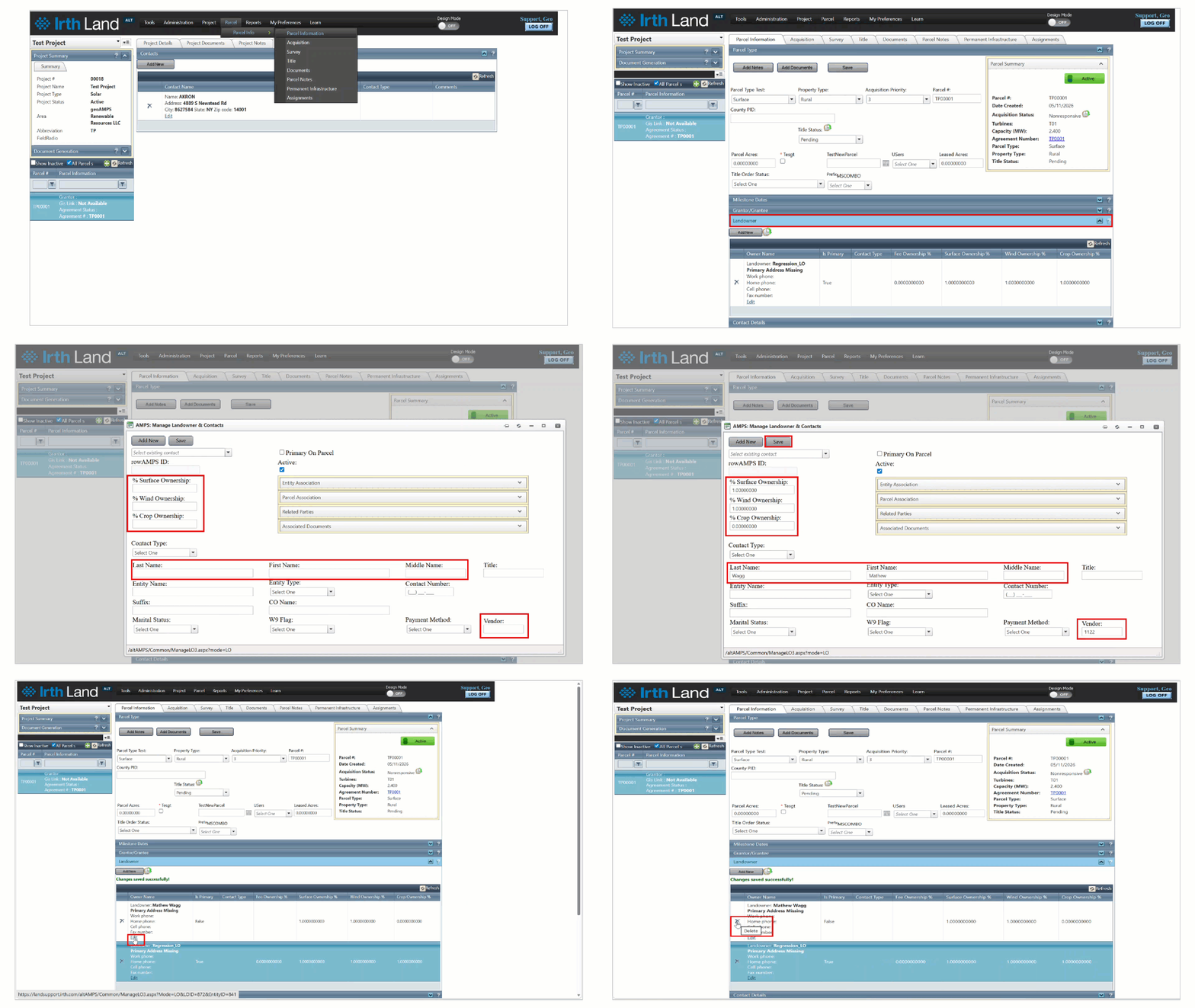
Step 1: Navigate to Parcel > Parcel Info > Parcel Information Tab > Landowner Panel.
Step 2: Click Add New to create a new landowner entry.
Step 3: Enter the required details such as name, address, and vendor number.
Step 4: Specify ownership percentages for:
- Surface Ownership
- Wind Ownership
- Crop Ownership
(Example: Enter 1 for 100% ownership)
Step 5: Click Save to store the landowner information in the Entity Database.
Step 6: To modify an existing landowner, click the Edit link, update the details, and save changes.
Step 7: To remove a landowner from a parcel, click the Delete (x) icon.
Related Features/Next Steps:
FAQ/Troubleshooting:
Q: What does a value of 1 mean in ownership fields?
A: A value of 1 represents 100% ownership for that category.
Q: Can I reuse an existing landowner for multiple parcels?
A: Yes. The system retrieves existing landowner details from the Entity Database, allowing reuse without re-entry.
Q: What happens when I update a landowner’s details?
A: Updates are applied to the central entity record and automatically reflected across all associated parcels.
Q: Can I delete a landowner permanently from the system?
A: Deleting from the Landowner Panel removes the association with the parcel. The entity remains in the Entity Database unless removed separately.
Questions? Contact us!

Was this article helpful?
That’s Great!
Thank you for your feedback
Sorry! We couldn't be helpful
Thank you for your feedback
Feedback sent
We appreciate your effort and will try to fix the article