Purpose/Overview
The Contact Details panel enables users to store and manage additional contact information with a parcel beyond the primary landowner. This includes individuals such as attorneys, property managers, relatives, or other associated representatives.
This feature leverages a shared contact database, allowing contacts to be reused across multiple parcels. For example, a person listed as a landowner for one parcel can also be assigned as a contact for another. Users can maintain detailed contact information including name, email, phone number, and address.
Additionally, the feature allows users to define who the contact represents. This is especially useful when the parcel owner is an organization, as it helps assign a specific individual as the point of contact. This ensures clear communication channels and better relationship management between parcels, organizations, and their representatives.
Navigation Path:
To access this feature: Parcel > Parcel Info > Parcel Information Tab > Contact Details Panel
Things to Know:
- Contacts are pulled from a shared database and can be reused across multiple parcels.
- A contact can represent an individual or act as a representative for an organization.
- Changes made to shared contact details may impact other parcels where the same contact is used.
Key Benefits/Use Cases:
- Use Case 1: Add alternate contacts (e.g., attorneys or managers) for a parcel to ensure communication continuity → Improves response time and coordination.
- Use Case 2: Assign a representative for company-owned parcels → Clearly identifies the correct person to contact.
- Use Case 3: Maintain centralized contact records → Reduces duplication and ensures consistent contact information across parcels.
How It Works:
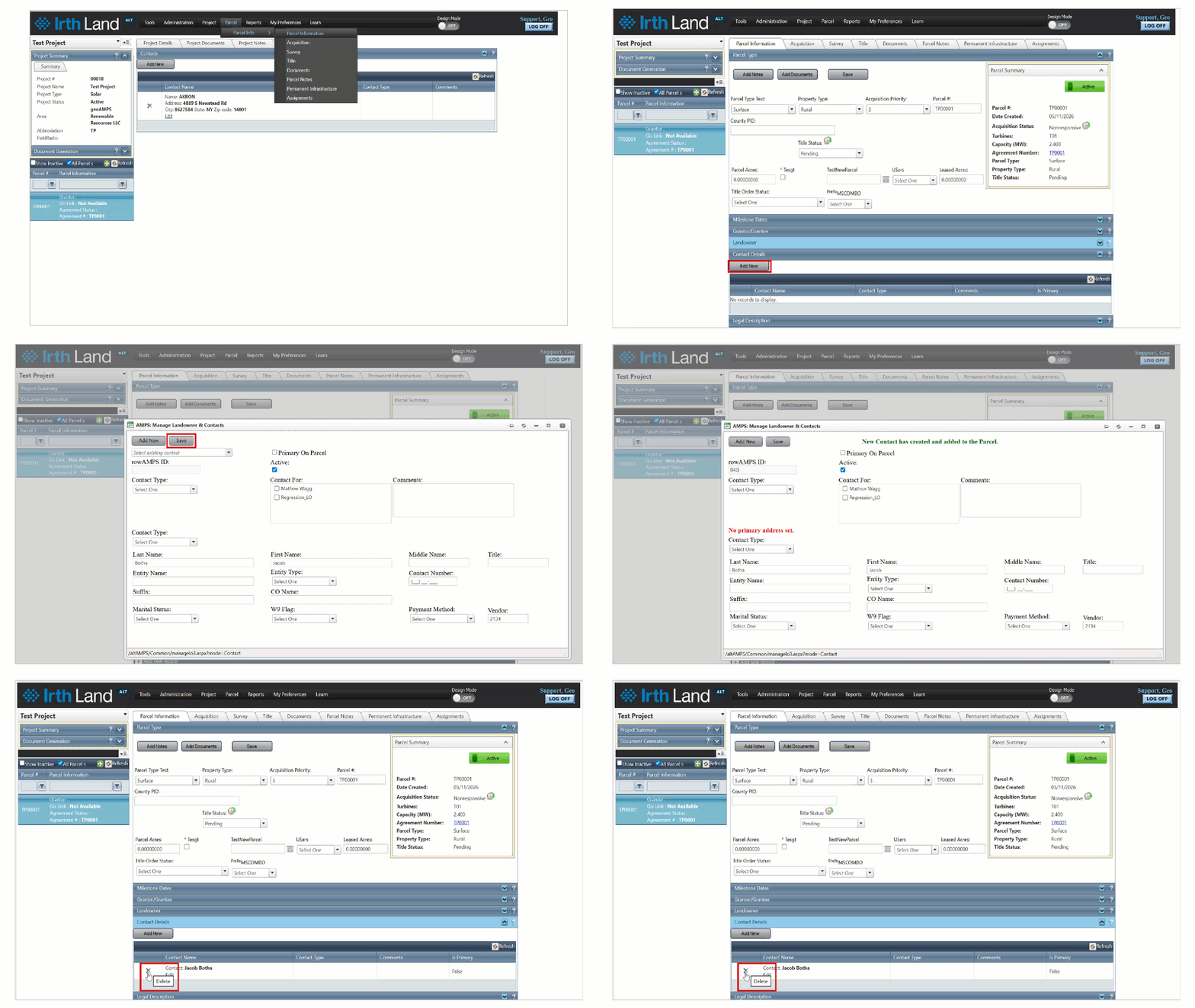
Follow these steps to manage contact details:
Step 1: Navigate to: Parcel > Parcel Info > Parcel Information Tab > Contact Details Panel
Step 2: Click Add New to create a new contact entry.
Step 3: Enter the required details such as name, address, and vendor number.
Step 4: Click the Save to add the contact details.
Step 5: Click the Edit link to modify existing contact details.
Step 6: To remove a contact, click the X icon next to the contact record.
Related Features/Next Steps:
FAQ/Troubleshooting:
Q: Can I use the same contact for multiple parcels?
A: Yes, the system uses a shared contact database, allowing contacts to be reused across different parcels.
Q: What happens if I edit a shared contact?
A: Updates may reflect across all parcels where the contact is used, depending on system configuration.
Q: Can I assign a contact to represent an organization?
A: Yes, you can specify the relationship, allowing a contact to act as a representative for a company or landowner.
Questions? Contact us!

Was this article helpful?
That’s Great!
Thank you for your feedback
Sorry! We couldn't be helpful
Thank you for your feedback
Feedback sent
We appreciate your effort and will try to fix the article