Quantifying and Mitigating Risk with Digtix and DigSights
Purpose/Overview
In this article, you will learn how Digtix and DigSights work together to quantify excavation risk and help your organization proactively mitigate potential damage. This article explains the key factors that contribute to risk, how risk scores are calculated, and how to use geospatial data, automation, and AI-driven insights to improve damage prevention outcomes.
Navigation Path:
To access this feature, go to: Digtix Menu > Locate Requests / Excavators / Administration > Risk-Related Features
Note: Risk data is surfaced across multiple areas of the application, including the locate grid, map view, and administration settings.
Things to Know:
Permissions: Access to risk configuration (e.g., Infrastructure Types, Assignment Rules, Follow-Up Triggers) requires administrative permissions.
Platform Experience: Risk scores and visualization features are available in the Digtix New UI (web).
Risk Scores: Scores range from 0 (low risk) to 100 (critical risk).
Customization: Organizations can configure custom risk scoring factors to align with internal damage prevention strategies.
Overrides: Risk scores for excavators, users, contract locators, and locate requests can be manually overridden when necessary.
Data Dependency: Accurate geospatial and historical data significantly improves risk scoring accuracy.
Key Benefits/Use Cases:
- Prioritize High-Risk Work: Quickly identify locate requests with elevated risk and allocate additional resources such as audits or inspections.
- Improve Decision-Making: Use geospatial data and historical performance to better understand both likelihood and impact of potential incidents.
- Automate Risk Response: Automatically trigger follow-ups or assign high-risk tickets to experienced personnel for review.
- Enhance Data Quality: Capture field feedback to continuously improve GIS accuracy and risk modeling over time.
How It Works:
Understanding Risk
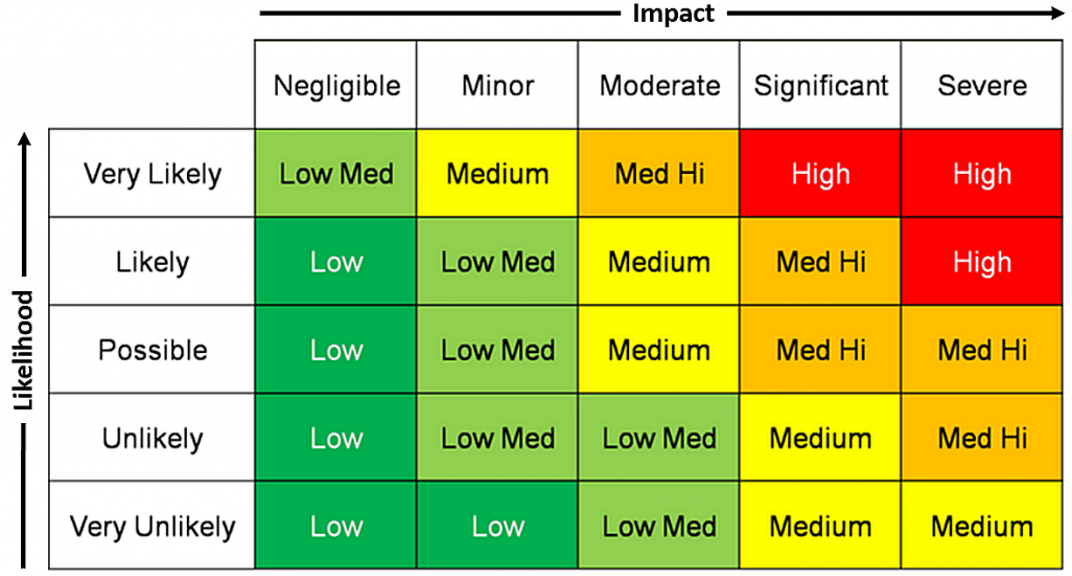
Risk in Digtix is calculated using two primary factors:
- Likelihood – The probability of an incident occurring
- Impact – The severity of consequences if an incident occurs
Configure Geospatial Data
- Navigate to Administration > Infrastructure Types
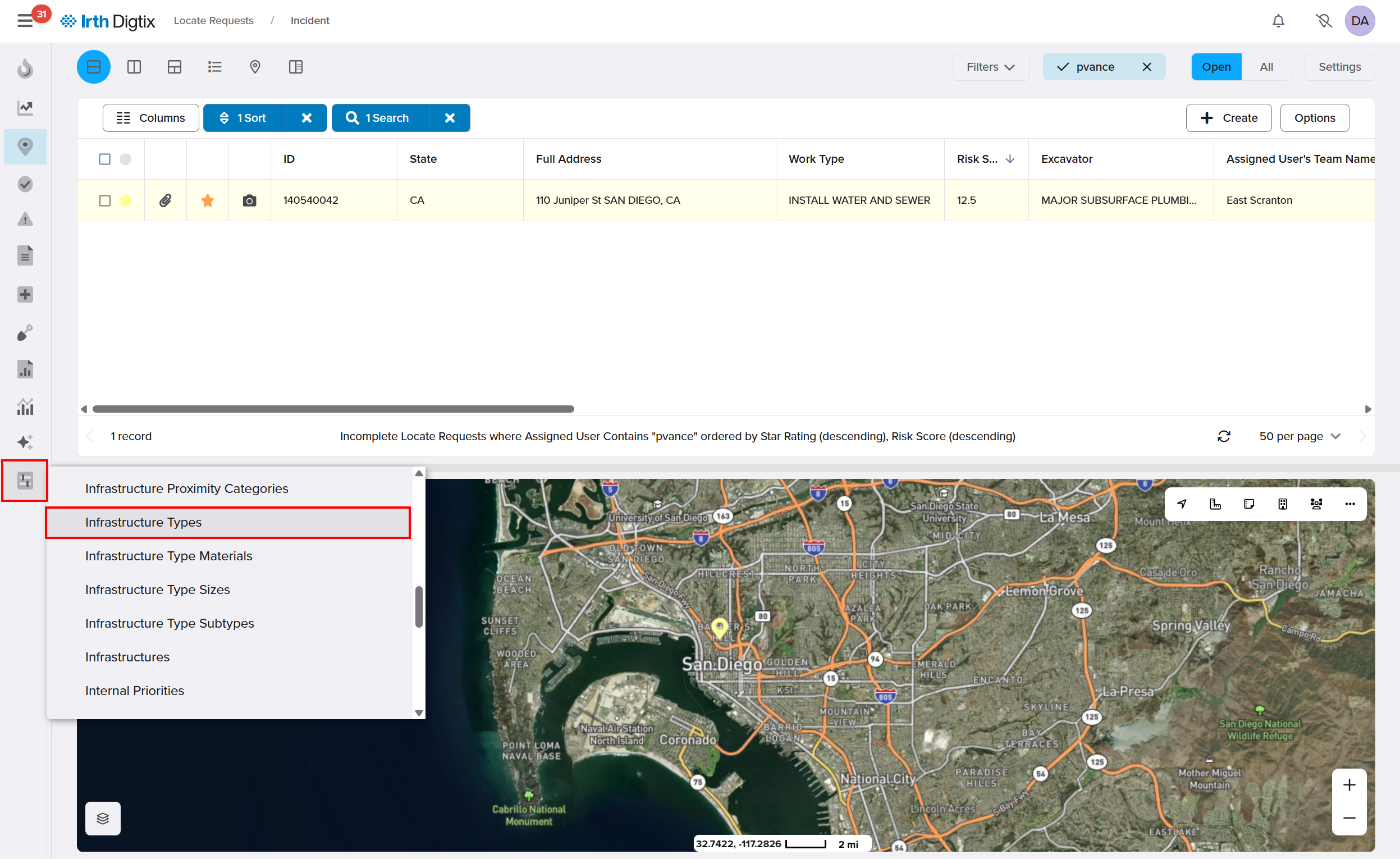
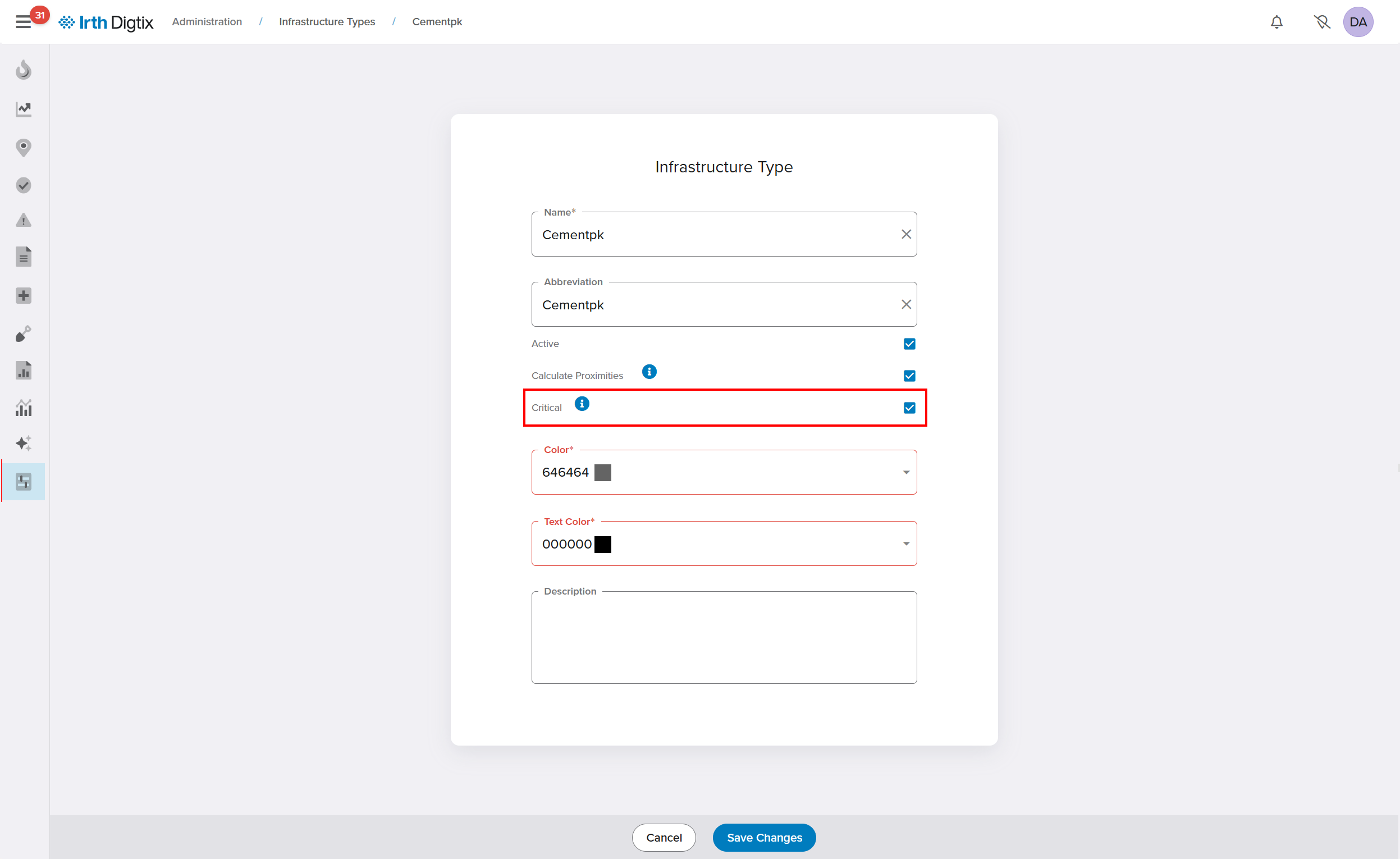
- Open an Infrastructure Type or +Create a new one and define infrastructure and service areas as Critical or Non-Critical by checking or unchecking the box. Click Save Changes.
- Upload or maintain GIS data representing:
- Asset locations
- Customer service areas
- Points of interest (e.g., hospitals, schools)
This allows Digtix to determine whether critical infrastructure is affected by a locate request.
Identify High Consequence Areas (HCA)
- Use the Critical Infrastructure Close field in the locate request grid

- Filter, sort, or highlight tickets involving critical infrastructure
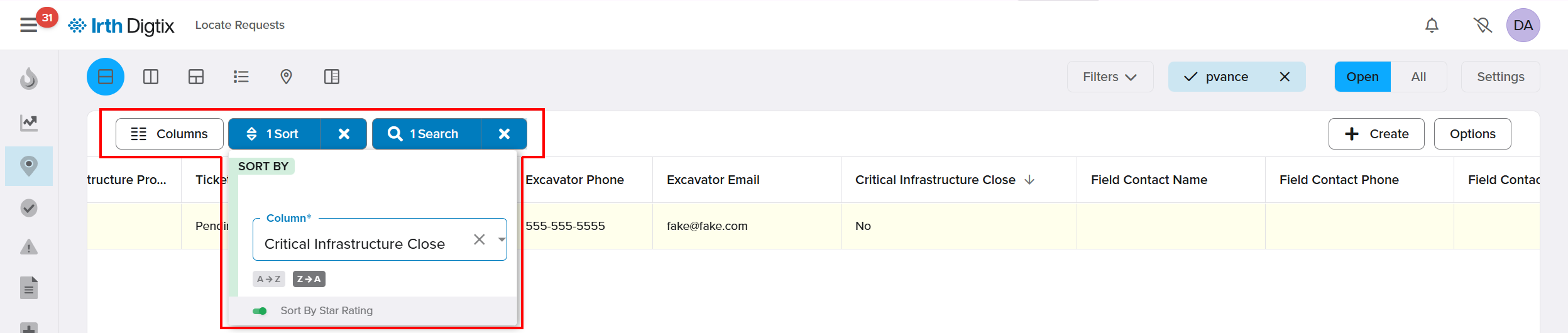
- Incorporate this field into assignment rules for automatic routing
Enable Automated Triggers
- Navigate to Administration > Follow-Up Types
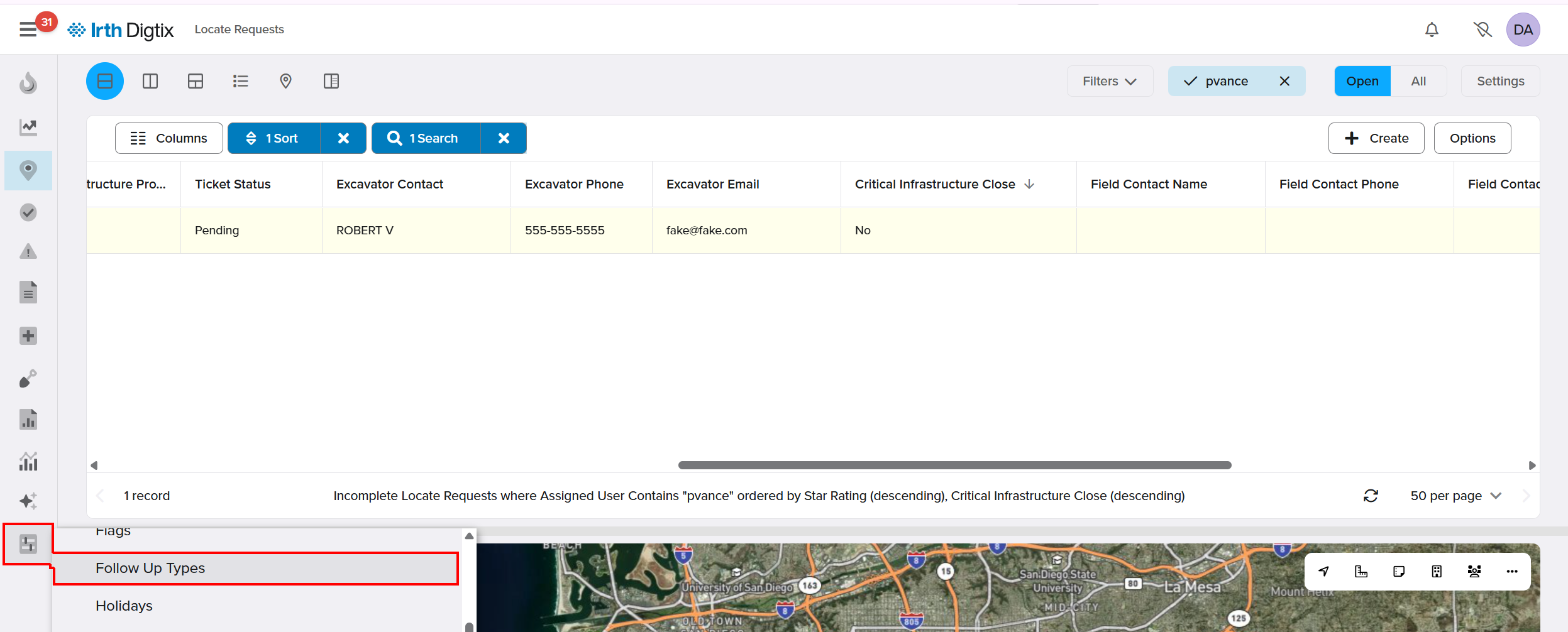
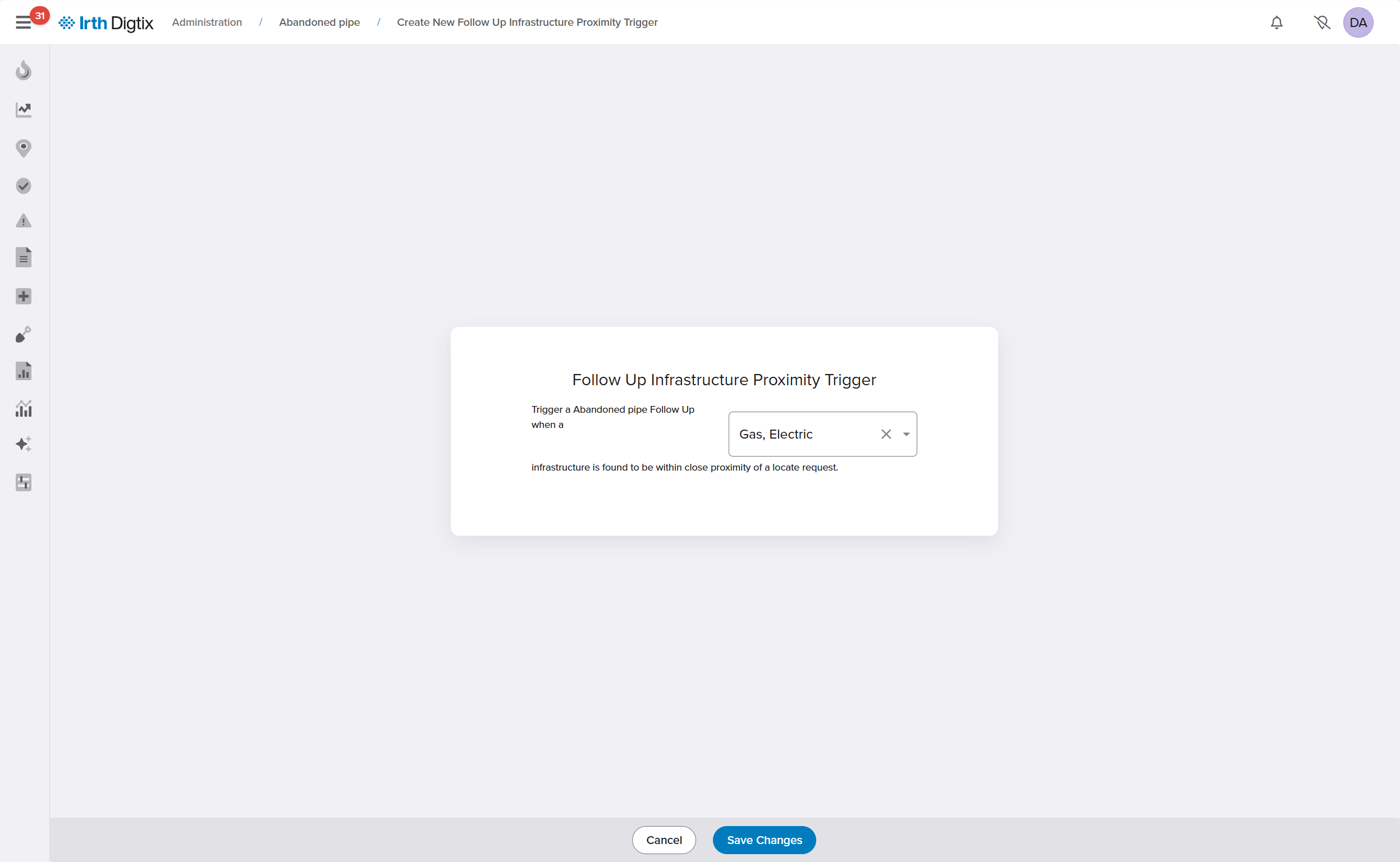
- Configure triggers based on infrastructure proximity or risk conditions
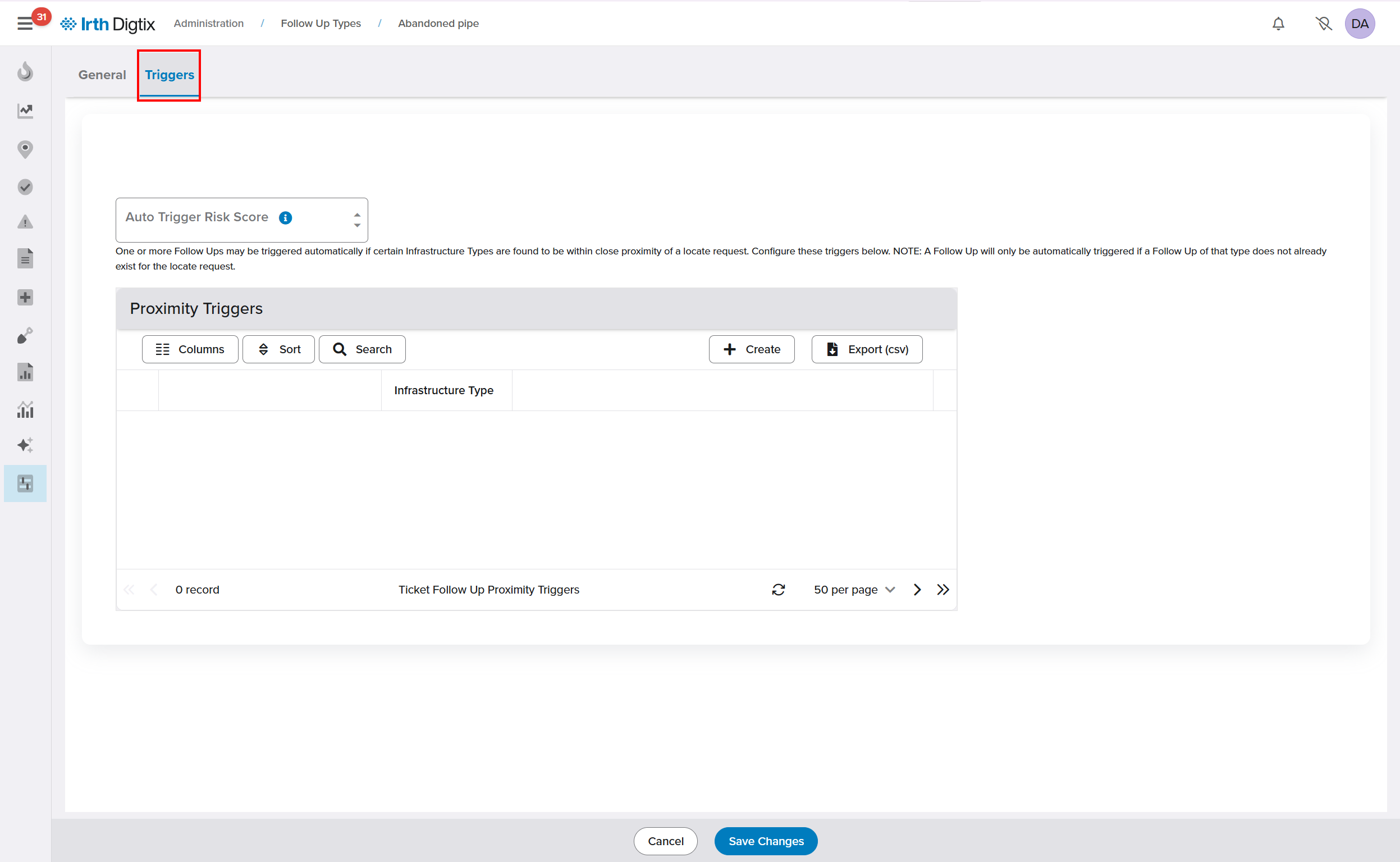
- Automatically assign follow-ups (e.g., inspections, audits) to appropriate users
Monitor Risk Across Entities
Digtix calculates risk scores for multiple entities:
Excavators: Based on historical performance and incidents
Users (Locators): Based on past work quality and outcomes
Contract Locators: Based on submitted responses and performance
Locate Requests: Based on predictive models combining all factors
Access risk scores through:
- Locate request grid (Risk Score column)
- Excavator profiles
- User and contract locator records
Visualize and Act on Risk
- Use the Color By: Risk option to display risk levels on the map
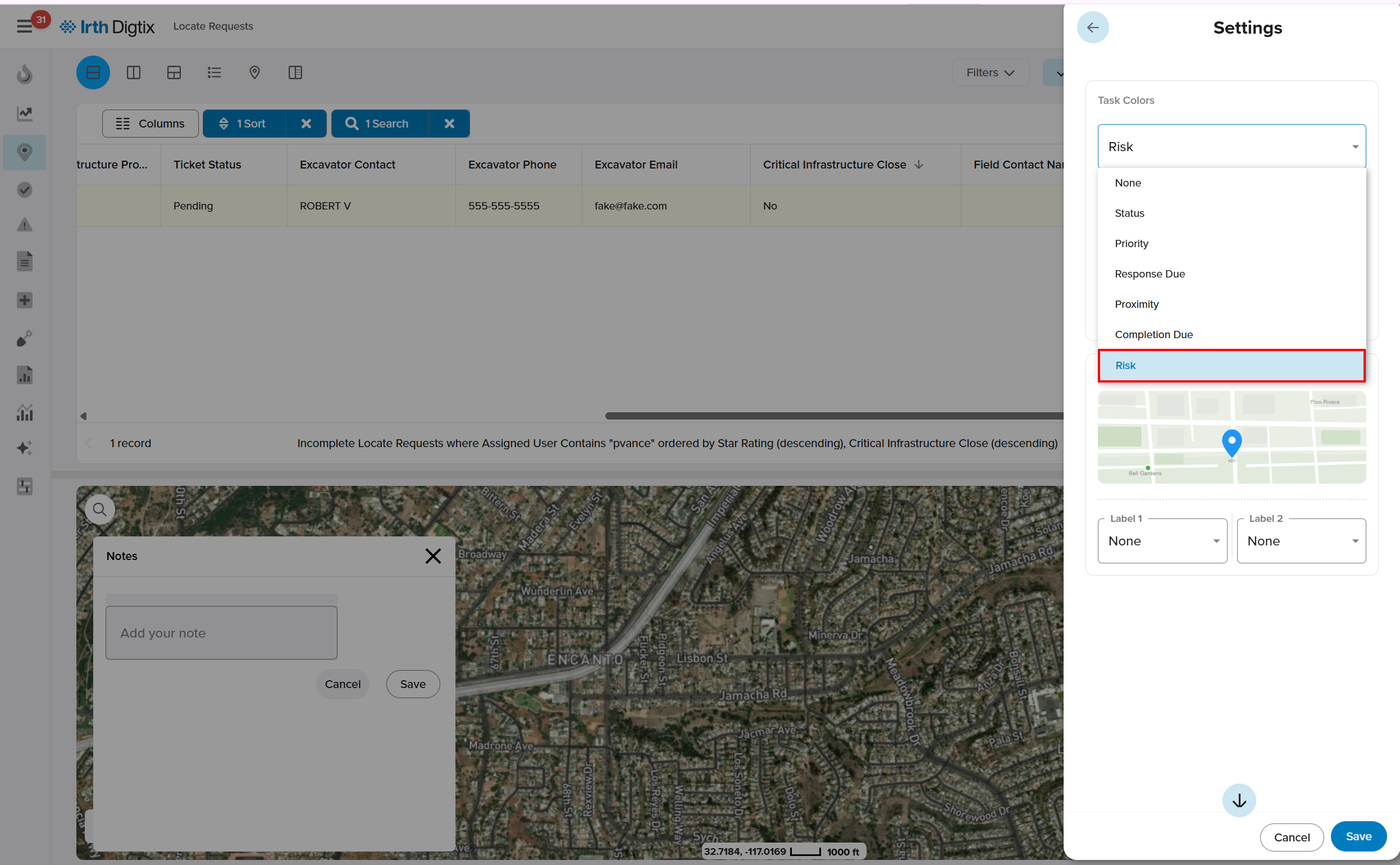
- Sort and filter the locate grid by risk score
- Flag high-risk tickets for additional review or intervention
Improve Data with Field Feedback
- Long-click on the map to create a Map Note
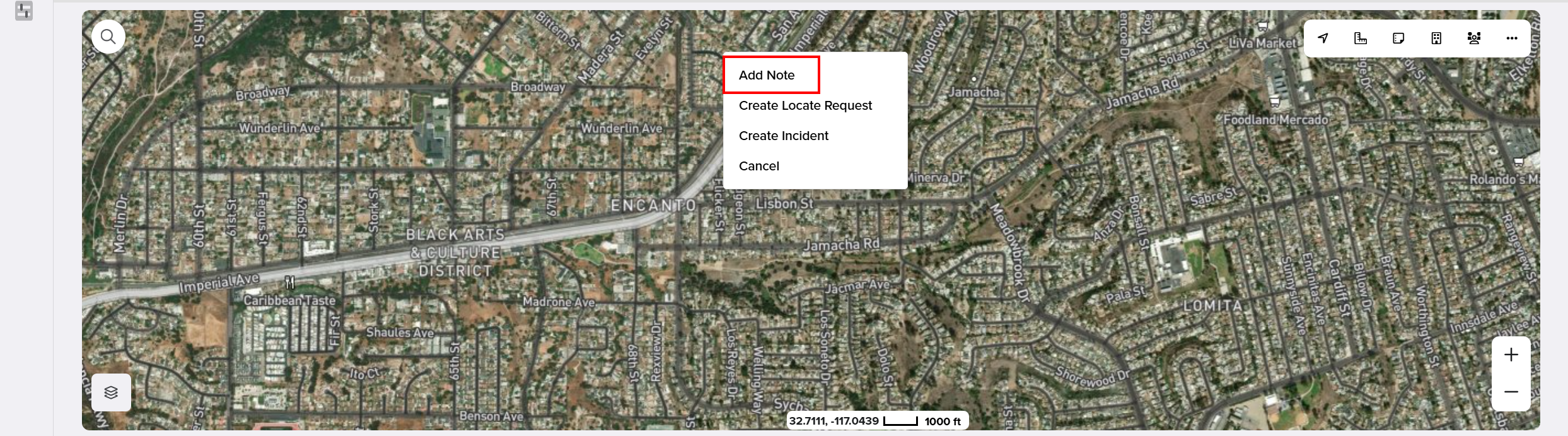
- Document inaccuracies or missing GIS information
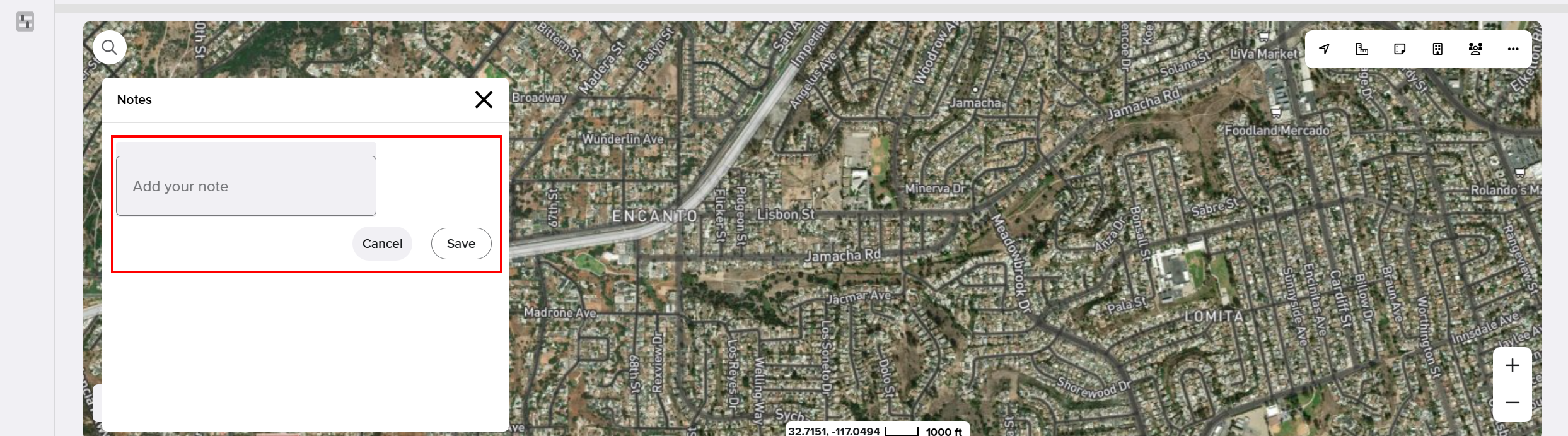
- Submit notes for internal review and data improvement
Enhance Risk with DigSights (AI)
- DigSights uses machine learning models trained on large datasets
- Digtix queries DigSights to enhance risk predictions
- This provides a more advanced and data-driven view of risk
Import Historical Data (Optional)
- Import pre-Digtix performance data for excavators or locators
- Include locate counts and at-fault incident history
- Improves accuracy of initial risk scoring
FAQ/Troubleshooting:
Q: What does a high risk score mean?
A: A higher score (closer to 100) indicates a greater likelihood and/or impact of a potential incident, requiring additional attention or mitigation.
Q: Can I override a risk score?
A: Yes. Risk scores can be manually overridden at the excavator, user, contract locator, or locate request level when needed.
Q: Why is geospatial data important for risk?
A: Accurate GIS data allows Digtix to determine proximity to critical infrastructure and points of interest, which directly impacts risk calculations.
Q: How does DigSights improve risk scoring?
A: DigSights uses AI-driven predictive models trained on large datasets to enhance Digtix’s ability to assess and predict risk.
Q: What should I do with high-risk locate requests?
A: Organizations typically flag high-risk tickets for additional actions such as audits, inspections, or assigning experienced personnel.
Questions? Contact us!

Was this article helpful?
That’s Great!
Thank you for your feedback
Sorry! We couldn't be helpful
Thank you for your feedback
Feedback sent
We appreciate your effort and will try to fix the article