OVERVIEW
Every time DigTix receives a locate request, it calculates the proximity of that locate request to the infrastructure (GIS) data loaded for that facility owner. This proximity result is categorized based on a set of configurable distance thresholds. Infrastructure layers representing different facility types (high pressure gas, transmission mains, etc) may have more strict proximity thresholds than others (service lines, abandoned facilities, etc).
Configuring these thresholds on a per-facility owner and per-facility type basis provides your organization the ability to quickly and easily identify critical and low risk jobs based on the proximity to underground assets.
PROXIMITY CATEGORIES
There are five proximity categories available within DigTix:
- Close.
- Medium.
- Far.
- Auto Clear.
- Unknown.
IMPORTANT NOTES
- The "Auto Clear" category indicates that the ticket may be an opportunity for clear / no conflict based upon the GIS data loaded into DigTix. If no GIS data has been loaded into DigTix, or if the loaded GIS data is not accurate or up to date, it will adversely impact the ability of DigTix to determine such opportunities.
- It is recommended all tickets are carefully reviewed before confirming that a ticket can be cleared based on an "Auto Clear" proximity categorization.
- A ticket's proximity is categorized as "Unknown" if there is no GIS data loaded which is tied to the facility owner(s) associated with that ticket.
These proximity categories can be viewed and configured via the "Proximity Settings" section of the Administration page:
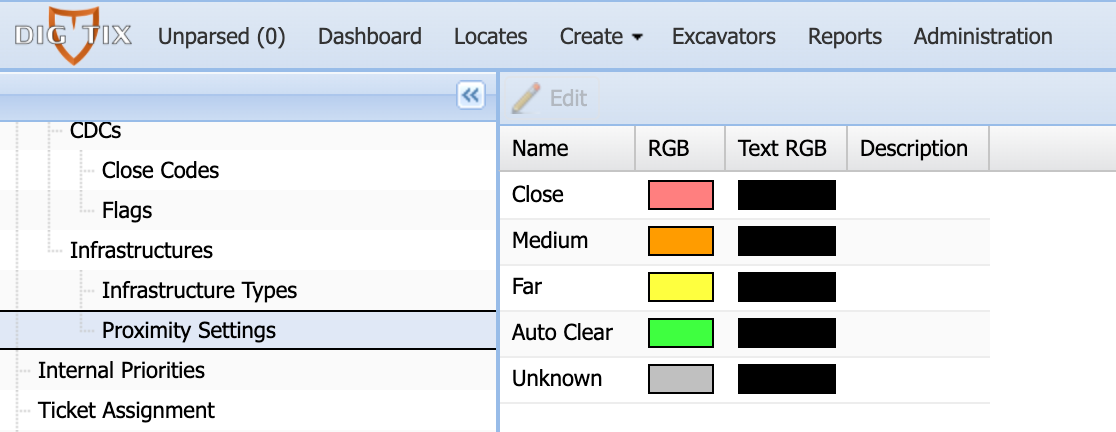
Figure 1: Proximity Categories
These categories are used throughout the DigTix application, as detailed below.
INFRASTRUCTURE THRESHOLDS
When configuring infrastructure (GIS) layers within DigTix, each layer may be configured with a set of threshold parameters. Such thresholds are definable within the "Proximity" tab of the Infrastructure window. Within this tab the threshold values for each proximity category can be set for the infrastructure layer.
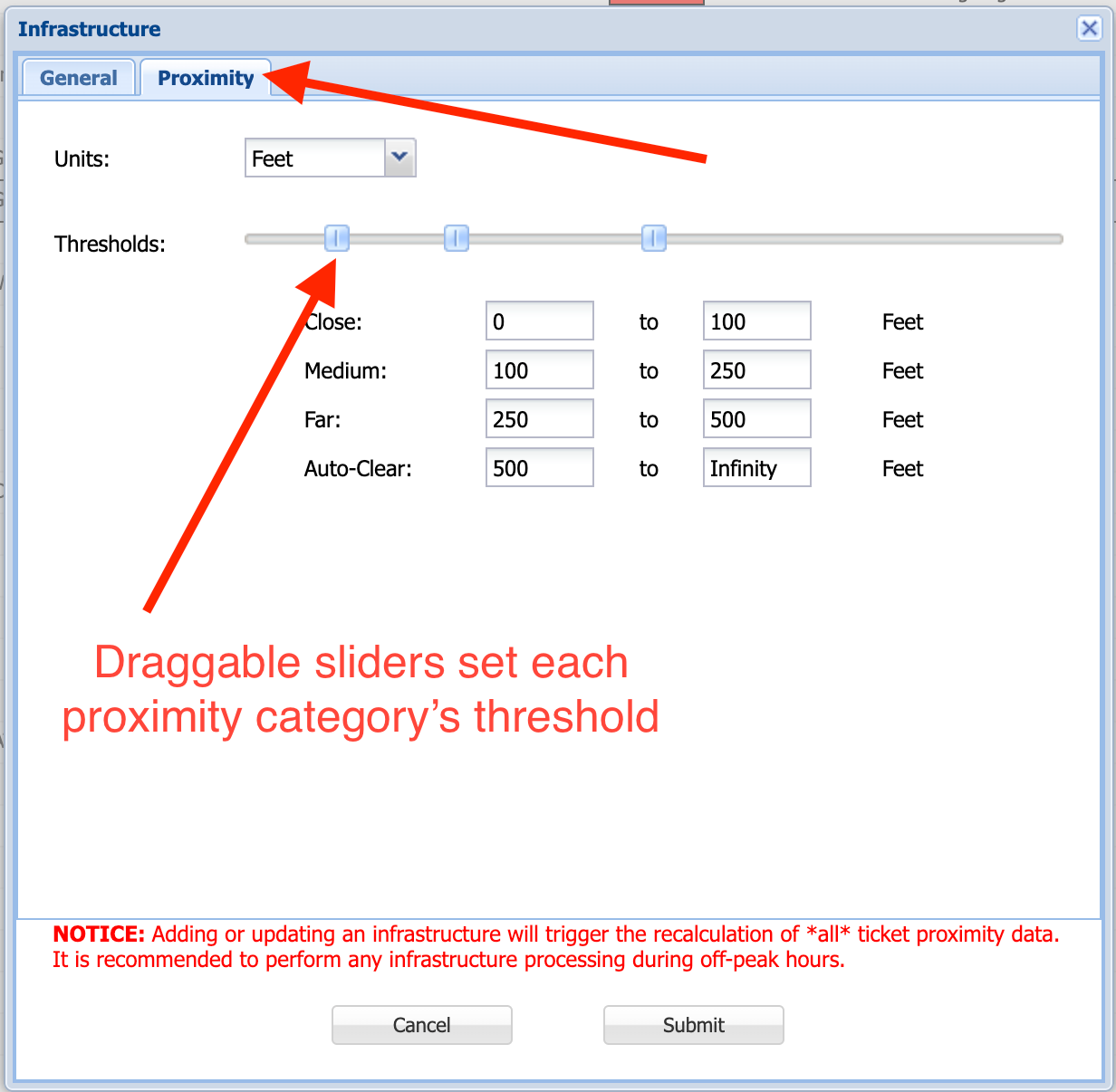
Figure 2: Setting Infrastructure Proximity Thresholds
These thresholds may vary from infrastructure to infrastructure. High profile assets may have very small proximity thresholds while non-critical assets may have larger proximity thresholds. These thresholds are used to categorize each ticket based on its proximity to the infrastructure layers.
Only the infrastructure layers which belong to the same Facility Owner as the CDC of the locate request are considered for each ticket. For example, a locate request for utilities belonging to "ABC Communications" will not have its proximity calculated to infrastructures belonging to "ACME Gas and Electric".
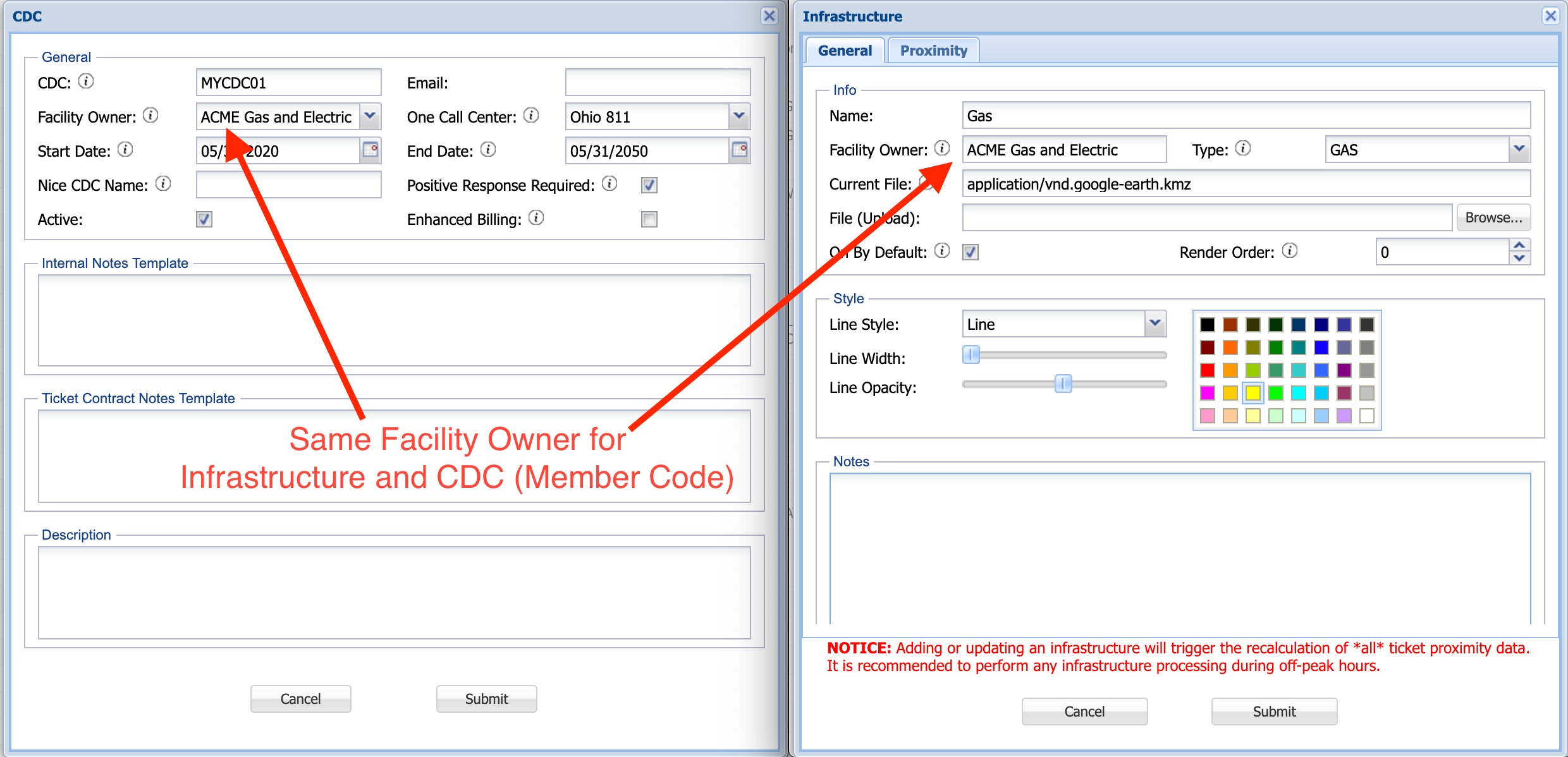
Figure 3: Configuring Facility Owner on CDCs and Infrastructures
For information on importing and managing infrastructure GIS data within DigTix, please see DigTix GIS Infrastructure Layers.
LOCATE REQUEST PROXIMITY
Once the proximity is calculated and categorized for a locate request, it can be visualized and manage in a few different ways.
Within the ticket window, the proximity information of each CDC may be viewed:
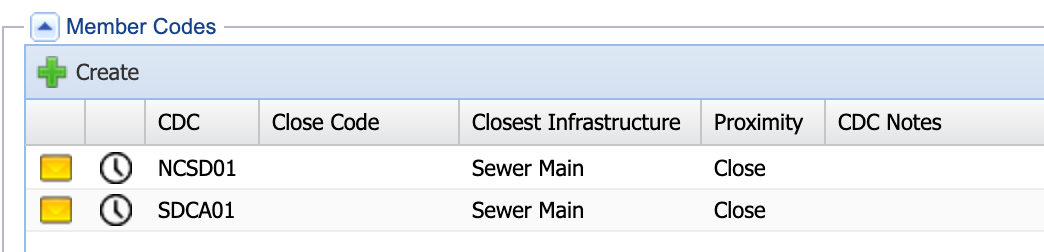
Figure 4: Viewing Locate Request Proximity in the Ticket Window
Within the ticket grid, the closest proximity category is displayed in the "Closest Infrastructure" field. For example, if a ticket involves two CDCs and one is a "Far" proximity category and the other is a "Medium" proximity category, this field will be "Medium".
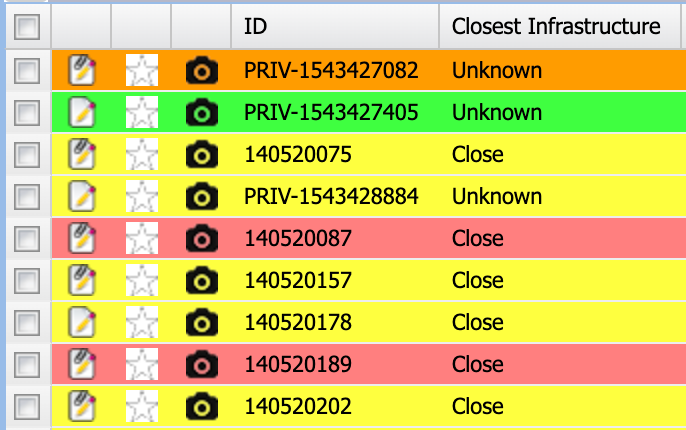
Figure 5: Viewing Locate Request Proximity in the Ticket Grid
As with most grid columns in DigTix, this "Closest Infrastructure" field may be sorted, filtered, hidden, shown, and exported. The "Filters" panel to the left of the ticket grid provides a way to quickly filter tickets based on their closest infrastructure. Expand the "Infrastructure Proximity" folder to select which category you'd like to view.

Figure 6: Proximity Category Quick Filters for Tickets
Finally, ticket proximity can be thematically visualized within the ticket grid and ticket map by selecting "Proximity" in the "Color By" drop down located between the grid and map.
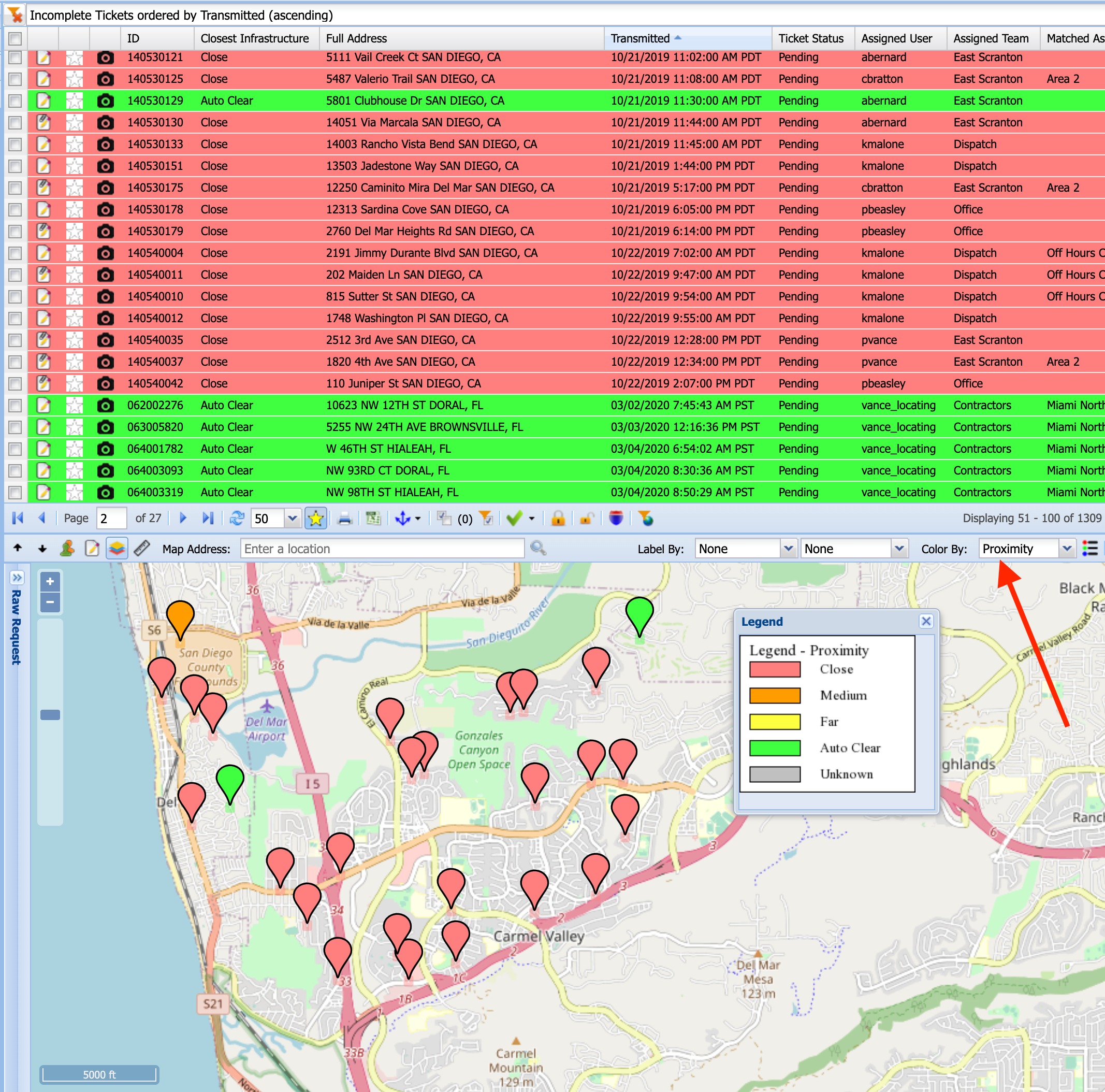
Figure 7: Thematic Visualization of Ticket Proximity Data
Was this article helpful?
That’s Great!
Thank you for your feedback
Sorry! We couldn't be helpful
Thank you for your feedback
Feedback sent
We appreciate your effort and will try to fix the article