OVERVIEW
This document describes how infrastructure layers are configured and managed within DigTix and how geospatial (GIS) infrastructure data is imported as a layer into DigTix. DigTix supports the import of three GIS formats: ESRI Shapefile, Google KML / KMZ format, and Geodatabase format.
NOTE: GIS data must be projected in a geographic coordinate system (i.e. spherical, latitude / longitude) such as WGS84. GIS data which is projected in a coordinate system (i.e. northing / easting) may result in inaccurate position data when imported into DigTix.
INFRASTRUCTURE LAYER ADMINISTRATION
DigTix infrastructure layers can be accessed via the Infrastructures section of the Administration page. Each layer is listed as a separate row with information including name, style, and proximity thresholds.
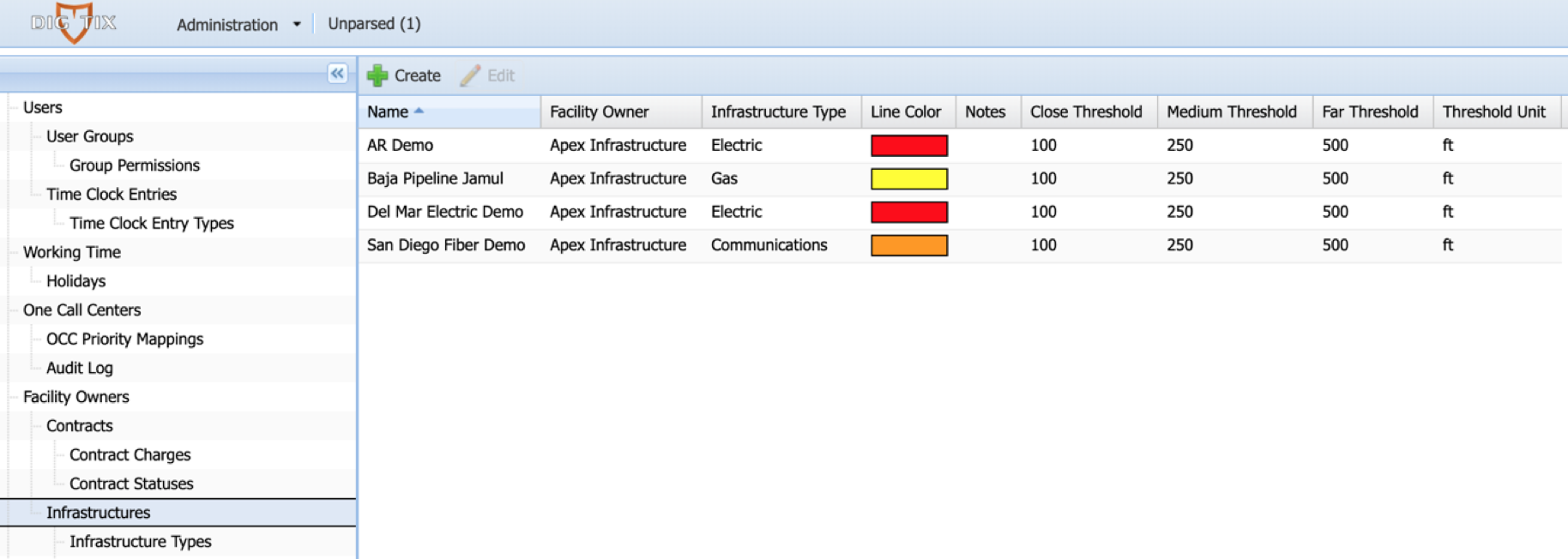
Figure 1: Infrastructure administration configuration.
An infrastructure layer may be created by clicking on the “Create” button at the top of the infrastructure list. An existing infrastructure layer may be updated by either single-clicking on the infrastructure row and clicking the “Edit” button at the top of the list, or by double-clicking on the infrastructure row. This will open the infrastructure window which allows the editing of that infrastructure layer.
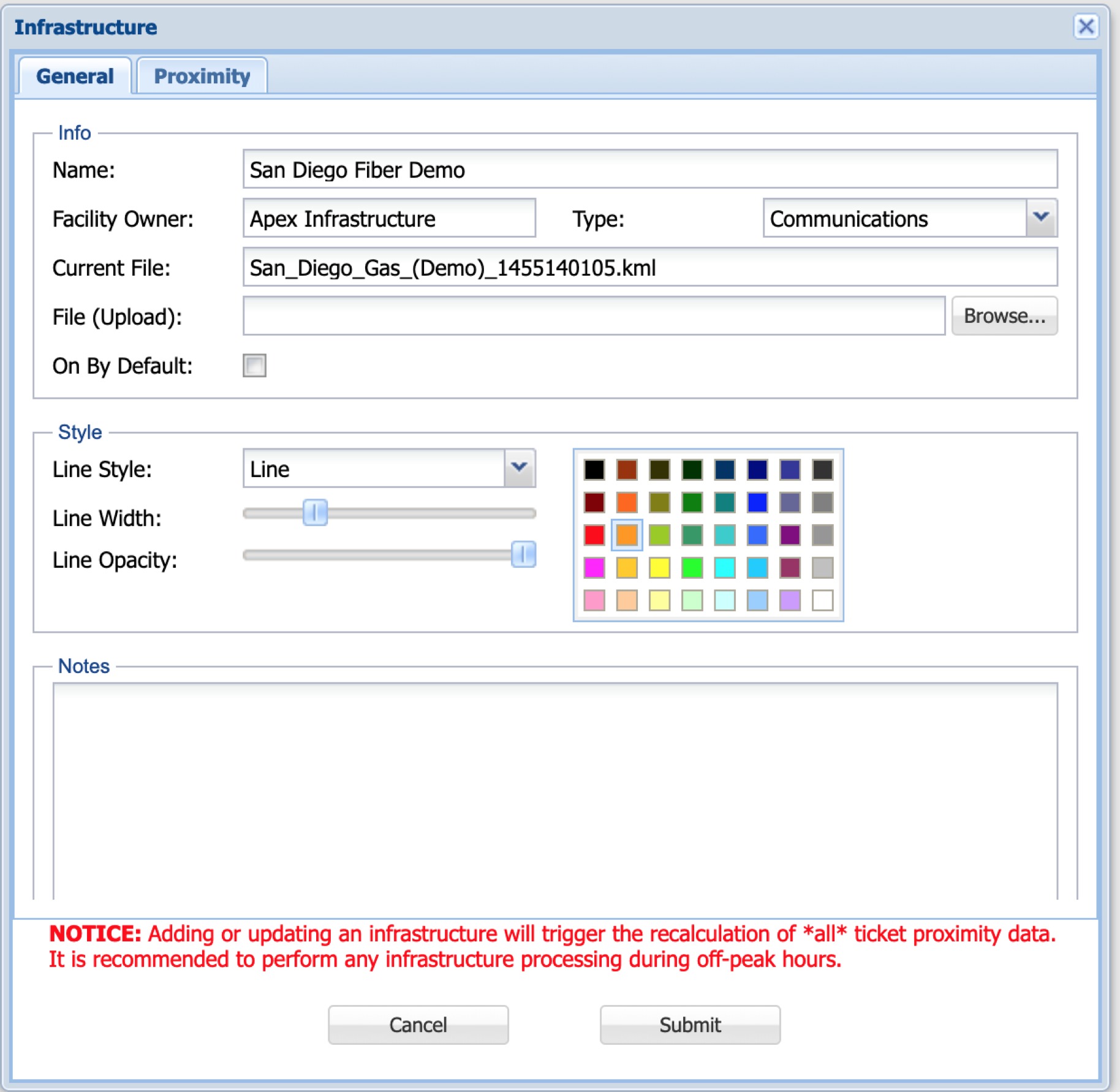
Figure 2: Infrastructure layer settings.
Each field in the infrastructure window dictates how the layer appears and behaves within DigTix.
- Name: The name of the infrastructure layer.
- Facility Owner: The facility owner that the infrastructure belongs to, as defined in the “Facility Owners” section of the Administration page. Note this field may not be updated after it is set.
- Type: The type of infrastructure that this layer represents, as defined in the “Infrastructure Types” section of the Administration page.
- Current File: The name of the GIS file that was last imported to the layer.
- File (Upload): Allows the selection of a GIS data file (ESRI Shapefile or Google KML / KMZ) from your local device for import into the layer. Clicking on the “Browse…” button at the left of this field will allow the selection of a file for import into the layer.
- On By Default: Whether or not the layer should be activated by default on the ticket map.
- Line Style: The style that the lines contained in the GIS data should be displayed as on the map.
- Line Width: The width the lines contained in the GIS data should be displayed as on the map.
- Line Opacity: The opacity the lines, points, and polygons contained in the GIS data should be displayed as on the map.
- Color: The color the lines, points, and polygons contained in the GIS data should be displayed as on the map.
- Notes: Any notes that should be tied to the infrastructure layer.
An existing infrastructure layer may be deleted by single-clicking on the infrastructure row and clicking the “Delete” button.
IMPORTING GIS DATA FILES (MANUAL)
If the data to be imported is in ESRI Shapefile format, the data must be prepared for import into the DigTix system by following the steps below. If the data to be imported is in KML / KMZ format, skip the four steps below.
- Locate the ESRI Shapefile files on your local device.
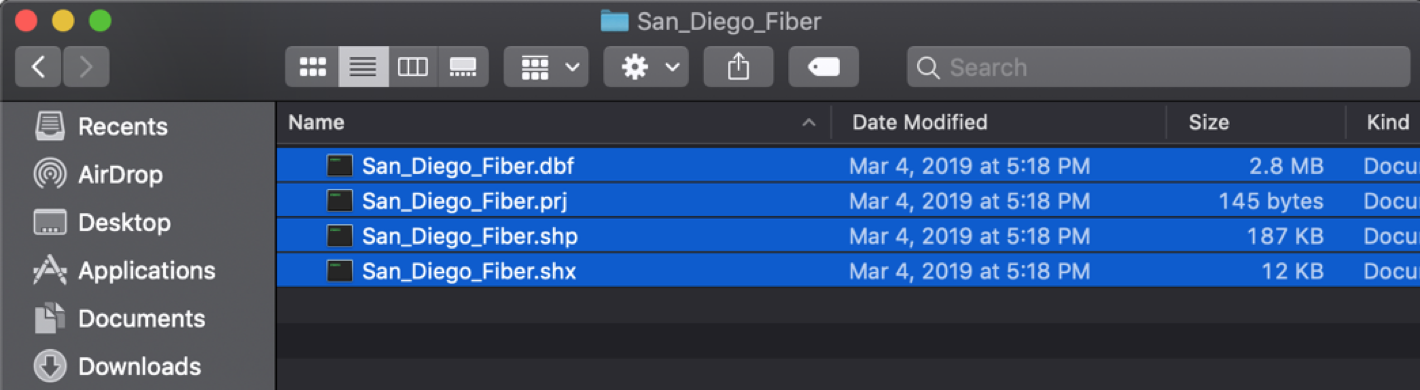
- Select (highlight) the files. The four file types are required to create a valid ESRI Shapefile layer: .shp, .shx, .dbf, .prj
- With the files highlighted, right click and select “Add to zip file” (Windows) or “Compress” (OS X).
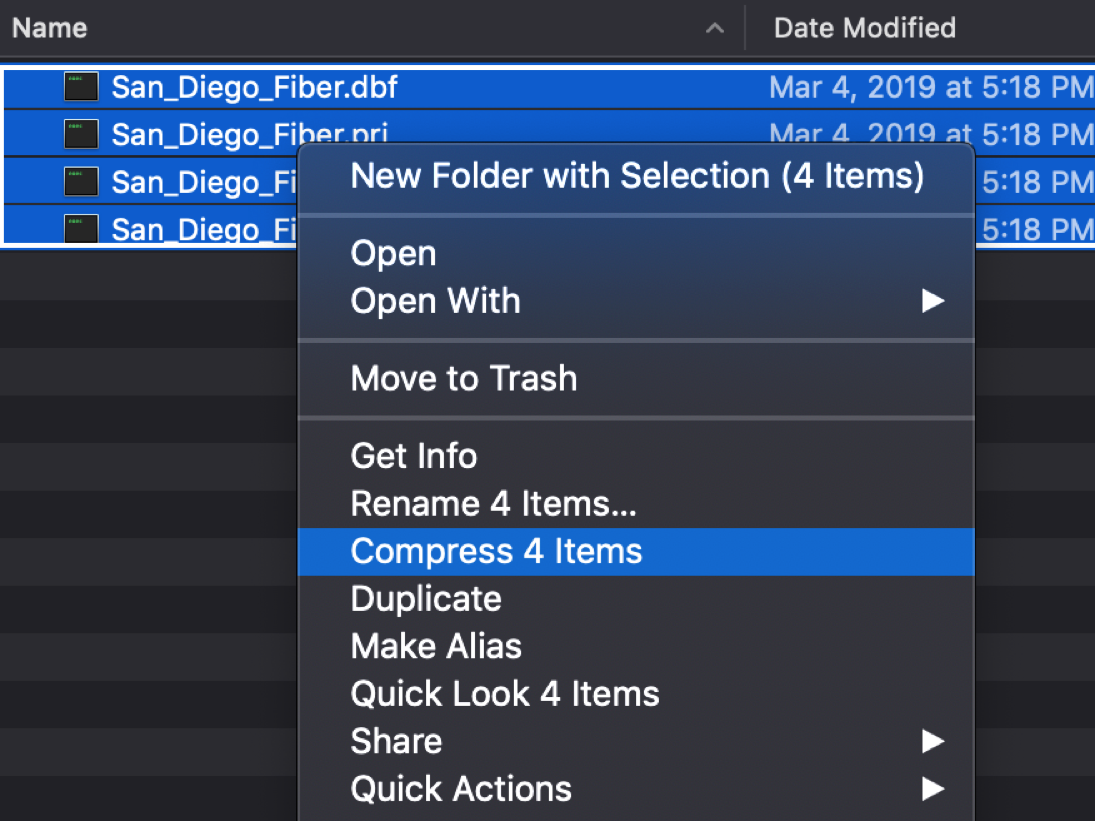
- This will create a single zip file containing the required ESRI Shapefile files.
To import a GIS data file (KML / KMZ or zipped ESRI Shapefile) into a DigTix layer:
- Create a new infrastructure layer or edit an existing layer.
- Click on the “Browse…” button to the right of the “File (Upload)” field. This will open a window which allows the selection of a file stored on the local device.
- Navigate to and select the desired KML / KMZ file or the ZIP file containing the ESRI Shapefile files prepared above.
- Click the “Submit” button.
The import of Geodatabase files are not supported through the UI. Please see the "IMPORTING GIS DATA FILES (AUTOMATIC) section below for instructions on how Geodatabase files may be imported into DigTix.
The import of GIS data files larger than 64MB is not supported through the UI. Please see the "IMPORTING GIS DATA FILES (AUTOMATIC) section below for instructions on how files larger than 64MB may be imported into DigTix.
IMPORTANT NOTE: Importing infrastructure files may require significant server resources to process the data. Because of this, it is recommended to import infrastructure GIS data outside of normal business hours.
IMPORTING GIS DATA FILES (AUTOMATIC)
NOTE: Automatic GIS import is offered as part of the DigTix Enterprise license and may incur additional service and maintenance costs.
Infrastructure layers may have their GIS data updated automatically by uploading the latest data via Secure File Transfer Protocol (SFTP) to DigTix’s SFTP server located at sftp.digtix.com.
In order to provide access to sftp.digtix.com, the accessing party needs to create an SSH key pair and provide the DigTix team with the public key - while keeping their own private key a secret! Connecting to a server using an SSH key pair provides a very secure way to authenticate and send encrypted data between parties.
Generating an SSH key pair is a common and quick (~5 minute) IT process. If you're unsure how to do this, please work with your IT department. Here are instructions on how to generate an SSH key pair on Windows and shell scripting environments:
https://www.ssh.com/ssh/putty/windows/puttygen
https://www.ssh.com/ssh/keygen/
Once you've provided the public key from the generated key pair, the DigTix team will be able to configure you a login to sftp.digtix.com. You will be able to connect using the private key from the generated key pair.
IMPORTANT NOTE: Be sure that the file system permissions for your private key are "600" or "400" before attempting to connect to sftp.. Many programs will refuse to use private keys which have permissions which are "too open". Please refer to this article for more information.
After access has been granted, GIS files may be uploaded to the appropriate server folder. At a regular daily interval (typically overnight), a process polls the server to look for GIS data to process. If any GIS data exists, it will update the appropriate Infrastructure layer(s) with the GIS data.
If the data to be imported matches a layer name that exists within DigTix, that DigTix layer will be updated during the data import process. If the layer does not exist within DigTix, a new layer may be created during the import process.
For example, if DigTix has a single infrastructure layer named "Electric_Service" and the dataset uploaded to sftp.digtix.com includes two layers: one named "Electric_Service" and another named "Electric_Distribution"...
- The Electric_Service layer will be updated with the provided data, since the layer already exists.
- A new layer named Electric_Distribution will be created with the Electric_Distribution data.
The same requirements for the manual import process described above hold true for the automatic import with the following exceptions:
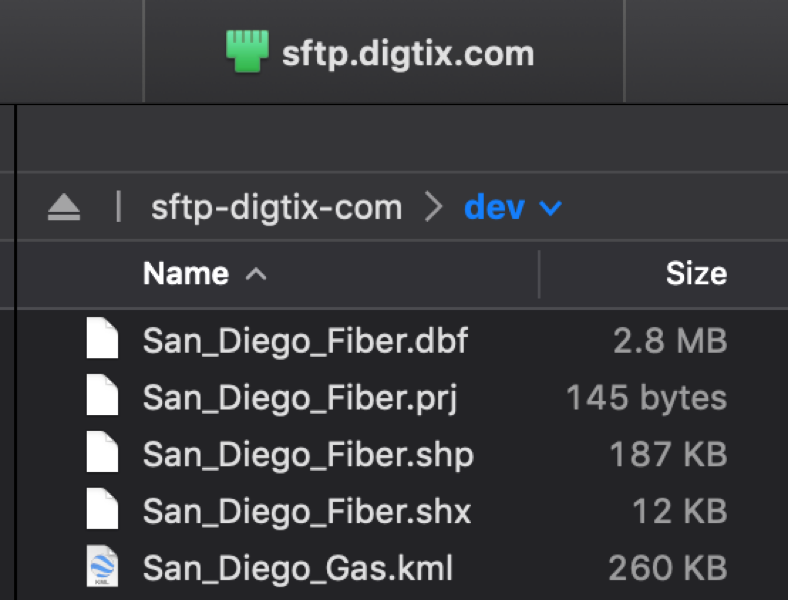
- ESRI Shapefiles should not be zipped. They must all have the same name, with the four required file types (.shp, .shx, .dbf, .prj) uploaded to the root directory.
- GDB files should be placed in a folder named DigTix.gdb and that folder zipped into a file named DigTix.gdb.zip which is uploaded to the root directory.
- GIS data files have a maximum size limit of 2GB. GIS datasets larger than 2GB must be split apart into multiple datasets which are less than 2GB in size.
If any issue is found with any file(s) uploaded to sftp.digtix.com for import, the import will fail and the DigTix support team will be automatically notified so they may take the appropriate action.
The screenshot below is from an intake folder on sftp.digtix.com server. In this example, the four ESRI Shapefiles (.shp, .shx, .dbf, .prj) would be procssed to update the Infrastructure layer named “San_Diego_Fiber” while the San_Diego_Gas.kml file would be processed to update the infrastructure layer named “San_Diego_Gas”.
NOTE: If there is custom symbology that should be used with the provided GIS data, it can be provided via lyrx files for manual import - just let us know.
VIEWING GIS DATA VIA WMS
NOTE: Viewing GIS data via WMS is an integration available within DigTix Enterprise.
DigTix supports mapping (GIS) data from sources that implement OGC compliant WMS specifications. This allows the display of external mapping data within DigTix. Technologies such as Geoserver, ESRI, and more provide OGC compliant services. To view data from such sources in DigTix, the sources must be configured within DigTix via the "External Map Sources" section of the Administration page:

To define a new external map source, click the "Create" button at the top of the configuration section and fill out the form that is shown. Most notably, the "GetCapabilities" URL must be configured. This URL is part of the OGC standard and describes what mapping data is available from the external data source. For more information on OGC compliant services including "GetCapabilities" URLs, visit the OGC documentation site here. An auth key may be configured to be sent along with requests to the service as shown.
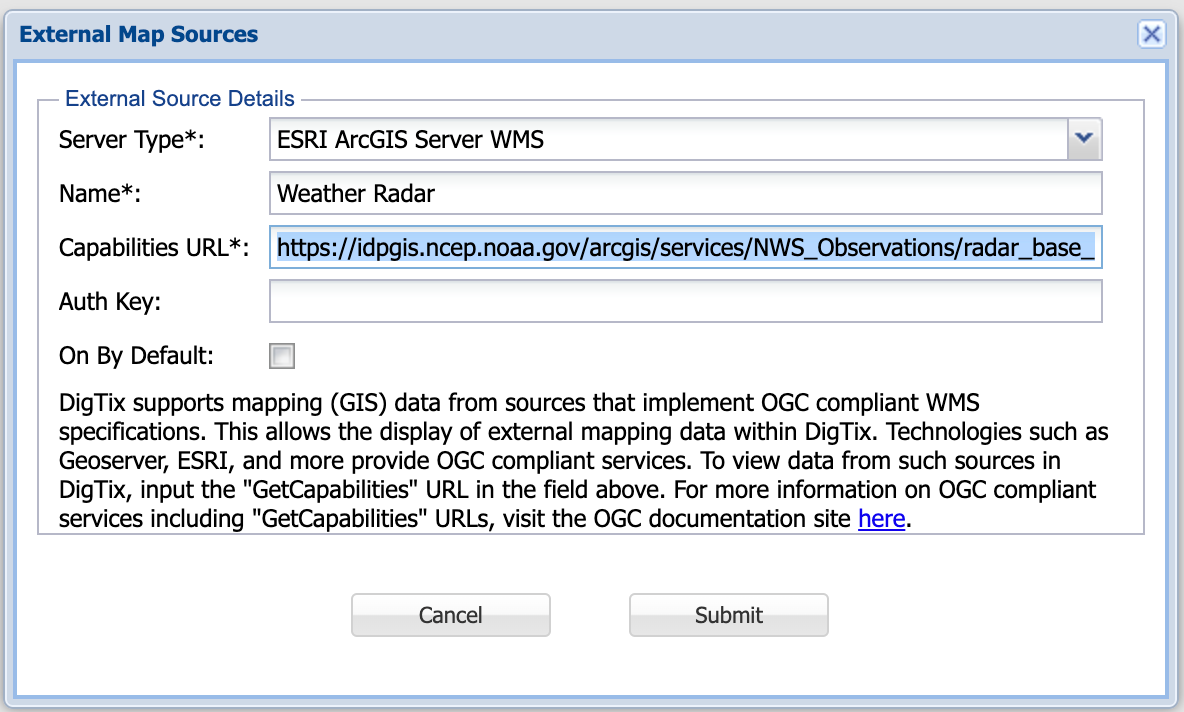
In the screenshot above, a data source is being configured to display weather radar data from the National Oceanic and Atmospheric Administration's (NOAA's) public mapping service. The GetCapabilities URL for this mapping service is https://idpgis.ncep.noaa.gov/arcgis/services/NWS_Observations/radar_base_reflectivity/MapServer/WMSServer?request=GetCapabilities&service=WMS. By configuring the GetCapabilities URL as shown above, with a preferred projection of EPSG:4326 or EPSG:3857, DigTix can analyze and display the data offered by that service within the DigTix application's maps.
The OGC specification for WMS also allows multiple layers within an endpoint. You can find complete information on this specification here: https://www.ogc.org/
Once the desired external map sources are configured, they can be displayed within DigTix by clicking on the "Map" tab of the left control panel, then clicking on the "External Map Source Layers" section, then toggling the desired layer(s) to be shown on the map:
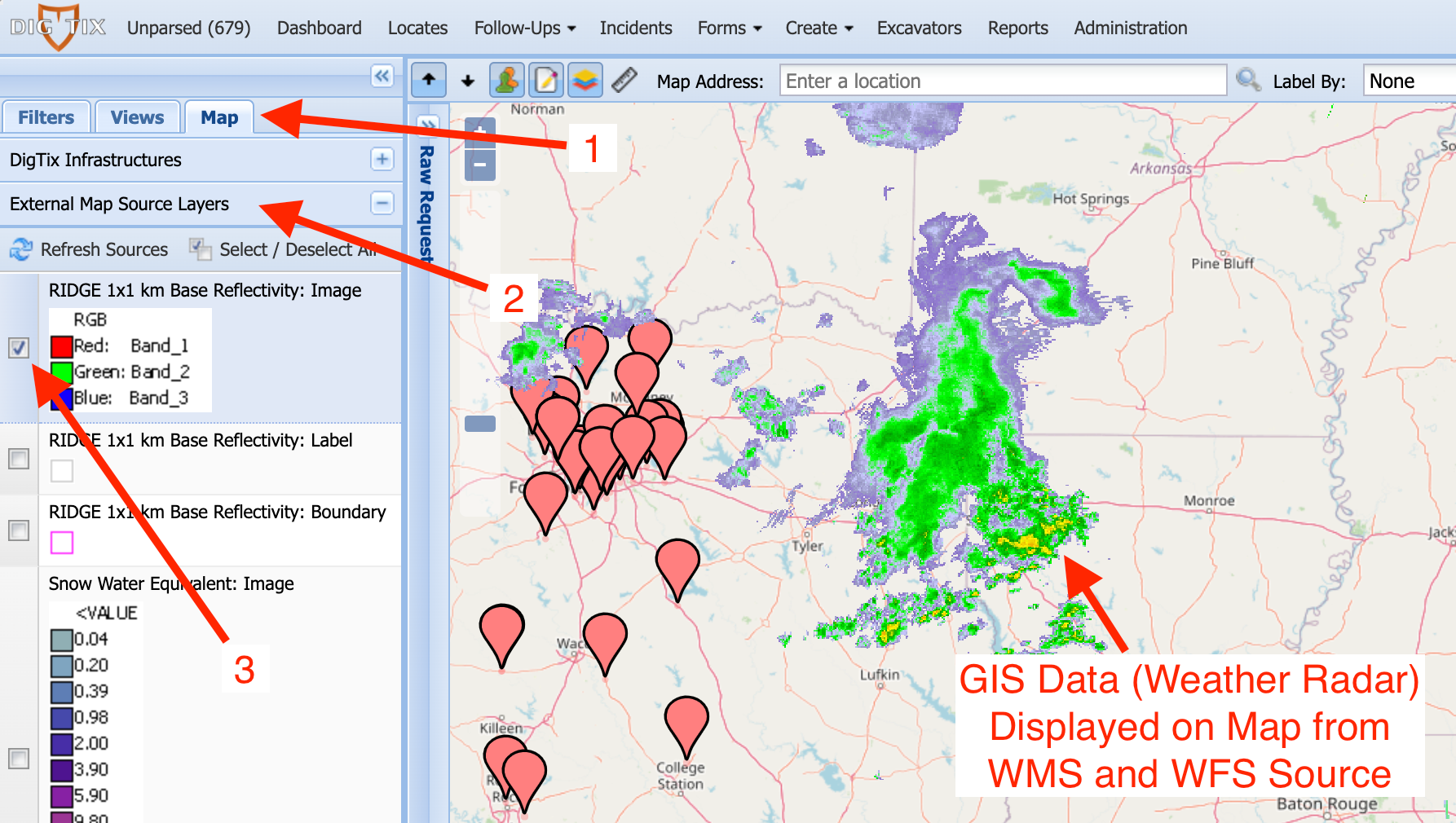
In order to view GIS data being served by WMS, it is required that the end user have access to those service endpoints. For example, if the service endpoints are located on a secure network or behind a corporate firewall, the DigTix user must be authenticated to that network and have direct access to the service endpoints. If users do not have access to the service endpoints, an error will be displayed when attempting to view the data.
It is important to note that WMS does not provide the ability to calculate the proximity (i.e. the distance) between locate request data stored within DigTix and the GIS data exposed by WMS and WFS.
GDB Files and custom symbology
NOTE: GDB files do not contain symbology information, they only include GIS data.
Custom symbology files can be submitted to development in SLD format. If it is not possible to provide symbology files in SLD format, they will need to be converted from LYRX to SLD manually. Note that some LYRX styles are not supported by SLD and vice versa. Because of this, there is a possibility of lossy conversion. It is highly recommended for GIS staff to export symbology in SLD format.
Was this article helpful?
That’s Great!
Thank you for your feedback
Sorry! We couldn't be helpful
Thank you for your feedback
Feedback sent
We appreciate your effort and will try to fix the article