TICKET MAP
The Ticket Map is viewable in the bottom right-hand corner of the Locates, Incidents, and Follow-Ups pages. All tickets listed in the ticket grid are visualized as a labeled marker on the map. The Ticket Map will help you visualize the location of your tickets and compare those tickets to infrastructure as well as improve your efficiency with associated features.
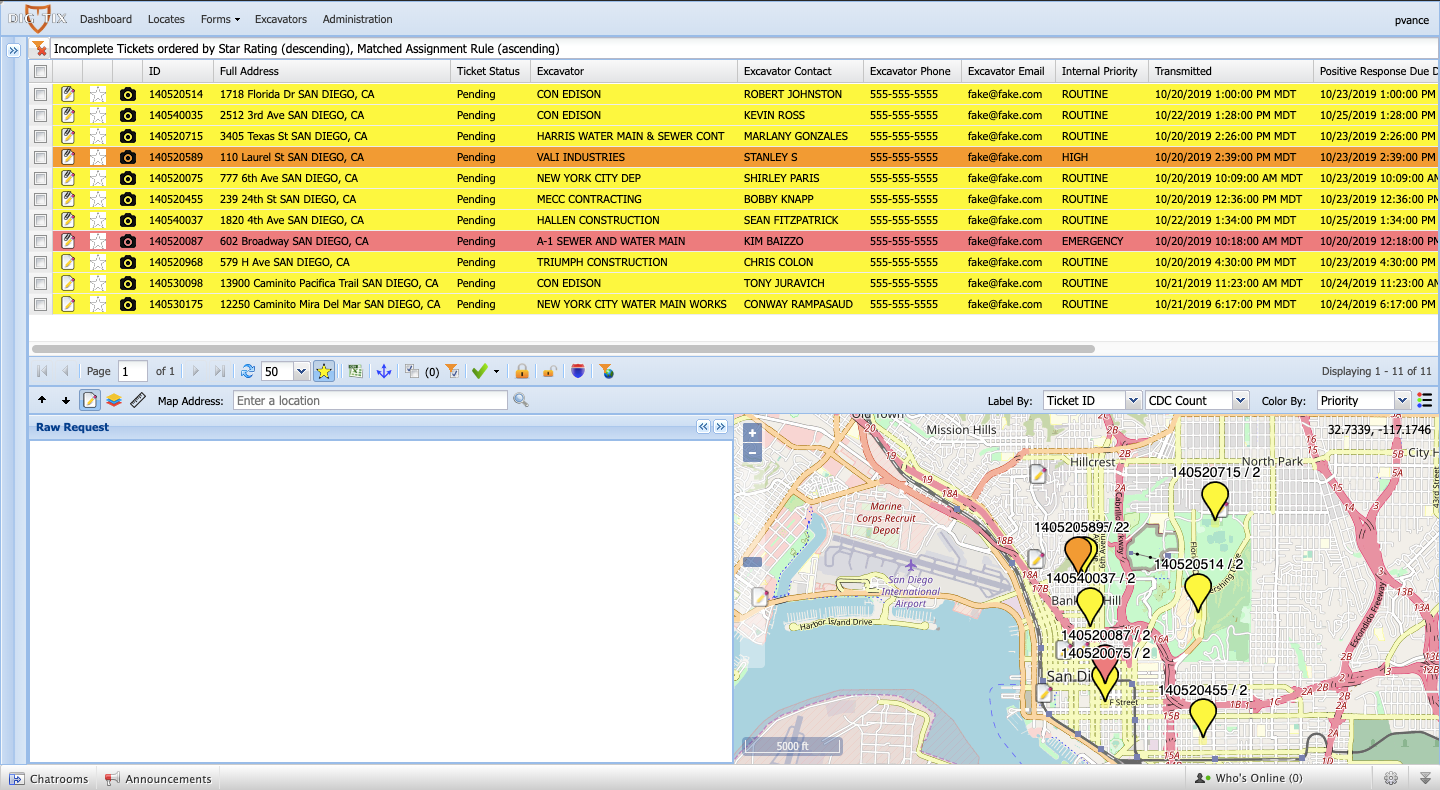
Figure 1: Ticket Map on the Locates Page
MAP LABEL
Selecting fields from these two drop-down menus will update the labels displayed on top of the ticket markers in the Ticket Map. Options include None (no label), Ticket ID, Number of Contracts, Assigned User, Contract Codes (CDCs), Excavator Company, or One Call Center.
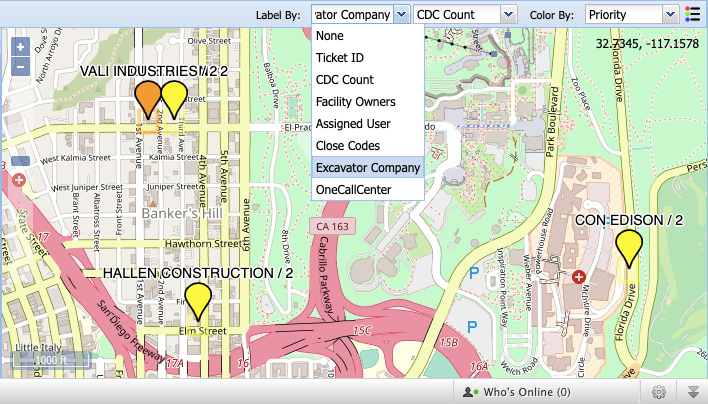
Figure 2: Label By List
COLOR BY
Ticket markers on the map will be displayed using a variety of different color codes. These color code options can be toggled through using the Color By drop-down menu. Options include Completion Due, None, Priority, Proximity, Response Due, Risk, or Status.
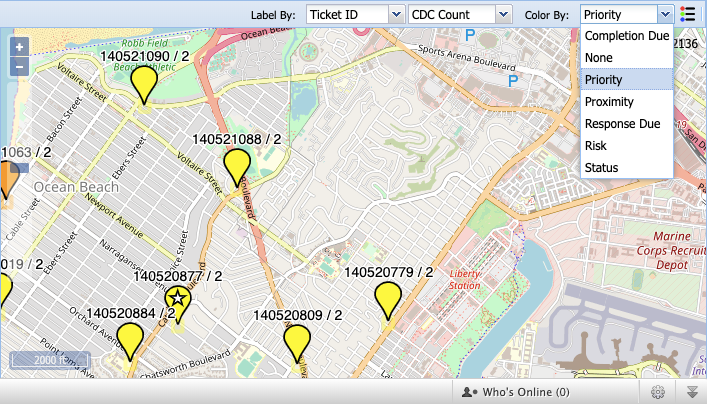
Figure 3: Color By Options
To the right of the drop-down menu is the Legend icon. This will display a pop-up window referencing the color of the ticket marker to the appropriate value.

Figure 4: Color By Legend Button
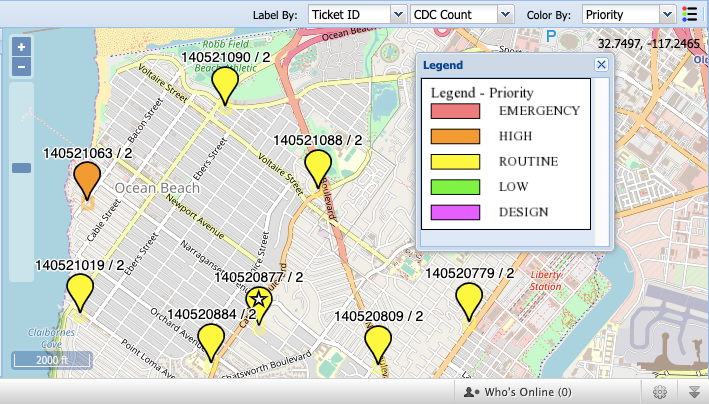
Figure 5: Example Legend
MAP TAB
The Map tab in the Left Control Panel includes display options for the Ticket Map and is broken into two sections, detailed below.
Infrastructures
Infrastructure data that has been loaded into DigTix may be displayed on the Ticket Map by toggling the display on or off in the “Infrastructures” section of the Map tab.
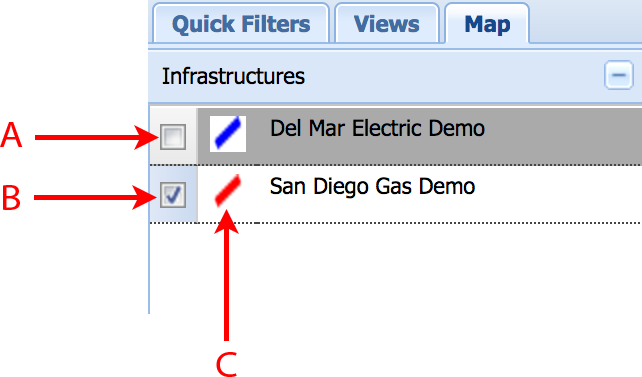
Figure 6: Infrastructure Section of the Map Tab in the Left Control Panel
A. Activate Infrastructure Button. This infrastructure is not being displayed on the Ticket Map. To activate it, click this button.
B. Deactivate Infrastructure Button. This infrastructure is being displayed on the Ticket Map. To deactivate it, click this button.
C. Infrastructure Style Indicator. Each infrastructure has a style (line color, width, type, etc) that is used to render it onto the map.
More Options
Miscellaneous display options for the Ticket Map are found in the “Options” section of the Map Tab.
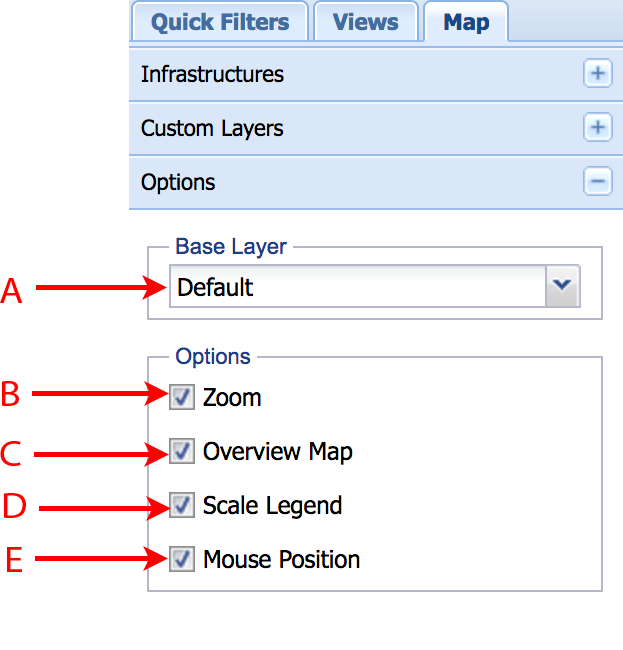
Figure 7: Options Section of the Map Tab
A. Base Layer Selection. This dropdown will change the base layer of the Ticket Map to the selected type. Types include OpenStreetMap (Default) and Satellite and others displayed below.
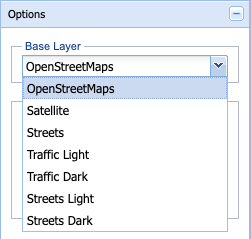
Figure 8: Base Layer drop-down menu
B. Zoom Control Display. Clicking this will toggle the display of the zoom control on the Ticket Map.
C. Overview Map Control Display. Clicking this will toggle the display of the overview map control on the Ticket Map.
D. Scale Legend Display. Clicking this will toggle the display of the scale legend on the Ticket Map.
E. Mouse PositionDisplay. Clicking this will toggle the display of the mouse position (latitude/longitude) on the Ticket Map.
HIDING AND SHOWING THE TICKET MAP
With this tool, you can size the map display as needed. The left arrow will expand the map collapsing the Ticket Grid. The right arrow will collapse the map, expanding the Ticket Grid.
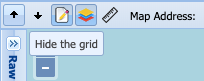
Figure 9: Hide / Show Grid Button.
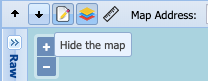
Figure 10: Hide / Show Map Button.
MAP NOTES
Map Notes are notes attached to a specific location on the map. These are independent of tickets and will be saved for up to seven years. Map notes are helpful in keeping track of location-based information like gate codes. These notes are unique to your organization and can be seen by all users.
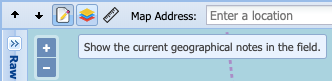
Figure 11: Map Notes Icon
To see a brief description of the Map Note, hover your mouse over the Map Note icon. A pop-up window will appear with a brief description of the note and identify the user that created that note.
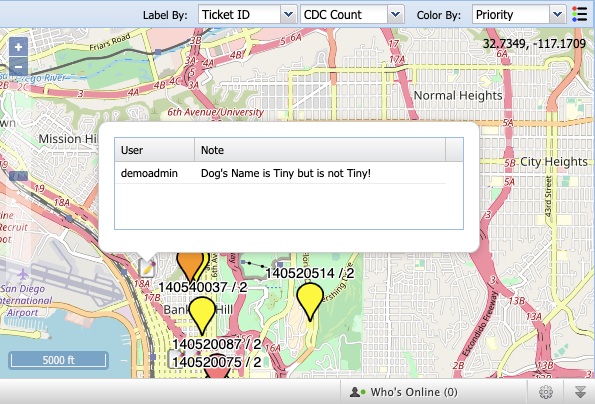
Figure 12: Map Notes Quick View (Mouse Hover)
To create a new Map Note, long-click (click and hold for 2 seconds) the desired location on the map and a pop-up window will appear. If you are creating a brand new note, another pop-up window will appear on top of the Map Notes window with a field to insert your information as shown in figure 14. If it is an existing map note, the following Map Notes window will appear with the previous information displayed in a grid. To add additional information, click the Create icon at the top left of the Map Notes window. This will prompt the Add New Note pop up window. To complete the notation, simply click the Submit icon at the bottom of the window.
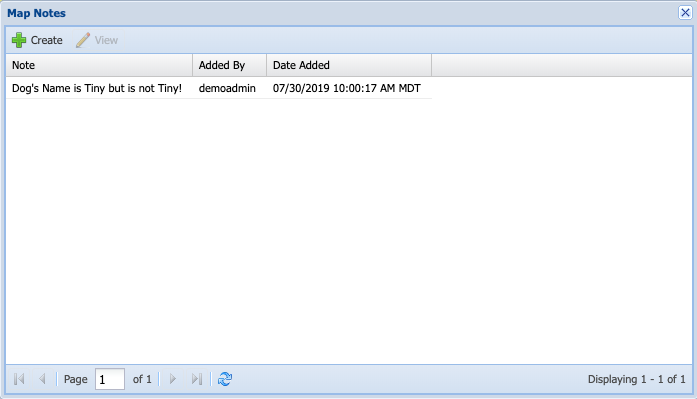
Figure 13: Map Notes Window
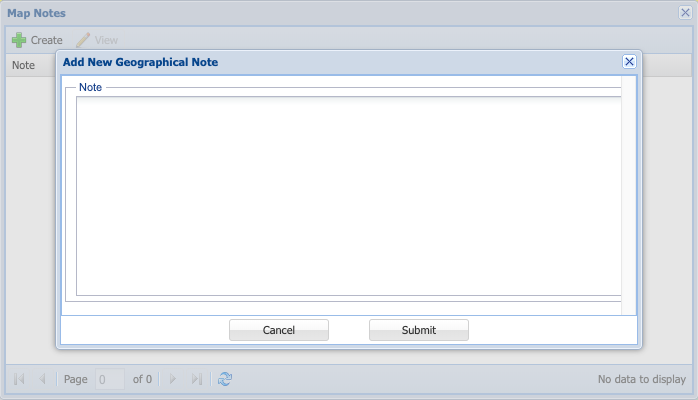
Figure 14: Creating a new Map Note
DISPLAY INFRASTRUCTURE LAYER
Infrastructure layers can be toggled on and off in the left control panel in the map tab. Once the selected layer is chosen, you can manually choose to have it displayed in the Map Window using the Show Infrastructure Layer icon, as shown below in Figure 15. When infrastructure layers are shown, they will appear on top of the map as shown in Figure 16.
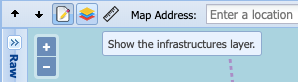
Figure 15: Show / Hide All Infrastructures Button
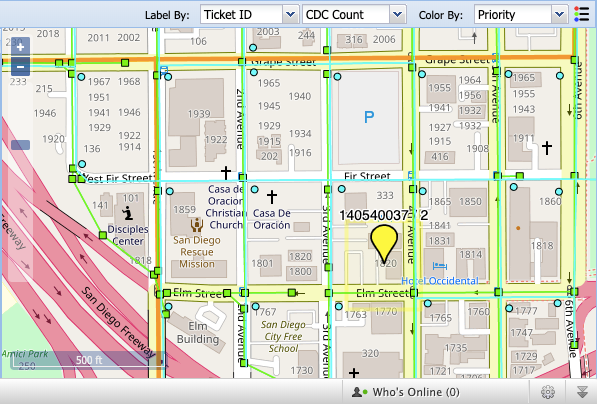
Figure 16: Infrastructure Display (Green and Blue Features)
MEASUREMENT TOOL
The Measurement Tool is used to calculate the distance in the Ticket Map. To access the Measurement Tool, click the ruler icon as shown in Figure 17. This will change your mouse to a circle. Use the circle to identify your starting point. Left-click to establish that starting point. From there, extend your mouse in the desired direction. A dotted line will form between the beginning location and the current position of your mouse. By clicking on the desired ending location, the dotted line will change to a solid line and the map distance will be displayed as shown in Figure 18.
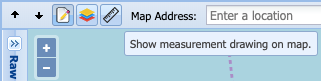
Figure 17: Measurement Tool Icon
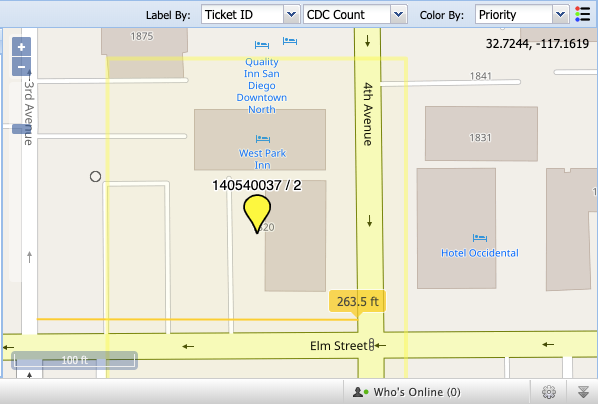
Figure 18: Measurement Tool (236.5 ft)
ADDRESS SEARCH
To search for a specific address, type the desired location into the Map Address field as shown in Figure 19. Clicking on the magnifying glass icon will generate a red icon at the desired location as shown in Figure 20.

Figure 19: Map Address search bar
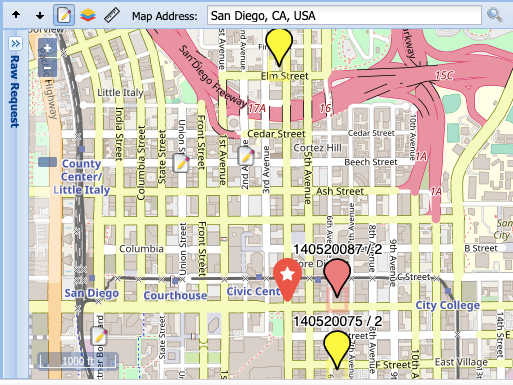
Figure 20: Example of Address Search
MAP EXTENT FILTER
The Map Extent Filter icon is designated by a globe with a triangle and appears in the Ticket Toolbar. Clicking this button will filter tickets located within the area displayed in the Ticket Map. This effectively applies filters to the latitude and longitude fields of the Ticket Grid. An example of this is shown in Figure 22.
Figure 21: Map Filter Icon
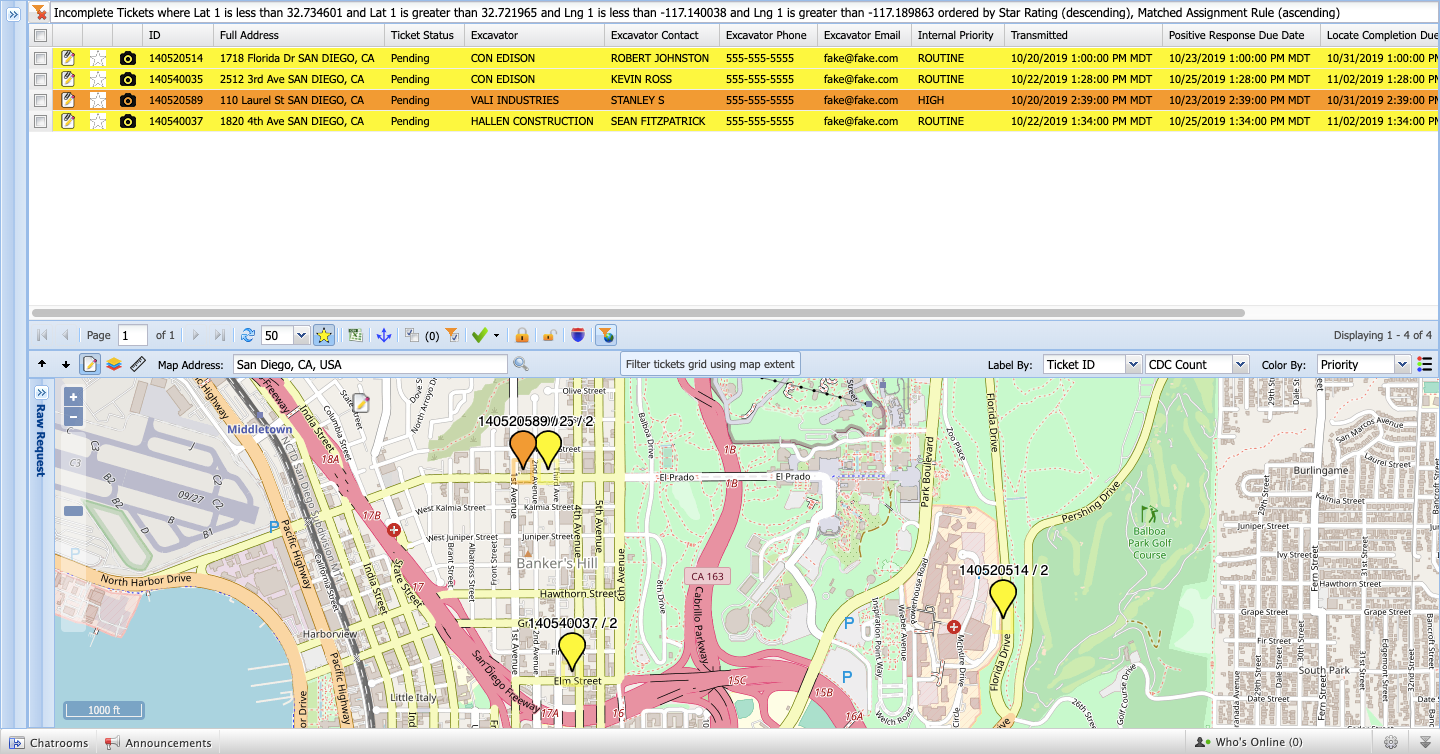
Figure 22: Filtering Tickets by Map Extent Filter Example with Ticket Grid
Was this article helpful?
That’s Great!
Thank you for your feedback
Sorry! We couldn't be helpful
Thank you for your feedback
Feedback sent
We appreciate your effort and will try to fix the article