Purpose/Overview
This feature allows users to associate one or more parcels (tracts) with an agreement directly from the Payee Information panel. It ensures that agreements are accurately linked to the correct land parcels, enabling proper tracking of ownership, payments, and reporting.
This is particularly useful for project managers, land teams, and administrators who manage agreements involving multiple landowners and parcels. By linking parcels at the agreement level, users can streamline downstream processes such as payment setup and reporting accuracy.
Navigation Path:
To access this feature: Project > Agreement Manager > Agreement Information Tab > Landowners and Parcel Information / Payee Information Panel > Parcel Information Tab
Things to Know:
- Required fields must be completed before proceeding. If any mandatory field is left blank, a validation message “Information Needed!” will appear below the field and prevent navigation to the Payment Information tab.
- The ability to associate a single parcel with multiple agreements is controlled by system configuration and must be enabled by an administrator.
- Parcel search behavior can be configured using system settings:
- EnableOnDemandLoad
- MINFILTERLENGTH
- These settings allow users to search for parcels directly by name without relying on lazy loading.
Key Benefits/Use Cases:
- Use Case 1: Associate multiple parcels to a single agreement for bulk land deals, improving efficiency and reducing manual entry.
- Use Case 2: Enable reuse of the same parcel across multiple agreements (if configured), supporting complex ownership or contractual scenarios.
- Use Case 3: Quickly locate and add parcels using search functionality, reducing time spent navigating large datasets.
How It Works:
Follow these steps to setup or enable:
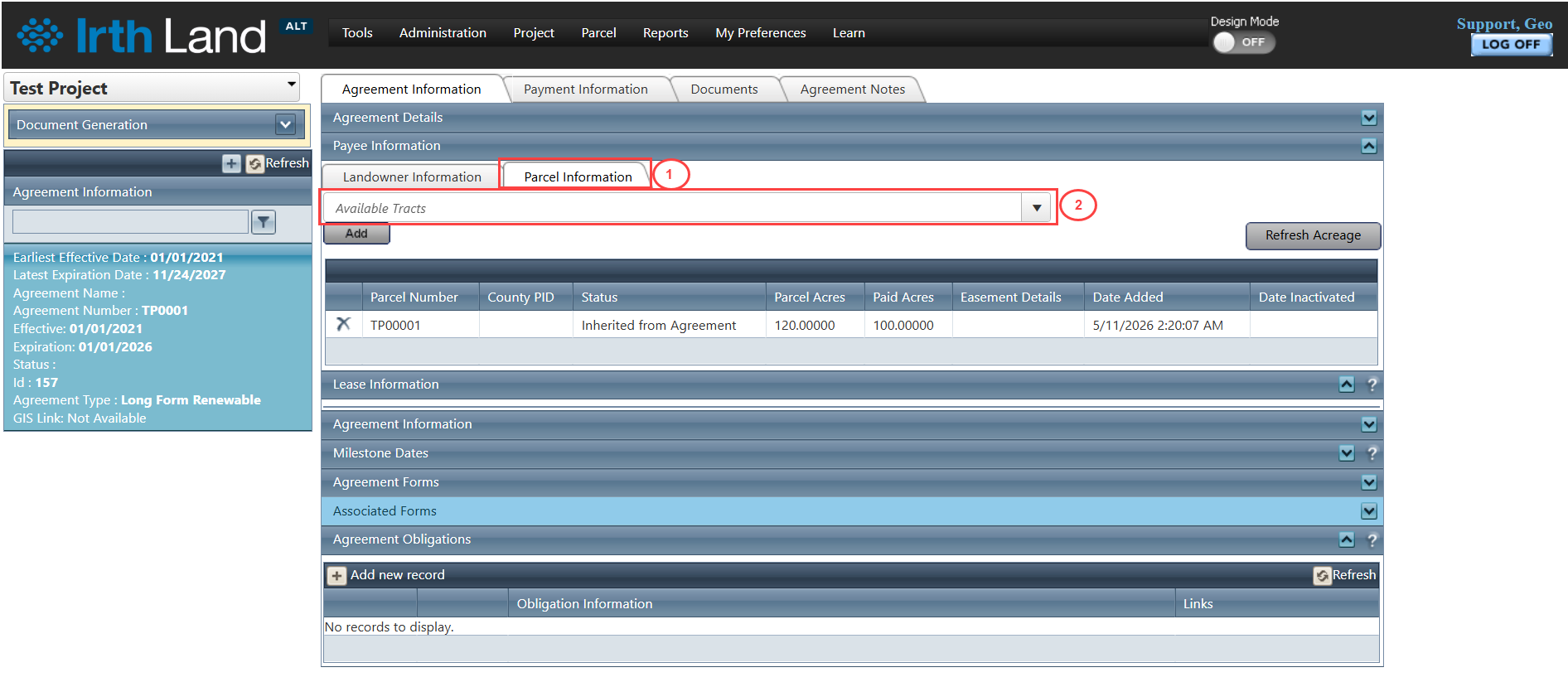
Step 1: Navigate to: Project > Agreement Manager > Agreement Information Tab > Landowners and Parcel Information / Payee Information Panel > Parcel Information Tab
Step 2: Locate the Available Tracts dropdown.
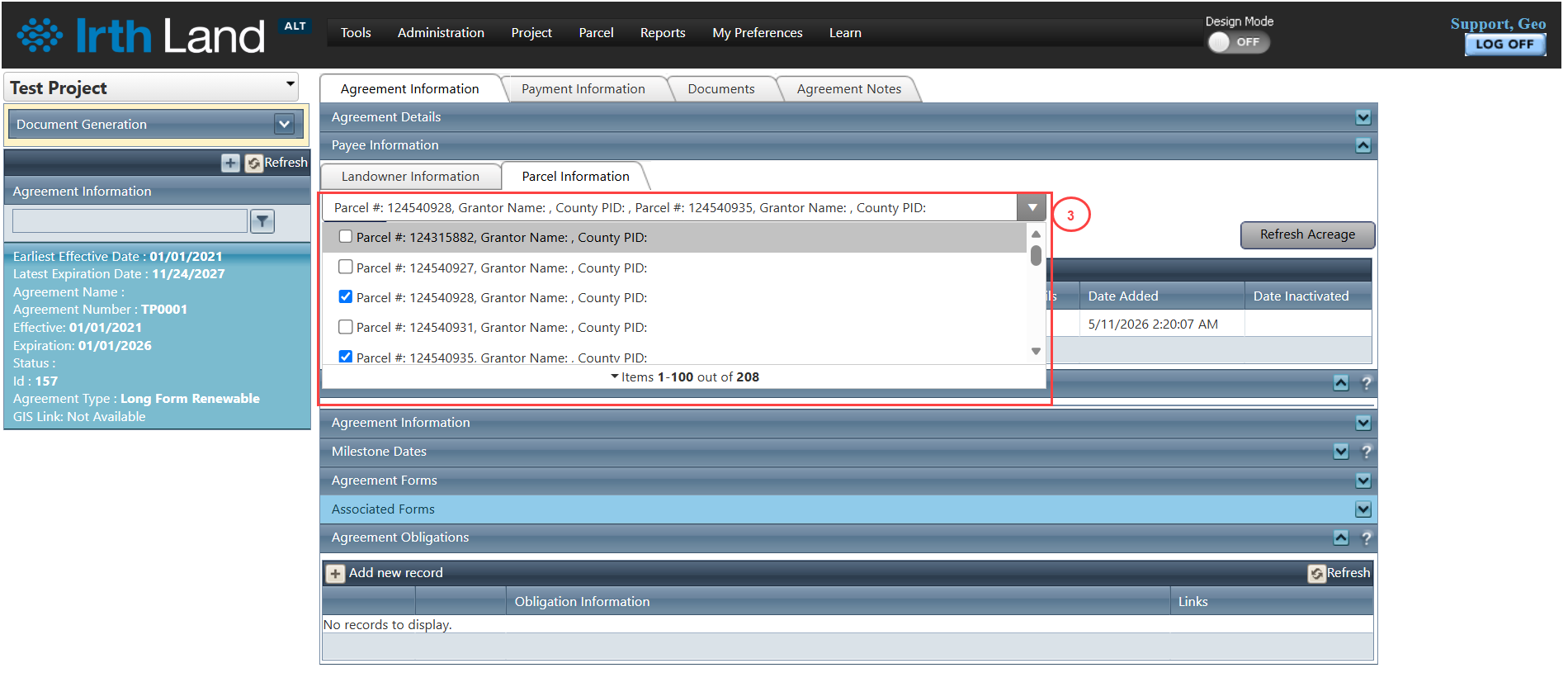
Step 3: Search for or select the required parcel(s) from the dropdown list.
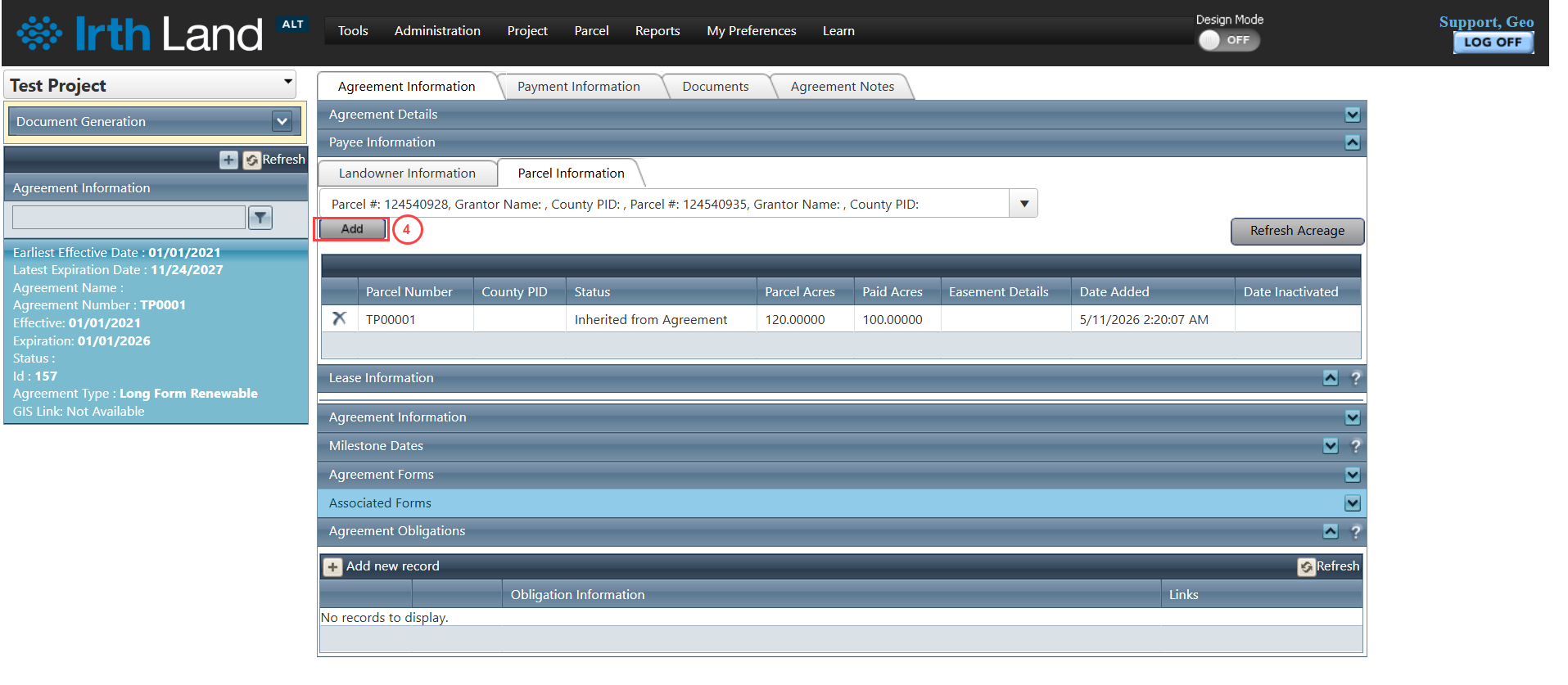
Step 4: Click the Add button to associate the selected parcel(s) with the agreement.
Step 5: Ensure all required fields are completed before proceeding to the next tab to avoid validation errors.
Related Features/Next Steps:
FAQ/Troubleshooting:
Q: Why am I unable to proceed to the Payment Information tab?
A: Ensure all required fields are filled. If any are missing, the system will display an “Information Needed!” message and block navigation.
Q: Can I associate the same parcel with multiple agreements?
A: Yes, but this depends on system configuration. Your administrator must enable this functionality.
Q: Why can’t I find a parcel in the Available Tracts dropdown?
A: Try searching using the parcel name. If the issue persists, check with your administrator regarding the EnableOnDemandLoad and MINFILTERLENGTH settings.
Questions? Contact us!

Was this article helpful?
That’s Great!
Thank you for your feedback
Sorry! We couldn't be helpful
Thank you for your feedback
Feedback sent
We appreciate your effort and will try to fix the article