Purpose/Overview
The Agreement Term Setup feature allows users to define and manage agreement phases (terms) within an individual agreement. Each term represents a specific duration with defined start and end dates, along with optional payment details.
This feature is primarily used by contract administrators and project managers to structure agreements into clearly defined periods, enabling better tracking, renewals, and financial planning.
Navigation Path:
To access this feature: Project > Agreement Manager > Agreement Details > Add Term
Things to Know:
- Users must have appropriate permissions to create or edit agreement terms.
- Only one term can be marked as Active at a time.
- Expiration Date can be auto calculated based on the duration entered.
- Flat Payment Amount is optional and can be defined per term.
Key Benefits/Use Cases:
- Manage Agreement Phases: Define multiple terms within an agreement to represent different phases or durations.
- Automate Date Calculations: Automatically calculate expiration dates based on the effective date and duration, reducing manual effort.
- Track Financial Obligations: Assign flat payment amounts to specific terms for better financial tracking and reporting.
How It Works:
Follow these steps to add a new agreement term:
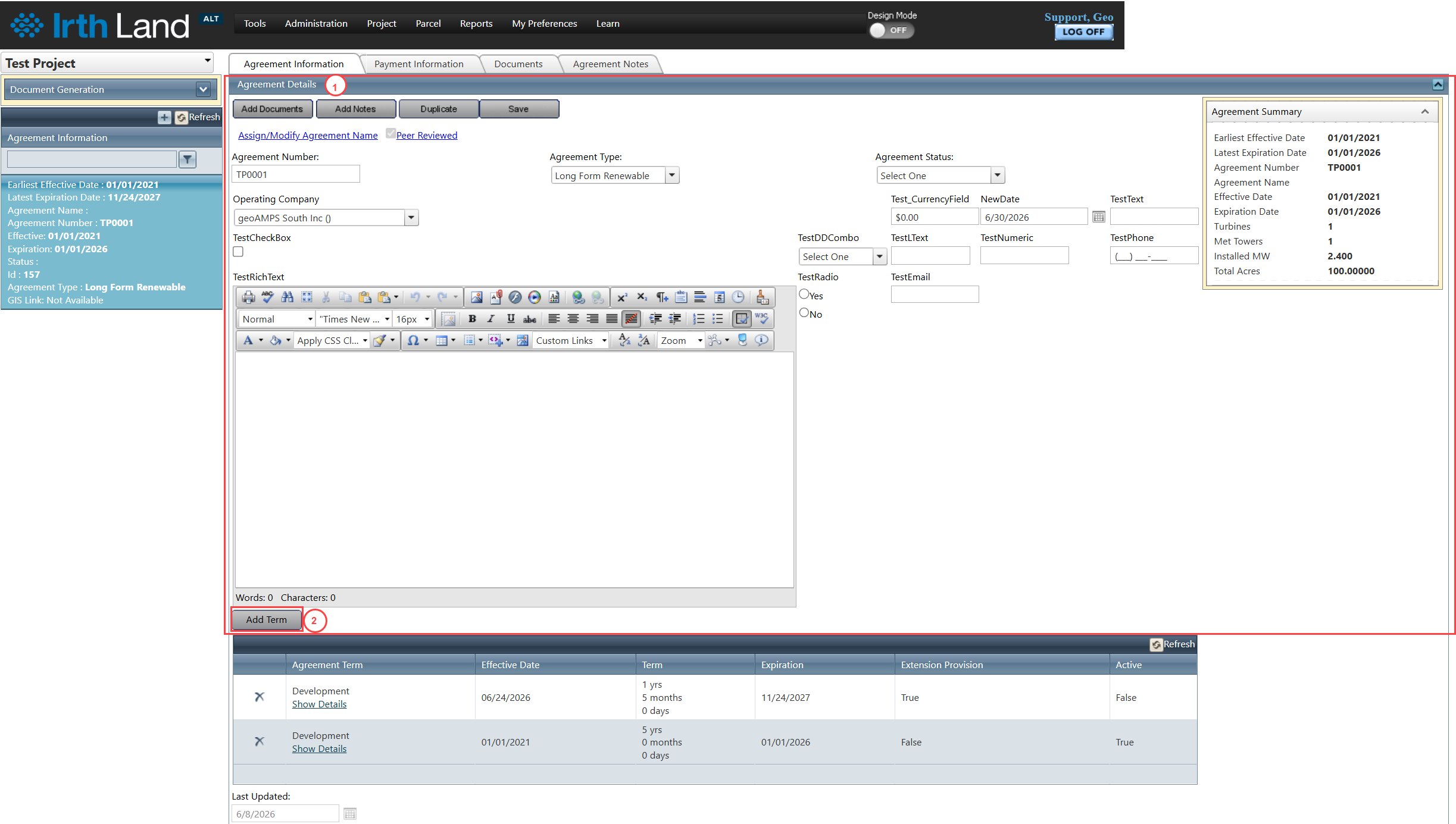
Step 1: Navigate to Project > Agreement Manager > Agreement Information Tab > Agreement Details Panel
Step 2: Click the Add Term button.
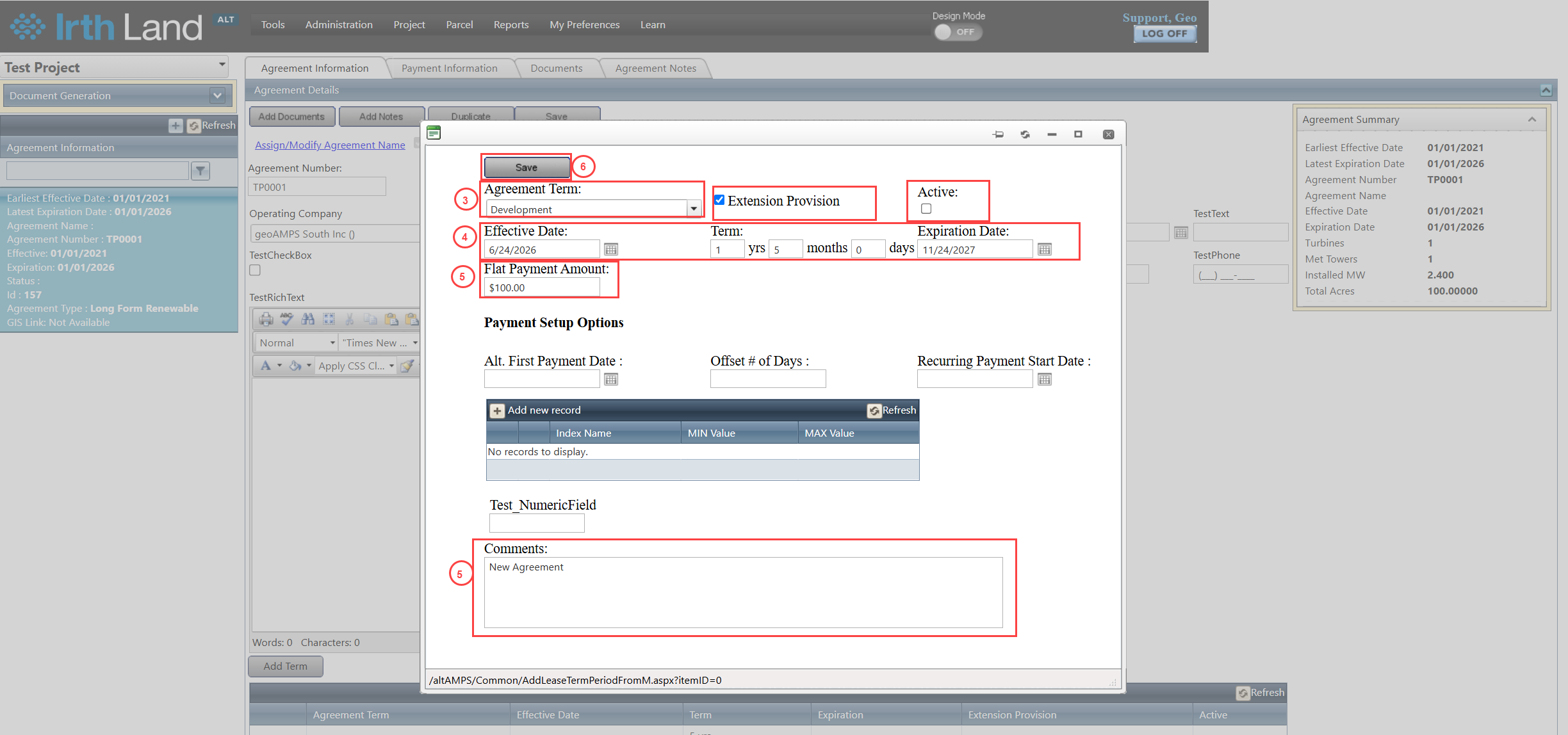
Step 3: In the Agreement Phase pop-up window:
- Select a Term
- Indicate if there is an Option to Extend
- Specify if it is the Active Term
Step 4: Enter the Effective Date and define the duration:
- Enter Years, Months, and Days (system auto-calculates expiration date),
- Or manually enter the Expiration Date
Step 5: (Optional) Enter:
- Flat Payment Amount
- Comments
Step 6: Click Save to store the agreement term.
Related Features/Next Steps:
FAQ/Troubleshooting:
Q: Why is the expiration date not auto-calculating?
A: Ensure that the Effective Date and duration fields (Years/Months/Days) are entered correctly.
Q: Can I edit an existing agreement term?
A: Yes, users with appropriate permissions can modify existing terms.
Q: Can I have multiple active terms at the same time?
A: No, only one term should be marked as Active at any given time.
Questions? Contact us!

Was this article helpful?
That’s Great!
Thank you for your feedback
Sorry! We couldn't be helpful
Thank you for your feedback
Feedback sent
We appreciate your effort and will try to fix the article