Getting Started with Mobile Profiles
Purpose/Overview
Navigation Path:
To access this feature, go to: System Management > Administration > General > Mobile Profiles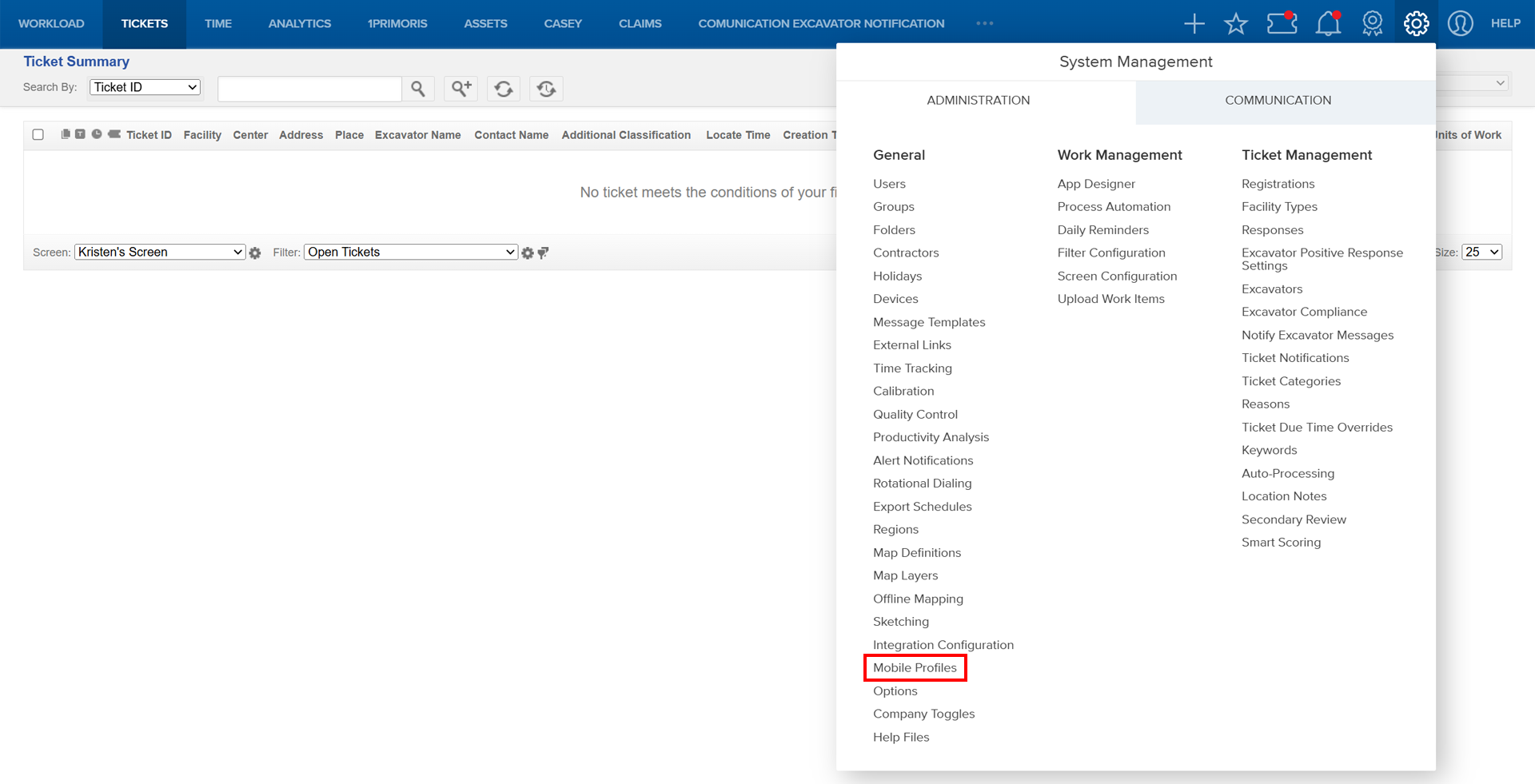
Why it Matters:
- At minimum, a default mobile profile must be created for a Company to access the app.
- All users must be assigned to a mobile profile to access the Irth mobile app.
- Mobile profiles ensure app settings match your team's needs and responsibilities.
- Profiles define how items like photos and tickets sync within the app; and allows administrators to select set criteria related to GPS tracking, photo resolution, and time tracking features.
- We recommend setting up mobile profiles based on user responsibilities, not individual users--this may or may not correspond to 'Groups' configured within Utilisphere web depending on your setup and configuration.
Things to Know:
Permissions: Requires administrative access to System Management.
Platform: Available on Irth Mobile App (iOS and Android).
Profiles: Designed to be role- or group-based—there’s no need to create individual profiles for each user.
Limitations:
- Time Tracking options only work with subscriptions that include Irth’s Time Tracking feature.
- The mobile app Task List displays a maximum of 100 tickets at a time.
Key Benefits/Use Cases:
Streamlined Onboarding: Assign a default profile so new users can start quickly without manual setup.
Role-Based Access: Create profiles for different roles (e.g., Field Techs, Supervisors) to ensure relevant settings.
Operational Efficiency: Control GPS, photo quality, and syncing to optimize performance and storage.
How It Works:
Follow these steps to set up or enable mobile profiles:
Create a New Mobile Profile
- Navigate to System Management > Administration > General > Mobile Profiles.
- Click Add Profile.

- Complete fields on the Modify Mobile Profile page:
- Click Add.
Link Users to a Profile
- Go to Mobile Profiles > Link User Profiles.

- Select the profile from the dropdown.
- Search for and select users.
- Click Add to Profile.
Note: Assigning a user to a new profile removes them from their previous profile.
Set a Default Profile
- Click on the profile name.
- From the left menu, select Set as Default Profile.
- Confirm and save.
(The selected profile will display “Yes” under the Company Default field.)
Profile Configuration Options
Mobile Profile InformationCombine Ticket Option
The Combine Tickets settings let you control how tickets appear in the Ticket Summary screen of the Irth mobile app. These options are especially useful when managing high ticket volumes or when your One Call Center (OCC) uses ticketing processes that don't support standard versioning.
Note: These settings function independently of the Ticket Per Version logic within UtiliSphere and are intended to better accommodate OCCs that do not fully support ticket versioning.
Do not combine any tickets on my Ticket Summary Screen:
Combine tickets with the same ticket number on my Ticket Summary Screen:
Combine tickets with the same ticket number and registration code:
|
Photo Settings
Picture Quality:Numbers below indicate resolution or size in pixels: (keep in mind that this choice will impact your overall storage limits)
|
Photo Selection: Choose one of the below methods for users to add attachments
Take a photo: Use the device's camera to take a photo Select from gallery: Choose photo from the device gallery or camera roll Prompt user: Allows a user to select one of the above options each time they add an attachment. |
GPS Settings
GPS Location Updates: Select which GPS setting makes the most sense for your organization.As Needed: Location updates only when triggered by system and user actions Continuously: Updates location regularly Custom: Set your own interval in seconds. |
Items to Sync (In addition to items assigned to the user, also sync:)
Items assigned to users that report to the user: items assigned to all users that report to the user.
Items in folders (Choose one)
|
 )
)Time Tracking
Note: Only functional with subscriptions which contain Irth's Time Tracking feature.
Break Prompt Options:
Automatically Start Work When Near By: If the user's mobile device is close to a ticket location, work is automatically started |
Example Mobile Profile Strategy
Here’s a suggested setup used by many organizations:
| Profile | Description |
| Advanced User | For users needing full functionality and access |
| Default | These are the most widely used, basic settings. For some companies, a default profile may be all the only profile needed |
| Minimum | Basic access for temporary or limited users |
Related Features/Next Steps:
FAQ/Troubleshooting:
Q: Why can’t a user access the mobile app?
A: Ensure the user is assigned to a mobile profile.
Q: Can I have multiple default profiles?
A: No, only one profile can be set as the company default.
Q: How do I manage photo storage limits?
A: Use lower resolution settings (Medium or Small) to conserve storage.
Questions? Contact us!

Was this article helpful?
That’s Great!
Thank you for your feedback
Sorry! We couldn't be helpful
Thank you for your feedback
Feedback sent
We appreciate your effort and will try to fix the article