Configuring AI Projects
Purpose/Overview
In this article, you will learn how to configure an AI Project and define the settings used to evaluate photos uploaded to tickets. AI Projects allow administrators to establish photo validation requirements, configure evaluation methods, and automate Pass/Fail determinations based on organizational standards.
AI Projects serve as the foundation for photo analysis and validation. Once configured, the project applies its rules to photos uploaded by users, helping ensure consistent photo quality and compliance across tickets.
Navigation Path:
To access this feature, go to: Utilisphere > System Management > Administration > General > AI Projects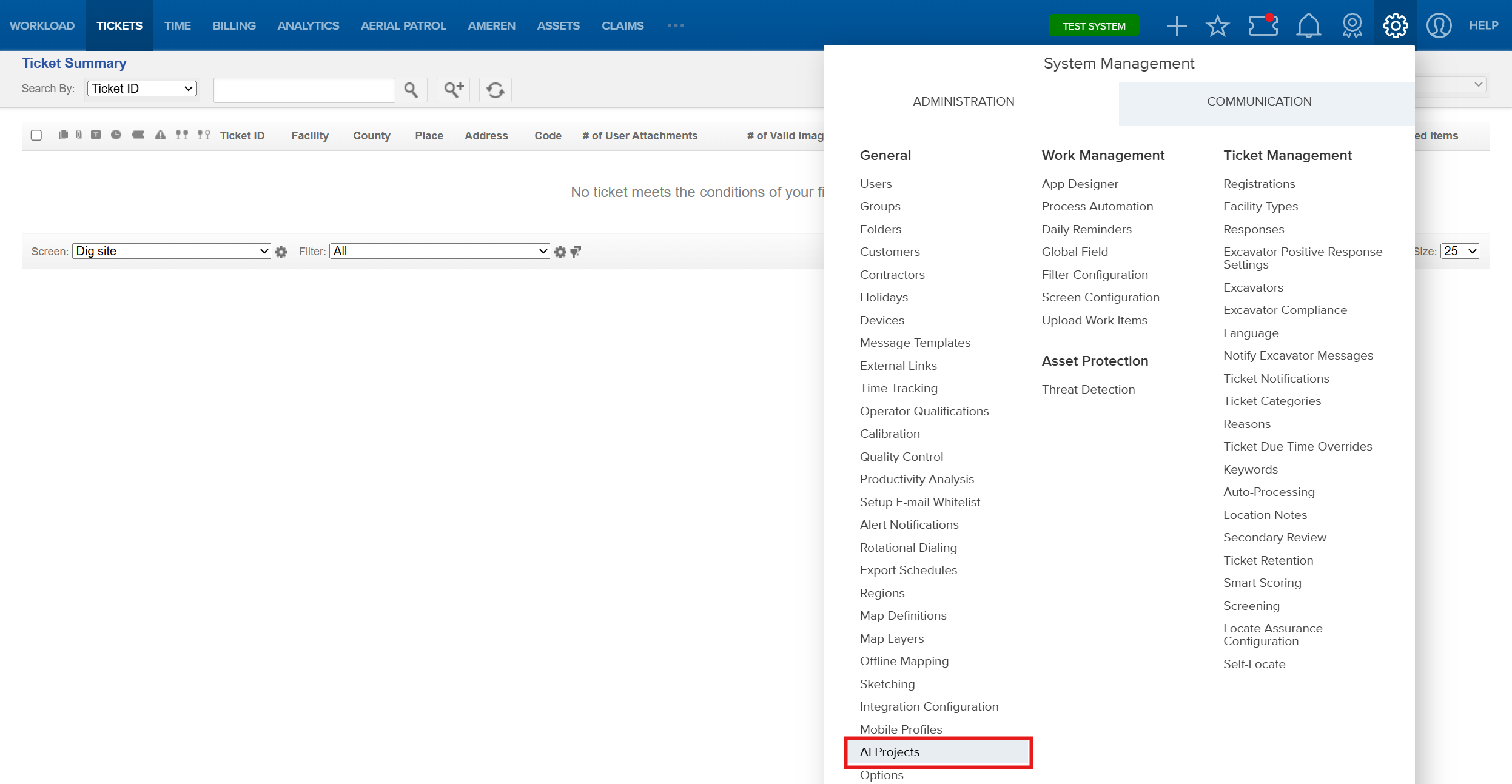
Administrators can configure the criteria used to determine whether tickets pass or fail photo validation.
Things to Know:
- AI Projects control how uploaded photos are evaluated.
- Evaluation settings are configured at the AI Project level.
- Individual photos are analyzed when they are uploaded.
- Ticket-level Pass/Fail results can be evaluated either in real time or during the nightly evaluation process, depending on the AI Project configuration.
- Different AI Projects can have different evaluation requirements.
- Pass/Fail criteria can be configured using Quantity Only, Percentage Only, or Both evaluation methods.
Key Benefits/Use Cases:
- Standardize Photo Evaluation: Apply consistent photo quality requirements across all tickets associated with an AI Project.
- Reduce Manual Review: Automatically evaluate photos and determine whether tickets meet project requirements.
- Improve Data Quality: Help ensure users provide sufficient, high-quality photos before work is considered complete.
- Support Organizational Requirements: Configure evaluation thresholds that align with business processes and compliance standards.
How It Works:
Viewing Available AI Projects
Administrators can view all AI Projects configured for their organization from the AI Projects page.
The AI Projects list displays all available projects and provides access to:
- Project names and descriptions
- Evaluation settings
- Pass/Fail requirements
- Project status and configuration details
- Existing projects available for editing or review
This allows administrators to quickly review, manage, and update AI Project configurations as business requirements evolve.
After an AI Project is created, administrators can configure the rules used to validate uploaded photos.
When users upload photos:
- Each photo is analyzed against the AI Project's validation requirements.
- The system records whether the photo passes or fails evaluation.
- Ticket-level results are calculated either in real time or during the nightly evaluation process, based on the selected evaluation settings.
- The configured Pass/Fail criteria determine the final ticket status.
Configuring an AI Project
- Navigate to System Management > Administration > General > AI Project.
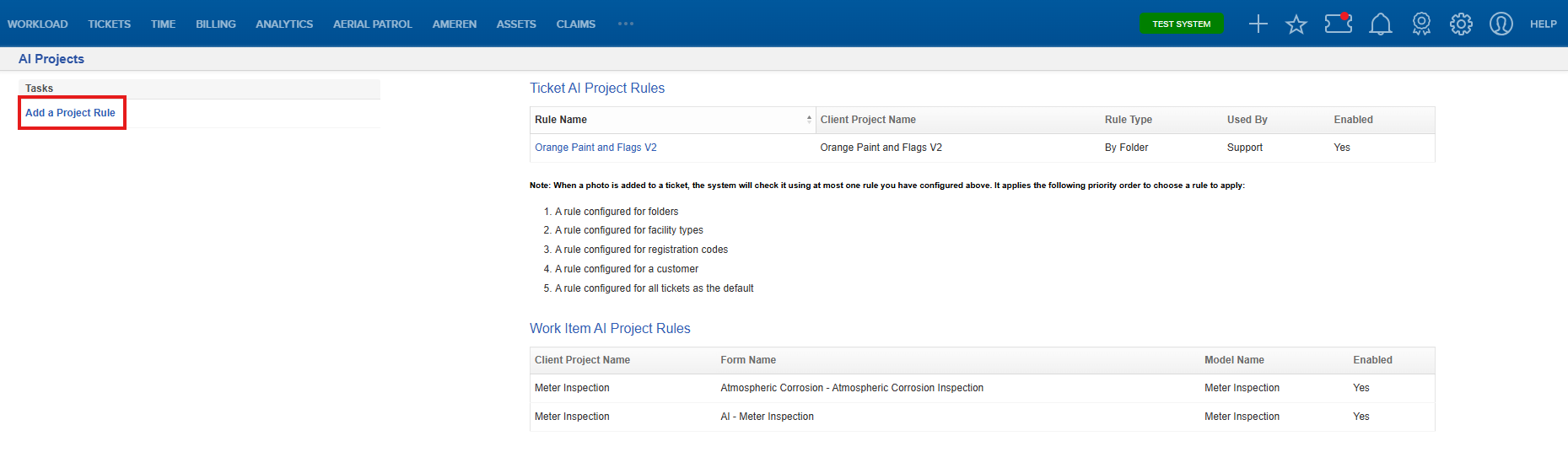
- Add a new AI Project rule or open an existing project.
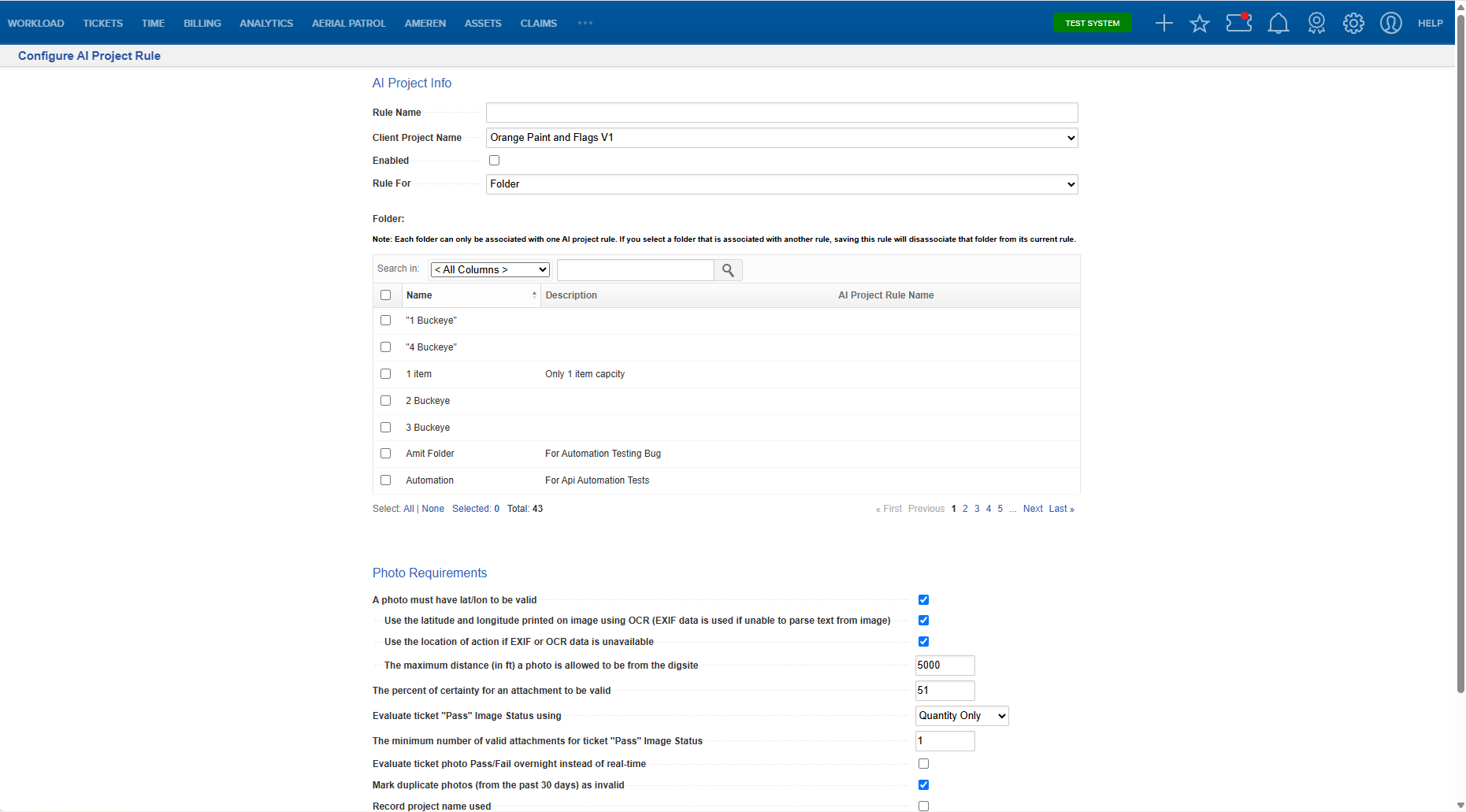
- Enter the project information as needed, configure the desired photo validation settings, define the Pass/Fail Evaluation requirements, and select Save.
- Assign the AI Project to the appropriate workflow or ticket process.
Pass/Fail Evaluation
The Pass/Fail Evaluation section determines how tickets are evaluated after photos have been uploaded.
Administrators can choose from three evaluation methods depending on business requirements.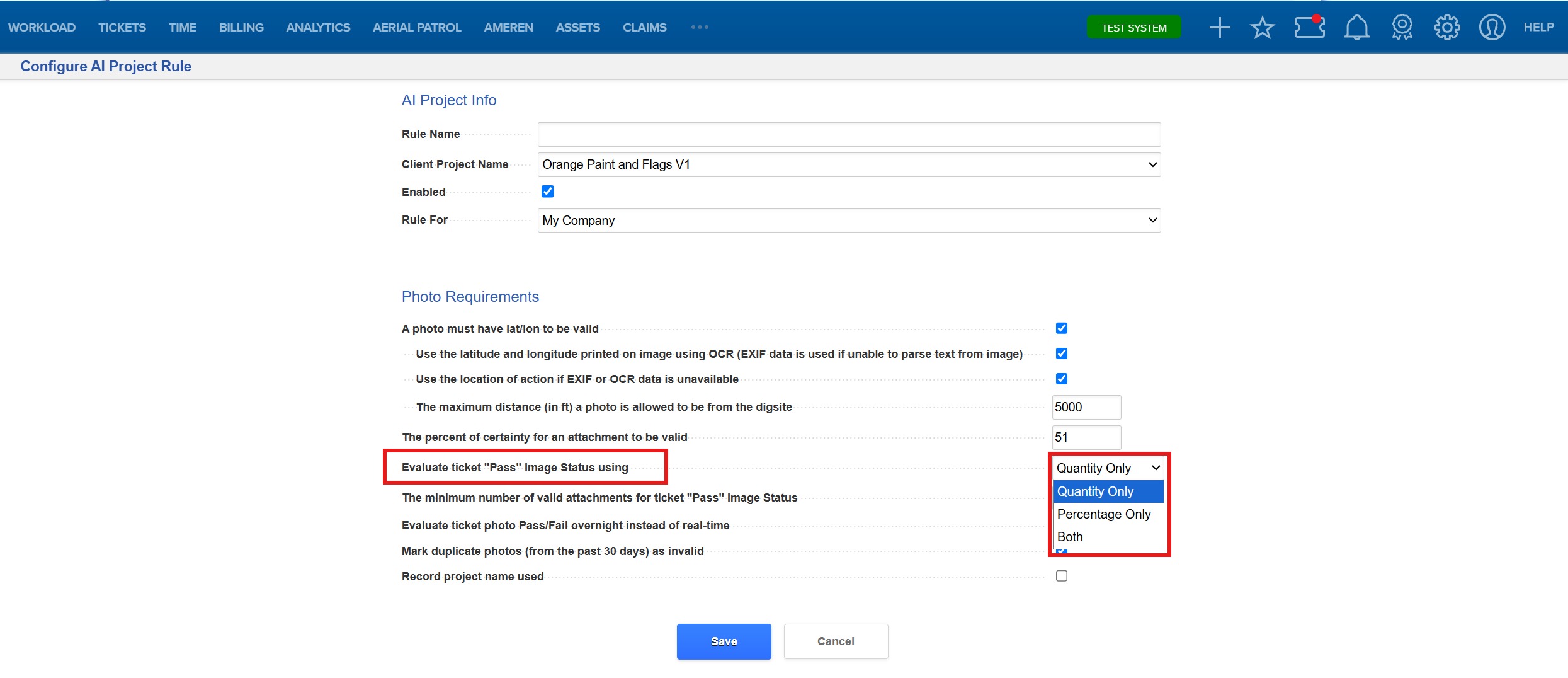
Quantity Only
The ticket must contain a minimum number of valid photos before it can receive a Pass status.
Percentage Only
The ticket must meet a minimum percentage of valid photos.
The system compares the percentage of valid photos against the configured threshold.
Both
The ticket must satisfy both the quantity requirement and the percentage requirement.
Nightly Evaluation Process
AI Projects can evaluate tickets in either real time or during the nightly evaluation process. When the Evaluate ticket photo pass/fail overnight instead of real-time option is enabled, ticket-level evaluations are performed during the nightly process.
The nightly process:
- Reviews all photos attached to a ticket.
- Applies the configured AI Project criteria.
- Calculates the evaluation results.
- Updates the ticket with a Pass or Fail status.
Organizations can choose the evaluation method that best supports their operational requirements. Real-time evaluations provide immediate results, while overnight evaluations process ticket pass/fail determinations during the nightly evaluation cycle.
FAQ/Troubleshooting:
Q: What determines whether a ticket receives a Pass or Fail status?
A: The ticket is evaluated using the Pass/Fail criteria configured within the associated AI Project.
Q: Are photos evaluated immediately when they are uploaded?
A: Yes. Individual photos are evaluated as they are uploaded.
Q: When is the Ticket audited for photos?
A: If the Evaluate ticket photo pass/fail overnight instead of real-time option is not selected, tickets are evaluated in real time and receive a Pass status once the configured threshold is met. If the overnight option is selected, ticket-level Pass/Fail determinations are processed during the nightly evaluation cycle.
Q: Can different AI Projects have different Pass/Fail requirements?
A: Yes. Each AI Project can be configured with its own evaluation method and thresholds.
Q: What happens if additional photos are uploaded after a ticket has been evaluated?
A: The ticket is reevaluated based on the AI Project configuration. Projects configured for real-time evaluation recalculate results as photos are added, while projects configured for overnight processing are reevaluated during the next nightly evaluation cycle.
Q: Which evaluation method should I use?
A: Use Quantity Only when a minimum number of photos is required, Percentage Only when photo quality ratios are most important, and Both when both requirements must be satisfied before a ticket can pass.
Questions? Contact us!

Was this article helpful?
That’s Great!
Thank you for your feedback
Sorry! We couldn't be helpful
Thank you for your feedback
Feedback sent
We appreciate your effort and will try to fix the article