Purpose/Overview
The Notes (Web) feature allows users to add and manage notes across multiple modules through the web interface. It helps capture important updates, discussions, and activity details directly within the system.
Navigation Path:
To access this feature:
- Project > Project Information > Project Notes Tab
- Parcel > Parcel Info > Parcel Notes Tab
- Agreement Manager > Agreement Notes Tab
- Customer Outreach > Ticket Notes Tab
Things to Know:
- Notes are specific to the selected module record
- Users must have permission to add notes
- Standard fields include Activity Date, Agent, Category, and Priority
Key Benefits/Use Cases:
- Activity Tracking: Record updates and interactions across different modules
- Structured Data Entry: Use predefined fields to maintain consistency
- Improved Visibility: Ensure all stakeholders have access to relevant notes
How It Works:
Follow these steps to add Notes via Web:
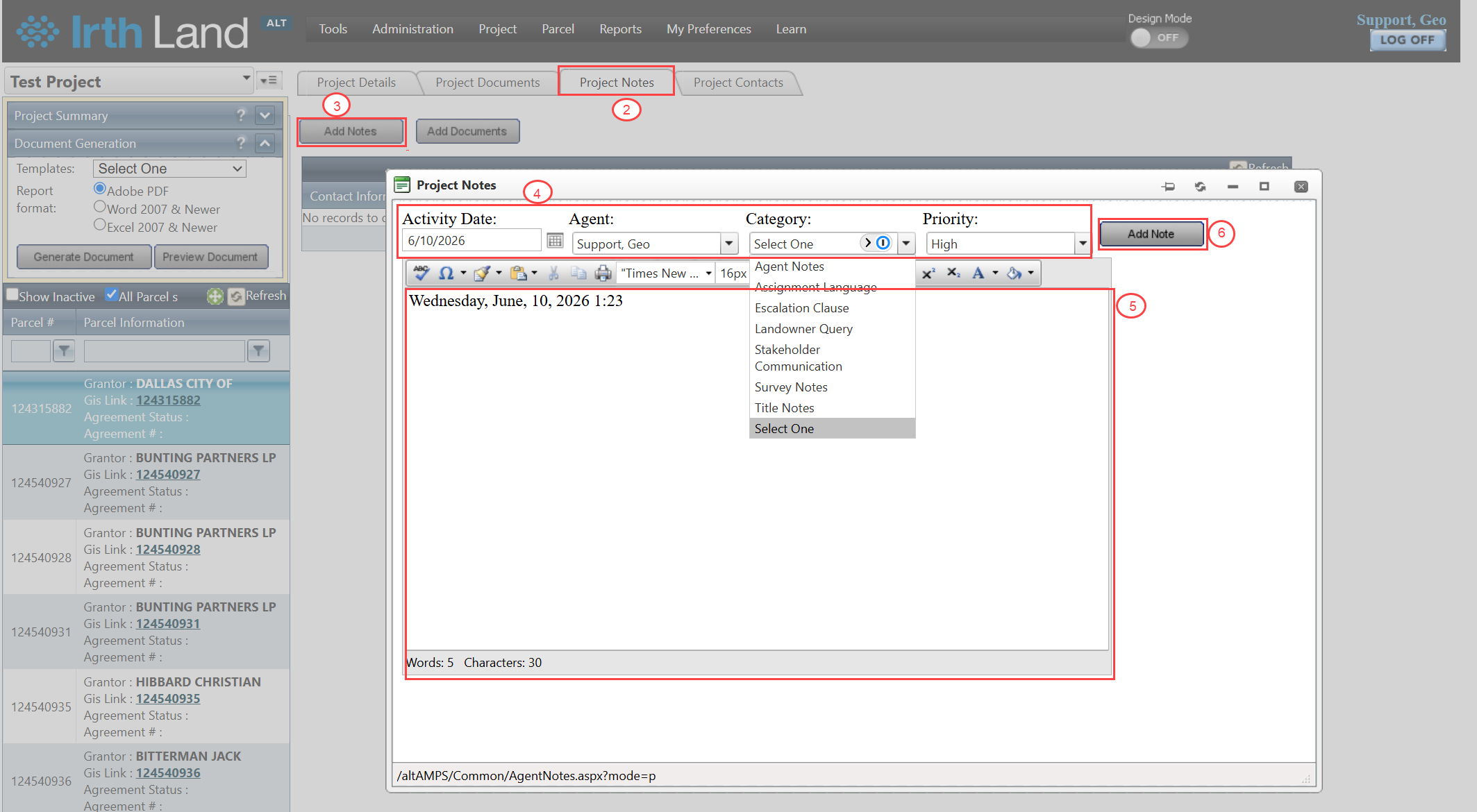
Step 1: Navigate to the required module (Project, Parcel, Agreement, or Customer Outreach)
Step 2: Open the respective Notes Tab
Step 3: Click the Add Notes button
Step 4: Select required details:
- Activity Date
- Agent
- Category
- Priority
Step 5: Enter the note in the text area
Step 6: Click Add Note to save
Related Features/Next Steps:
FAQ/Troubleshooting:
Q: Can I add multiple notes to a record?
A: Yes, multiple notes can be added for continuous tracking.
Q: Are notes editable after saving?
A: This depends on user permissions and system configuration.
Questions? Contact us!

Was this article helpful?
That’s Great!
Thank you for your feedback
Sorry! We couldn't be helpful
Thank you for your feedback
Feedback sent
We appreciate your effort and will try to fix the article