Purpose/Overview
The Lease Dashboard provides a centralized view of all lease-related information across active projects. It helps users quickly monitor lease summaries, track outstanding amounts, and identify required actions without navigating through multiple screens.
This feature is intended for users managing leases, agreements, or financial tracking, enabling better visibility into lease performance and pending obligations. It improves efficiency by consolidating key data points into a single dashboard view.
Navigation Path:
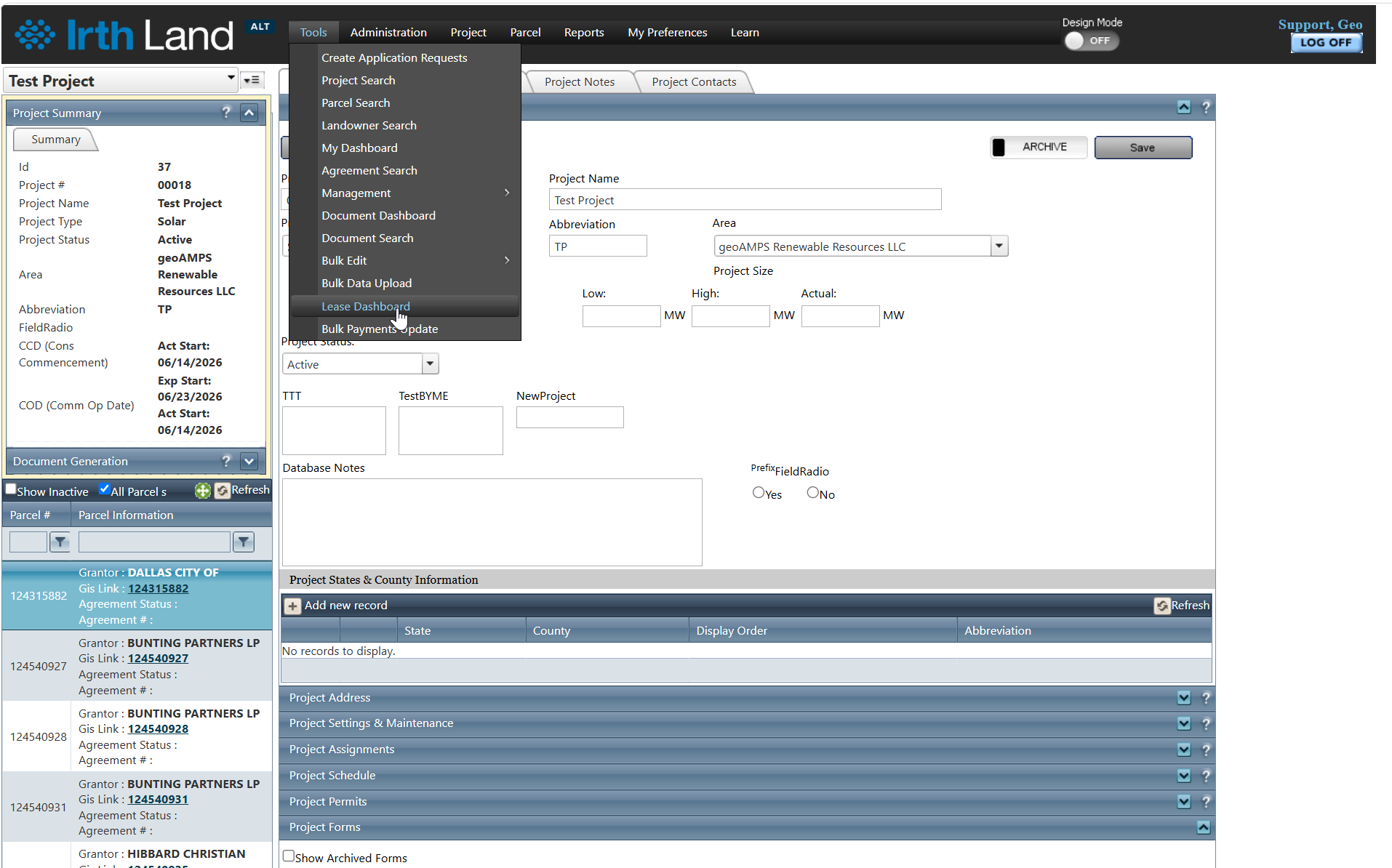
To access this feature: Tools > Lease Dashboard
Things to Know:
- The dashboard displays data from all active projects only.
- Lease amounts and summaries are automatically aggregated and displayed.
- Data can be grouped dynamically based on Lease Type or Time Period.
- The “View Details” option opens lease information in a separate window.
Key Benefits/Use Cases:
- Lease Portfolio Overview: Users can view a complete summary of all leases across projects, helping in quick decision-making and reporting.
- Financial Tracking: Users can monitor total lease amounts and outstanding dues grouped by lease type or time period, improving financial visibility.
- Action Management: Users can identify pending actions related to leases directly from the dashboard, ensuring timely follow-ups and compliance.
How It Works:
Follow these steps to use the Lease Dashboard:
Step 1: Navigate to the Lease Dashboard.
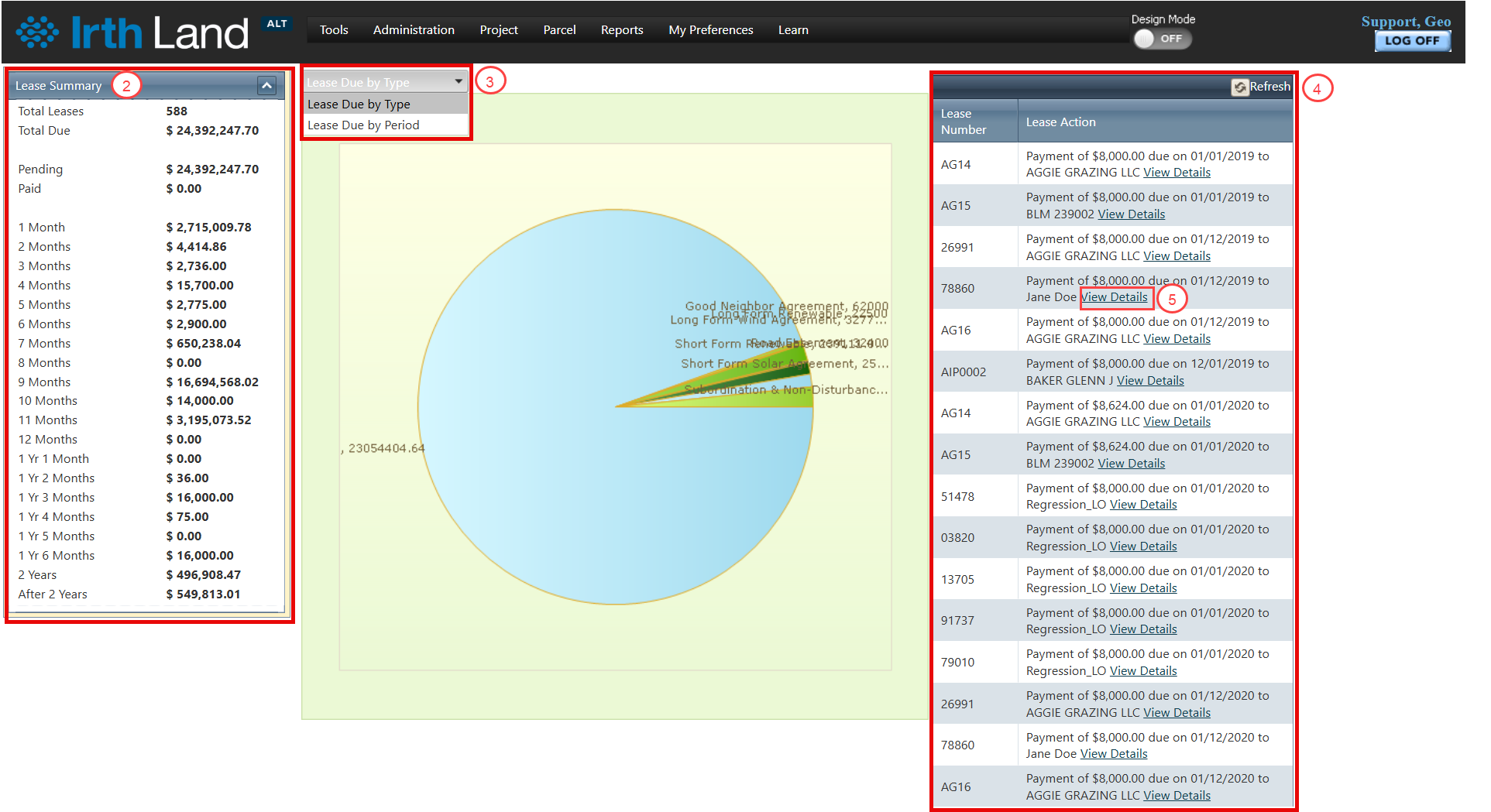
Step 2: Review the Lease Summary column to view total lease amounts across all active projects.
Step 3: Check the grouped data to analyze amounts due based on:
- Lease Type
- Time Period
Step 4: View the last column to see all leases associated with each project along with required actions.
Step 5: Click on the “View Details” hyperlink for any lease to open the Agreement Information page in a new window.
Related Features/Next Steps:
FAQ/Troubleshooting:
Q: Why am I not seeing certain leases on the dashboard?
A: The dashboard only displays leases associated with active projects. Ensure the project is active.
Q: Can I view detailed lease information from this dashboard?
A: Yes, click on the “View Details” link to open the Agreement Information page in a separate window.
Q: How are the amounts due grouped?
A: Amounts due can be grouped either by Lease Type or Time Period, depending on the selected view.
Questions? Contact us!

Was this article helpful?
That’s Great!
Thank you for your feedback
Sorry! We couldn't be helpful
Thank you for your feedback
Feedback sent
We appreciate your effort and will try to fix the article