Purpose/Overview
The Agent Task Dashboard provides a centralized view for managing and tracking task tickets assigned to agents. It helps users quickly monitor workload, review task status, assign new tasks, or revoke existing ones.
This feature is primarily intended for agents and managers who need visibility into task distribution and progress. It improves operational efficiency by streamlining task assignment and enabling better workload management.
Navigation Path:
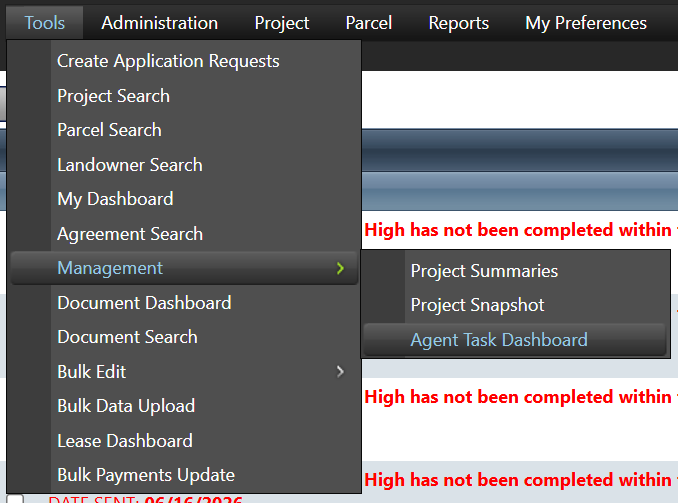
To access this feature: Tools > Management > Agent Task Dashboard
Things to Know:
- Users must have appropriate permissions to view and manage task tickets.
- Only authorized users can assign or revoke tickets.
- Revoking a ticket will remove it from the assigned agent’s queue.
- The dashboard provides filtering options to view All or Open tickets only.
Key Benefits/Use Cases:
- Monitor Assigned Tasks: Agents can quickly view all tasks assigned to them and track their status.
- Efficient Task Allocation: Managers can assign tasks to specific agents and work queues for better distribution.
- Task Reassignment or Cancellation: Easily revoke tasks from agents when priorities change or tasks are no longer required.
How It Works:
Follow these steps to use the Agent Task Dashboard:
Step 1: Access the Dashboard
- Navigate to Tools > Management > Agent Task Dashboard.
Step 2: View Task Tickets
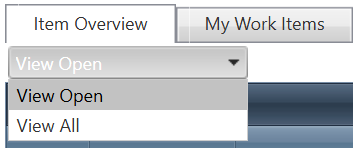
- In the Item Overview tab:
- Use the dropdown to select:
- View All – Displays all assigned tickets regardless of status.
- View Open – Displays only open/active tickets.
- Use the dropdown to select:
Step 3: Assign a Task Ticket
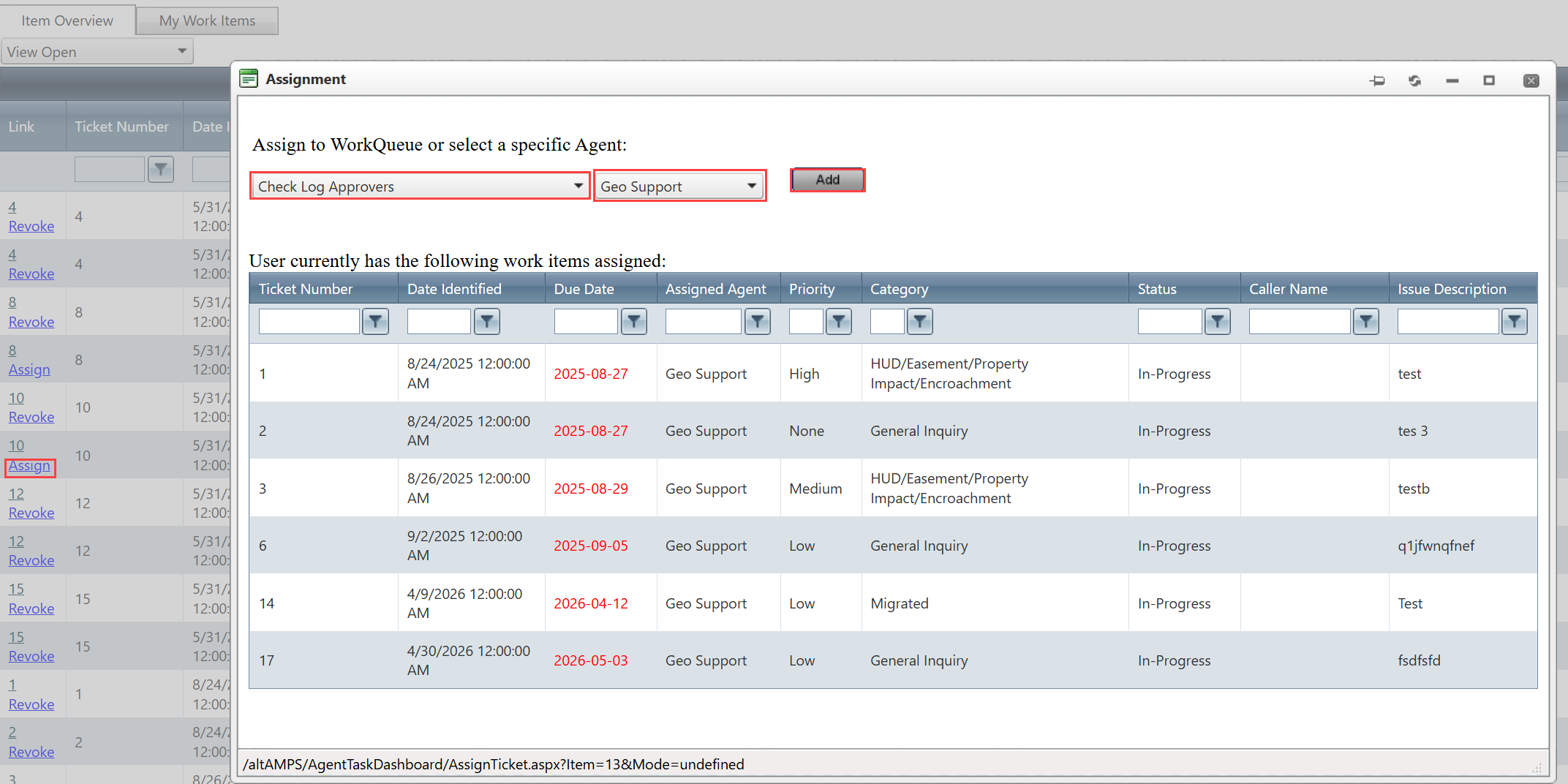
- Click the Assign link.
- In the pop-up window:
- Select an Agent.
- Select a WorkQueue.
- Click Add.
- The task will be added to the summary grid.
Step 4: Revoke (Cancel) a Task Ticket
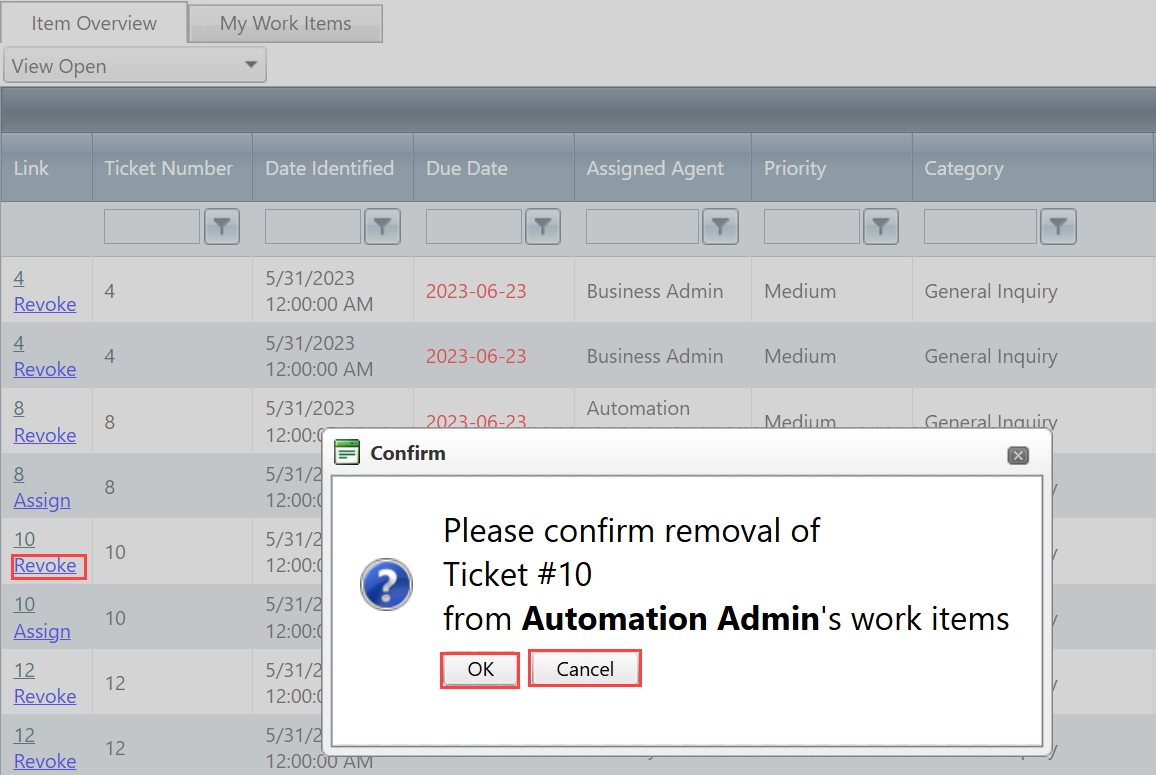
- Click the Revoke link next to the assigned ticket.
- Click OK to confirm.
- Click Cancel to abort the revocation process.
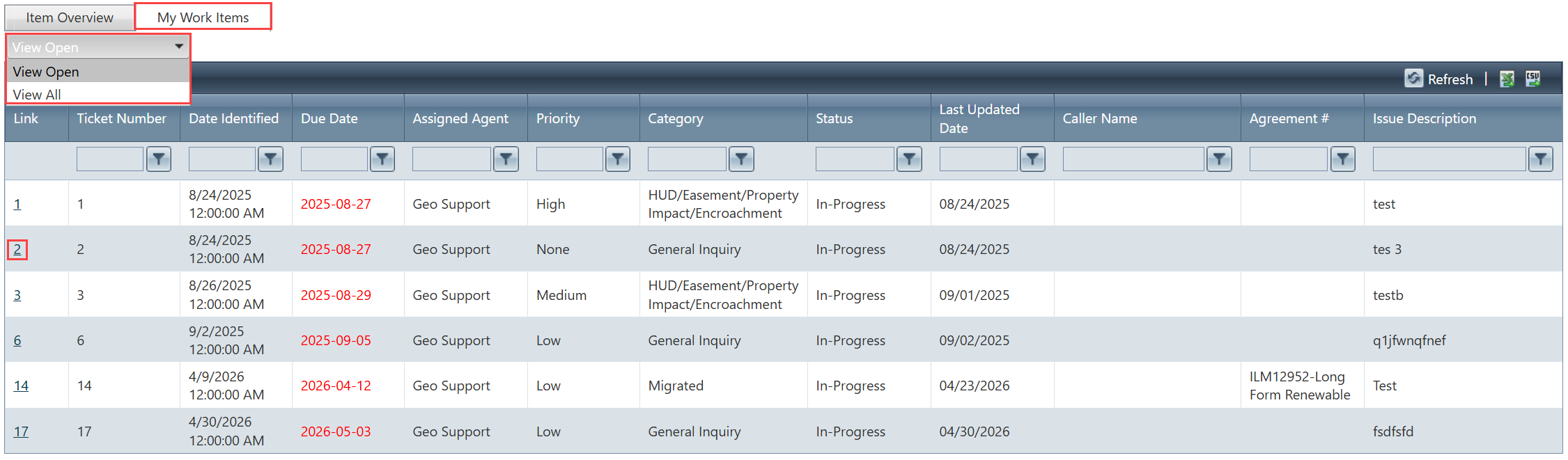
Step 5: View My Work Items
- Navigate to My Work Items section.
- Use the dropdown to:
- View All tickets
- View Open tickets
- Click the linked number in the Link Column to open the ticket in a new window.
Related Features/Next Steps:
FAQ/Troubleshooting:
Q: Why can’t I see any tickets in the dashboard?
A: Ensure that tickets are assigned to you or your team, and check if the correct filter (All/Open) is selected.
Q: I’m unable to assign or revoke tasks. What should I do?
A: Verify that you have the required permissions to manage task assignments.
Q: What happens when I revoke a ticket?
A: The ticket is removed from the assigned agent’s queue and is no longer assigned.
Questions? Contact us!

Was this article helpful?
That’s Great!
Thank you for your feedback
Sorry! We couldn't be helpful
Thank you for your feedback
Feedback sent
We appreciate your effort and will try to fix the article