Purpose/Overview
The Project Key Dates / Schedule feature provides a centralized view of important project milestones, enabling users to effectively track timelines and monitor progress. It allows users to capture key dates such as Expected Start Date, Actual Start Date, Expected End Date, and Actual End Date, along with additional comments for context.
This feature helps project managers and operational users quickly identify delays, ensure schedule compliance, and maintain consistency across modules like Project, Parcel, and Lease. Overdue dates are automatically highlighted, making it easier to spot and address schedule risks proactively.
Navigation Path:
To access this feature: Project > Project Information > Project Details > Project Schedule Panel
Things to Know:
- The Project Schedule panel is available across multiple modules, including Project, Parcel, and Lease.
- Overdue dates are automatically highlighted in red for quick identification.
- Users can update dates individually or use the Bulk Edit option to update multiple dates simultaneously.
- Comments can be added to provide additional context or updates related to schedule changes.
Key Benefits/Use Cases:
- Project Timeline Tracking: Monitor key milestones such as start and end dates to ensure projects stay on schedule and aligned with planned timelines.
- Delay Identification and Management: Quickly identify overdue milestones (highlighted in red) and take corrective actions to minimize project delays.
- Efficient Bulk Updates: Update multiple project dates at once using the Bulk Edit option, reducing manual effort and improving productivity.
How It Works:
Entering Dates Individually
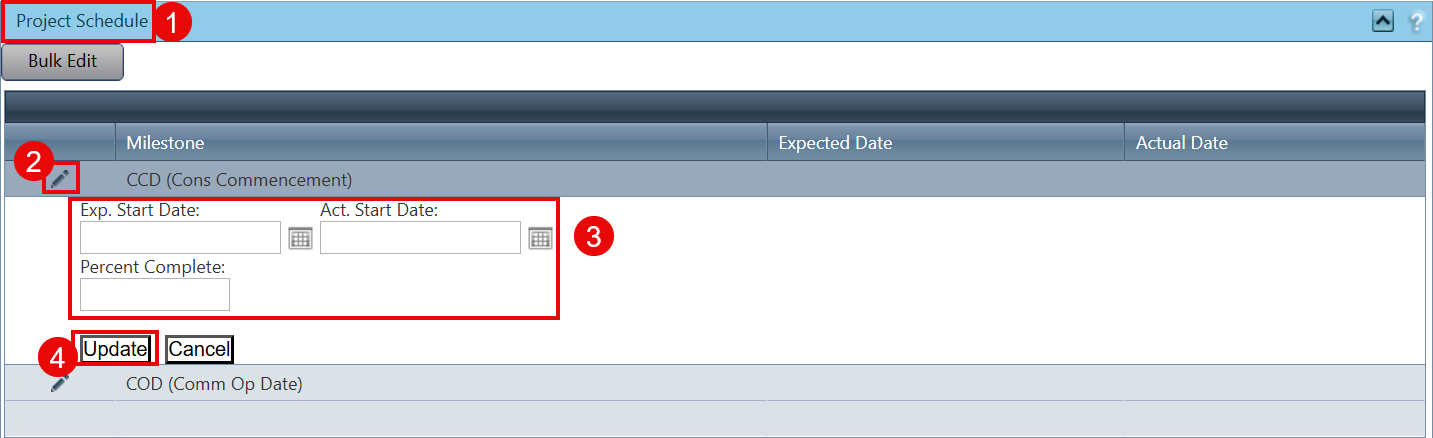
- Navigate to the Project Schedule Panel.
- Click the Pencil icon to edit.
- Enter the required milestone dates in the form displayed.
- Click Update to save the changes.
Changing Multiple Dates Simultaneously
- Click the Bulk Edit button to open the bulk edit window.

- Add or modify dates by clicking in the corresponding milestone columns.
- Repeat for all required fields.
- Click Save Changes to apply updates.

Related Features/Next Steps:
FAQ/Troubleshooting:
Q: Why are some dates highlighted in red?
A: Dates highlighted in red indicate that the milestone is overdue and requires attention.
Q: Can I update multiple project dates at once?
A: Yes, you can use the Bulk Edit option to update multiple milestone dates simultaneously.
Q: Where else can I access the Project Schedule panel?
A: This feature is also available in other modules such as Parcel and Lease for consistent timeline tracking across the system.
Questions? Contact us!

Was this article helpful?
That’s Great!
Thank you for your feedback
Sorry! We couldn't be helpful
Thank you for your feedback
Feedback sent
We appreciate your effort and will try to fix the article