Purpose/Overview
The Project Assignment feature enables effective work delegation by defining which users are responsible for specific projects. It works alongside user roles to ensure that the right people have access to the right data and responsibilities.
While user roles determine what actions a user can perform within the system, project assignments determine which projects they are associated with. This ensures that users only interact with data, tasks, notifications, and approvals relevant to their assigned projects.
For example, multiple users may share the same role (e.g., Business Admin), but each can be assigned to different projects:
- Person A → Projects 1 and 2
- Person B → Projects 3 and 4
This separation improves data visibility, accountability, and workflow efficiency.
Navigation Path:
To access this feature: Project > Project Information > Project Details > Project Assignments
Things to Know:
- Role vs Assignment: User roles define permissions, while project assignments define project-level responsibility.
- Access Control: Users will only see and manage data for projects they are assigned to, even if they have the same role as others.
- Assignment Visibility: Both active and deactivated users can be viewed using the View all assignments option.
- Multi-User Assignment: Multiple users can be assigned to the same project with different project roles.
Key Benefits/Use Cases:
- Targeted Work Allocation: Assign specific users to projects to ensure tasks and approvals are handled by the correct individuals, improving accountability.
- Controlled Data Access: Restrict users from viewing unrelated project data, enhancing security and relevance.
- Efficient Notifications & Workflow Routing: Ensure that notifications, approvals, and updates are automatically directed to the right users based on project assignment.
How It Works:
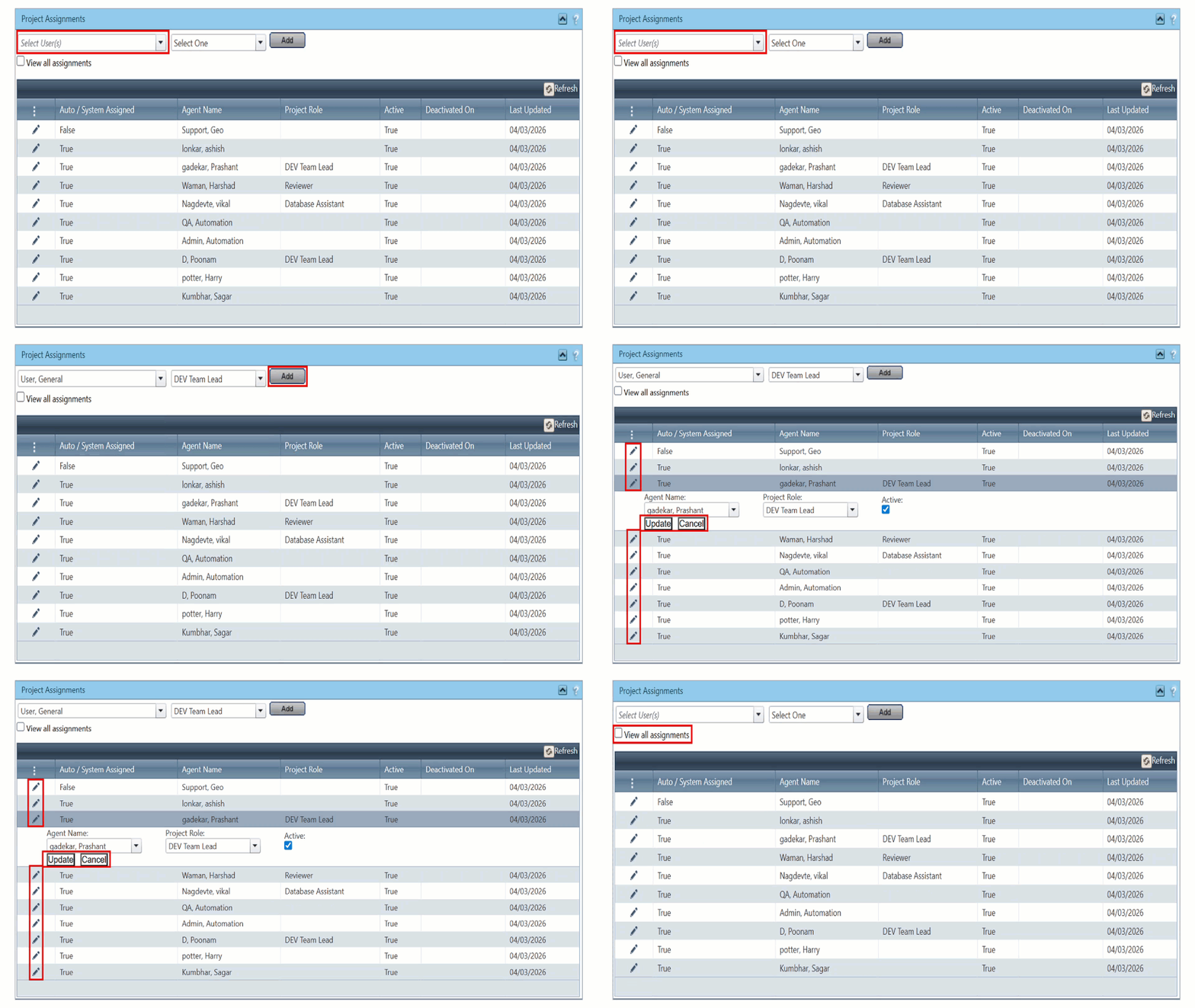
Follow these steps to assign users to a project:
- Step 1: Navigate to: Project > Project Information > Project Details > Project Assignments
- Step 2: Use the multi-select dropdowns to:
- Select one or more Users
- Assign a corresponding Project Role
- Step 3: Click Add to assign the selected users to the project.
- Step 4 (Optional): To modify an existing assignment:
- Click the Pencil icon next to the assignment
- Can make the assignment active or inactive on the project with active checkbox
- Update the required details
- Step 5 (Optional): To view all users (including inactive/deactivated ones):
- Enable the View all assignments checkbox
Related Features/Next Steps:
FAQ/Troubleshooting:
Q: Why can’t a user see a project even though they have the correct role?
A: The user may not be assigned to that specific project. Project assignments control visibility in addition to roles.
Q: Can multiple users be assigned to the same project?
A: Yes, multiple users can be assigned with the same or different project roles.
Q: Can I edit or remove an assignment later?
A: Yes, use the Pencil icon to edit existing assignments or update user-project associations as needed.
Questions? Contact us!

Was this article helpful?
That’s Great!
Thank you for your feedback
Sorry! We couldn't be helpful
Thank you for your feedback
Feedback sent
We appreciate your effort and will try to fix the article