Purpose/Overview
The Project Creation feature allows users to create and manage new projects within the system. It provides a centralized way to define project details such as name, type, abbreviation, and associated area.
This feature helps organizations organize work efficiently, track project-related activities, and maintain consistency in project identification through system-generated project numbers. It is primarily intended for users responsible for project setup and management.
Navigation Path:
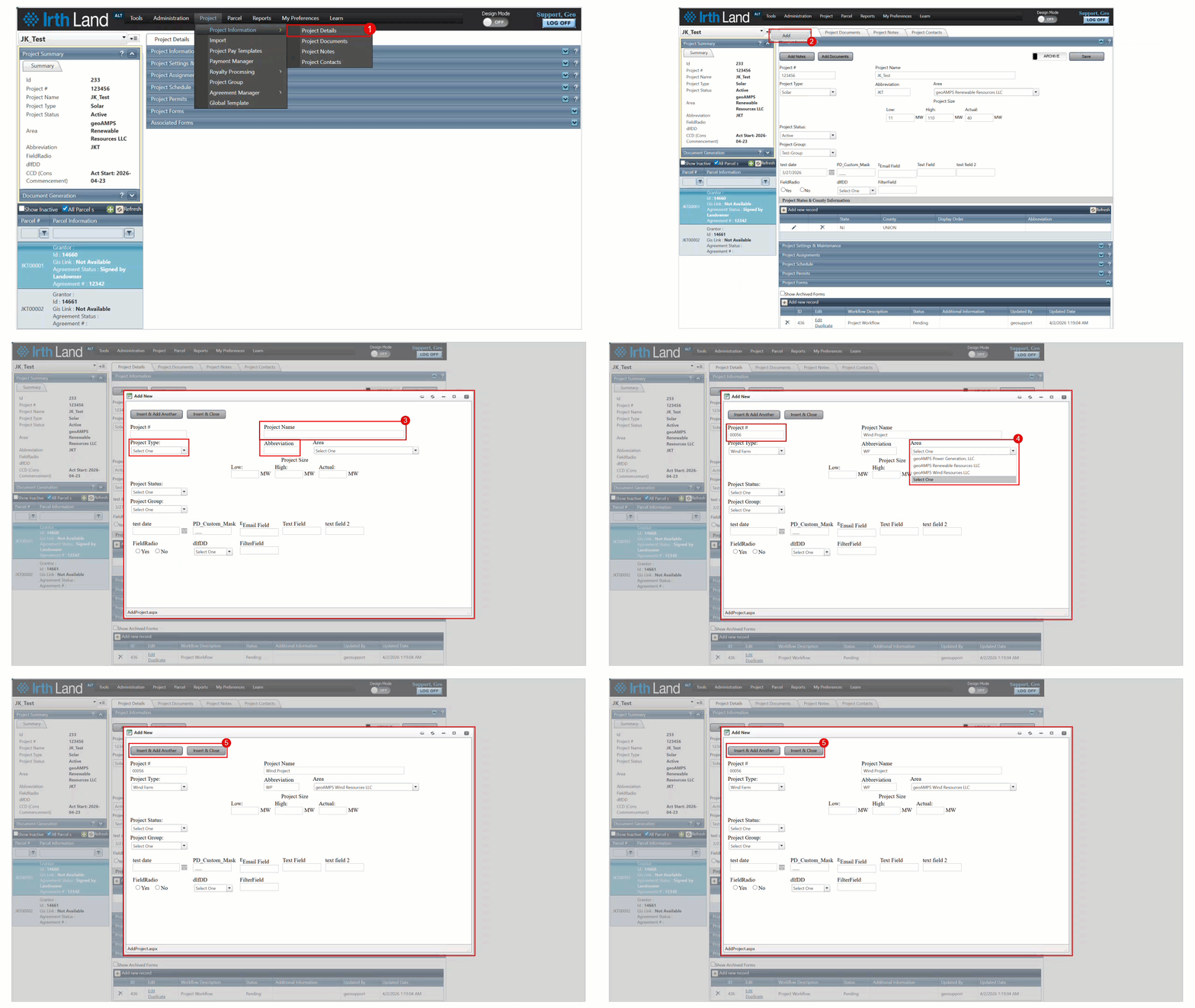
To access this feature: Project > Project Information > Project Details Tab
Things to Know:
- Users must have appropriate permissions to create new projects.
- The Project # is automatically generated by the system and cannot be manually edited.
- The Area must be selected from predefined values in the dropdown.
- Ensure all mandatory fields (Project Name, Type, Abbreviation) are completed before saving.
Key Benefits/Use Cases:
- Quickly create new projects for tracking work activities, ensuring all relevant details are captured upfront.
- Maintain standardized project identification using system-generated project numbers, reducing duplication and errors.
- Assign projects to specific areas for better organization and reporting.
How It Works:
Follow these steps to setup or enable:
- Step 1: Navigate to Project > Project Information > Project Details Tab.
- Step 2: Click the hamburger icon next to the Project dropdown and select Add.
- Step 3: In the new window: Enter the Project Name Select the Project Type Enter the Project Abbreviation
- Step 4: Select the Area from the dropdown list. The Project # will be automatically generated by the system.
- Step 5: Once you’ve entered the information, select the Insert & Close button to save your changes and exit the window, or choose Insert & Add Another to save your current project details and continue adding more.
Related Features/Next Steps:
FAQ/Troubleshooting:
Q: Why can’t I see the Add option?
A: You may not have the required permissions. Contact your system administrator.
Q: Can I edit the Project Number?
A: No, the Project Number is system-generated and cannot be modified.
Q: What happens if I don’t select an Area?
A: The system may prevent saving the project if the field is mandatory. Ensure all required fields are completed before saving.
Questions? Contact us!

Was this article helpful?
That’s Great!
Thank you for your feedback
Sorry! We couldn't be helpful
Thank you for your feedback
Feedback sent
We appreciate your effort and will try to fix the article