Purpose/Overview
The Project Creation feature in GIS allows users to define and register new projects within the system. This functionality ensures that all project-related activities, assets, and workflows are properly organized under a unique project record. It helps standardize project tracking, improves data consistency, and enables efficient management of project-specific operations.
This feature is primarily intended for administrators or authorized users responsible for setting up and managing projects within the GIS environment.
Navigation Path:
To access this feature: Admin Tools > Add New Project
Things to Know:
- Only users with appropriate administrative permissions can create new projects.
- The Project # is automatically generated by the system and cannot be modified.
- Ensure that the correct Area is selected, as it determines project association within the system.
- Once created, project details may be limited in terms of editing depending on system configuration.
Key Benefits/Use Cases:
- Standardized Project Setup: Quickly create and register new projects with consistent naming and classification, ensuring uniformity across the system.
- Improved Project Tracking: Each project is assigned a unique system-generated identifier, making it easy to track and manage project-related data.
- Efficient Data Organization: Associating projects with specific areas ensures better organization and easier retrieval of project information.
How It Works:
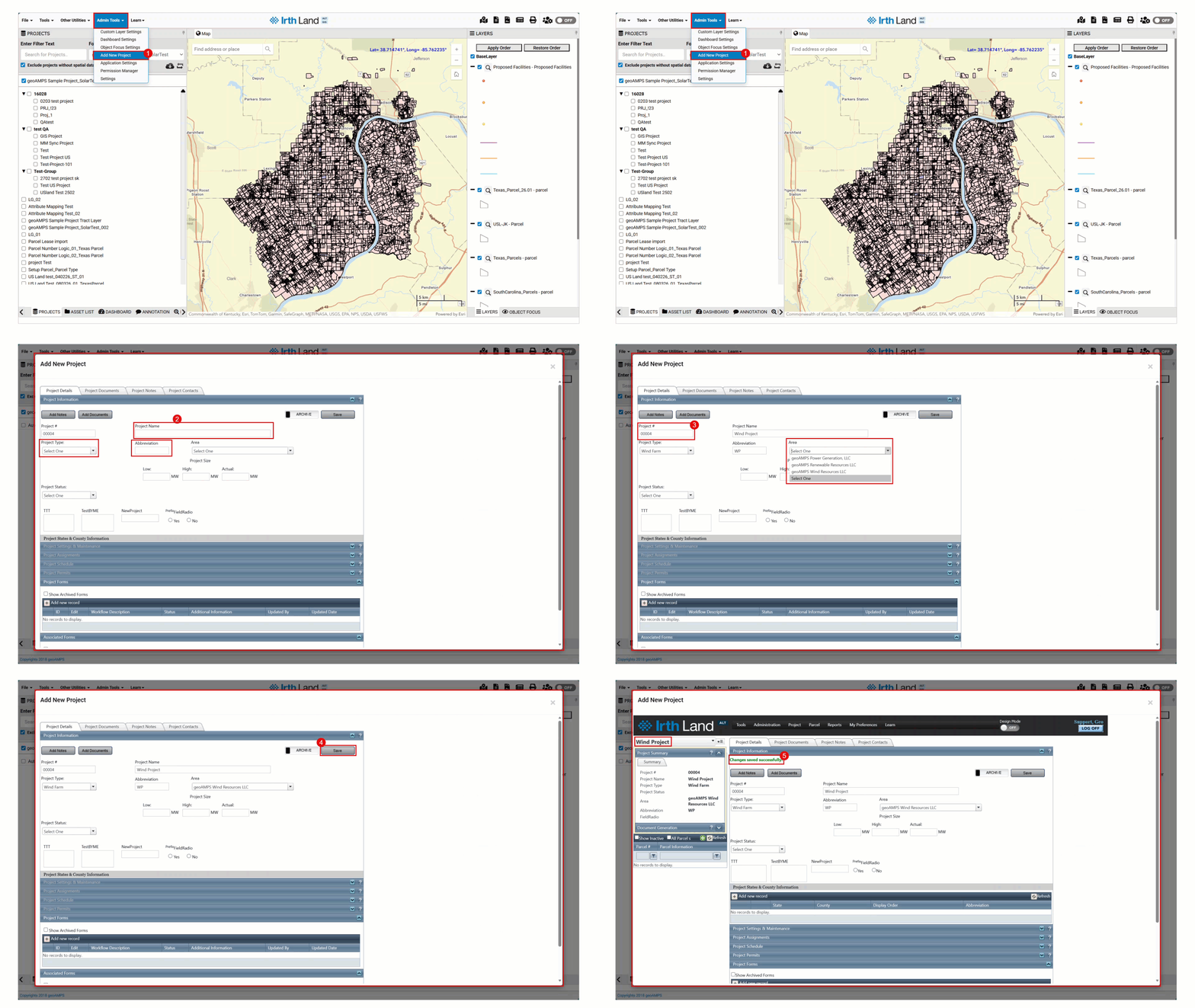
Follow these steps to setup up a new project:
- Step 1: Navigate to Admin Tools > Add New Project.
The Add New Project pop-up window will appear. - Step 2:
Enter the required details:- Project Name
- Project Type
- Project Abbreviation
- Step 3: Select an Area from the dropdown menu.
Note: The Project # is auto-generated by the system. - Step 4: Click the Save button to create the project.
- Step 5: Upon successful creation, a confirmation message will be displayed.
Related Features/Next Steps:
FAQ/Troubleshooting:
Q: Why can’t I edit the Project #?
A: The Project # is system-generated to ensure uniqueness and cannot be modified.
Q: I don’t see the “Add New Project” option. Why?
A: This option is only available to users with the required administrative permissions.
Q: What happens after I save the project?
A: The project is created and available for further configuration, and a success message confirms completion.
Questions? Contact us!

Was this article helpful?
That’s Great!
Thank you for your feedback
Sorry! We couldn't be helpful
Thank you for your feedback
Feedback sent
We appreciate your effort and will try to fix the article