Locate Requests: Comprehensive Overview (New UI)
Purpose/Overview
In this article, you’ll find a comprehensive overview of how to work with Locate Requests in Digtix. This guide is designed for authenticated Digtix users, including locators, supervisors, and administrators, who need to efficiently view, manage, research, and complete 811 locate requests. It addresses the complexity of handling high volumes of tickets by bringing together grid-based data, interactive mapping, and end‑to‑end ticket workflows in a single, streamlined interface. The result is improved visibility, faster and more accurate ticket resolution, and reliable documentation to support compliance, reporting, and auditing needs.
Navigation Path:
To access this feature: Digtix > Locates
TABLE OF CONTENTS
- Login
- Access the Locates Screen
- Use the Locates Grid and Map
- Open and Work a Locate Request
- Capture Photos (Attachments & Follow-Ups)
- Member Codes & Close Codes
- Applying Close codes
- Using the CDC Action Bar
- Using Comments (Internal Only)
- Finalizing the Ticket
- Research Completed Locate Requests
Things to Know:
- Permissions:
- All users must log in with a valid Digtix username and password.
Accounts are automatically blocked after 5 failed login attempts.
Blocked accounts must be unblocked by a Digtix Administrator.
- Browser/Platform Notes:
Both desktop and mobile views are supported.
Camera‑related features depend on the capabilities of the device being used.
- Known Behaviors & Limitations:
- Photo downloads are not supported on iOS devices due to manufacturer restrictions.
- The Raw Request panel remains blank until a locate request is selected.
Key Benefits/Use Cases:
Daily Locate Management: Quickly review and prioritize open locate requests using the grid and map views, helping reduce response times and missed deadlines.
Field Work & Documentation: Capture photos, add notes, track time, and apply close codes directly from the Work screen for accurate records and compliance.
Auditing & Research: Easily search and review completed locate requests for quality checks, investigations, or historical reference
How It Works
Follow these steps to complete a locate:
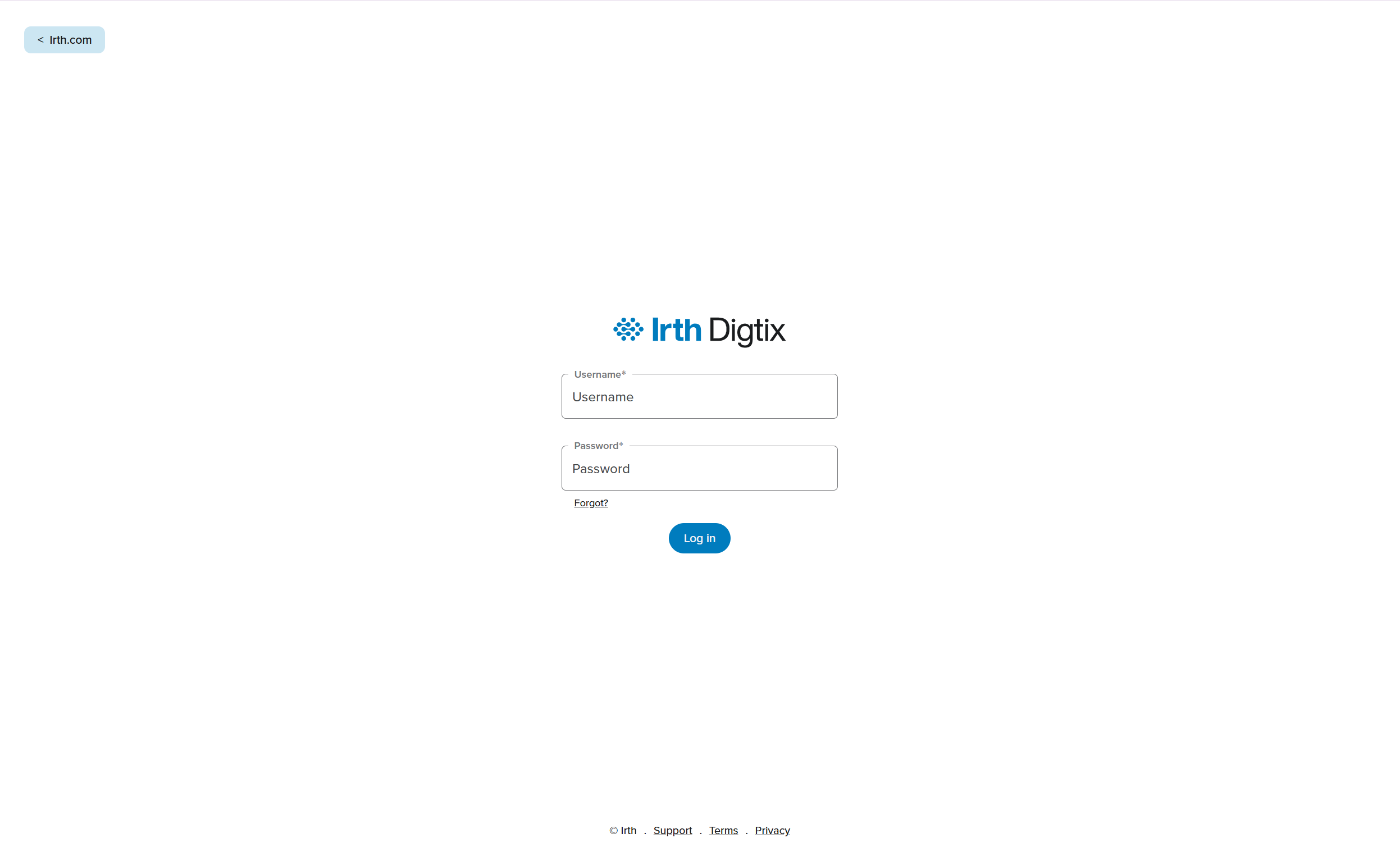
Login
- Navigate to the Digtix login page.
- Enter your username and password.
- If you forget your password, click Forgot your password? and follow the email instructions.
Access the Locates Screen
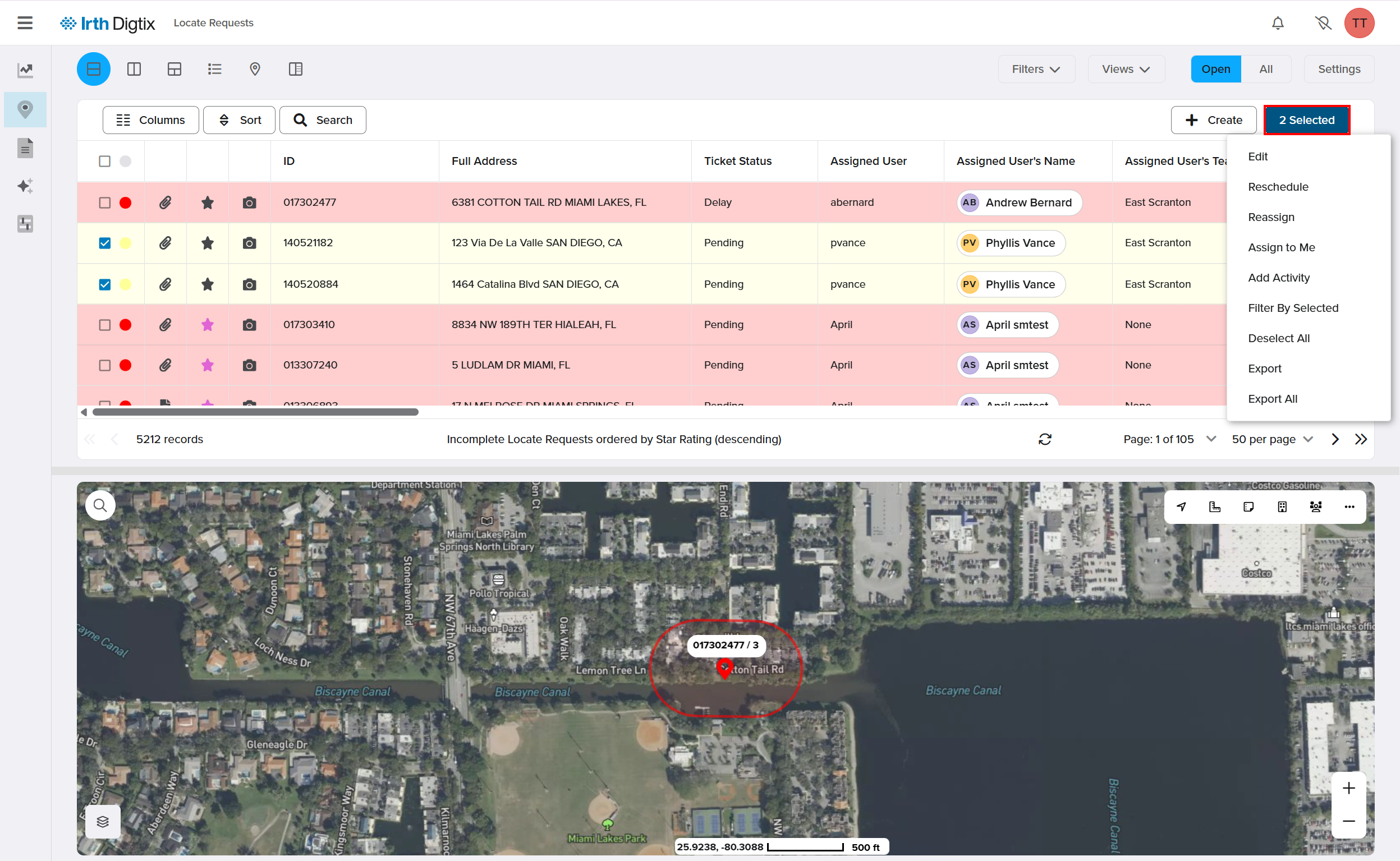
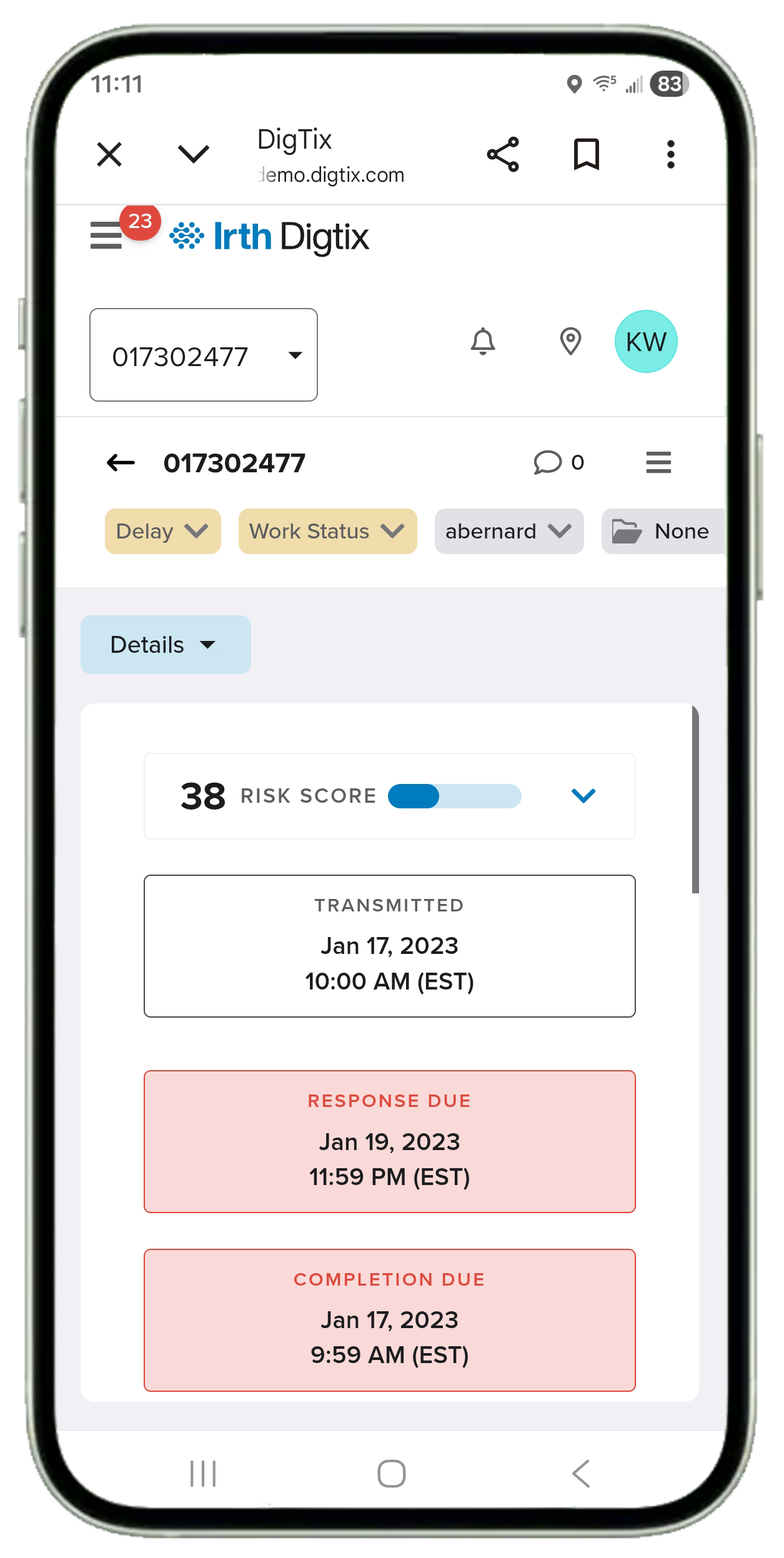
- Click Locates from the main menu. By default, only incomplete locate requests are displayed.
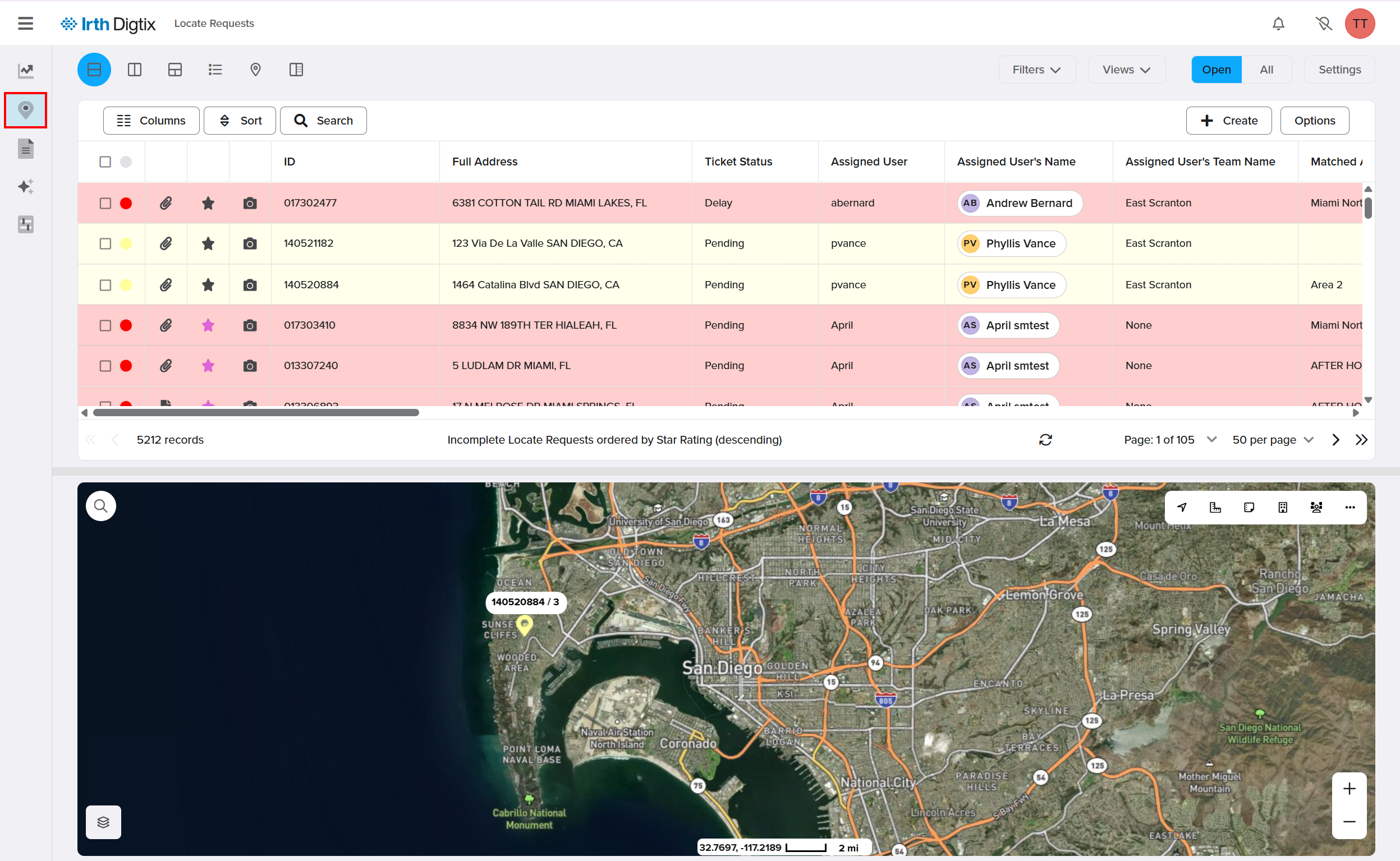
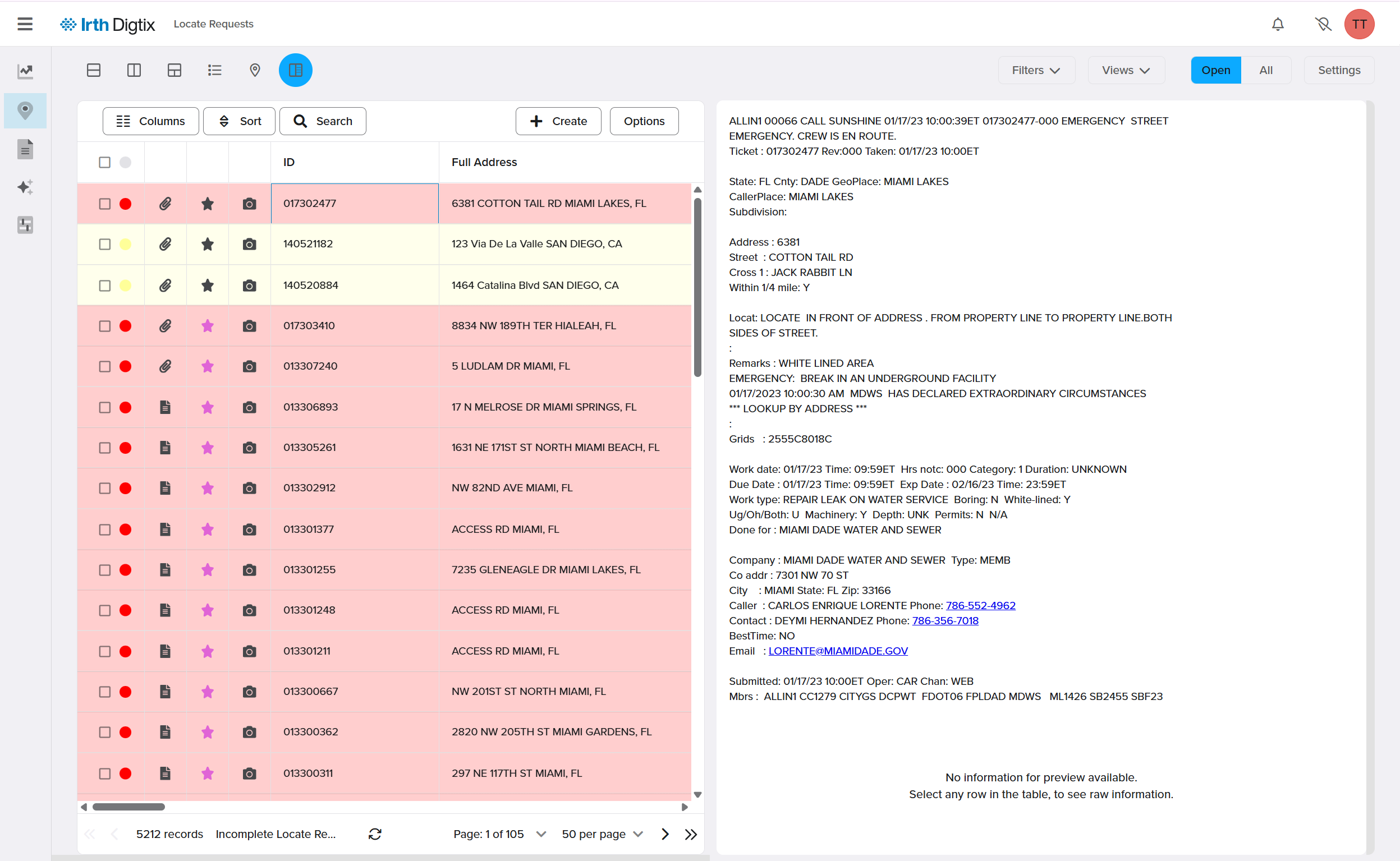
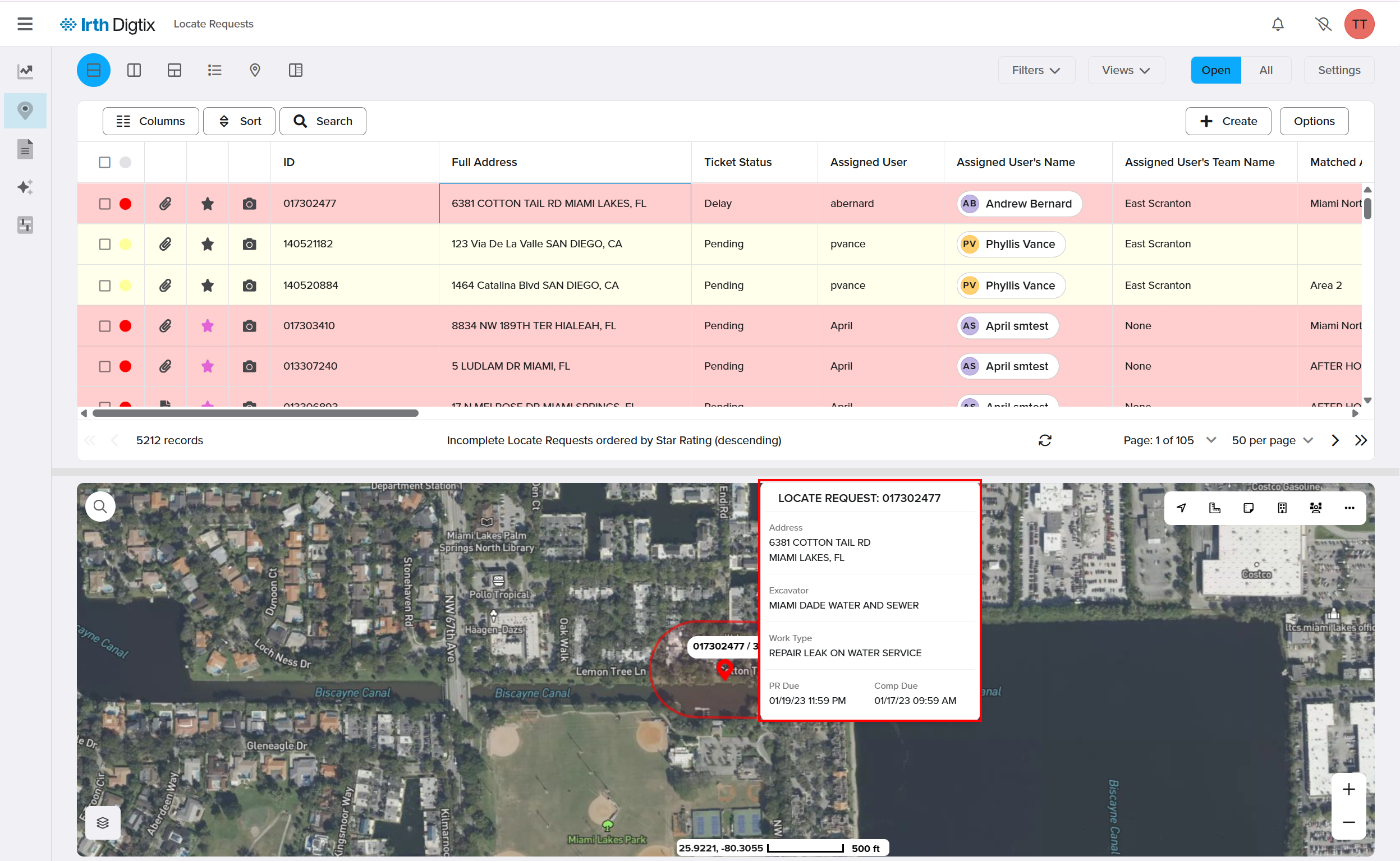
The Locates screen includes three main areas:
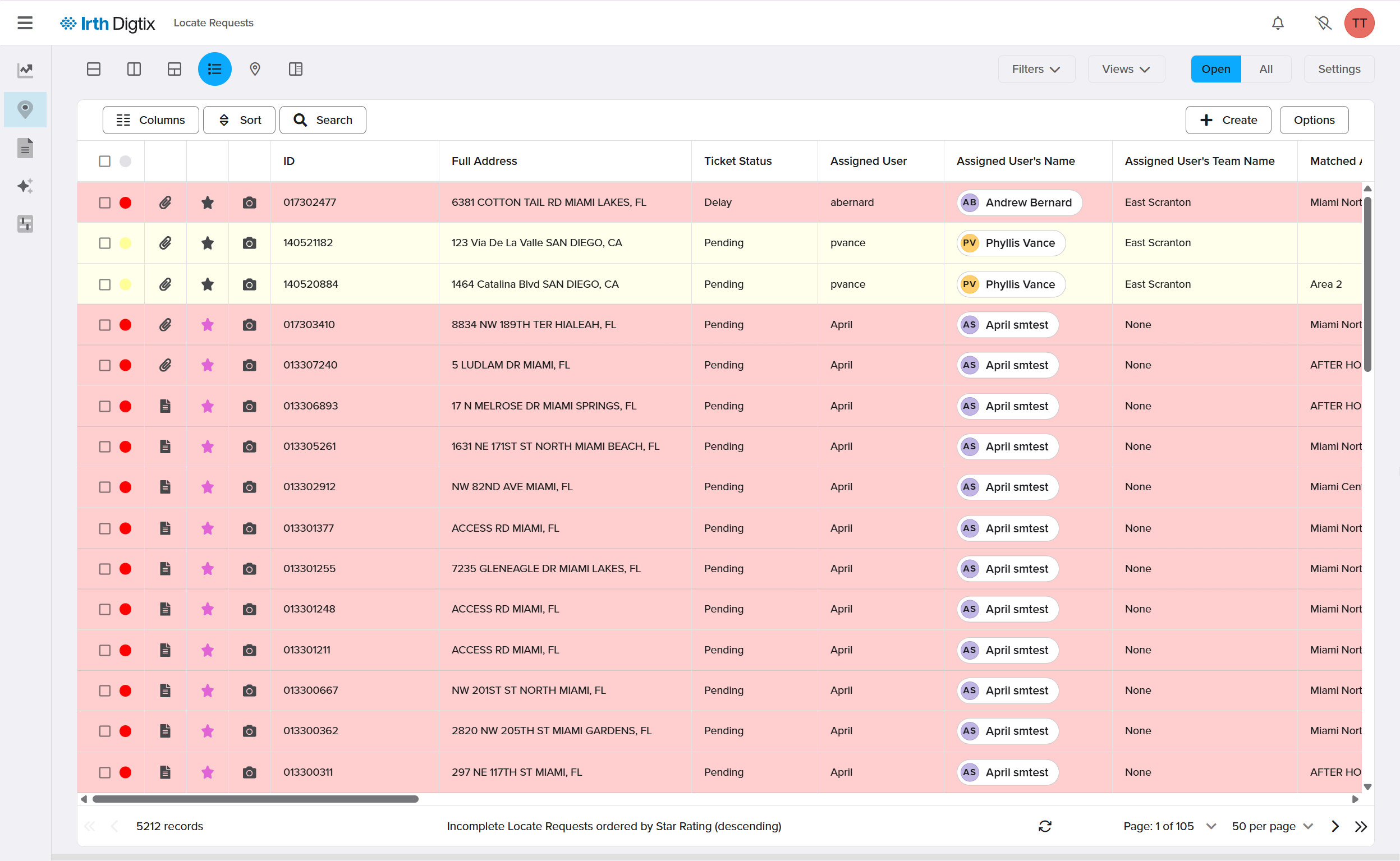
- Locates Grid: A spreadsheet-style view where each row represents a locate request.
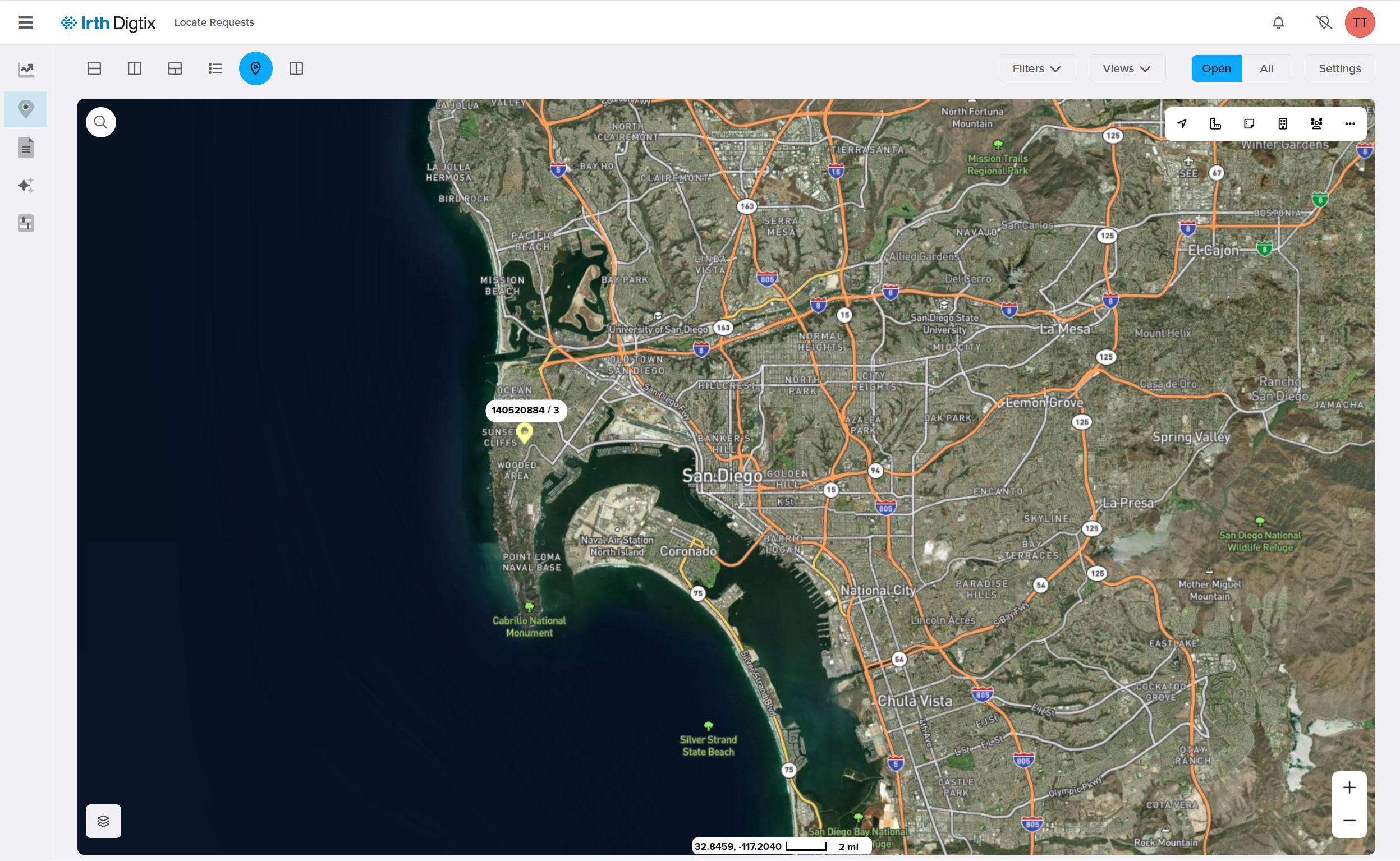
- Locates Map: Visual markers for each locate request are displayed on a map.
- Grid and Raw Request: A condensed view of the original 811 request email. This window will appear blank until a locate request is selected.
Use the Locates Grid and Map
- Click a row in the grid to automatically pan the map to that ticket’s location.
- Hover over a map marker to view a brief ticket summary.
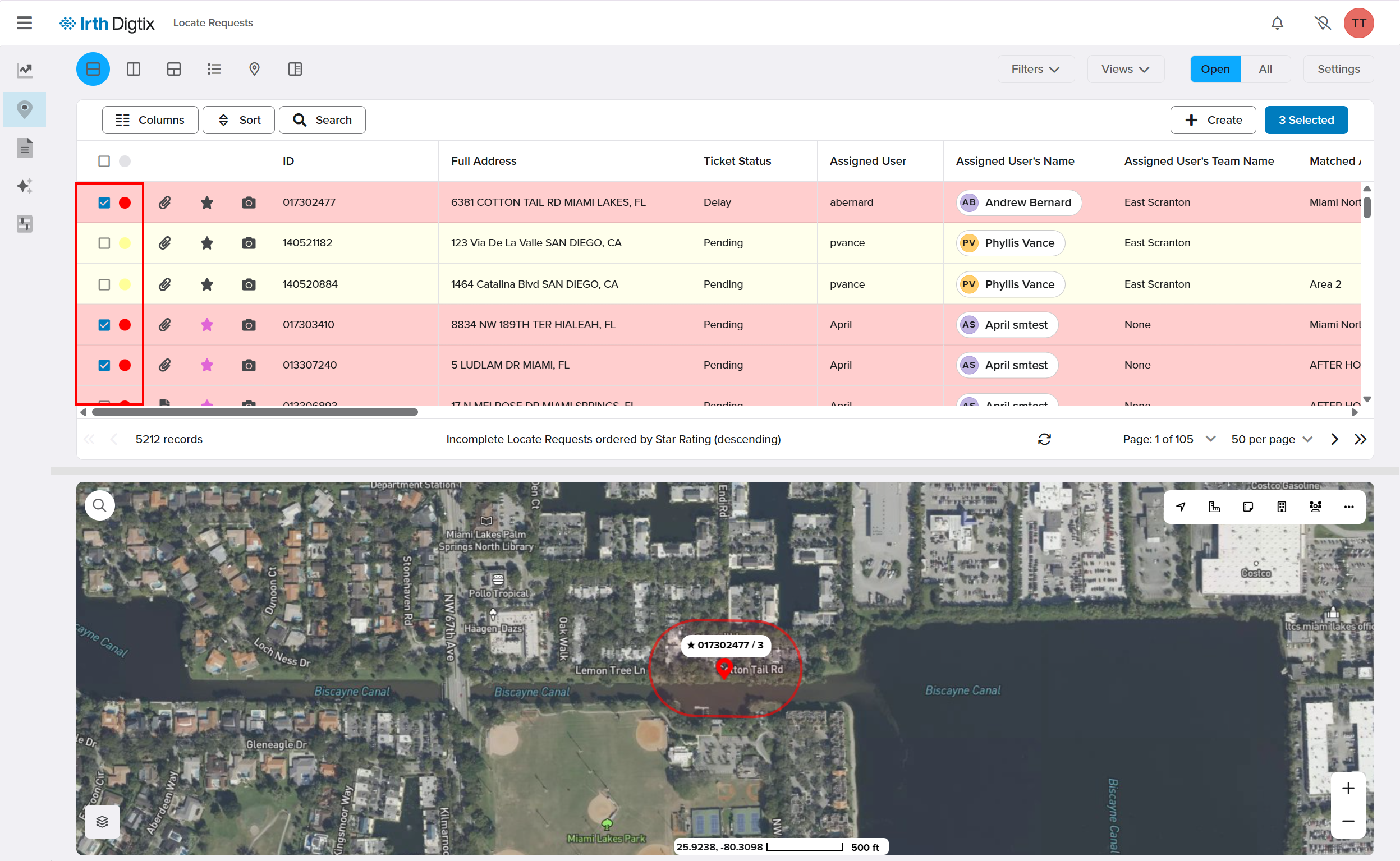
- Select tickets using grid checkboxes or map icons.
- Use Select All to select all visible tickets.
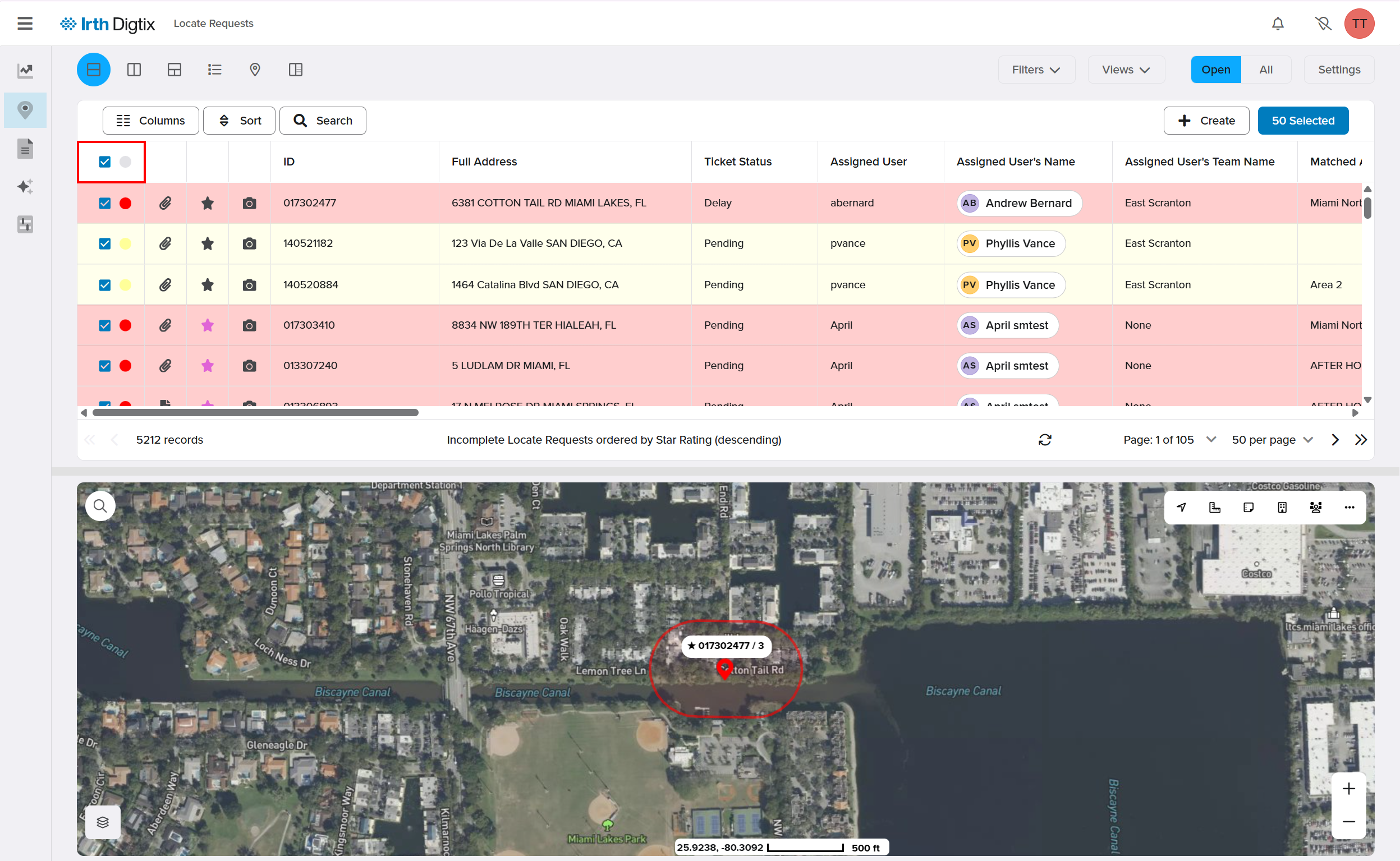
- Click Selected Tickets to filter the grid to only your selections.
Open and Work a Locate Request
- Double-click a locate request in the grid or on the map.
- The Ticket Window opens.
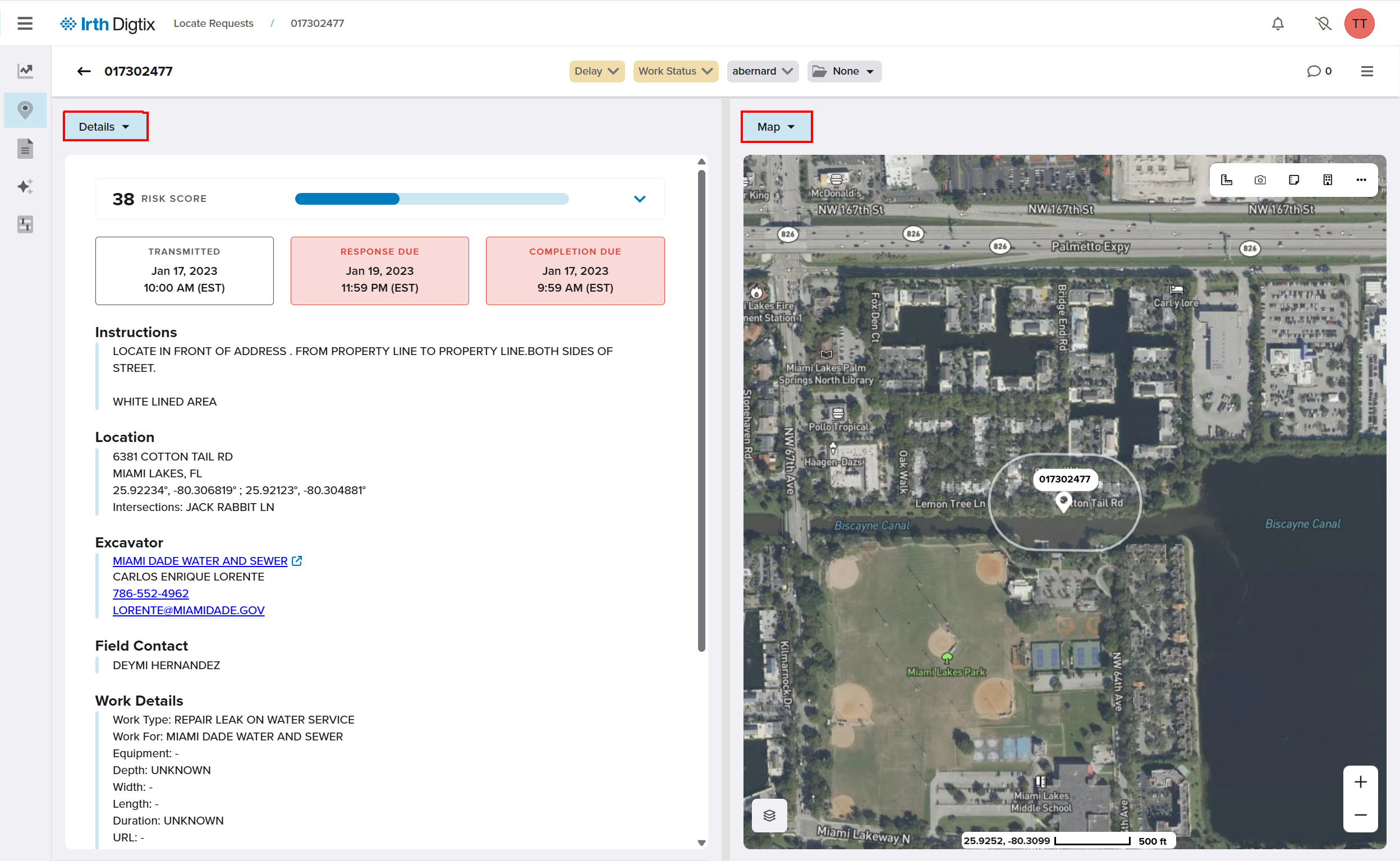
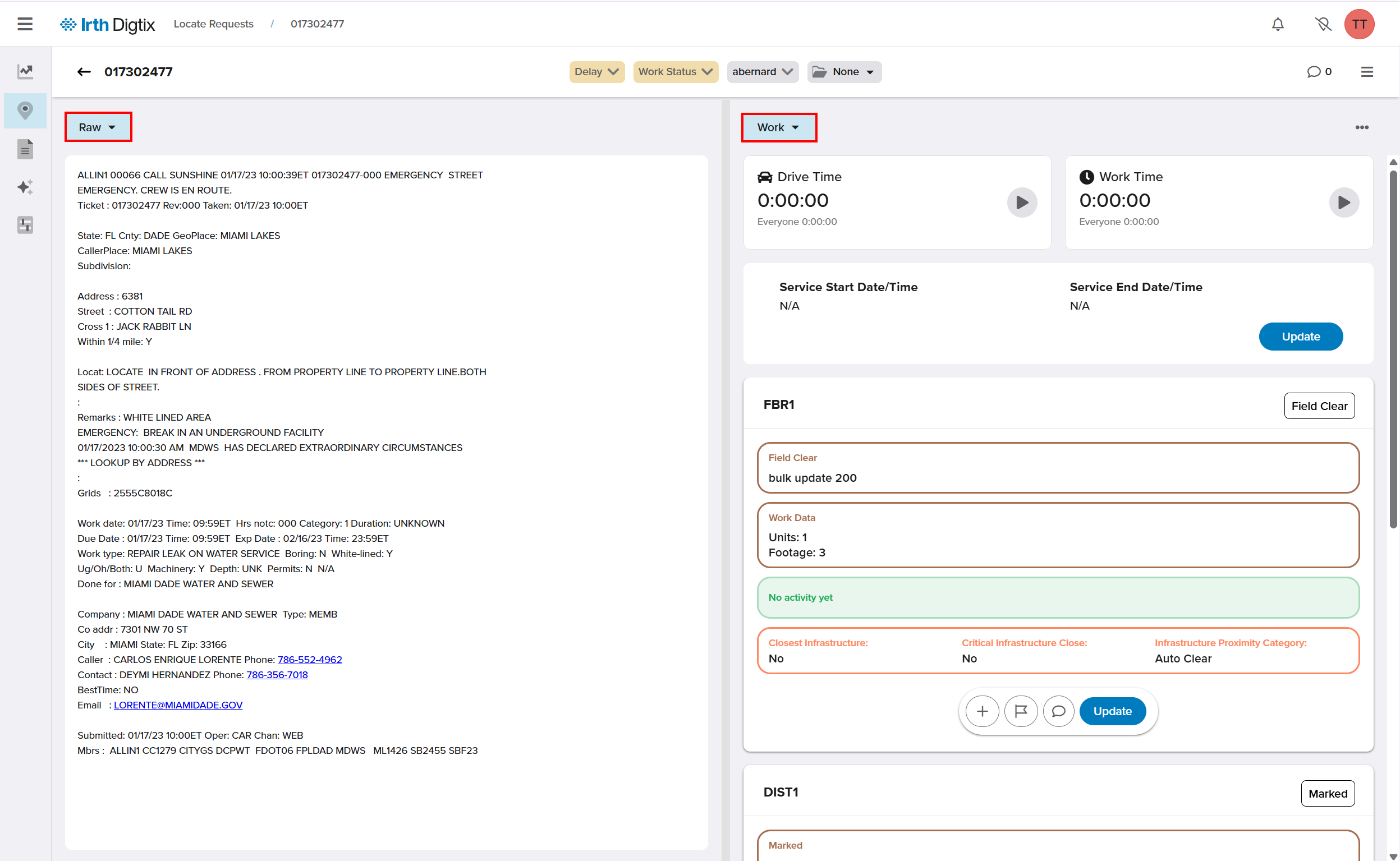
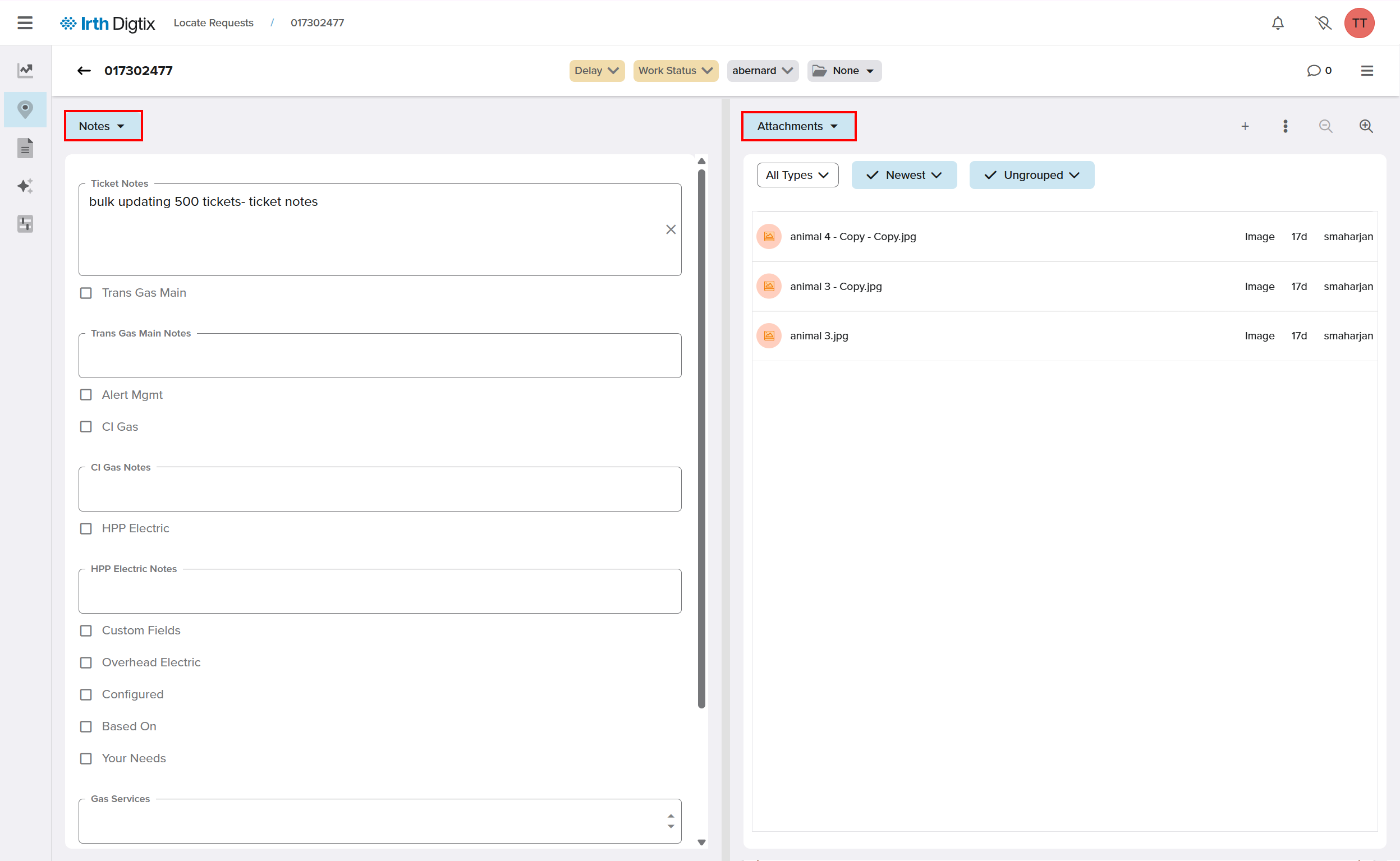
Locate Request Window Overview
- Details: Read-only information from the 811 call center.
- Map: Visual markers for each locate request are displayed on a map.
- Raw: Original request content as received.
- Work: Research, annotations, time tracking, attachments, and completion.
- Notes: Add ticket-level notes.
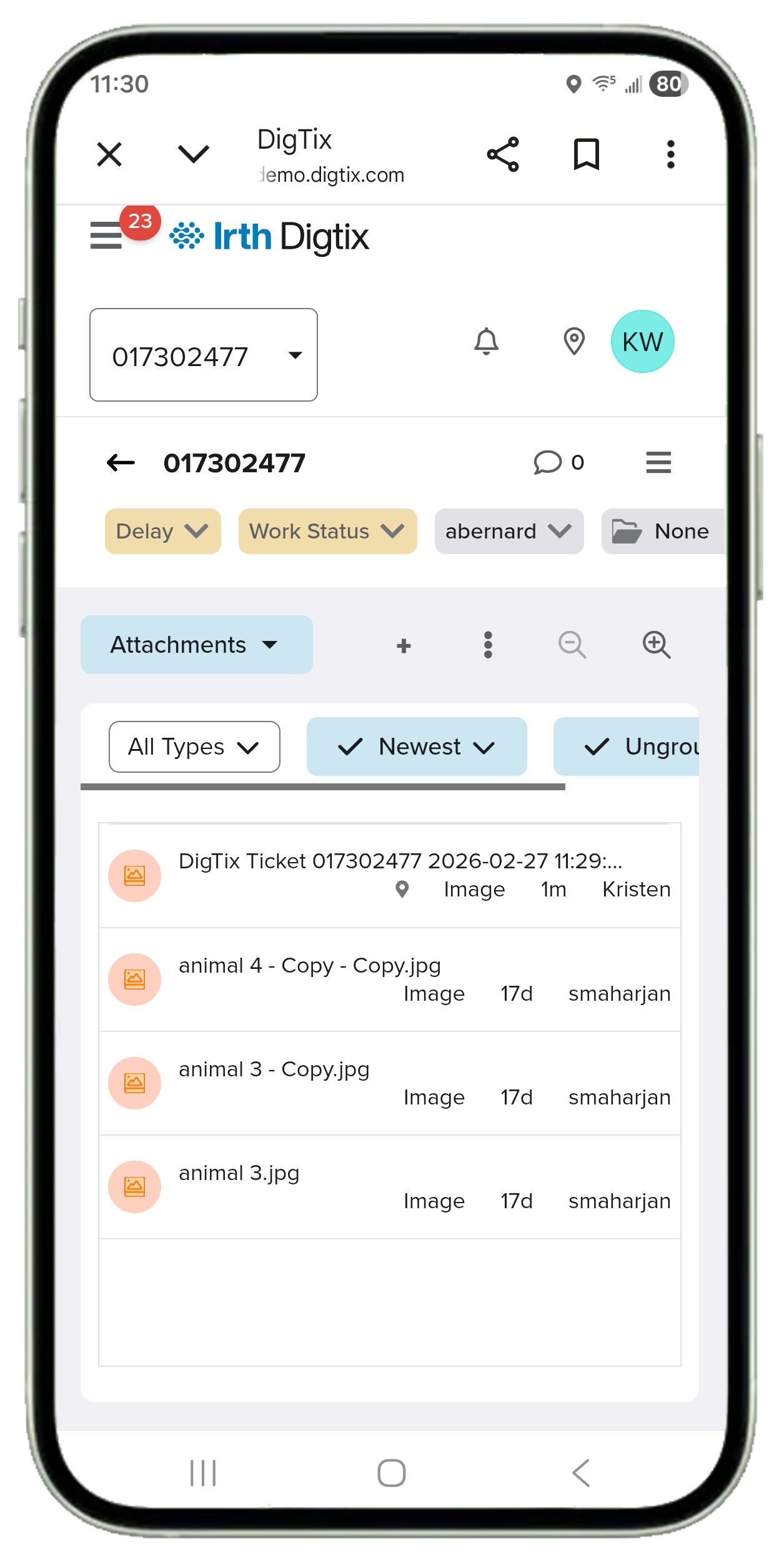
- Attachments: Capture and upload photos of markings.
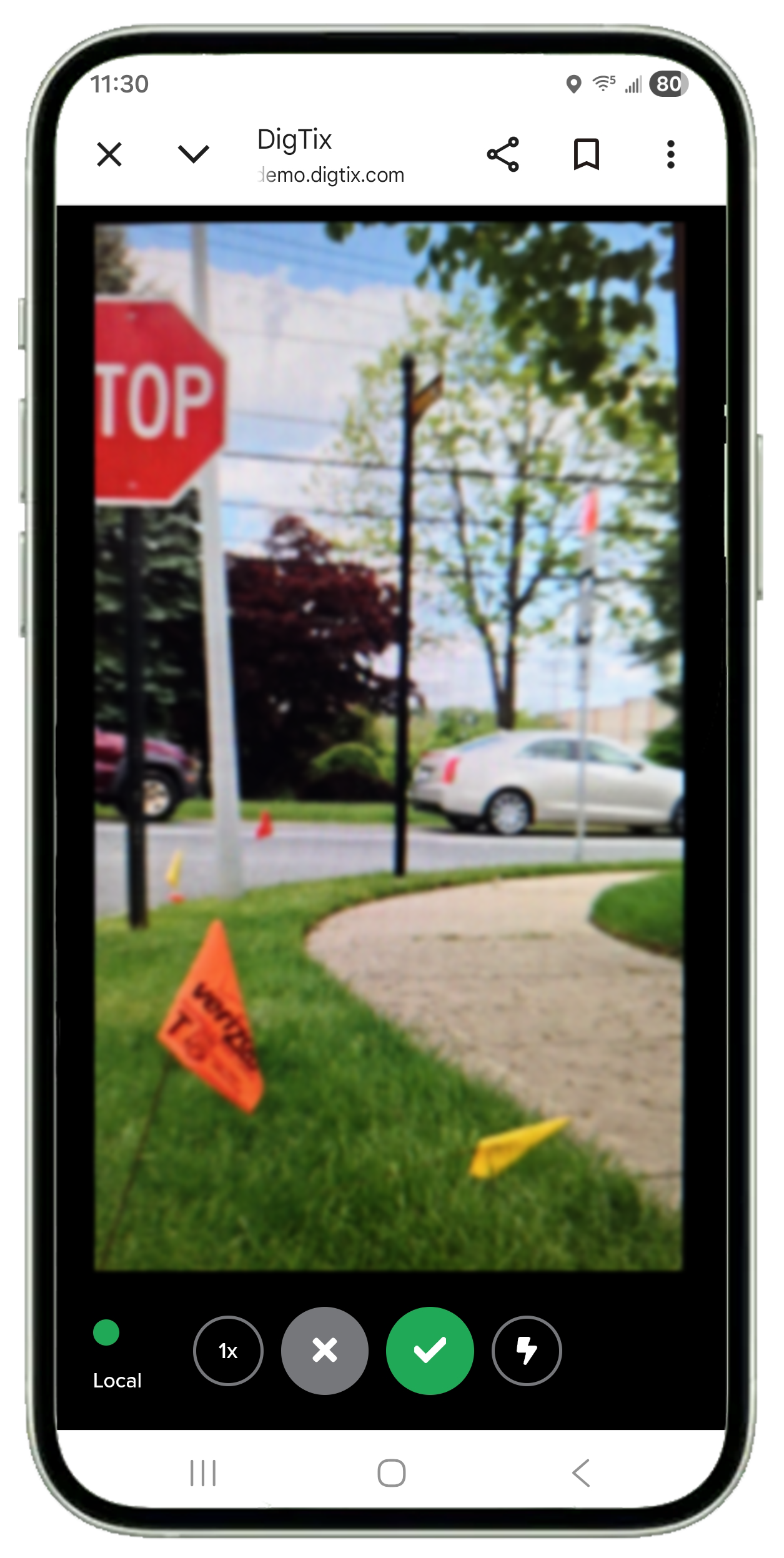
Capture Photos (Attachments & Follow-Ups)
Zoom: Adjusts the camera view.
Download Image: Saves photos locally (not available on iOS).
Flash On/Off: Improves visibility in low‑light conditions.
Take Picture: Capture multiple photos in rapid succession.
Exit: Closes camera mode.
All photos are automatically compressed, uploaded, and attached to the ticket.
Member Codes & Close Codes
Member codes represent specific utility types such as gas, water, electric, fiber, or service lines. A ticket may contain one or more member codes.
Each member code must have a corresponding Close Code applied before a ticket can be completed.
Applying Close codes
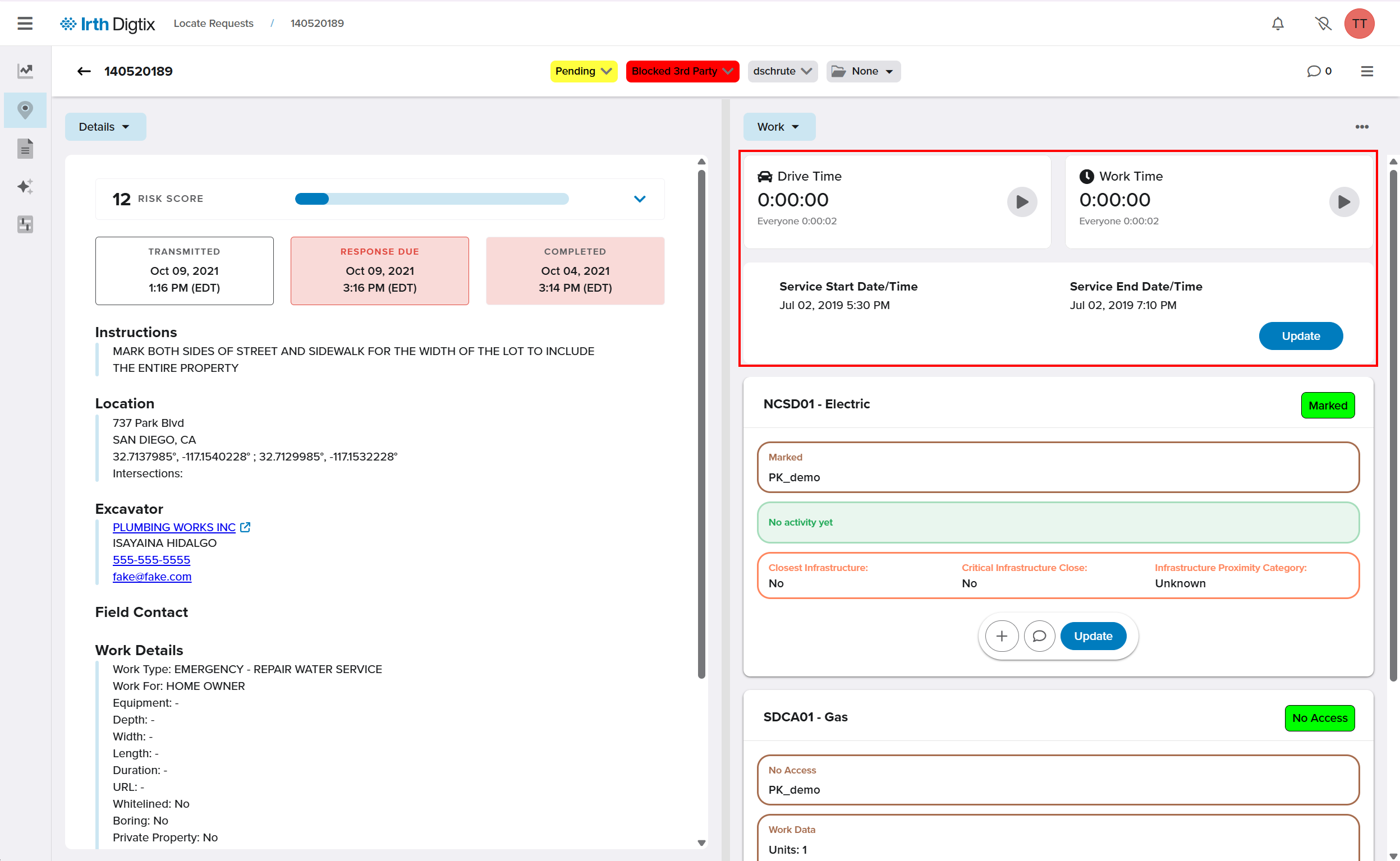
- Open the Work menu in the Ticket Window.
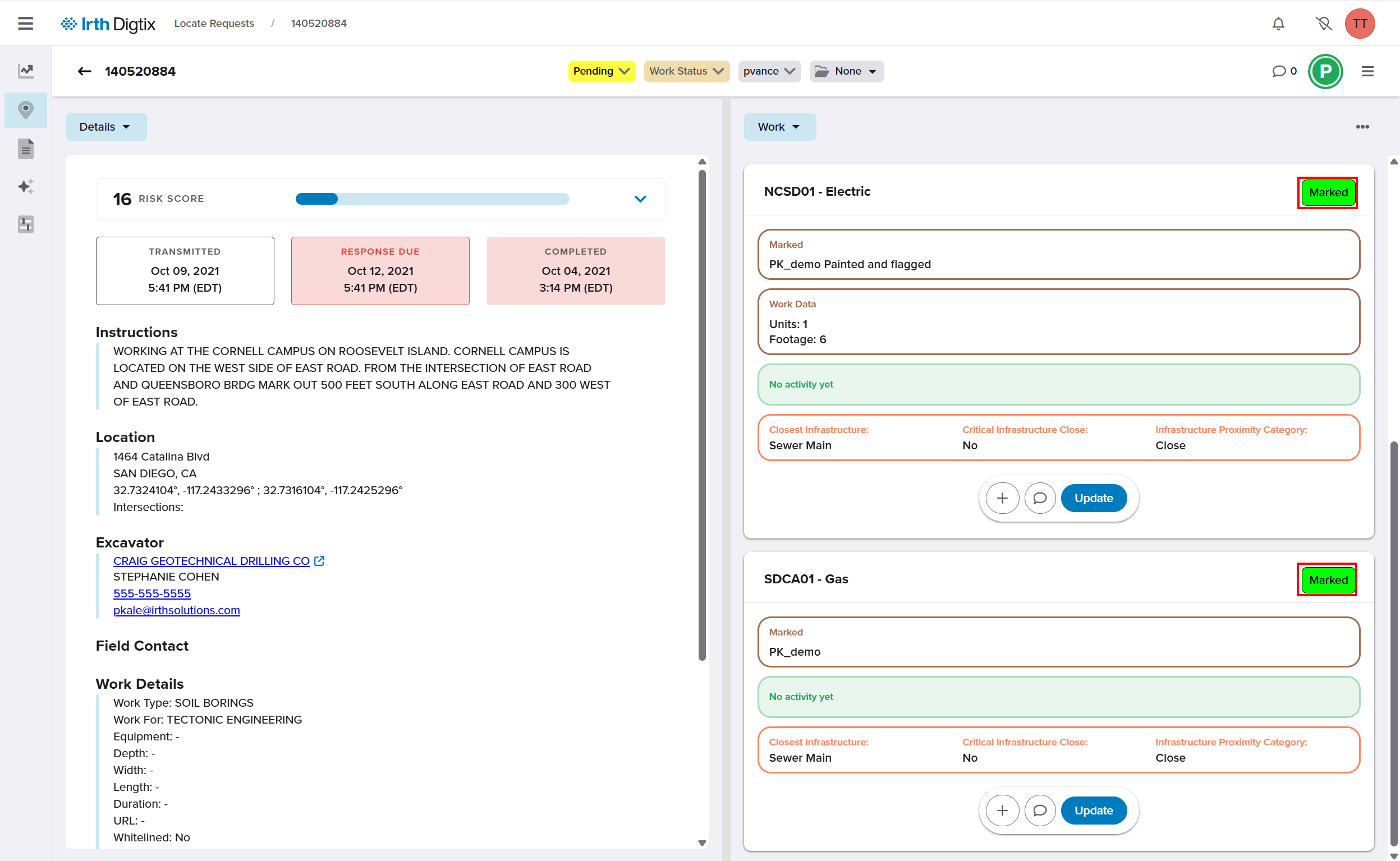
- Select the appropriate Close Code for each member code.
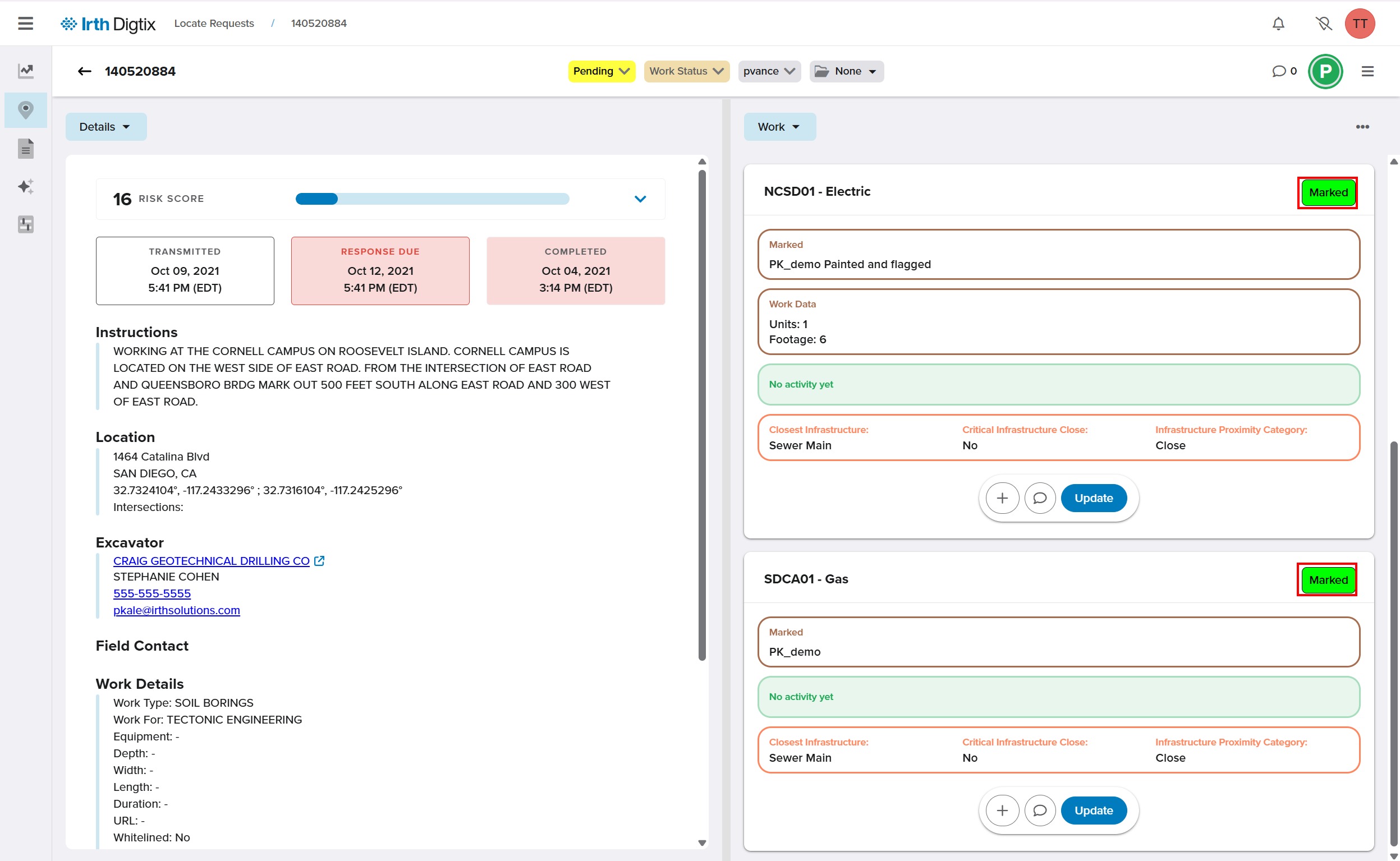
- Enter required details, which may include:
- Start and end times
- Footage
- CDC-specific notes (may be sent to 811 or the excavator)
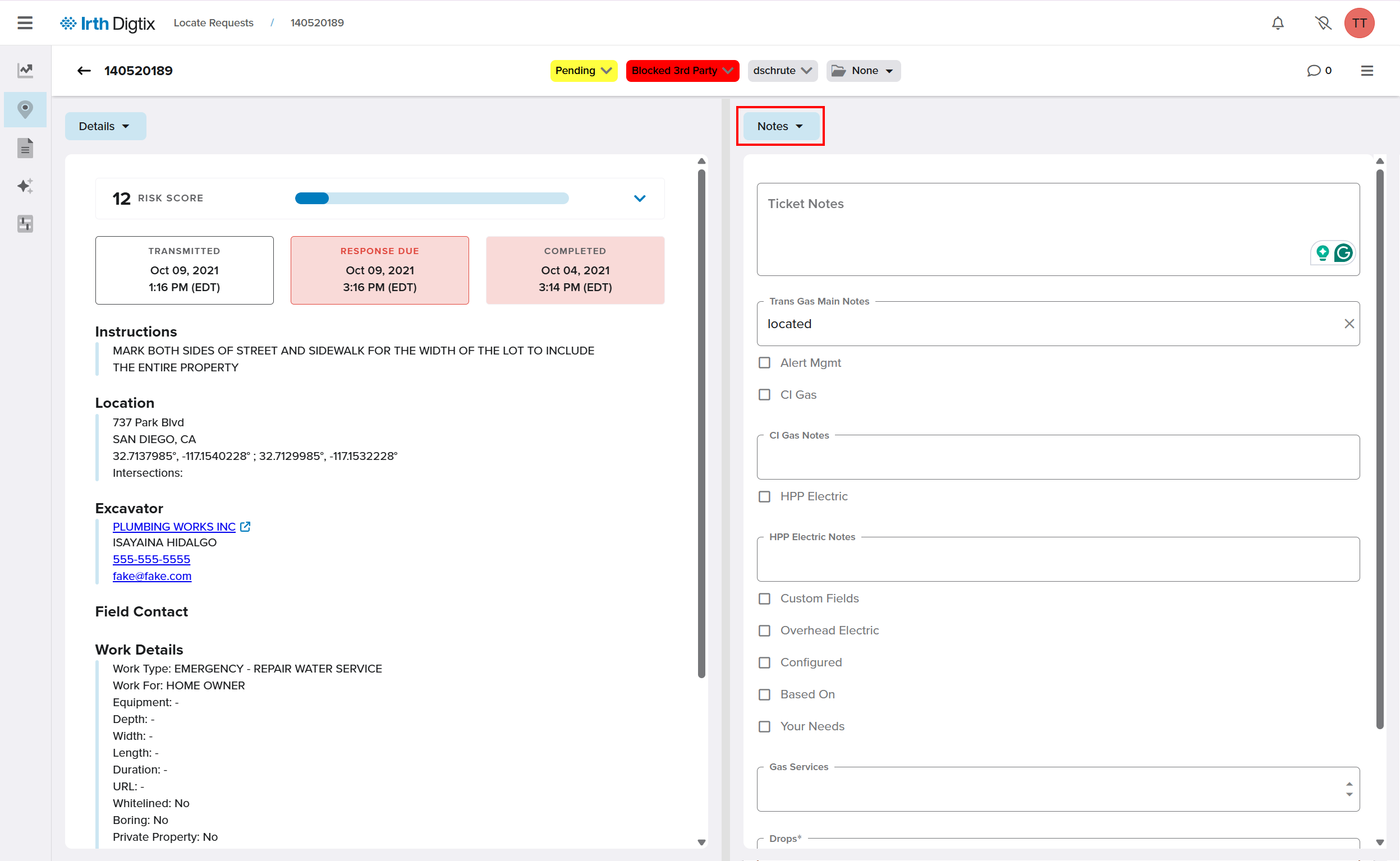
NOTE: CDC Notes may be included in positive responses sent to the 811 call center and/or the excavator.
Using the CDC Action Bar
Each CDC now includes an action bar displayed directly beneath it in the Work section. This action bar provides quick access to common tasks such as adding Work Notes, updating Footage, and applying close codes without leaving the ticket.
Using the action bar ensures all required CDC information is completed accurately and efficiently before closing the ticket.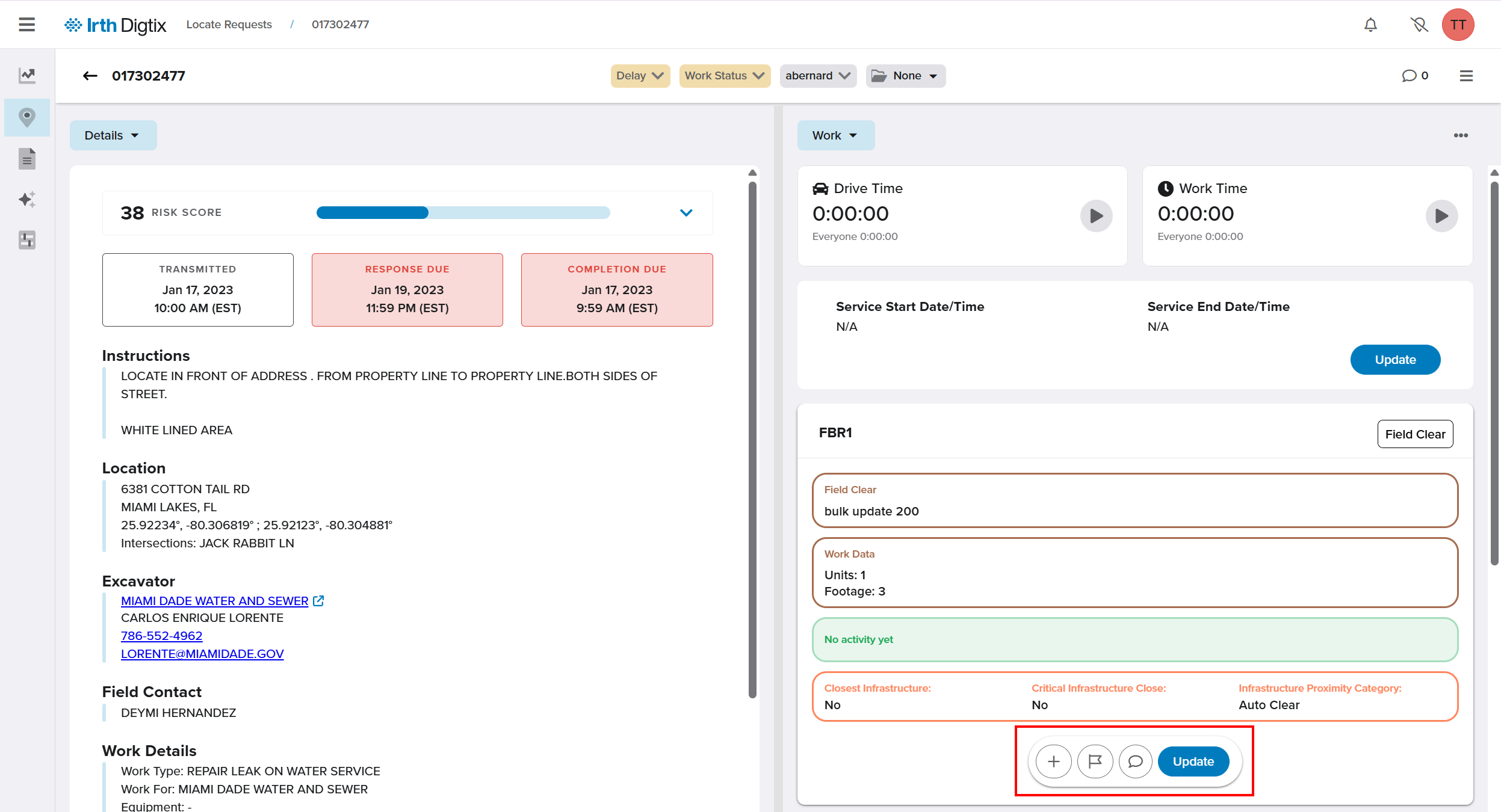
Using Comments (Internal Only)
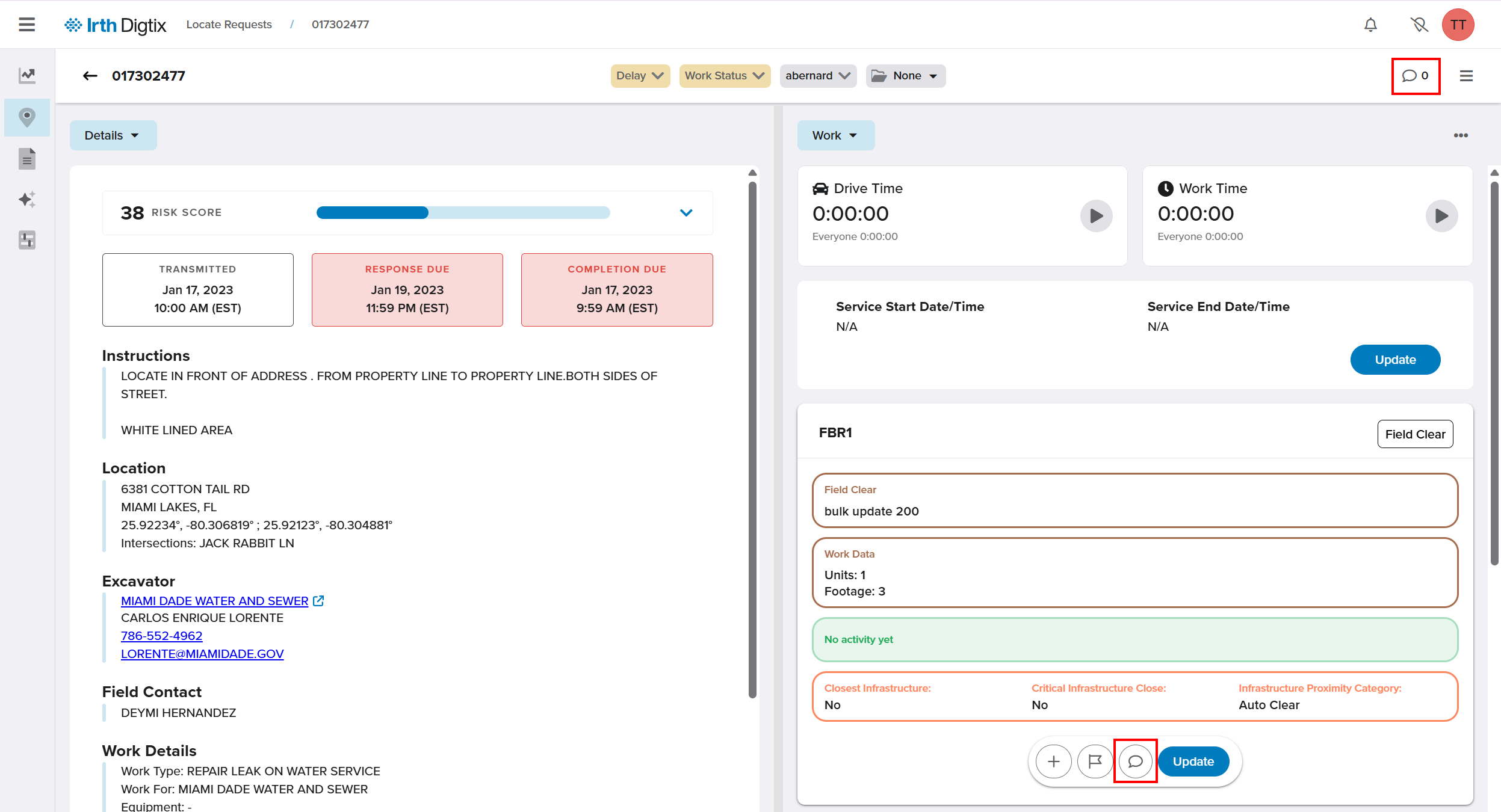
In addition to Work Notes, Digtix includes a Comments feature for internal communication:
- Comments can be accessed by clicking the speech bubble icon at the top of the ticket or beneath each CDC.
- Comments are internal only and are not sent to the 811 call center or the excavator.
- Use Comments for internal coordination, supervisor guidance, or clarifications that should remain within your organization.
Finalizing the Ticket
- Confirm all member codes are updated.
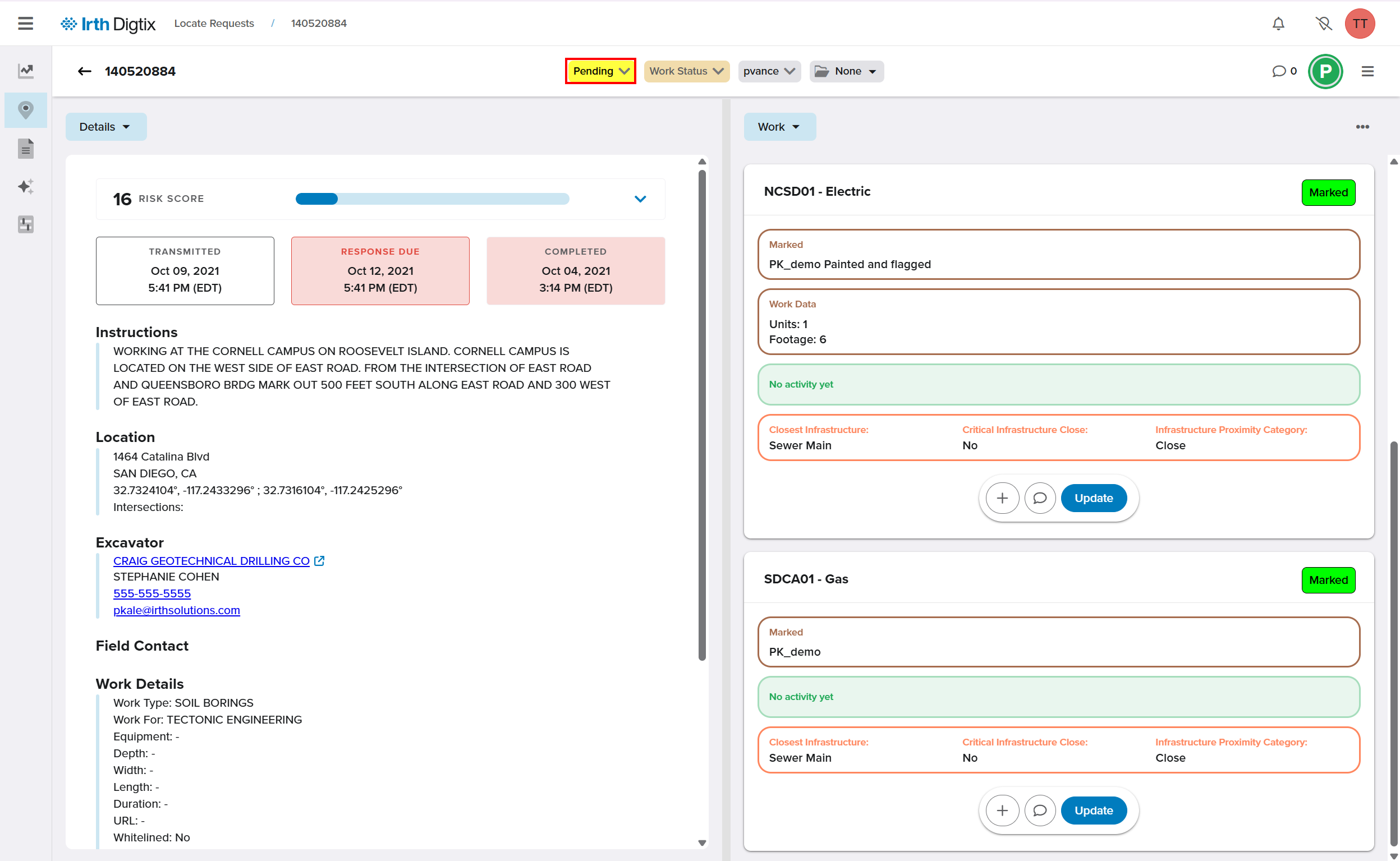
- Change the Ticket Status to a completed state.
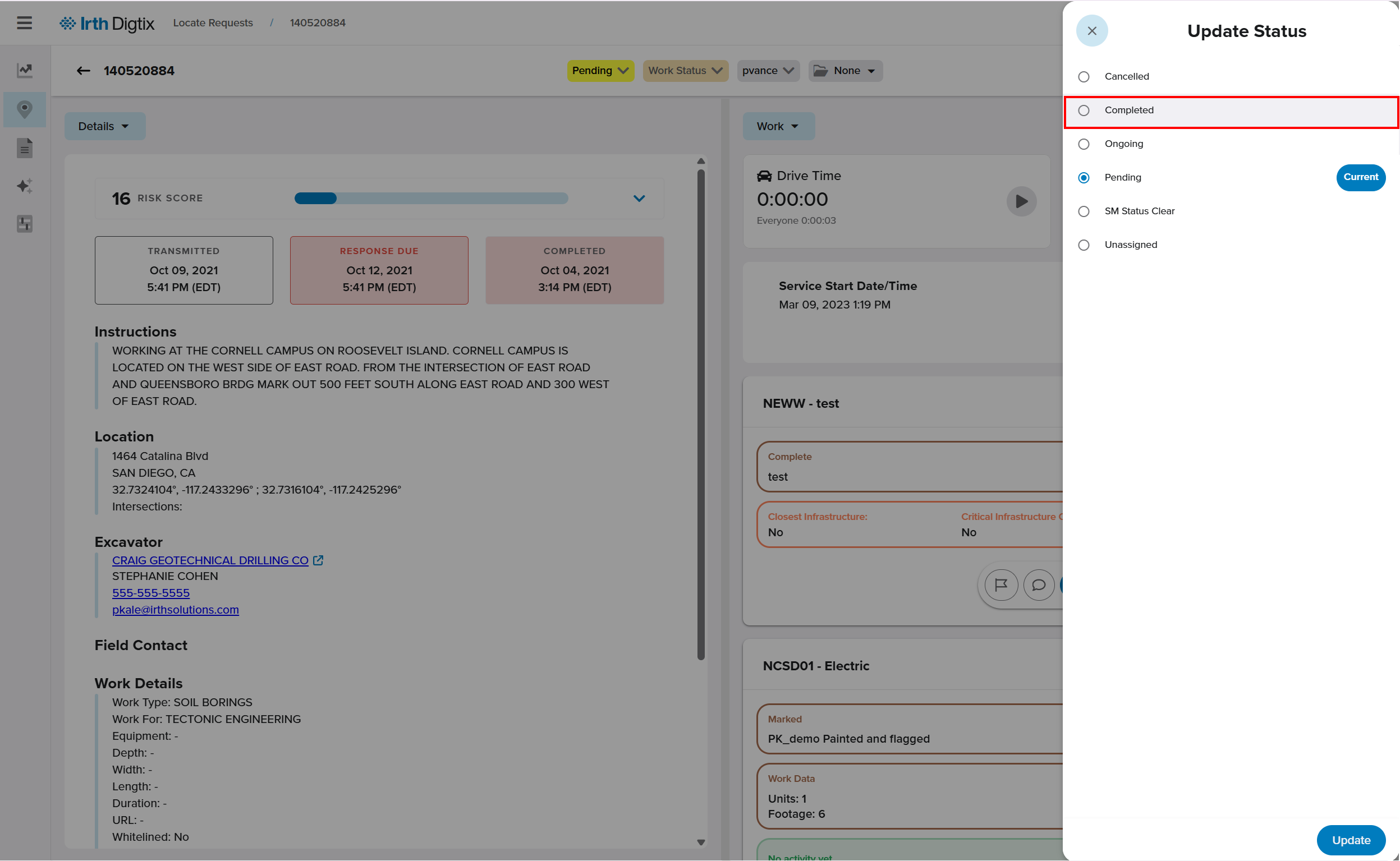
- Click Update.
Completed tickets are removed from the active queue and archived.
Research Completed Locate Requests
- Switch from Open to All on the Locates screen.
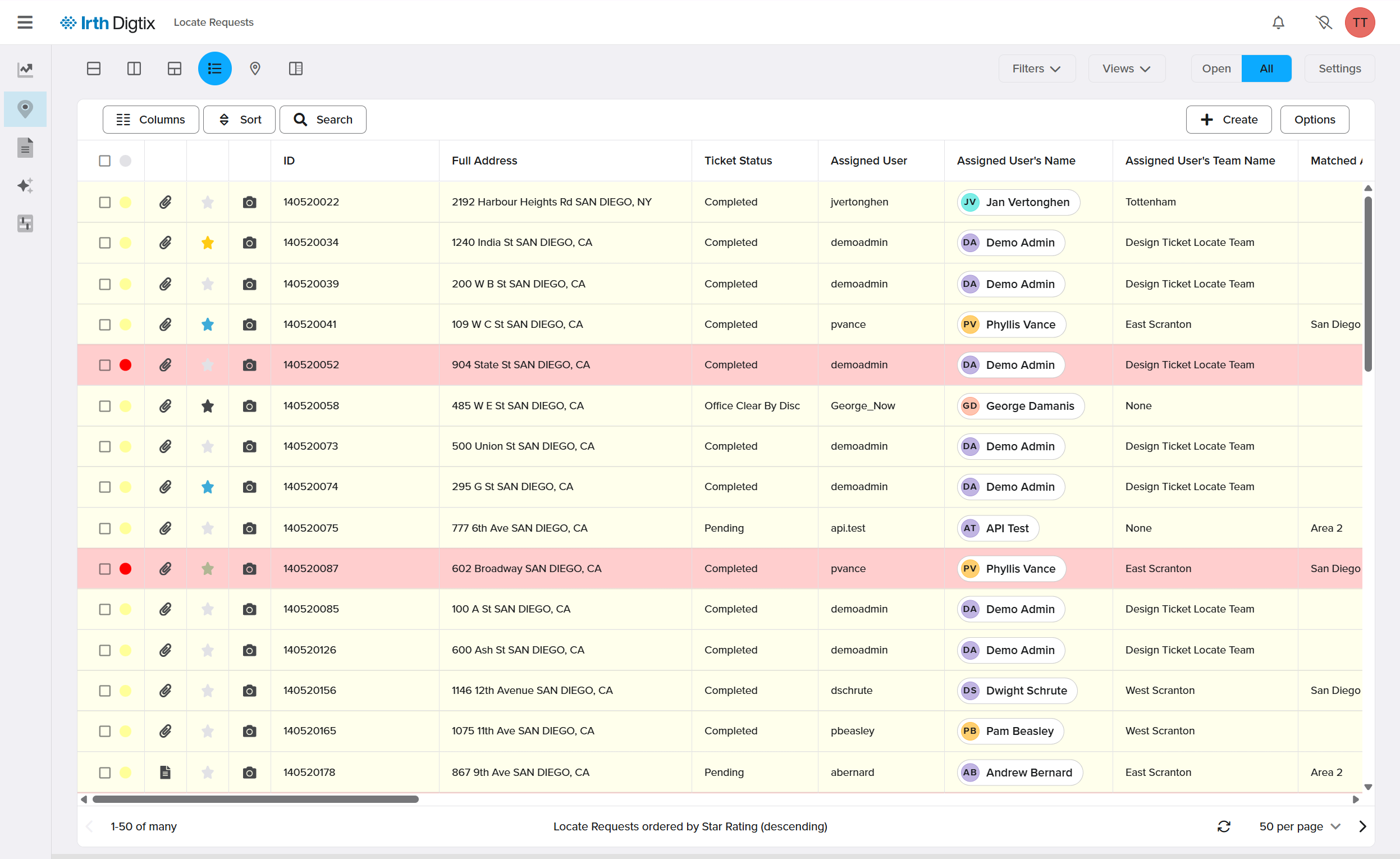
- Use filters to select Completed tickets.
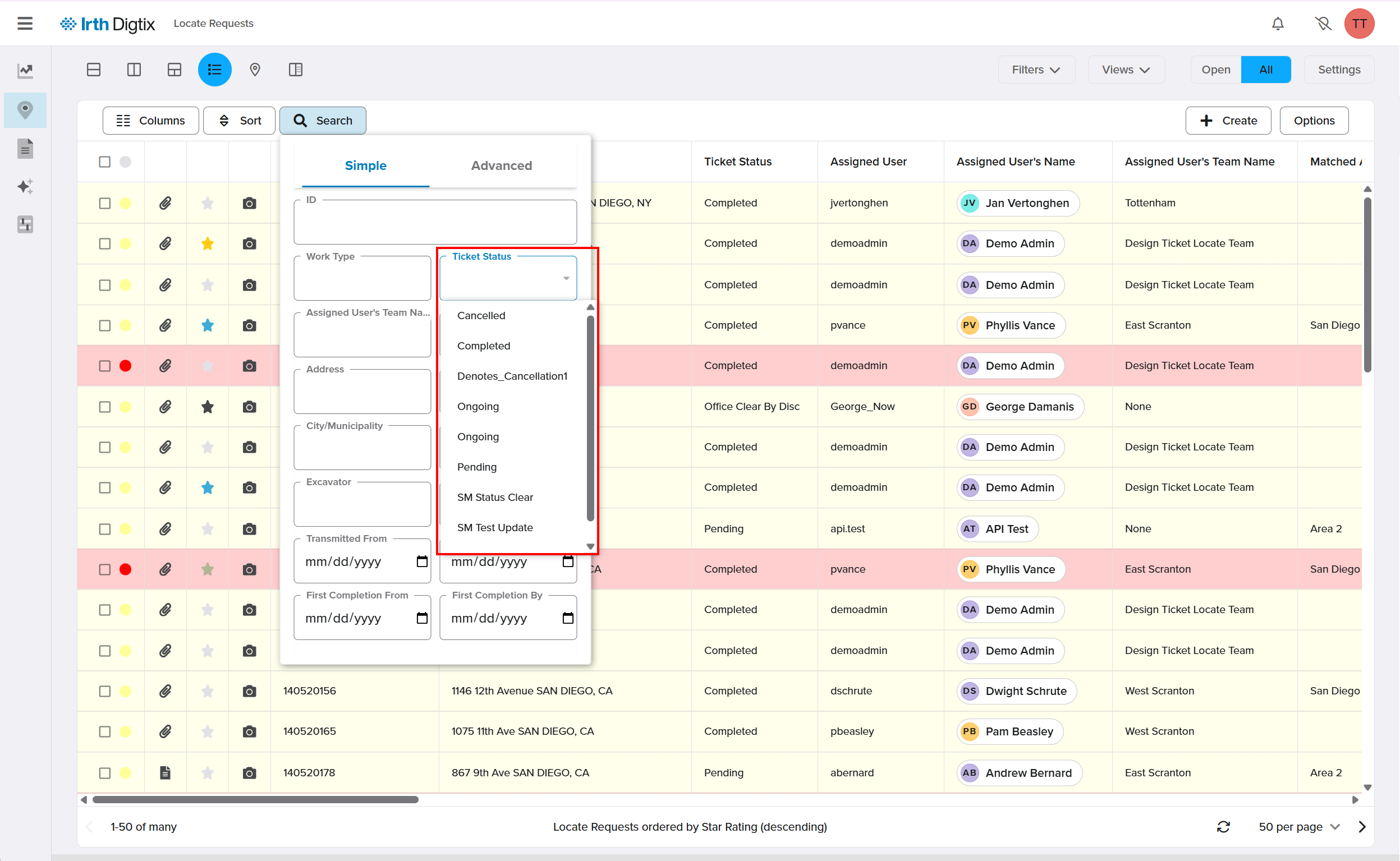
- Search by Ticket ID if known.
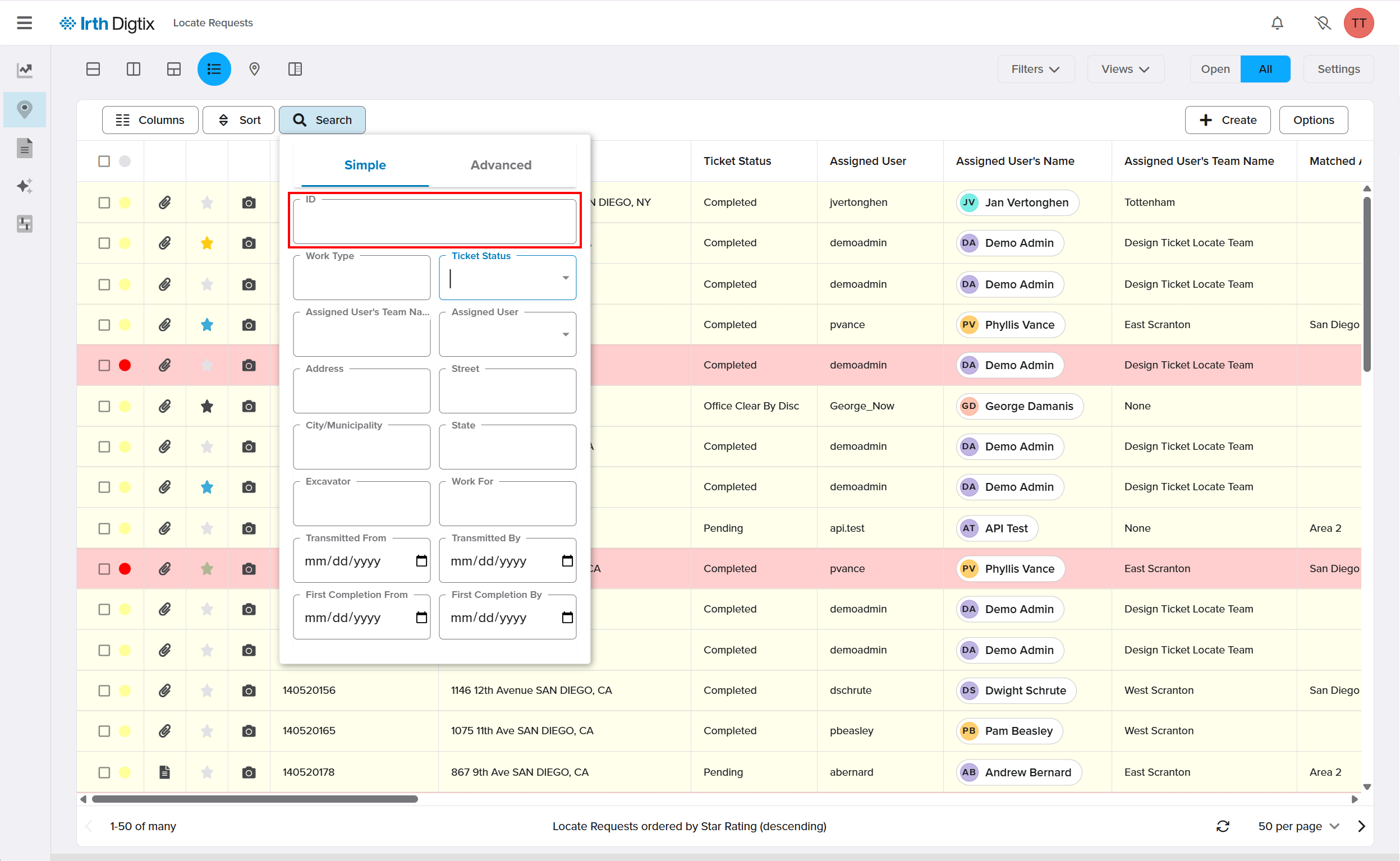
NOTE: You can also search for a specific ticket using any ticket attribute (street name, excavator name, etc).
FAQ/Troubleshooting:
Q: I don’t see any locate requests. Why?
A: By default, only incomplete tickets are shown. Switch to All or adjust filters to see completed requests.
Q: Why can’t I download photos on my iPhone?
A: iOS devices do not support local image downloads due to platform limitations.
Q: My account is blocked. What should I do?
A: Contact a Digtix Administrator to unblock your account.
Questions? Contact us!

Was this article helpful?
That’s Great!
Thank you for your feedback
Sorry! We couldn't be helpful
Thank you for your feedback
Feedback sent
We appreciate your effort and will try to fix the article