Configure Response Categories for Insights AI Screening
Purpose/Overview
In this article, you will learn how to configure Response Categories for Insights AI Screening and why selecting the correct category matters.
Every Utilisphere response is mapped to a Response Category that tells the Insights AI Screening model what the response means. The model learns from these mappings, so selecting the wrong category can teach the model the wrong outcome.
Accurate mapping is especially important because changes to existing mappings can require the Insights model to be retrained.
Navigation Path:
To access this feature, go to: Utilisphere > System Management > Administration > Ticket Management > Responses
Things to Know:
- Is Clear is not the same as an Insights clear. Categorize a response based on how the response is actually used, not simply whether Is Clear is selected.
- System Clear is for Insights only. Responses created by Auto-Response Rules, folder placement, Ticket Version Update Rules, or Ticket Due Notifications should not be categorized as System Clear, even if the automation closes the ticket. Use Please Select instead.
- One response should have one meaning. If the same response is used for both cleared and marked outcomes, the model receives mixed information. Consider using separate responses, or Please Select.
- Map new responses when they are created. Responses left as Please Select are excluded from training, so the model does not learn from those responses.
- Changes can affect model training. When Insights AI Screening is enabled, changing a Response Category displays a confirmation message. Contact your Irth team before remapping an existing response.
Key Benefits/Use Cases:
- Correct Response Category mapping helps Insights AI Screening understand what happened to a ticket and learn from the appropriate outcomes.
- The available categories distinguish between tickets cleared by Insights, office staff, or field personnel and tickets where facilities were marked or remained unmarked.
How It Works:
To configure response categories, go to: Utilisphere > System Management > Administration > Ticket Management > Responses. Select Add a Response to create a new response, or select an existing response to modify its configuration.

Enter the necessary Response Information. When configuring a response, determine how that response is actually used and select the corresponding Response Category.
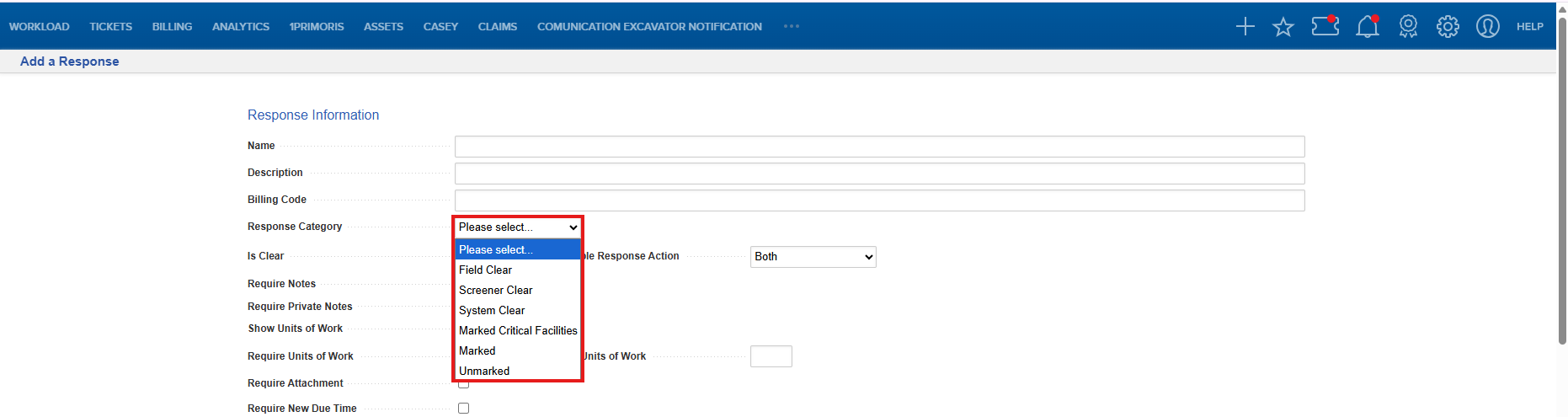
Please Select
Use Please Select when a response is added through an automated process, including:
- Auto-Response Rules
- Folder placement
- Ticket Version Update Rules that auto-close a ticket
- Ticket Due Notifications
Responses assigned to Please Select are excluded from Insights training.
System Clear
Use System Clear only when Insights AI Screening cleared the ticket.
This category tells the model that the ticket was cleared by Insights.
Screener Clear
Use Screener Clear when office or screening staff cleared the ticket without a site visit.
This tells the model that office staff determined the dig site was not in conflict.
Field Clear
Use Field Clear when field personnel visited the dig site and determined that no facilities were within the dig location.
Marked Critical Facilities
Use Marked Critical Facilities when designated critical or high-risk facilities were marked. This category represents an outcome that is not clear.
Marked
Use Marked when facilities were located and marked within the dig location. This category also represents an outcome that is not clear.
Unmarked
Use Unmarked when the outcome was neither marked nor cleared, such as:
- No Access
- Facility Untoneable
- No Locate Required
This category represents an outcome that is not clear.
Choosing the Correct Response Category
When determining which category to use, work through these questions in order and stop at the first Yes:
Does a rule add the response to auto-close the ticket?
Use Please Select.Did Insights AI Screening clear the ticket?
Use System Clear.Did office staff clear the ticket without a site visit?
Use Screener Clear.Did field personnel clear the ticket at the dig site?
Use Field Clear.Were critical facilities marked?
Use Marked Critical Facilities.Were any facilities marked?
Use Marked.Was the ticket neither marked nor cleared?
Use Unmarked.
FAQ/Troubleshooting:
Q: Is “Is Clear” the same as an Insights clear?
A: No. A response should be categorized according to how the response is actually used. A response with Is Clear selected may still belong in another category, such as Marked, depending on its actual use.
Q: Should an automatically generated response be marked System Clear if it closes the ticket?
A: No. System Clear is specifically for responses used when Insights AI Screening clears the ticket. Responses generated through other automated processes should use Please Select, even if they close the ticket.
Q: What happens if I leave a response set to Please Select?
A: The response is excluded from Insights training, which means the model does not learn from that response.
Q: Can the same response represent both a clear and a mark?
A: A response should have one meaning. If the same response represents both cleared and marked outcomes, the model receives mixed information. The configuration guidance recommends separating the outcomes into different responses or using Please Select.
Q: What should I do before changing an existing Response Category?
A: If Insights AI Screening is enabled, contact your Irth team before remapping an existing response. Changing the mapping can affect how the model learns from ticket outcomes and may require retraining.
Q: What if we add, delete, or change a response that represents a clear?
A: Contact Irth Solutions. The model is trained on the responses your organization uses to represent cleared tickets, and changes to those responses may require the model to be retrained.
Questions? Contact us!

Was this article helpful?
That’s Great!
Thank you for your feedback
Sorry! We couldn't be helpful
Thank you for your feedback
Feedback sent
We appreciate your effort and will try to fix the article