Language Translation
Purpose/Overview
Your mobile browser's built-in translate feature is the best way to use Irth Training in your native language. Browser translation converts the training platform itself: menu, buttons, labels, and navigation. It does not translate the learning content your training provider has loaded in your training courses. Check with them directly to see if they have training available in your preferred language.
Navigation Path:
The following works for Spanish and any other language your browser supports.
Getting Started
Your browser relies on use of languages you have added to your mobile device. You can add languages by navigating to your devices General Settings > Language & Location settings. (Example, on iphone: Settings > General > Language & Region). Add espanol or your preferred language to your localization list.
How It Works:
Once you have navigate to the Irth Training website, take the following steps for your browser of choice:
SAFARI:
- Start from the Irth Training website
- Tap the Page Menu icon next to the address bar at the bottom of the screen.
- Tap Translate and choose your language of choice.
CHROME:
- Start from the Irth Training website
- Tap the Page Tools icon next to the address bar at the top of the screen.
- Tap Translate and choose your language of choice.
Results and Example Images:
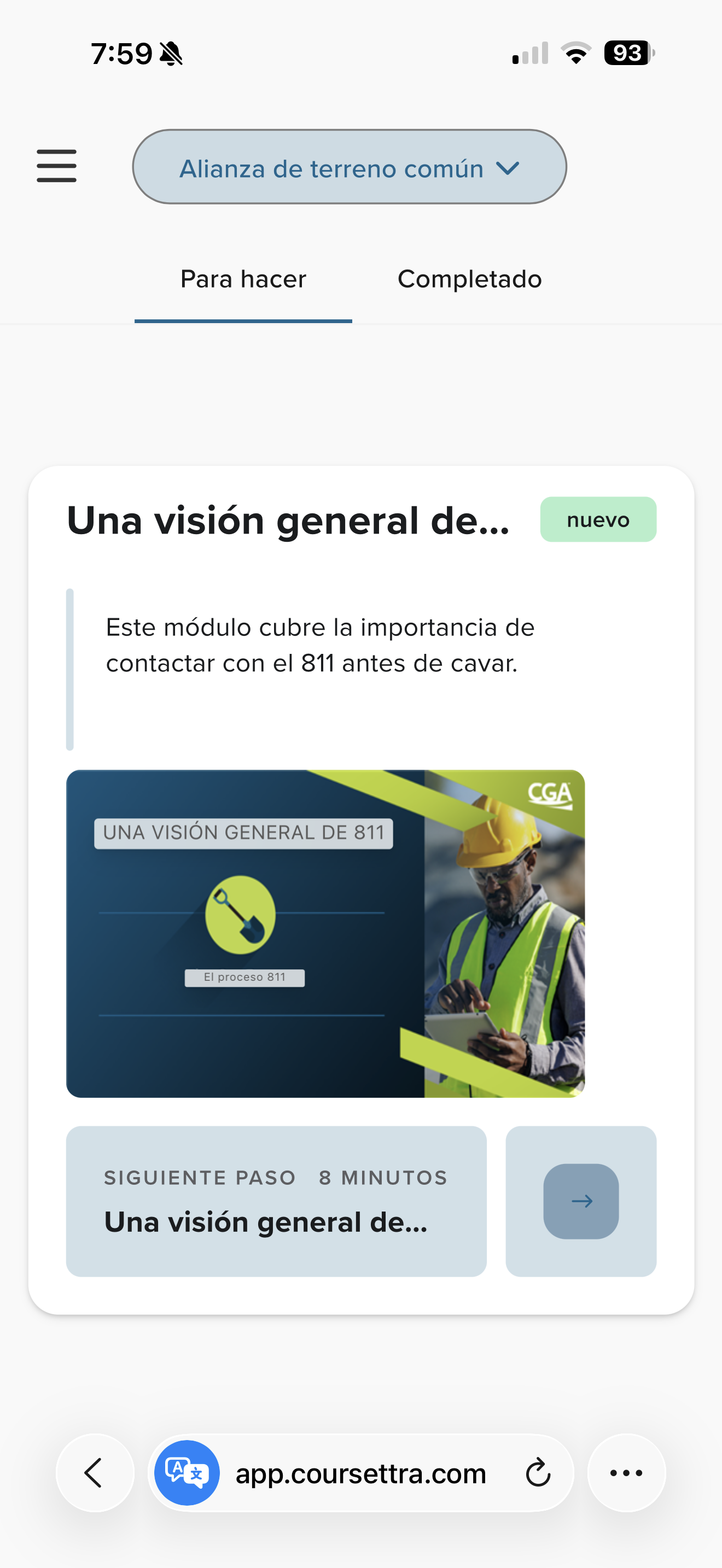
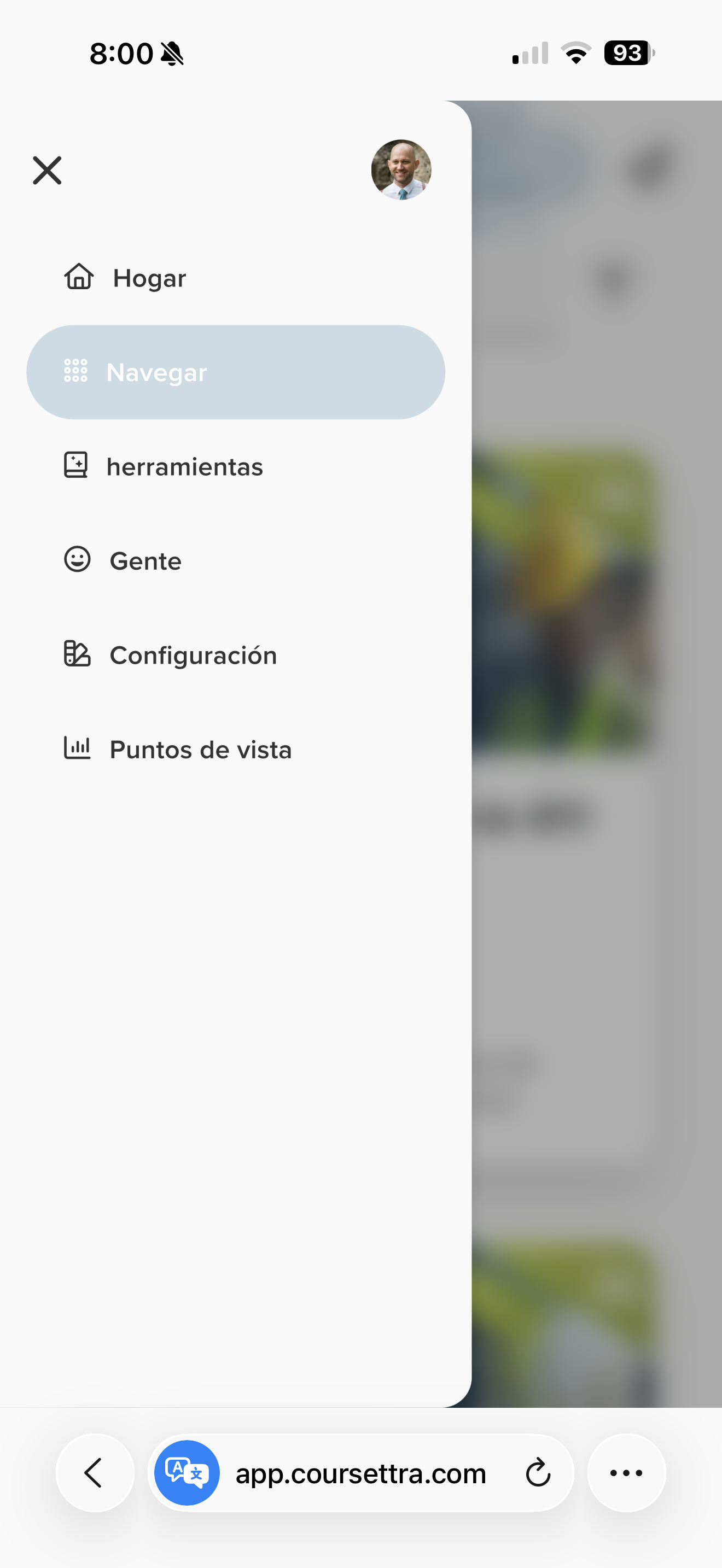
FAQ/Troubleshooting:
Q: I don't see the translate option, what next?
A: If you don't see the translate option in your browsers page menu, the device you are on has not indicated you have 'preferred' languages selected that are different than the native language identified for the site you are on. Open your device's Language & Region (or Language & Location) settings to add an alternative language.
NOTE: you can keep your default language set to your language of choice, even when you have alternative options available for translate.
Questions? Contact us!

Was this article helpful?
That’s Great!
Thank you for your feedback
Sorry! We couldn't be helpful
Thank you for your feedback
Feedback sent
We appreciate your effort and will try to fix the article