Purpose/Overview
The Customer Outreach module enables users to manage and track tickets related to parcels, landowners, and contacts. It centralizes communication, issue tracking, and stakeholder involvement in one place.
This feature is designed for users who handle customer interactions, issue resolution, and stakeholder coordination. It helps improve visibility, accountability, and efficiency by allowing users to associate tickets with relevant records, monitor progress, and manage assignments and notifications.
Navigation Path:
To access this feature: Administration > Customer Outreach
Things to Know:
- Users can view New, Working, and Closed tickets based on their permissions.
- Unassigned tickets may be visible depending on user access rights.
- The system provides notifications such as ticket assignment reminders and acknowledgements.
- Tickets can be linked to parcels, landowners, contacts, and other related tickets.
Key Benefits/Use Cases:
- Centralized Ticket Tracking
Manage all customer-related issues in one place, improving visibility and reducing missed follow-ups. - Stakeholder Coordination
Associate landowners, contacts, and other stakeholders to ensure all relevant parties are included in communication. - Issue Monitoring & Reporting
Track issue metrics and ticket progress to improve response times and operational efficiency.
How It Works:
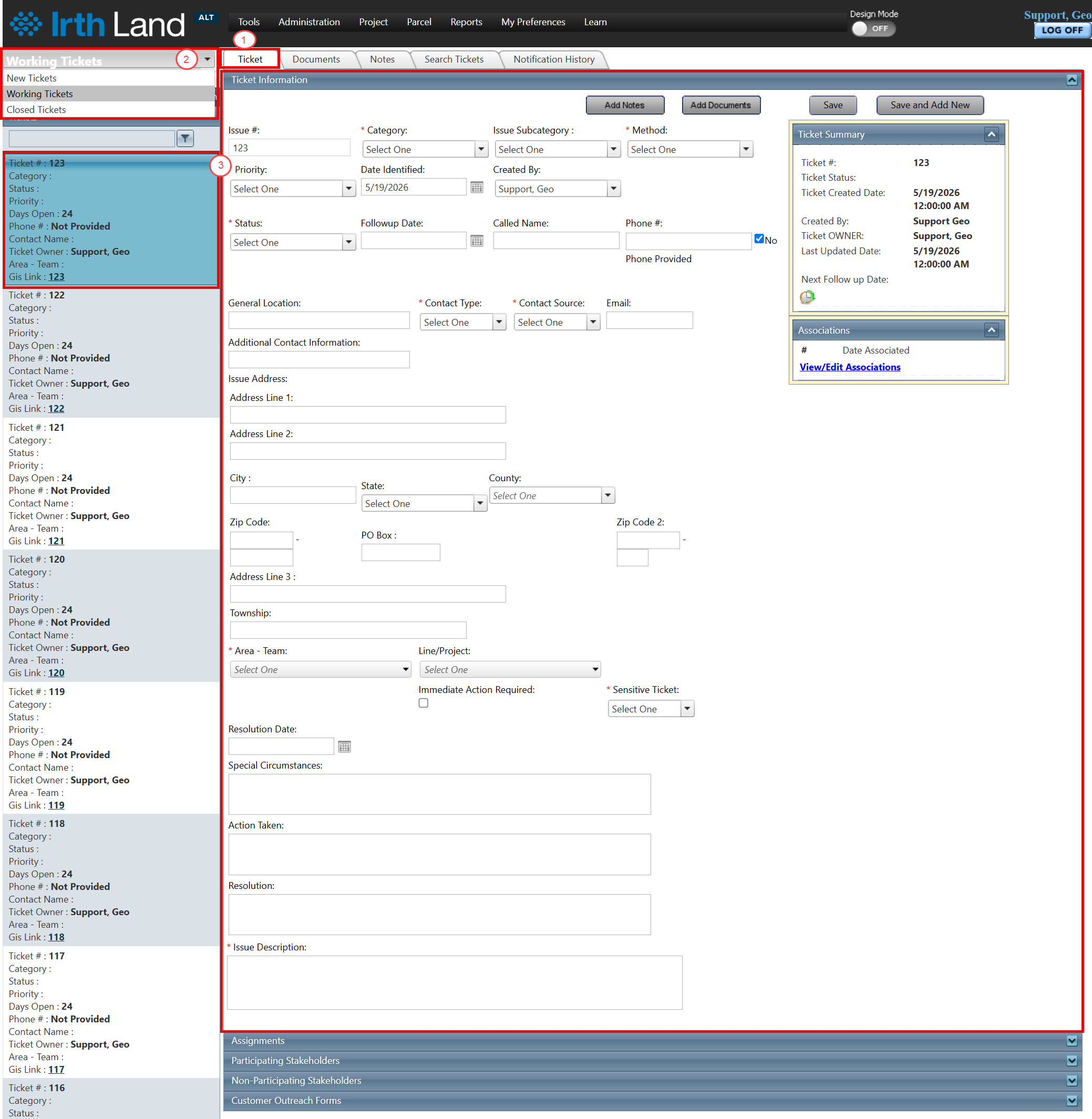
View Tickets
- Navigate to Customer Outreach > Ticket Tab.
- View tickets categorized as New, Working, or Closed.
- Select a ticket to view details in the Ticket Information Panel.
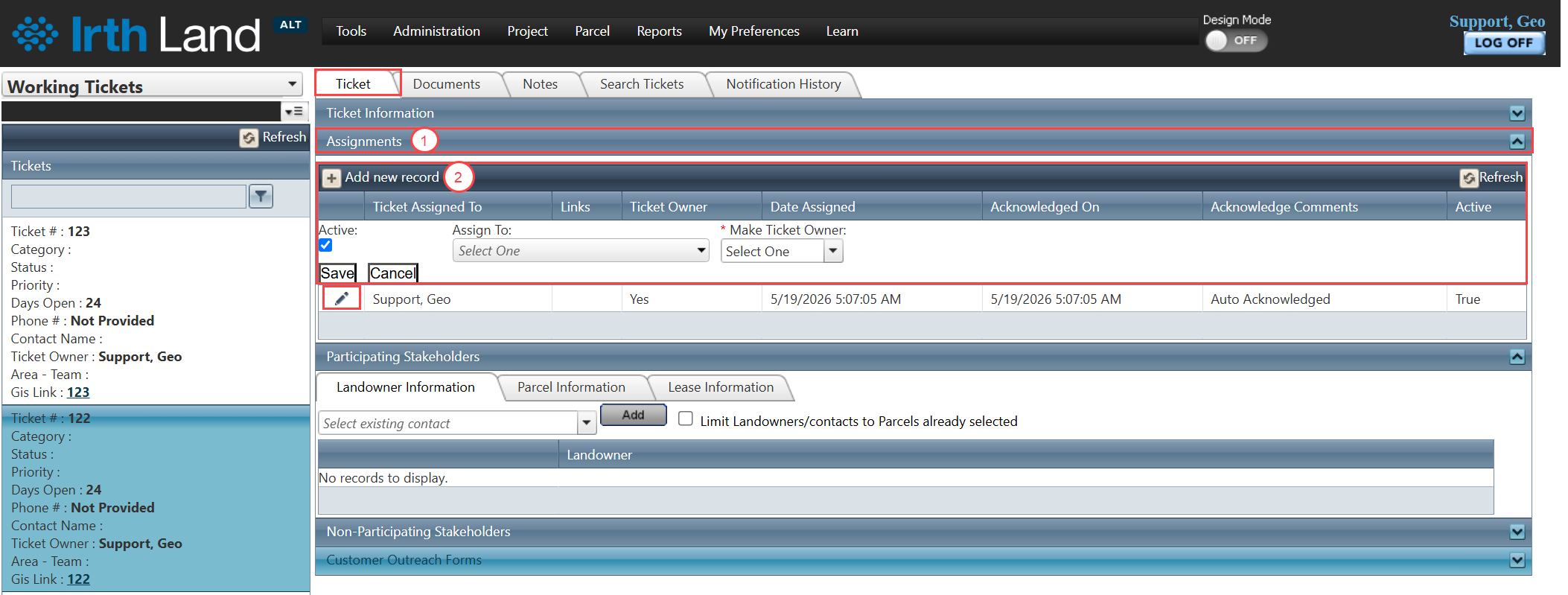
Manage Assignments
- Go to Customer Outreach > Ticket Tab > Assignments Panel.
- Add or update ticket assignments as needed.
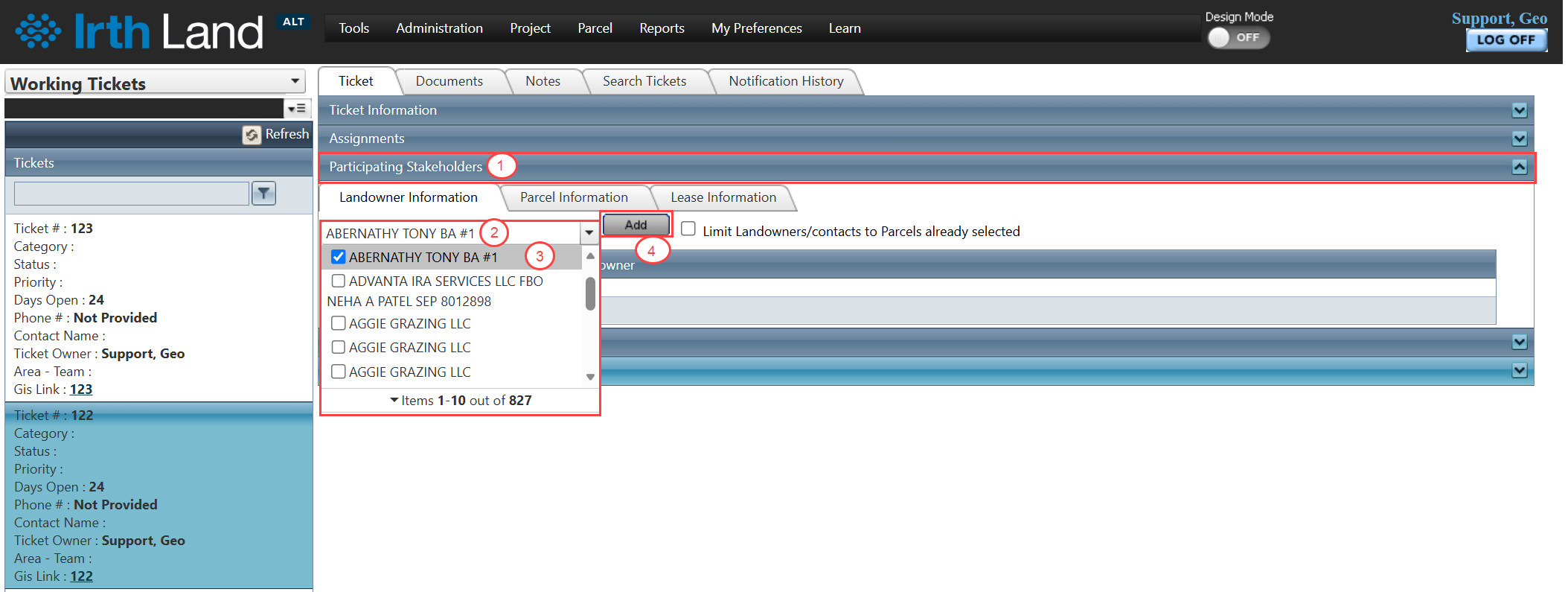
Add Participating Stakeholders
- Navigate to Participating Stakeholder Panel.
- Enter the name of a landowner or contact in the search field.
- Select the correct result.
- Click Add.
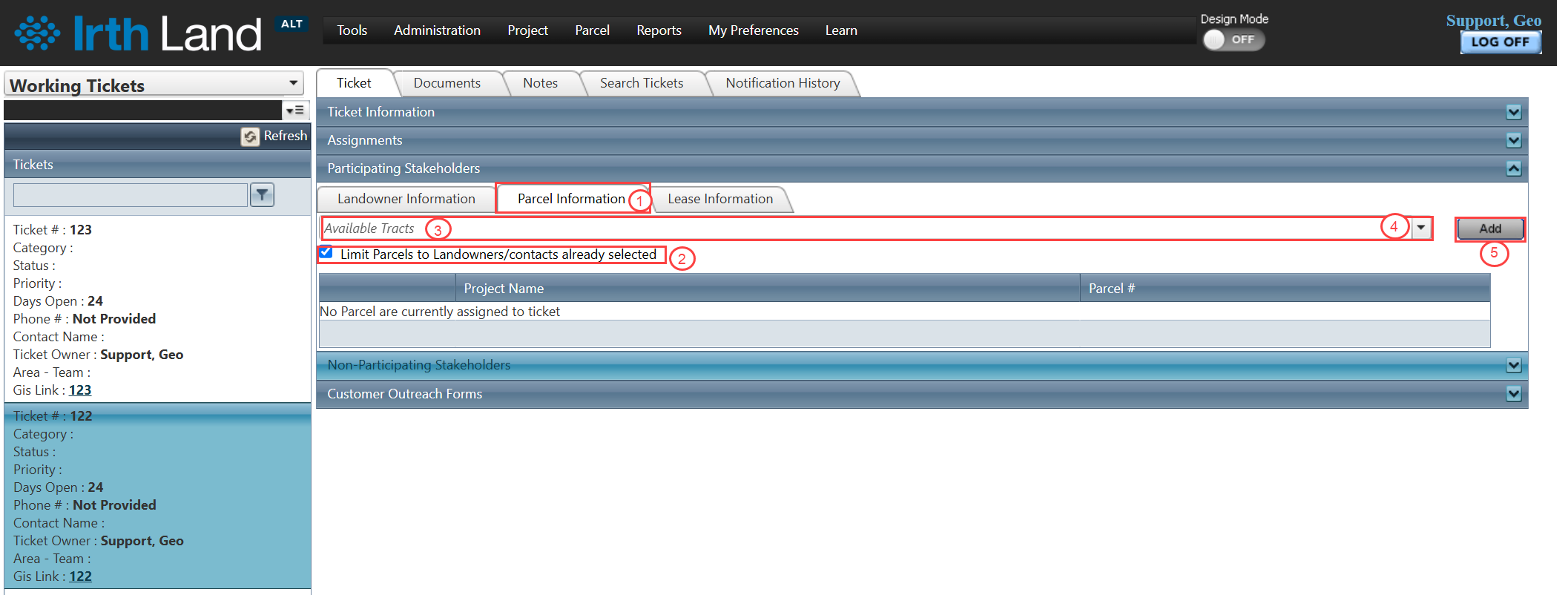
Associate Parcels
- Go to the Parcel Information tab within the Participating Stakeholder panel.
- (Optional) Enable Limit Parcels to Landowners/Contacts already selected.
- Search using Easement # or Project Name.
- Select the Parcel # from the dropdown.
- Click Add.
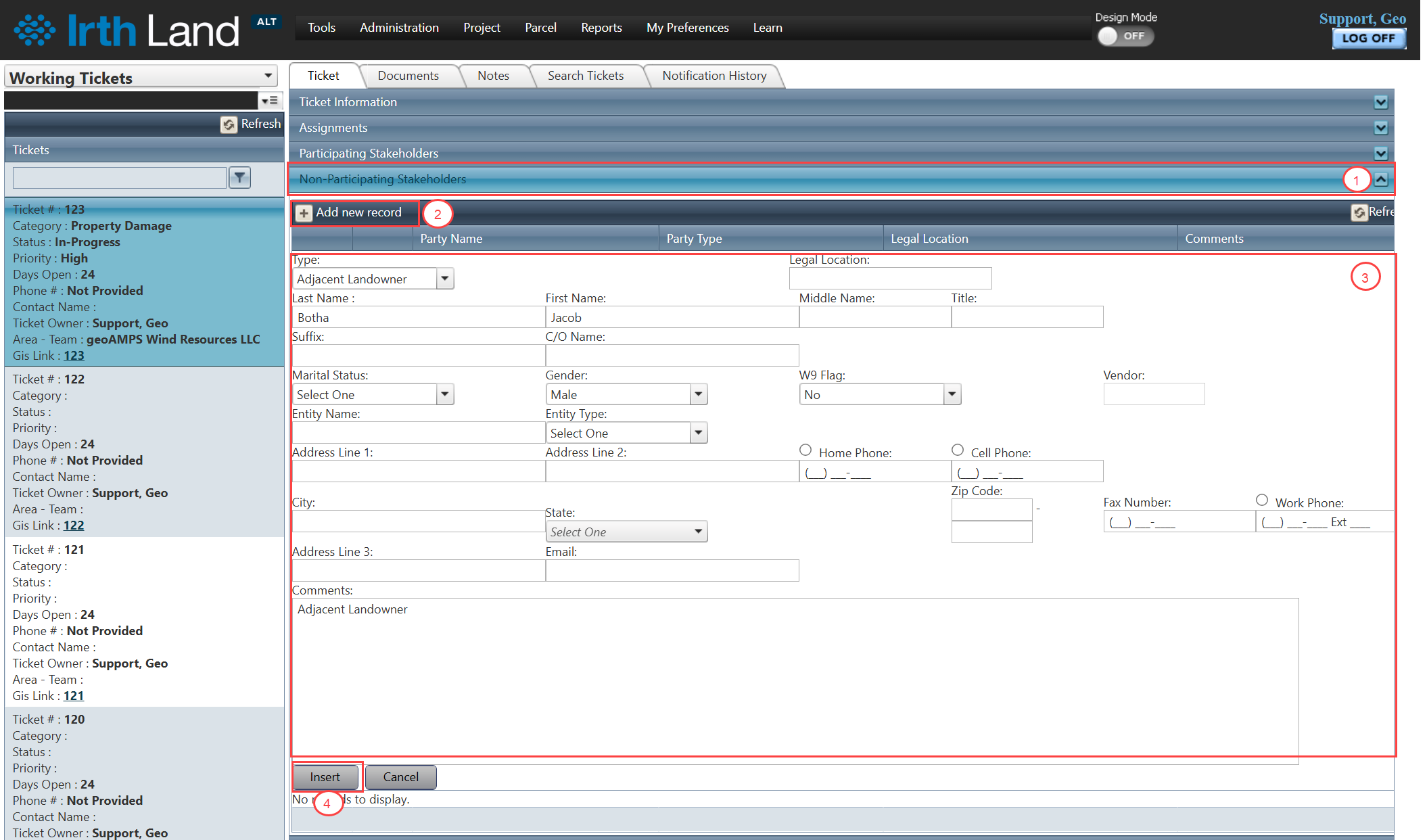
Add Non-Participating Stakeholders
- Scroll to the Non-Participating Stakeholder Panel.
- Click Add New Record.
- Enter required details (name, address, location, comments).
- Click Insert.
View Ticket List
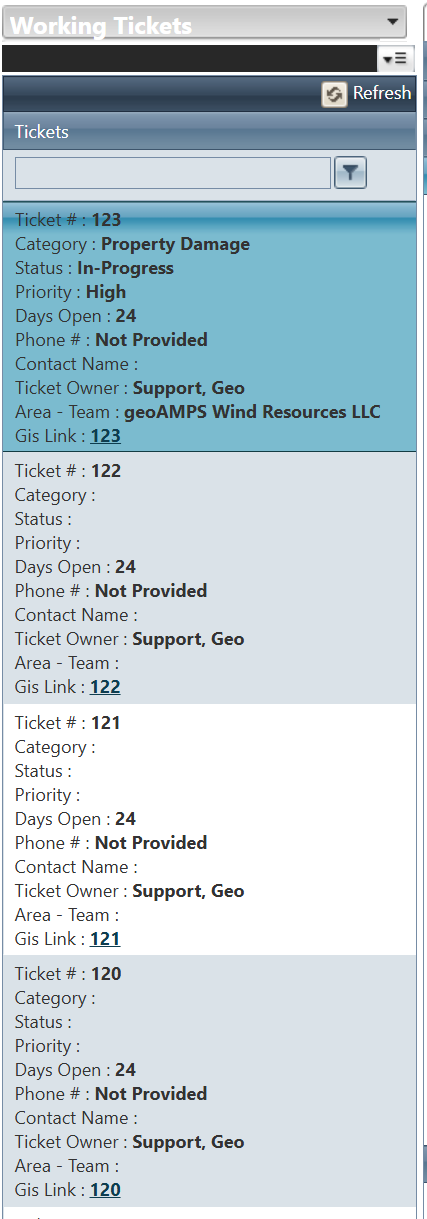
- Navigate to Customer Outreach > Ticket Tab.
- View the ticket list on the left panel.
Search Tickets
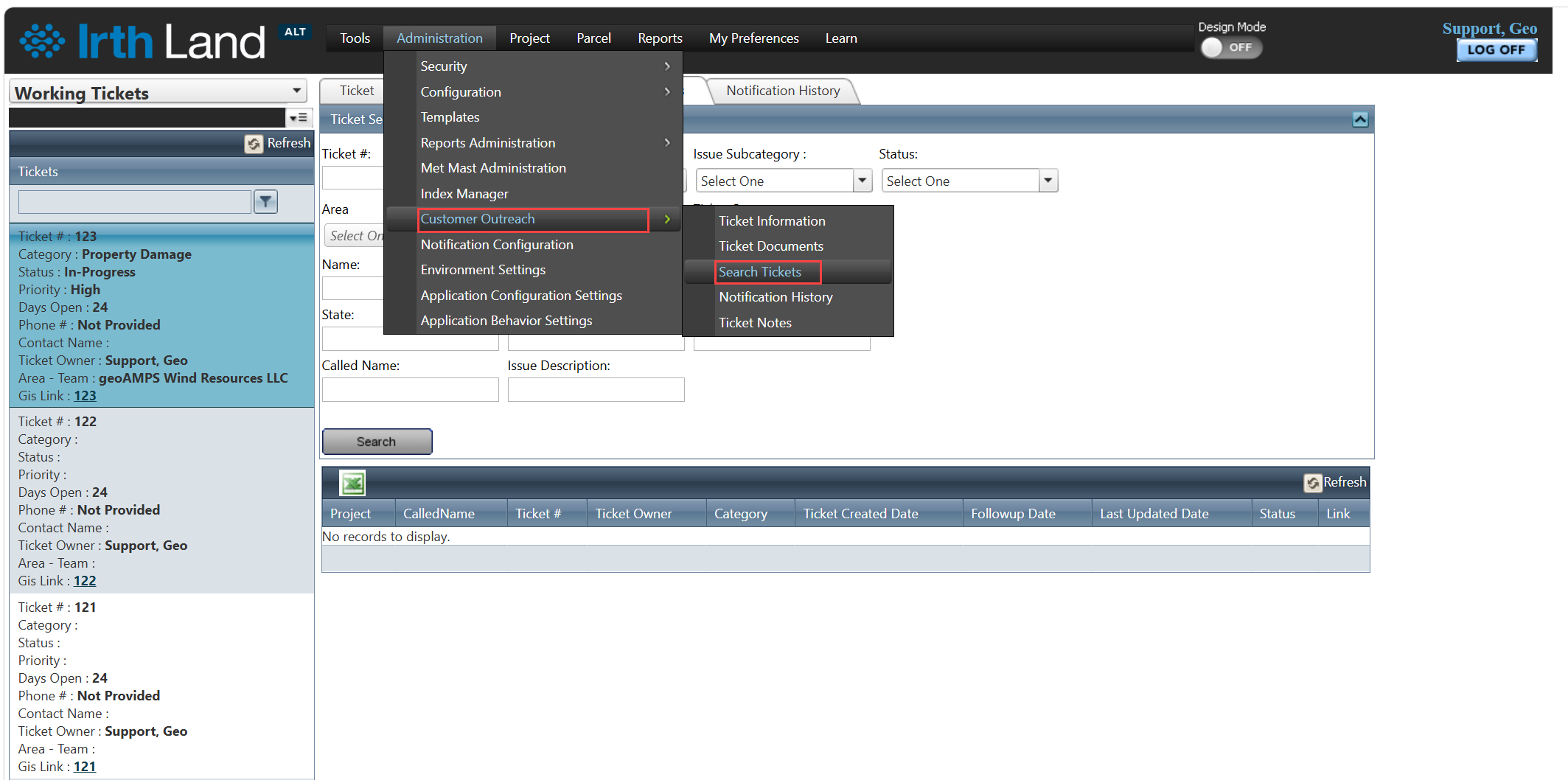
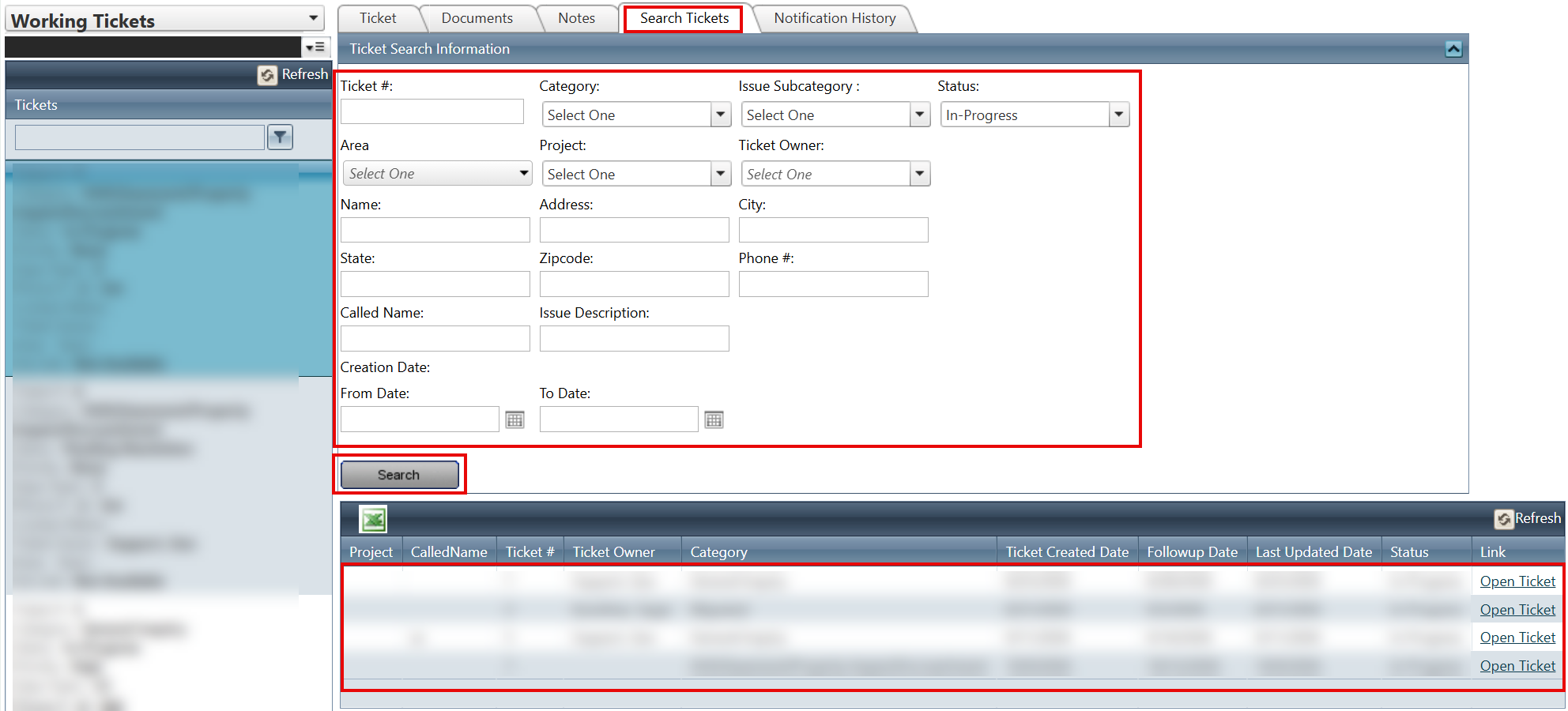
- Navigate to Customer Outreach > Search Tickets Tab.
- Enter search criteria to locate existing tickets.
View Issue Metrics
- Go to Customer Outreach > Ticket Tab.
- Expand the Issues Metrics Panel below the Tickets dropdown.
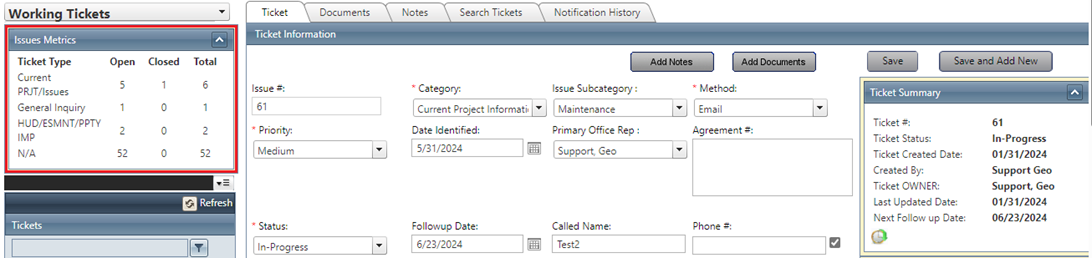
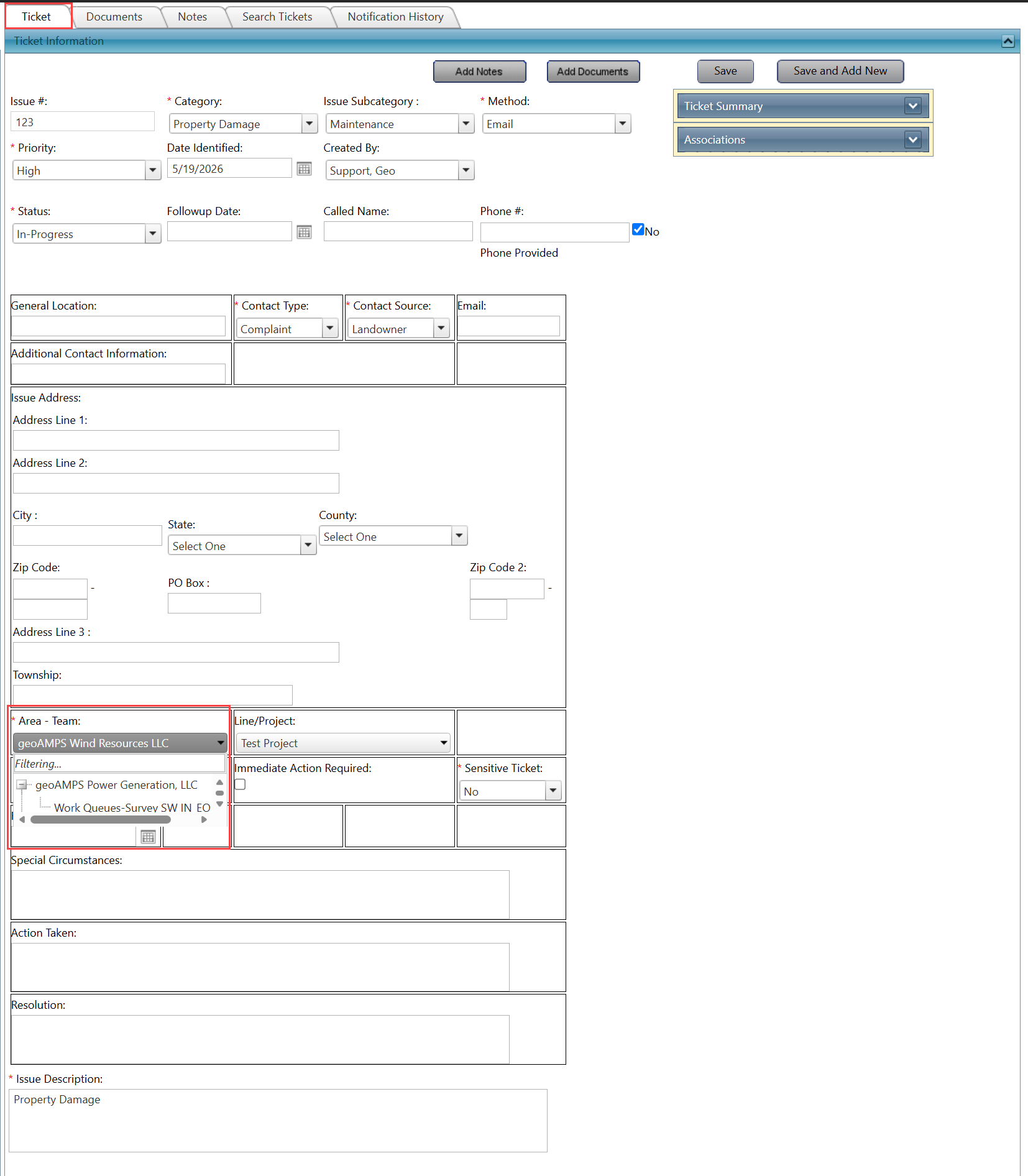
Update Territory-Team
- Navigate to Ticket Information Panel.
- Use the dropdown to select or update the Territory-Team.
Manage Documents
- Add and manage documents directly within the ticket record.
View Notification History
- Navigate to Customer Outreach > Notification History Tab.
- Review past notifications related to tickets.

View Ticket Summary
- Open a ticket.
- Expand the Ticket Summary Panel to view details.
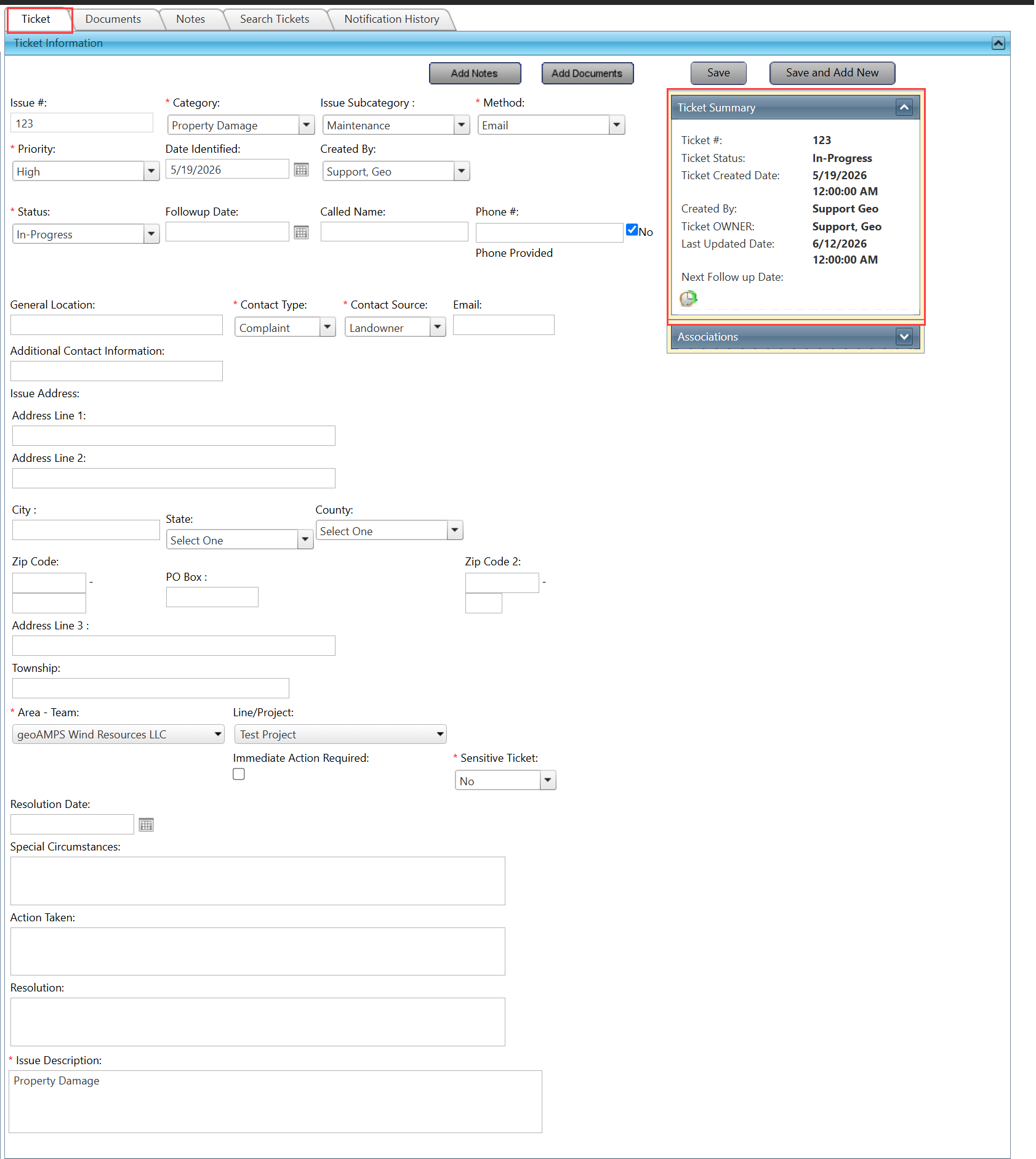
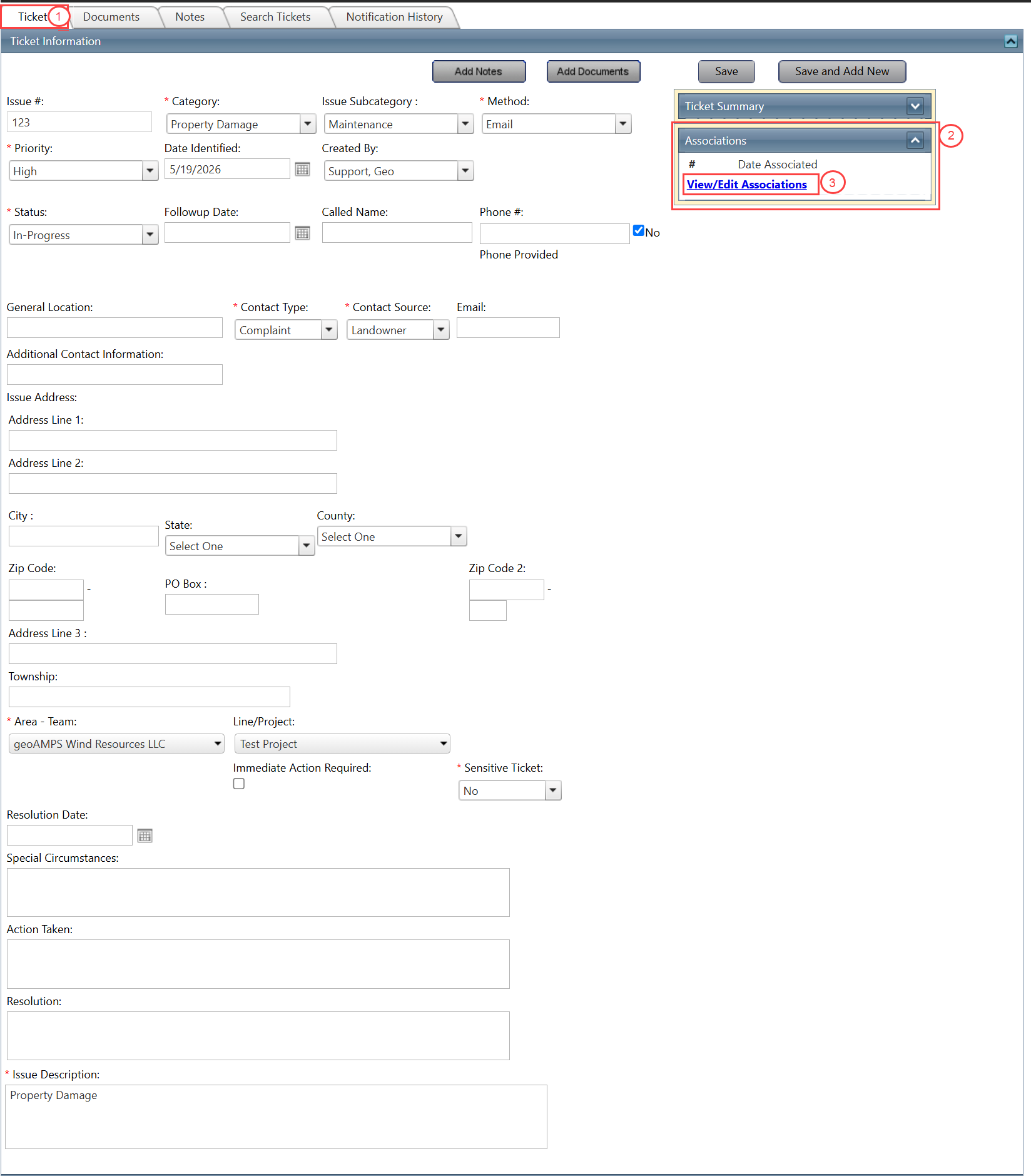
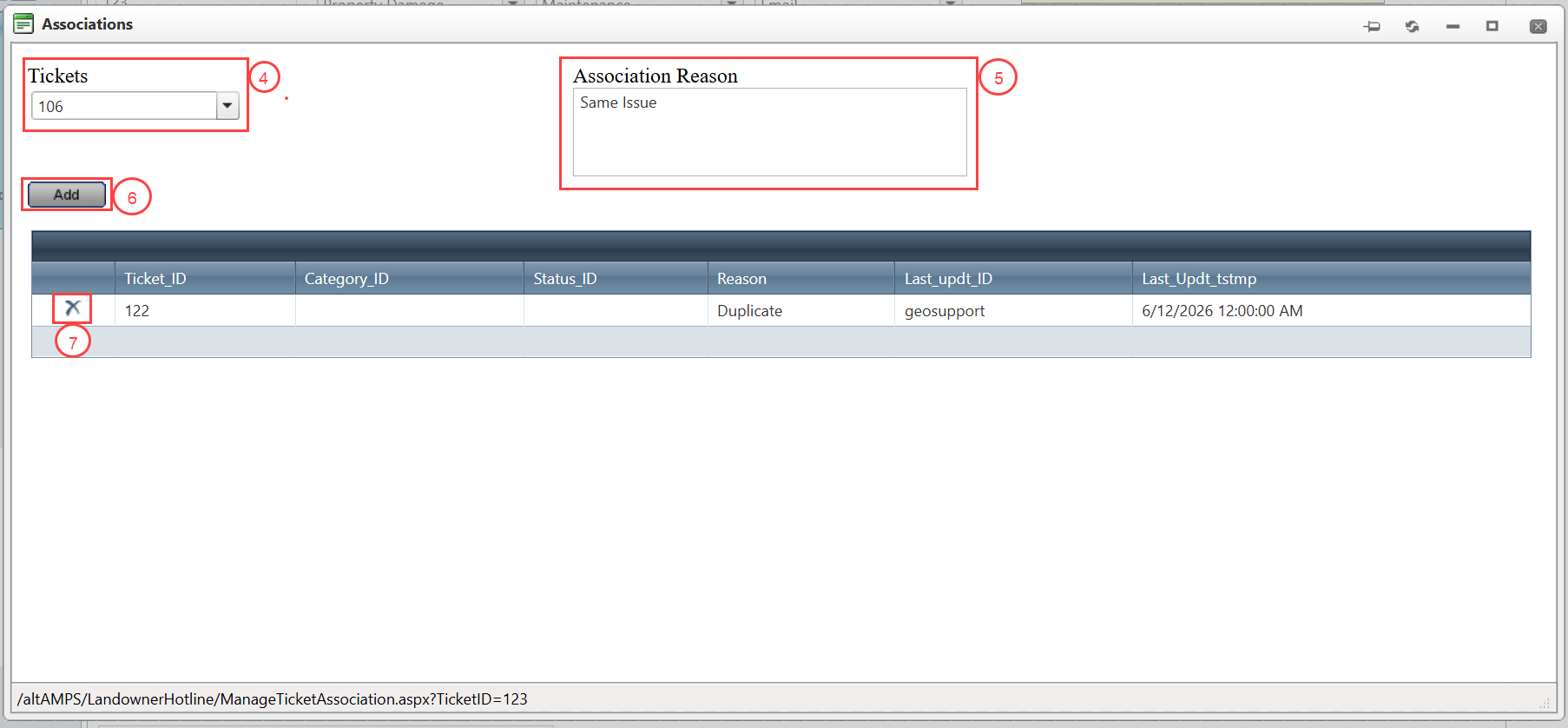
Manage Ticket Associations
- Navigate to Ticket Information Panel.
- Locate and expand the Association Panel.
- Click View/Edit Associations.
- Select Tickets from the dropdown.
- Enter the association reason.
- Click Add.
- Use the X icon to remove associations if needed.
FAQ/Troubleshooting:
Q: Why can’t I see certain tickets?
A: Ticket visibility depends on your permissions. Check with your administrator if access is restricted.
Q: Can I link multiple stakeholders to a ticket?
A: Yes, you can add multiple participating and non-participating stakeholders.
Q: How do I track ticket-related activities?
A: Use the Notification History Tab and Issue Metrics Panel to monitor activities and updates.
Q: Can tickets be linked to each other?
A: Yes, use the Ticket Associations Portlet to associate related tickets.
Questions? Contact us!

Was this article helpful?
That’s Great!
Thank you for your feedback
Sorry! We couldn't be helpful
Thank you for your feedback
Feedback sent
We appreciate your effort and will try to fix the article