Billing Details
Purpose/Overview
In this article, you’ll learn how to use the Billing Details page to review and manage an individual bill. From this page, you can modify bill information, view other bills for the same ticket, view bills for all related tickets, open the ticket the bill belongs to, and review the bill’s history. It’s intended for billing administrators and users who review or correct bills before they are charged to customers. It saves time by keeping everything you need to verify or correct a bill in one place, without searching for the ticket or related bills separately.
Navigation Path:
To access this feature: Utilisphere > Billing > Billing Summary
Things to Know:
- Permissions: Access to billing details and bill modification are role-based. Confirm the required permission with your administrator. Users without this permission may not see the Modify this Bill link.
- Caveats and behaviors:
- Changing the response replaces the bill rates with the rates of the new response.
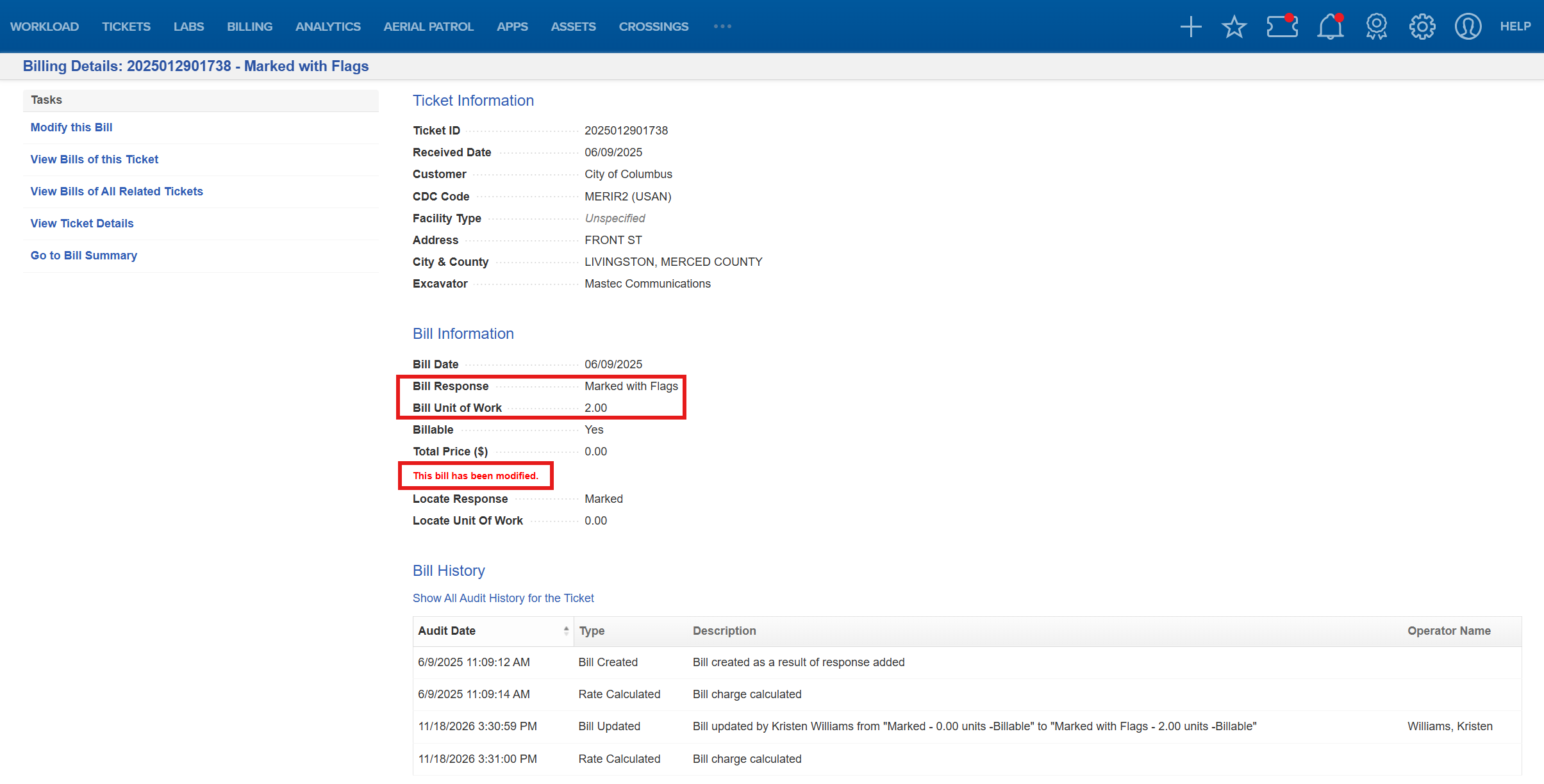
- After a bill is modified, the original response and unit of work are kept in the Locate Response and Locate Unit of Work fields so you can always see what the locator originally entered.
- A modified bill displays the note “This bill has been modified.”
Key Benefits/Use Cases:
- Correct an incorrect response: A locator entered the wrong response on a ticket. Use Modify this Bill to choose the correct response so the bill is calculated with the right rates. The original entry is preserved for audit purposes.
- Exclude a bill from customer charges: A bill should not be charged to the customer. Clear the Billable checkbox to prevent the charge, which avoids billing disputes and credits later.
- Review all charges for a ticket or related tickets: Before finalizing billing, use View Bills of this Ticket or View Bills of All Related Tickets to confirm there are no duplicates or missing charges, which improves billing accuracy.
How It Works:
Follow these steps to modify a bill, or use the other links in the left column.
Modify a Bill
- On the Bill Summary screen, click the response in the Bill Response column.
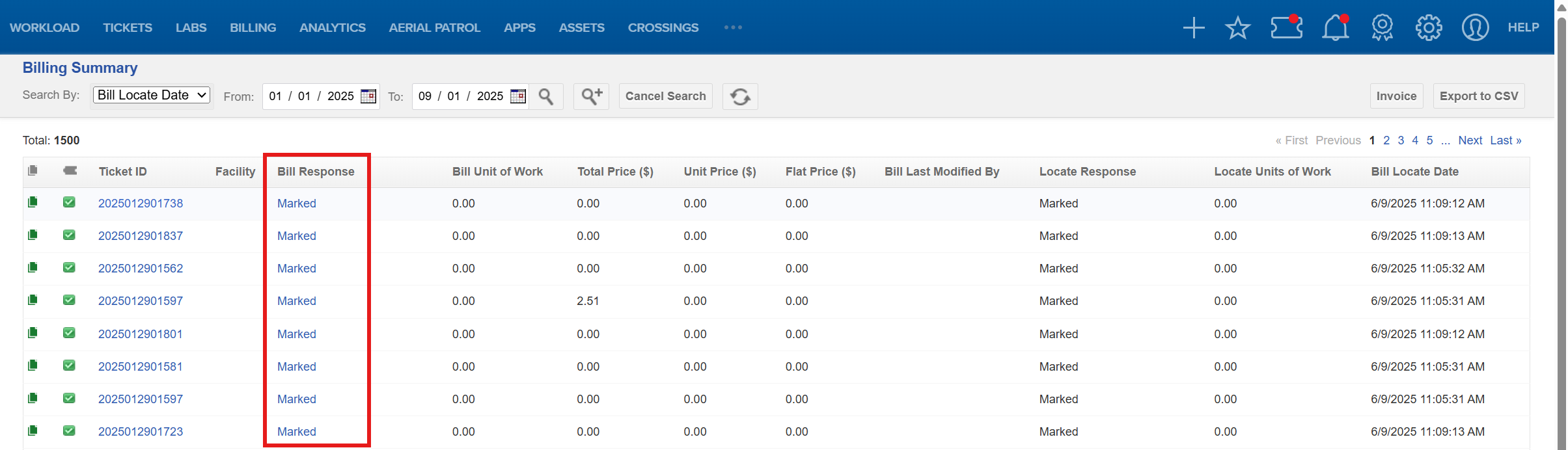
- On the Billing Details screen, select Modify this Bill.

- In the Current Bill Information section of the Modify Bill window, update the following fields:
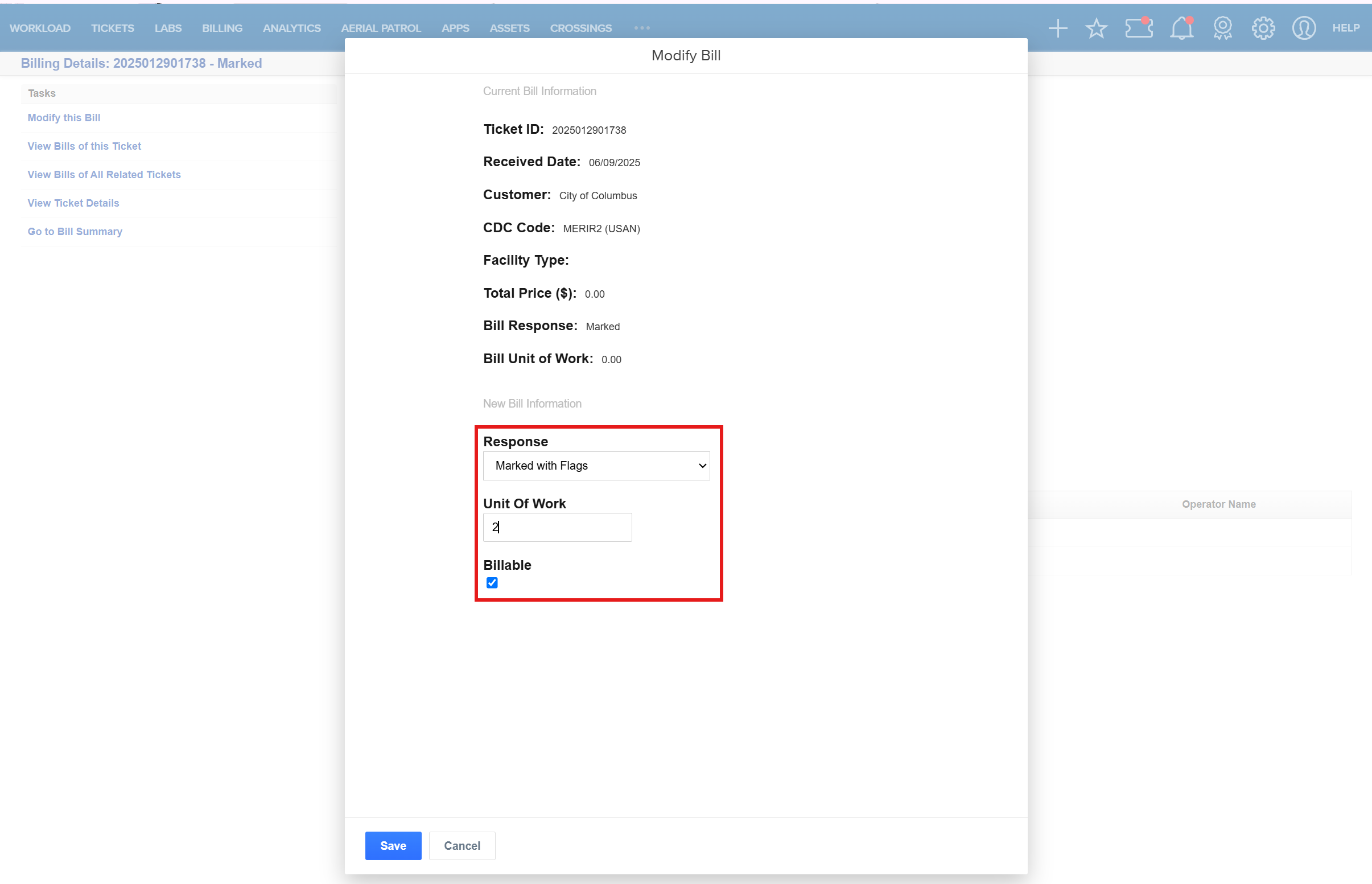
Field Description Billable Checked: The bill is charged to the customer.
Unchecked: The bill is not charged to the customer.Response Choose a new response from the list. The response is changed, and the bill rates are replaced by the rates of the new response. Unit of Work The unit of work for which you are sending a bill. Units of work usually measure time (hours) or distance (feet). - Click Save.

- Once the Billing Details screen reloads, the Bill Information section now shows the note “This bill has been modified” and two new fields.
Create an Invoice.
- Click Invoice in the upper-right corner of the Billing Summary screen.

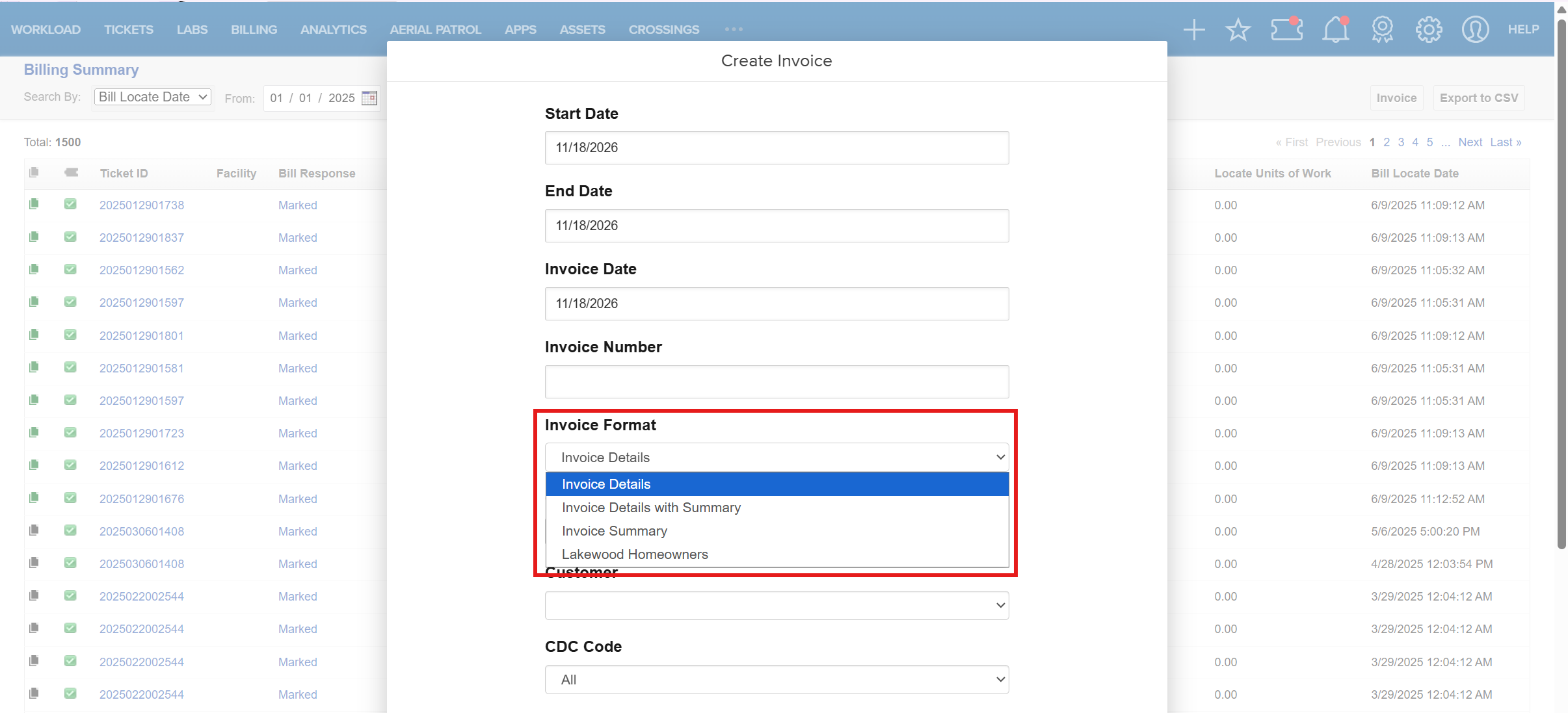
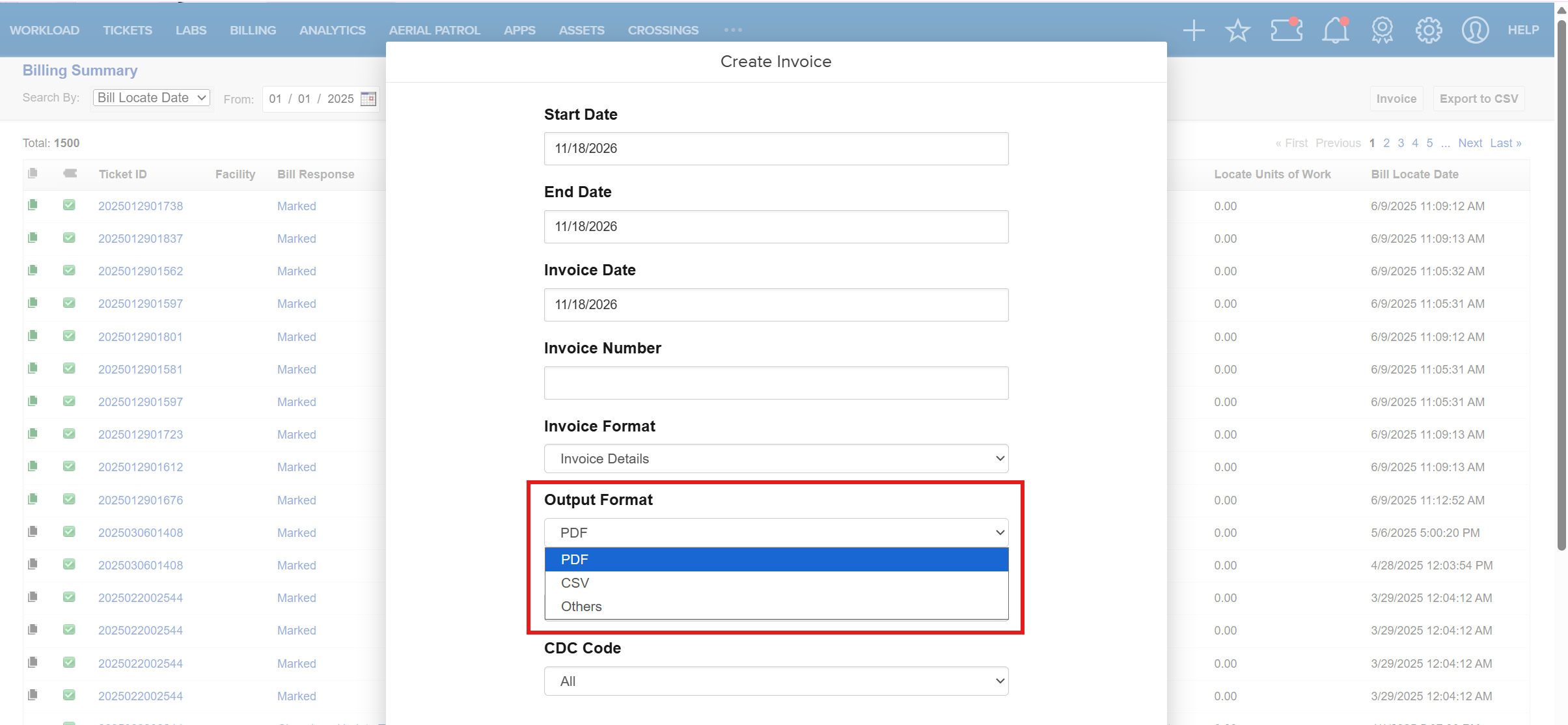
- In the Create Invoice window, complete these fields: CDC Code, Customer, Start Date, End Date (range cannot exceed one month), Facility Types, Invoice Date, Invoice Number, Terms, Invoice Format, and Output Format.
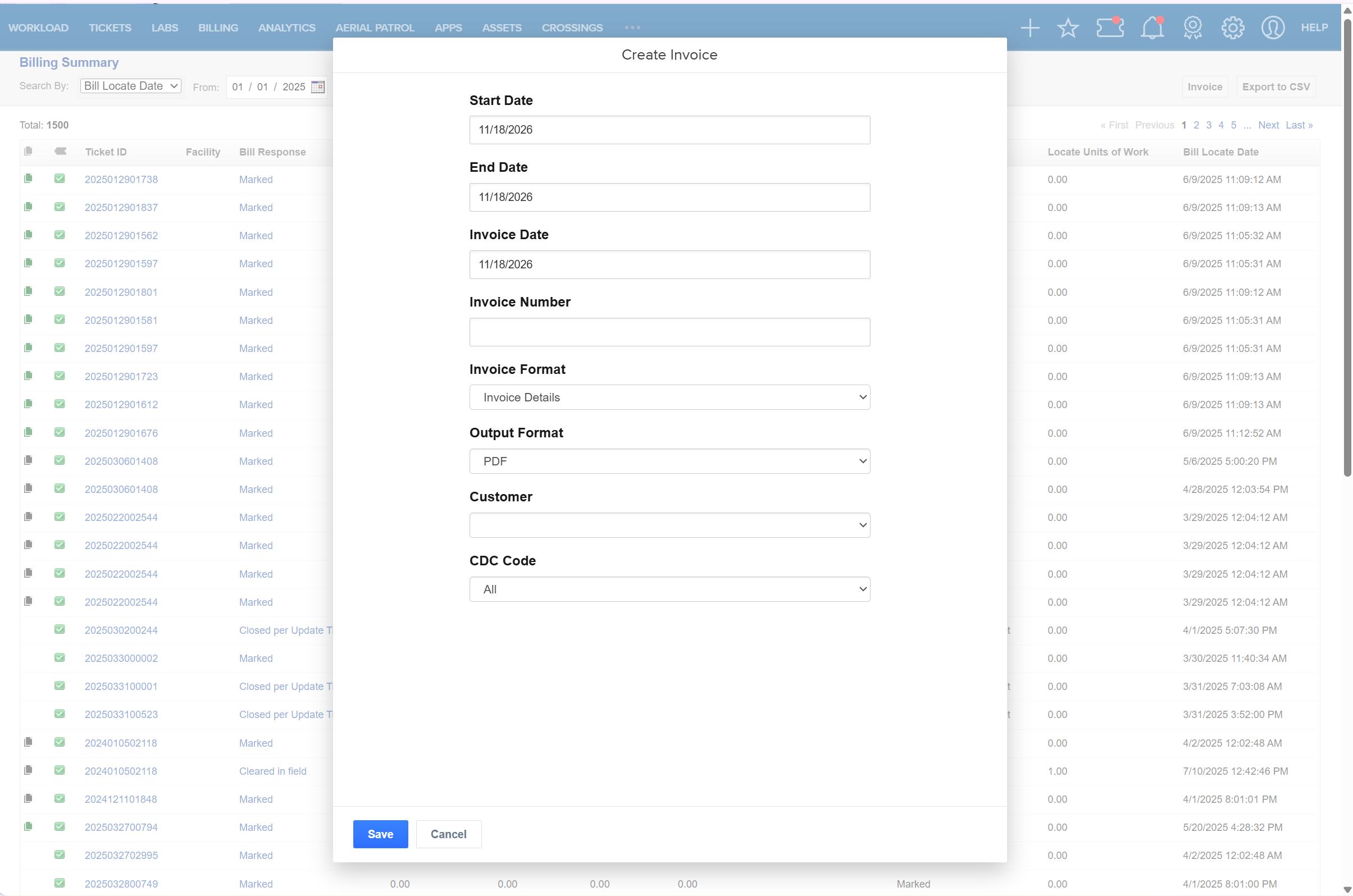
- For Invoice Format, choose Invoice Summary, Invoice Details, or Invoice Details with Summary.
- For Output Format, choose CSV, PDF, or Others (HTML).
- Click Save. The file downloads or opens in a new tab and is listed on the Invoice Summary.
Export to CSV (optional).
After finding tickets, you can export them to a CSV file for your billing system.
Customize the view (optional).
In the bottom-left corner of the Billing Summary screen, use the Screen dropdown to choose which fields display (and export), and the Filter dropdown to narrow the list. Click Screen Details or Filter Details to modify them. See Ticket Screen Configuration and Ticket Filters Configuration.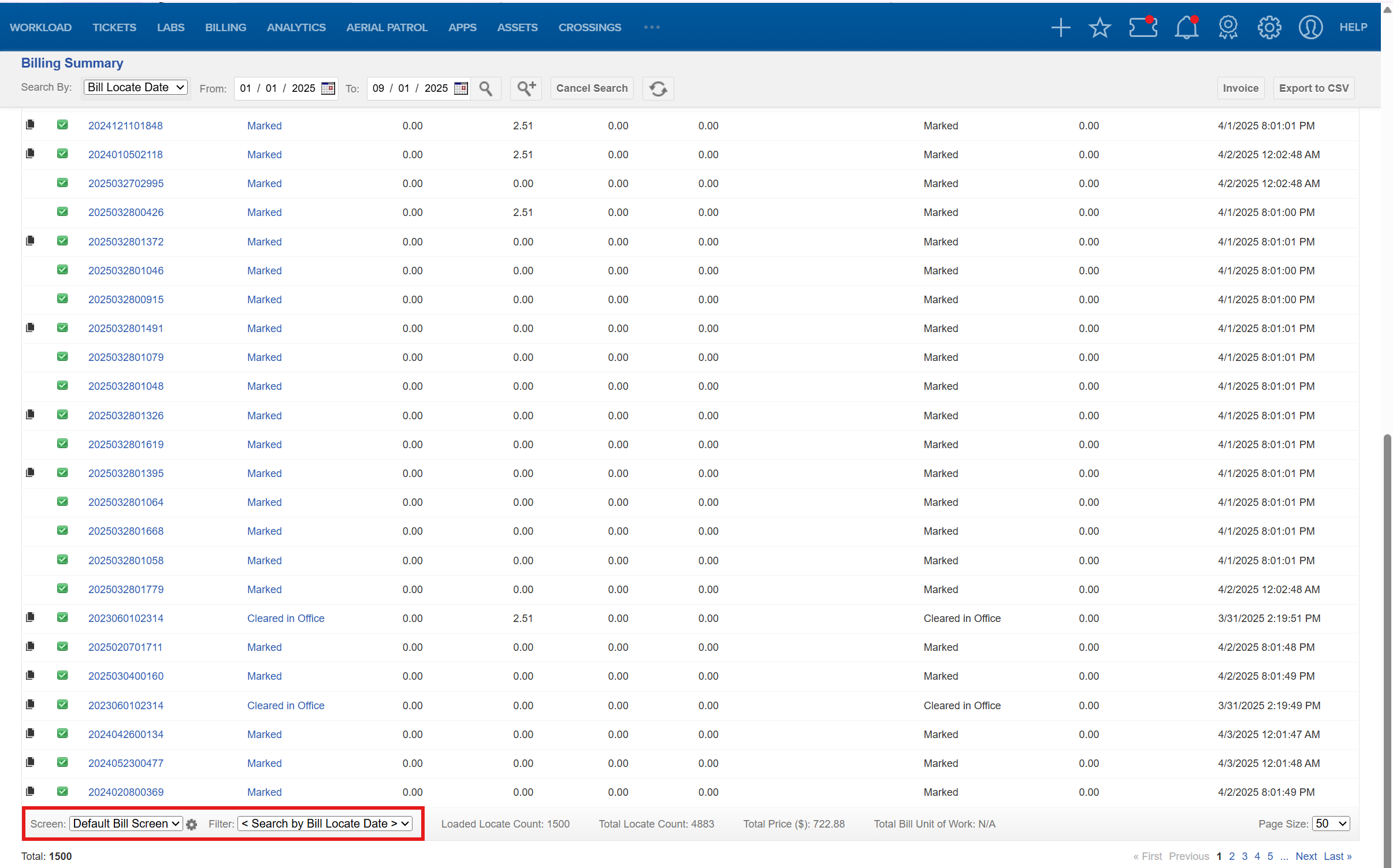
FAQ/Troubleshooting:
Q: What happens to the original response when I change a bill’s response?
A: The bill rates are replaced by the rates of the new response, but the original response and unit of work are kept in the Locate Response and Locate Unit of Work fields.
Q: How do I know whether a bill has been modified?
A: The Bill Information section shows the note “This bill has been modified” and displays the Locate Response and Locate Unit of Work fields.
Q: What does the Billable checkbox do?
A: If checked, the bill is charged to the customer. If unchecked, it is not.
Q: I can’t see the Modify this Bill link. Why?
A: Your role may not have permission to modify bills. Contact your administrator to confirm your access.
Q: What’s the difference between “View Bills of this Ticket” and “View Bills of All Related Tickets”?
A: The first shows other bills for the same ticket as this bill. The second shows all bills for tickets related to it.
Questions? Contact us!

Was this article helpful?
That’s Great!
Thank you for your feedback
Sorry! We couldn't be helpful
Thank you for your feedback
Feedback sent
We appreciate your effort and will try to fix the article