Configuring Response Categories
Purpose/Overview
In this article, you'll learn how to configure response categories. This feature lets administrators define and customize the response categories used when responding to tickets. Previously, response categories were fixed and could not be tailored to an organization's specific workflow. With this update, admins can create, edit, and manage their own set of response categories, making it easier to classify responses in a way that matches internal processes and reporting needs. This is primarily intended for system administrators and ticket management leads who oversee how response data is categorized and reported on.
Navigation Path:
To access this feature: Utilisphere > System Management > Administration > Ticket Management > Responses
Things to Know:
- Administrator-level permissions are required to create or edit response categories.
- Configured response categories feed into the response workflow and are also sent to Insights for reporting.
- If Insights AI Screening is enabled, changing the Response Category or Is Clear setting may affect the clearing model.
- When you attempt to save one of these changes, a confirmation pop-up appears to make sure you want to proceed.
- The confirmation pop-up only appears when Insights AI Screening is enabled.
Key Benefits/Use Cases:
- Custom classification: An organization can set up response categories that match its internal terminology, making reports and dashboards easier for staff to interpret.
- Improved reporting accuracy: Because category data flows to Insights, teams can analyze response trends by category without manual tagging.
- Flexible administration: Administrators can adjust categories over time as business needs change, without waiting on a system update.
- Added protection for AI Screening: When Insights AI Screening is enabled, the confirmation pop-up helps prevent administrators from unintentionally making changes that could affect the clearing model.
How It Works:
Follow these steps to configure Response categories:
- Navigate to the Response Categories settings: Utilisphere > System Management > Administration > Ticket Management > Responses
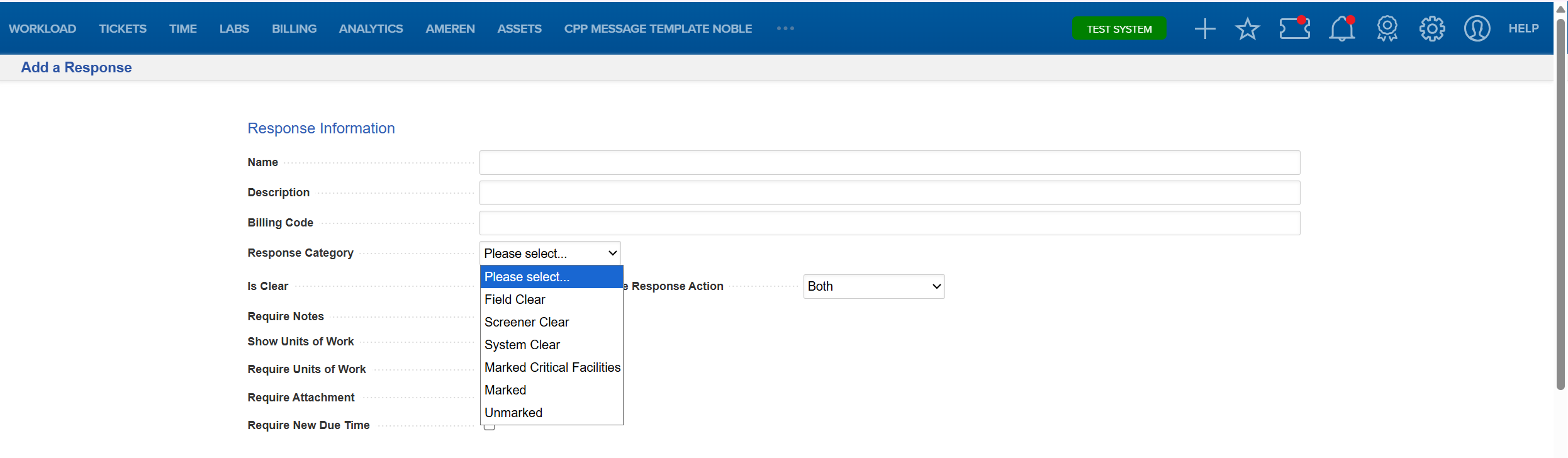
- Select Add (or Modify) a Response.

- Click the Response Category dropdown, make your selection, and click the Add button at the bottom of the form.
FAQ/Troubleshooting:
Q: Does this data appear anywhere else in the system?
A: Yes, configured response category data is sent to Insights AI for screening, so that it can be used to enyhance screening accuracy.
Q: Why do I see a confirmation pop-up when changing a Response Category?
A: If Insights AI Screening is enabled, changing the Response Category can affect the clearing model. The pop-up gives you an opportunity to review and confirm the change before it is saved.
Q: Why do I see the same pop-up when changing the Is Clear setting?
A: Changes to the Is Clear setting can also affect the clearing model. When Insights AI Screening is enabled, Utilisphere asks you to confirm the change before saving.
Q: What happens if I select Cancel on the confirmation pop-up?
A: The save is canceled, and the changes are not saved.
Q: Why don't I see the confirmation pop-up?
A: The confirmation pop-up only appears when Insights AI Screening is enabled and an applicable response setting is changed.
Questions? Contact us!

Was this article helpful?
That’s Great!
Thank you for your feedback
Sorry! We couldn't be helpful
Thank you for your feedback
Feedback sent
We appreciate your effort and will try to fix the article