Certificate of Completion
Purpose/Overview
In this article, you will learn how the Certificate of Completion feature provides learners with an official, system‑generated certificate after completing a Credential training item. Certificates give learners a clear record of their achievement while helping organizations validate training completion for compliance, reporting, and professional development.
This feature is available to all users enrolled in Credential training programs and makes completion records easy to view, share, and verify.
Navigation Path:
To access this feature: Irth Training > Credentials > Completed Training > View Certificate
Things to Know:
Permissions/Roles
All learners who complete a Credential training item can view their own certificates.
Administrators and managers with permission to view user achievements can also access certificates from the Achievements page.
Browser/Platform Notes
Certificates can be viewed on all major browsers.
Printing or downloading behavior may vary slightly depending on browser settings.
Key Benefits/Use Cases:
- Compliance Verification: A utility worker completes mandatory safety training. The certificate provides documented proof for audits and regulatory compliance.
- Employee Development Tracking: A manager reviews their team’s Achievements page to confirm who has completed required credential programs and downloads certificates for personnel files.
- Learner Motivation & Recognition: Students receive immediate recognition upon completing training, increasing engagement and reinforcing progress toward professional goals.
How It Works:
Follow these steps to access or enable certificate viewing:
Complete a Credential Training Item: The learner must finish all required modules, assessments, or activities within the credential.
View the Certificate Prompt: Upon completion, the system automatically displays a View Certificate option on the training completion screen.
Access Certificate from Achievements Page: Learners and authorized administrators can navigate to the user’s Achievements > Completed Training section to view or download the certificate at any time.
Example Screens
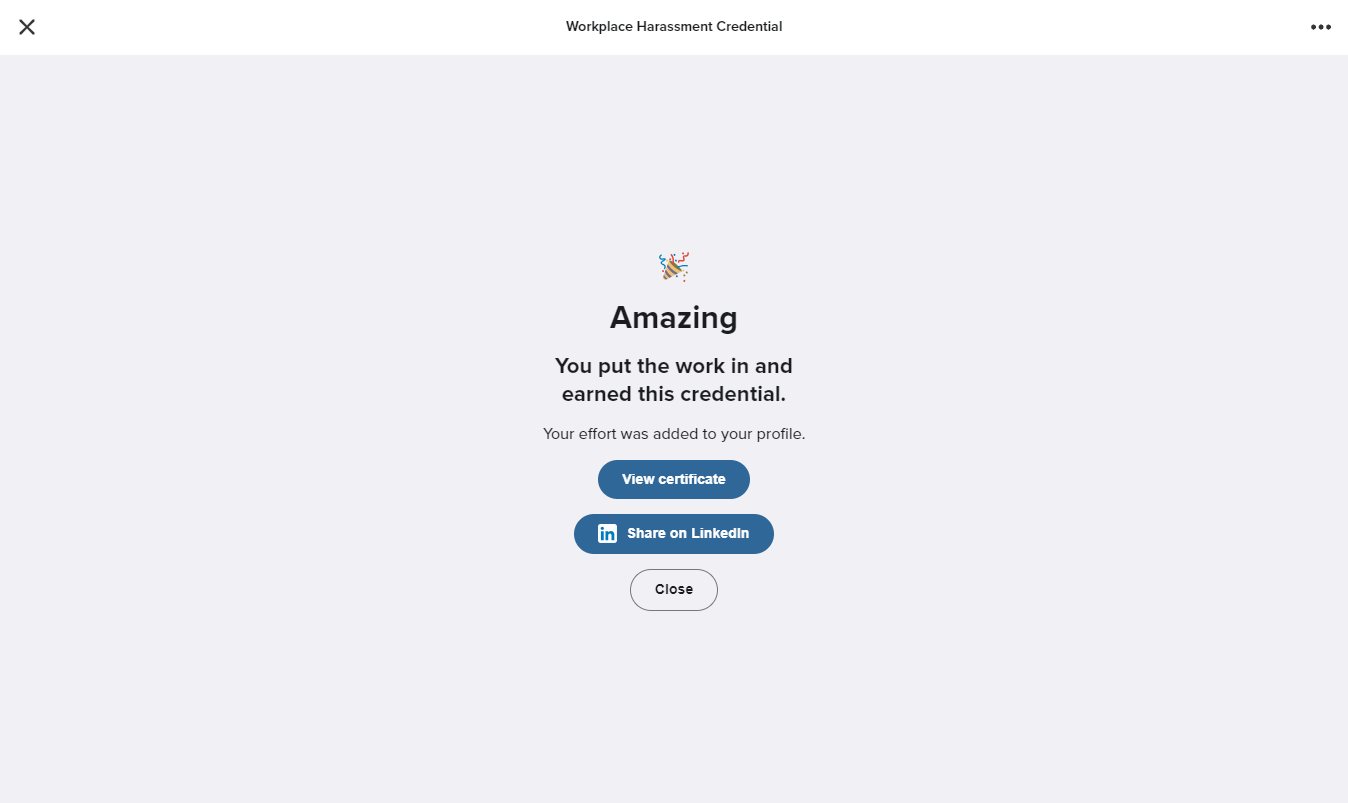
Completed Training Prompt
Image 2: Completed Tab & Review
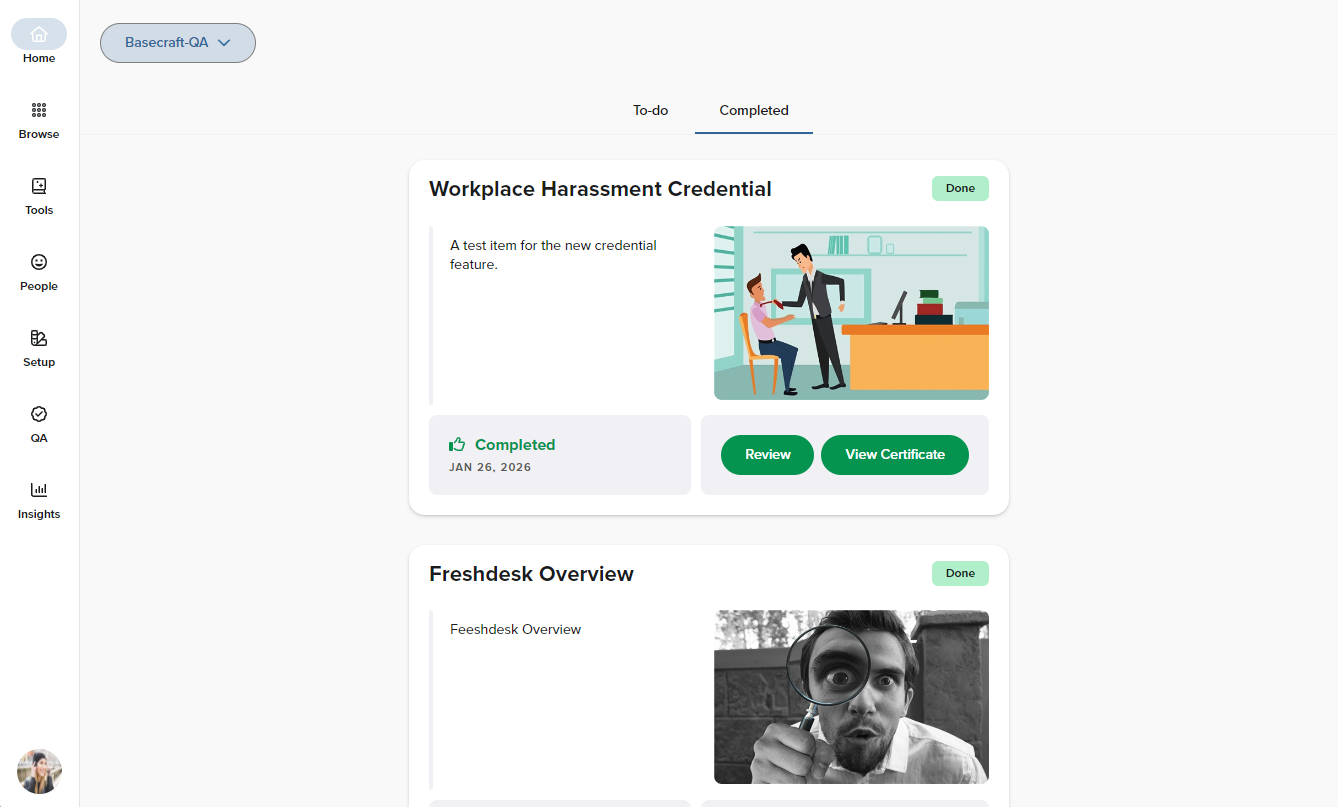
Completed Tab & Review
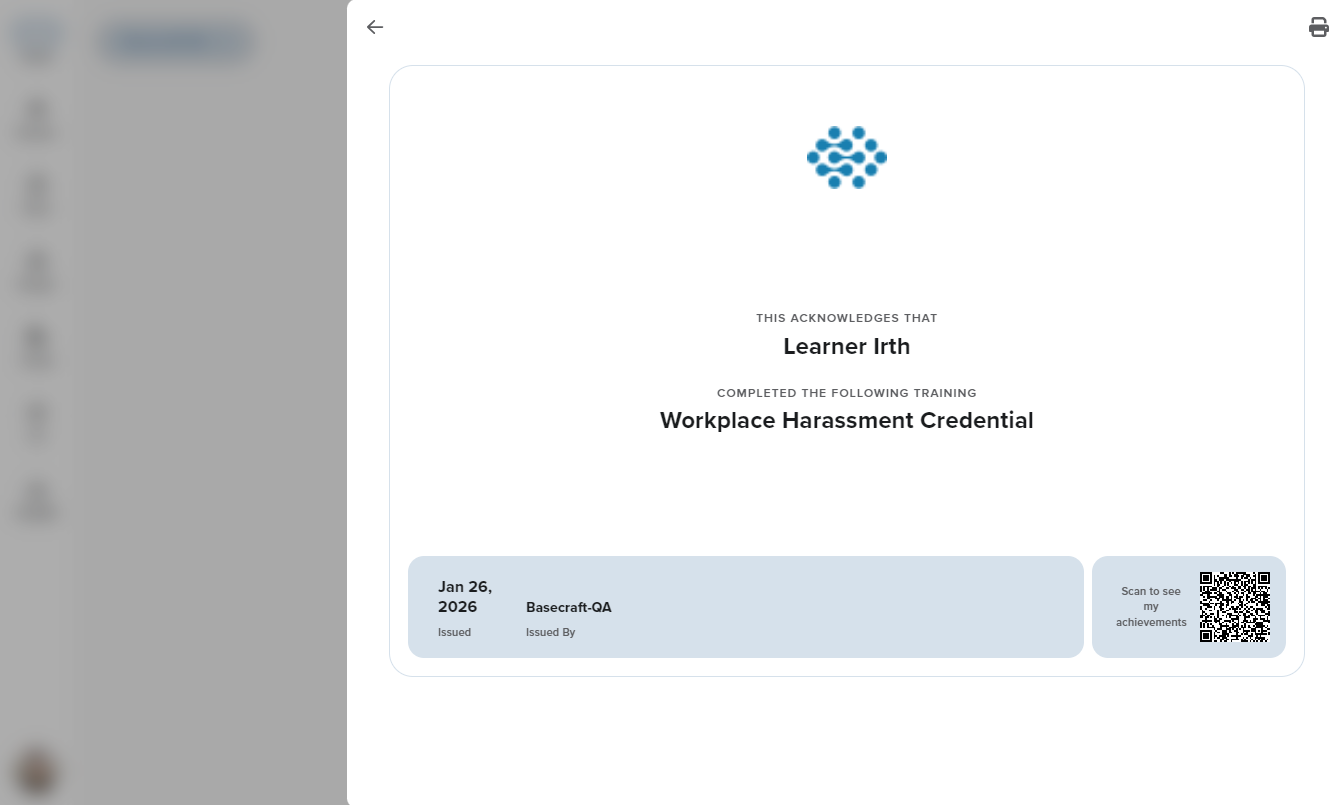
Certificate of Completion
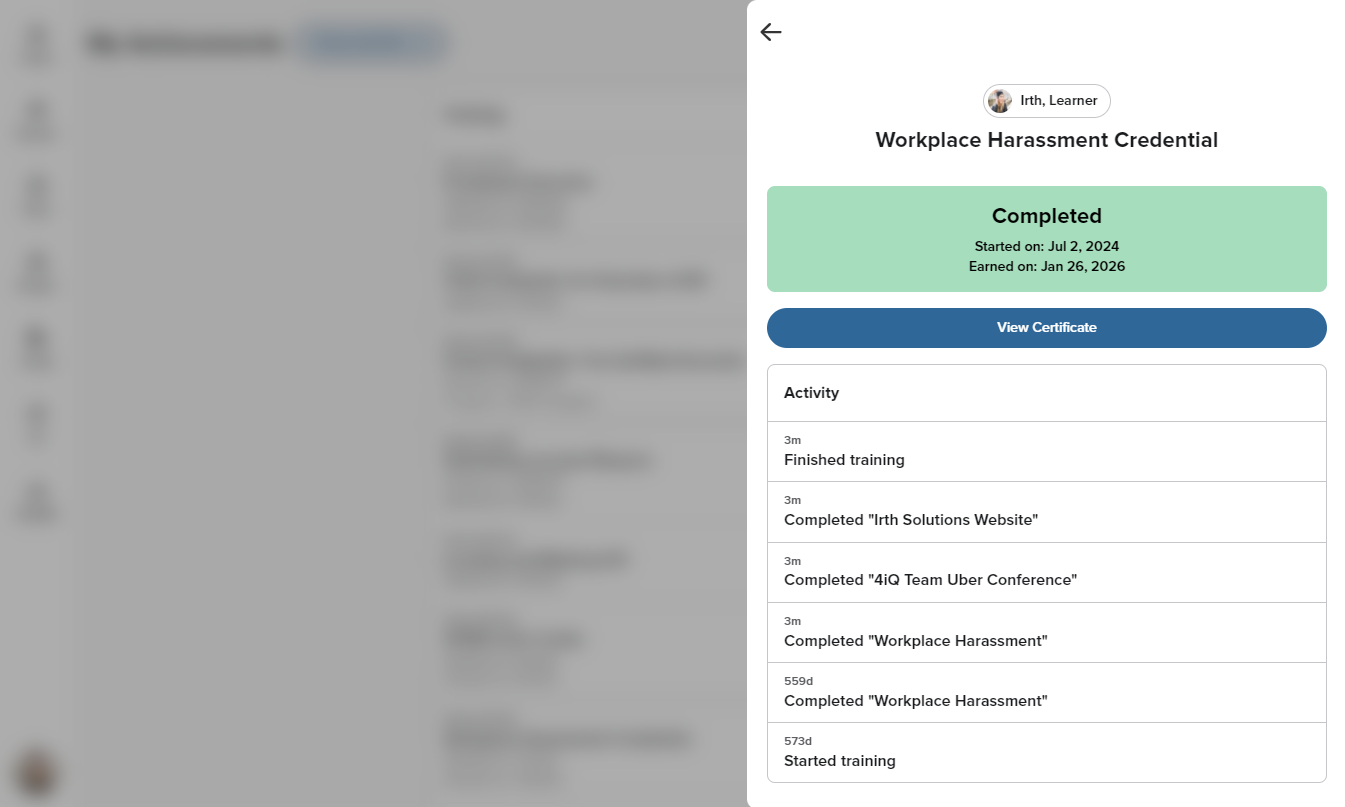
Credential details from the 'Achievements' page
Questions? Contact us!

Was this article helpful?
That’s Great!
Thank you for your feedback
Sorry! We couldn't be helpful
Thank you for your feedback
Feedback sent
We appreciate your effort and will try to fix the article