Invoice Details
Purpose/Overview
In this article, you’ll learn how to use the Invoice Details page to review, adjust, approve, and export the ticket items on an uploaded invoice. When you upload an invoice, the system compares each item against ticket data using the rates and mappings you selected and flags items that look wrong, such as overcharges, duplicates, or missing ticket matches. Invoice Details lets you work through those flagged items, correct charges where needed, and record who approved each item and when. It is intended for users who review and approve invoices (adjudication). All items must be approved, whether or not you adjust them.
Navigation Path:
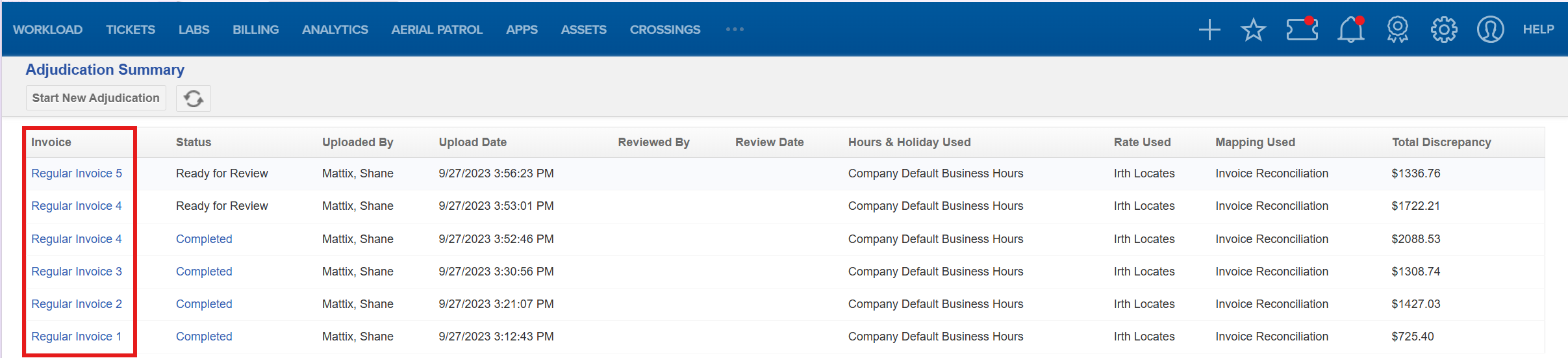
To access this feature: Utilisphere > Billing > Adjudication Summary

Things to Know:
- Permissions: You must have access to Billing to view, adjust, approve, or export invoice items on the Invoice Details page. If you don’t see Adjudication Summary or can’t open an invoice, contact your system administrator to request Billing access.
- Browser/Platform: The Export option downloads a CSV file to your browser’s default download folder.
- Every item must be approved, even if you make no adjustments.
- Needs Review filter: Right after upload, Has Discrepancy and Needs Review show the same tickets. Needs Review is the recommended filter for your work.
- Approved or adjusted items: They leave Needs Review but stay visible under All, Has Discrepancy, and Rejected.
- Rejected items: The system rejects items for worst-case reasons, such as duplicate invoice items or no unique ticket match (ticket ID, ticket type, and received time did not match).
Key Benefits/Use Cases:
- Correcting overcharges: A vendor invoice includes a ticket charged above the expected rate. Edit the item, enter the new charge and a reason, and the adjustment is recorded. This reduces overpayment and leaves an audit trail.
- Fast review of flagged items: After uploading a large invoice, filter by Needs Review to focus only on items requiring attention. This saves time and keeps review consistent.
- Identifying duplicates and unmatched tickets: Use the Rejected filter to find duplicate invoice items or items with no unique ticket match. This prevents duplicate or unsupported charges from being paid.
- Reporting and record-keeping: Export the invoice to CSV for sharing or offline analysis, with Reviewed By and Review Time showing who handled each item and when.
How It Works:
Follow these steps to review and approve an invoice.
- On the Adjudication Summary page, in the Invoice column, click the invoice name.
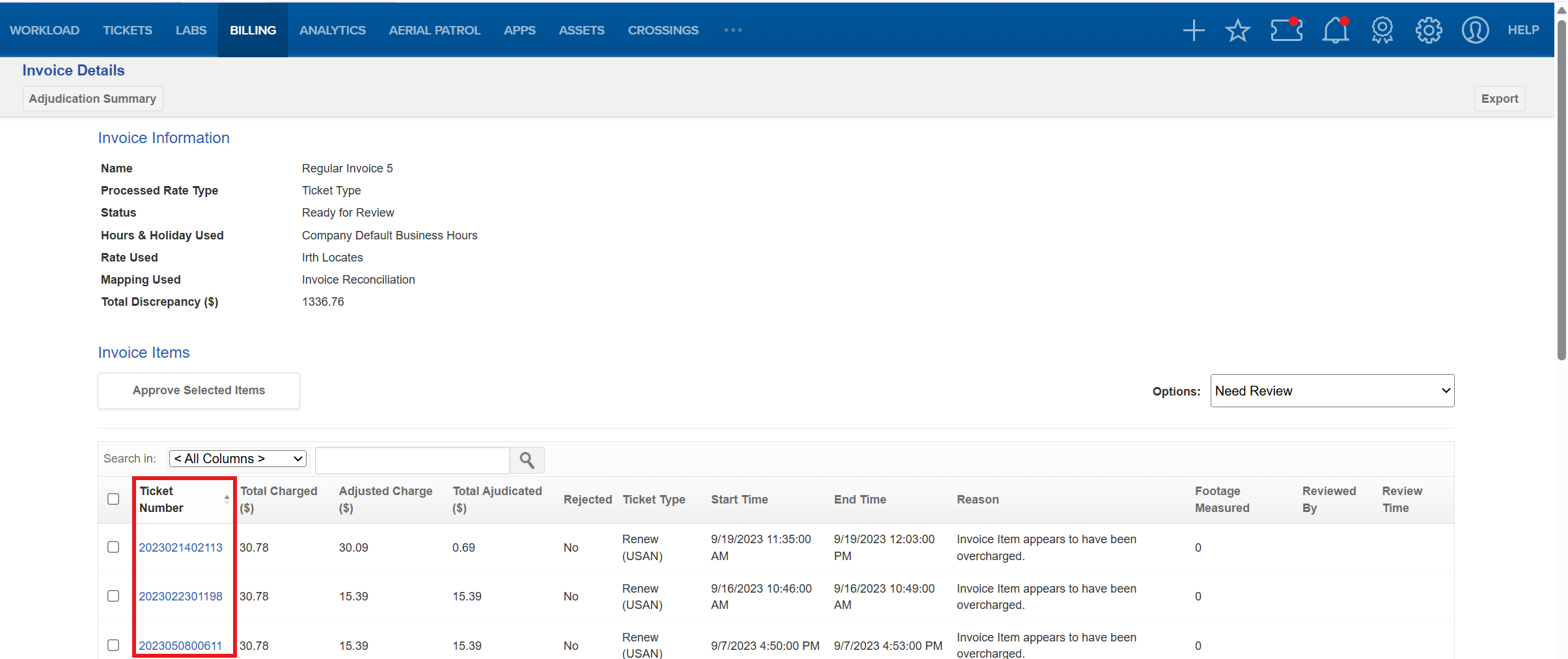
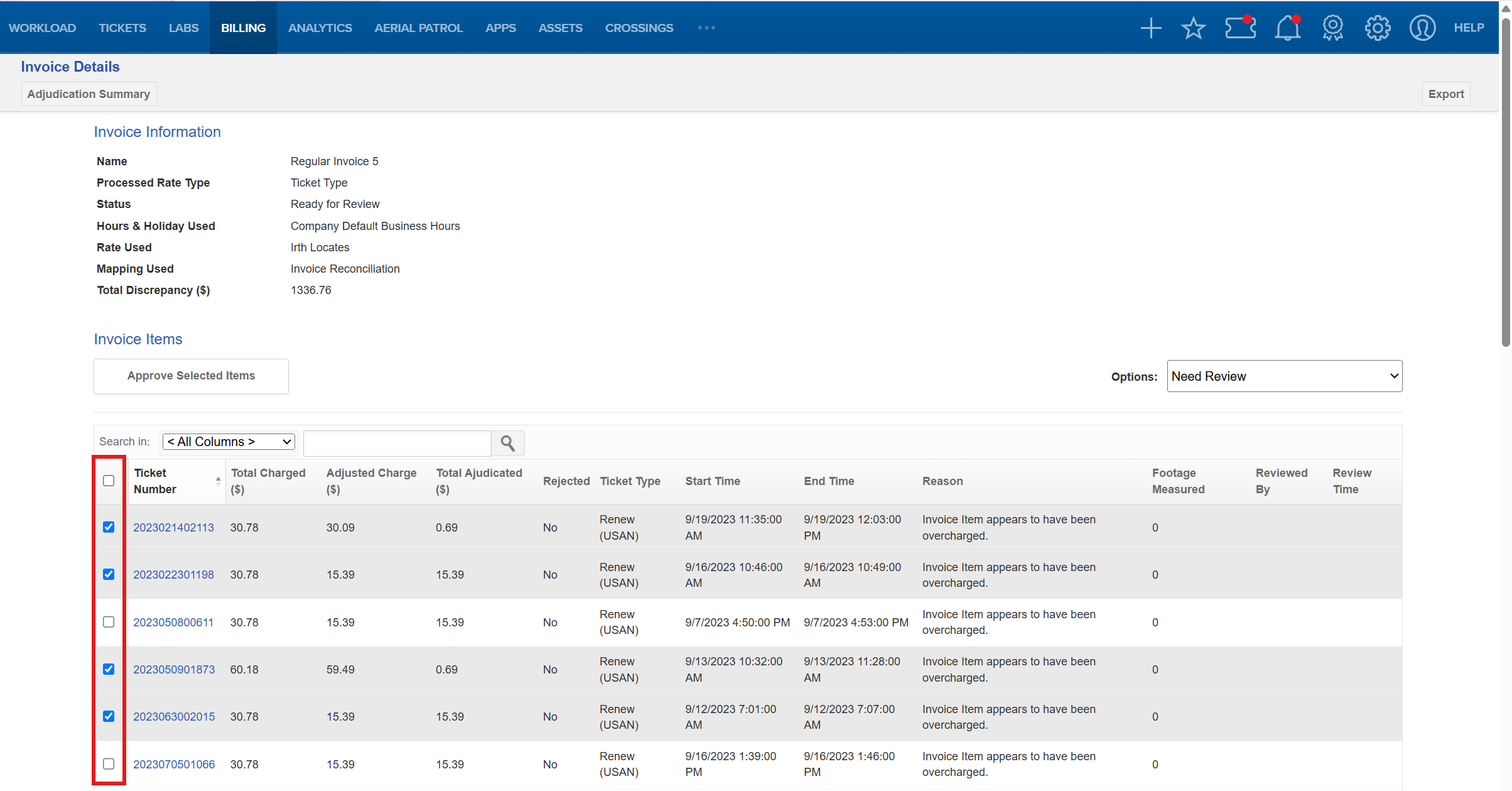
Column Description Adjusted Charge The charge after any adjustment End Time (Work End Date Time) The date the work recorded in the ticket ended Reason The reason for the discrepancy (for example, the invoice item appears to have been overcharged) Rejected The reason the system rejected the item Reviewed By The person who reviewed and approved or adjusted the item Review Time The date and time the review, approval, or adjustment occurred Start Time (Work Start Date Time) The date the work recorded in the ticket started Ticket Number (Ticket ID) The ticket’s identification number from the one call center Total Adjudicated The difference between Total Charged and Adjusted Charge Total Charged The total amount charged for the ticket - On the Invoice Details page, use the Options dropdown to choose a filter. Needs Review is recommended.
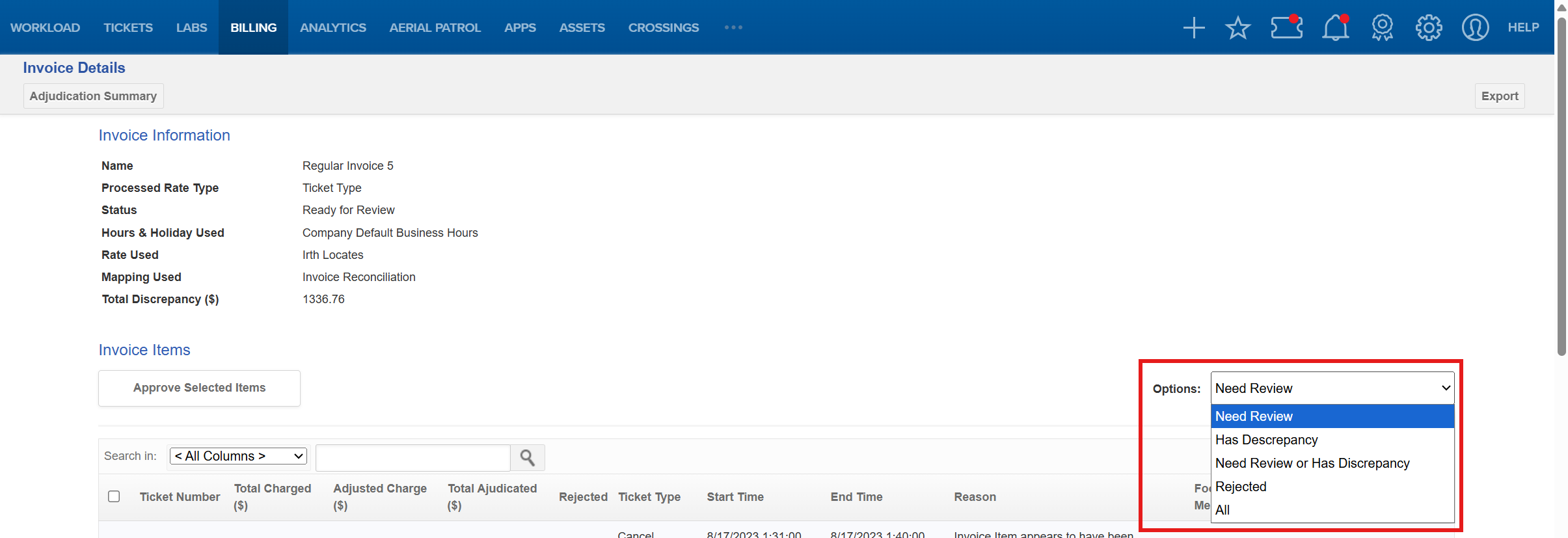
Option What it displays All All invoice items, whether or not they have discrepancies, need review, or have been rejected or approved Has Discrepancy Items with discrepancies against ticket data (overcharges, no unique match, etc.), whether or not they have been reviewed and approved Needs Review Items with discrepancies that still need review Needs Review or
Has DiscrepancyItems that need review plus those that have discrepancies Rejected Items the system rejected for worst-case reasons: duplicates, or no unique ticket match - Check each ticket’s Total Charged, Adjusted Charge, and Reason columns.
- Adjust an item (if needed).
- In the Ticket Number column, click the ticket number.
- In the Modify Invoice Item window, enter the New Charge (this replaces the Total Charged amount) and a Reason for the change. The window also shows Total Charged and Work Time for reference.
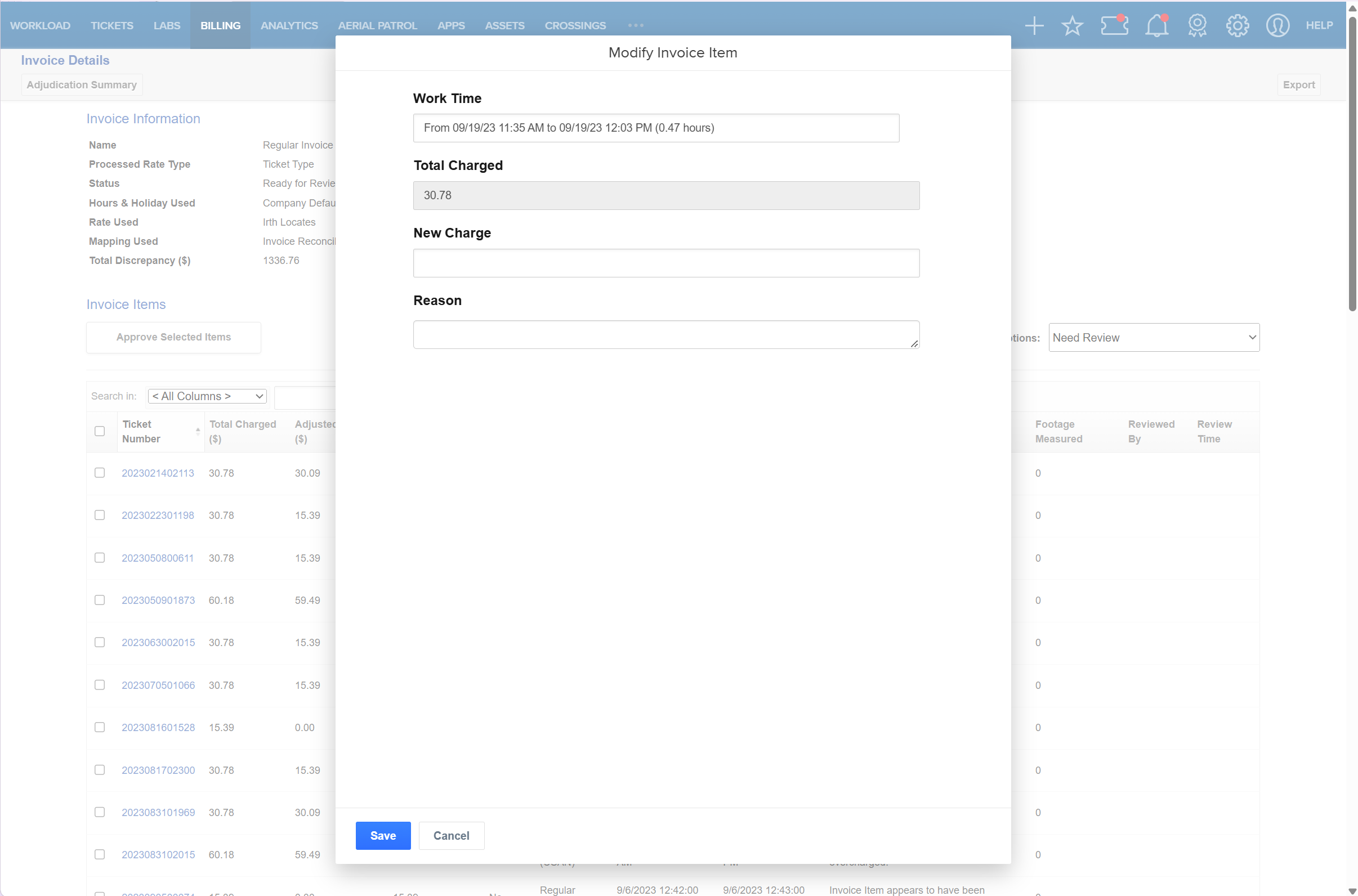
- Click Save.
Result: The item is removed from Needs Review but remains in the other filters. - Approve items.
- Check the box for each ticket to approve.
- Click Approve Selected Items.
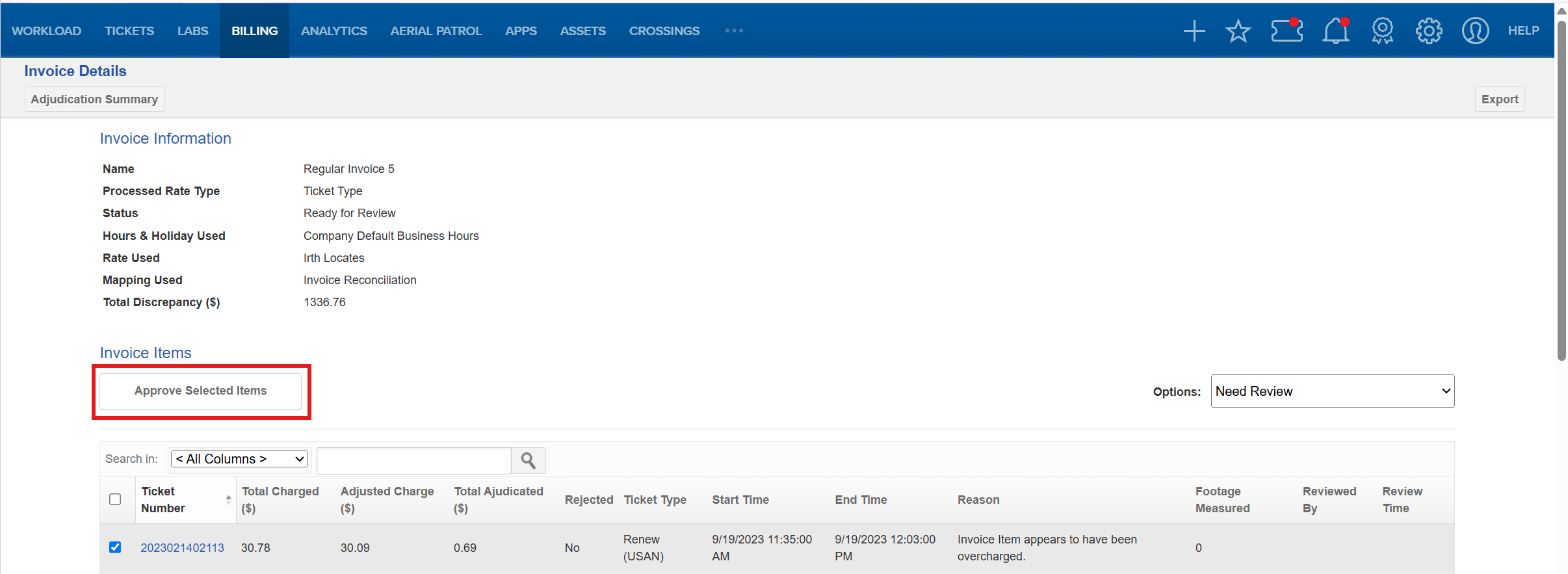 Result: The items are removed from Needs Review. Reviewed By and Review Time are updated. The items remain visible under All, Has Discrepancy, and Rejected.
- Check the box for each ticket to approve.
- Export (optional). In the upper right corner of the Invoice Details page, click Export. A CSV file named
adjudication.csvis saved to your download folder.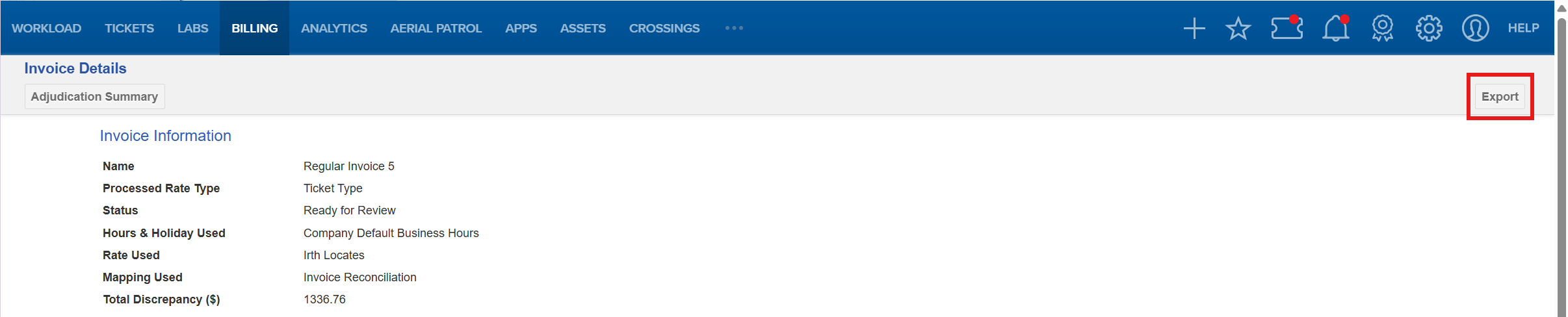
FAQ/Troubleshooting:
Q: I can’t see Adjudication Summary or open an invoice. Why?
A: Invoice Details requires access to Billing. Contact your system administrator to request it.
Q: Do I need to approve items if I didn’t change anything?
A: Yes. All items must be approved, whether or not adjustments are made.
Q: I approved a ticket and it disappeared from my list. Did I lose it?
A: No. Approved or adjusted tickets are removed only from Needs Review. They remain under All, Has Discrepancy, and Rejected.
Q: Why do Has Discrepancy and Needs Review show the same tickets?
A: Immediately after upload, both filters return the same items. They differ as you review: reviewed items leave Needs Review but stay under Has Discrepancy.
Q: Why was an item rejected?
A: The system rejects items in worst-case situations, such as a duplicate invoice item, no unique ticket match, an invalid date or total, work times before the ticket received time, or a missing OCC Ticket ID or ticket type. The specific cause appears in the Rejected column.
Q: Where is the exported file?
A: Exporting creates adjudication.csv in your browser’s default download folder.
Q: What does Total Adjudicated mean?
A: It is the difference between Total Charged and Adjusted Charge.
Questions? Contact us!

Was this article helpful?
That’s Great!
Thank you for your feedback
Sorry! We couldn't be helpful
Thank you for your feedback
Feedback sent
We appreciate your effort and will try to fix the article