Working with Message Templates
Purpose/Overview
In this article, you’ll learn how administrators can create standardized, reusable message templates in Utilisphere. Message templates can be used with tickets, work items, automation rules, and system communications. Templates support dynamic form fields, formatted text, images, QR codes, and attachments, and can be delivered as emails, PDFs, or both.
Using message templates helps reduce manual effort, ensures consistent messaging, and improves the quality and professionalism of system‑generated communications.
Navigation Path:
To access this feature, go to Utilisphere > System Management > Administration > General > Message Templates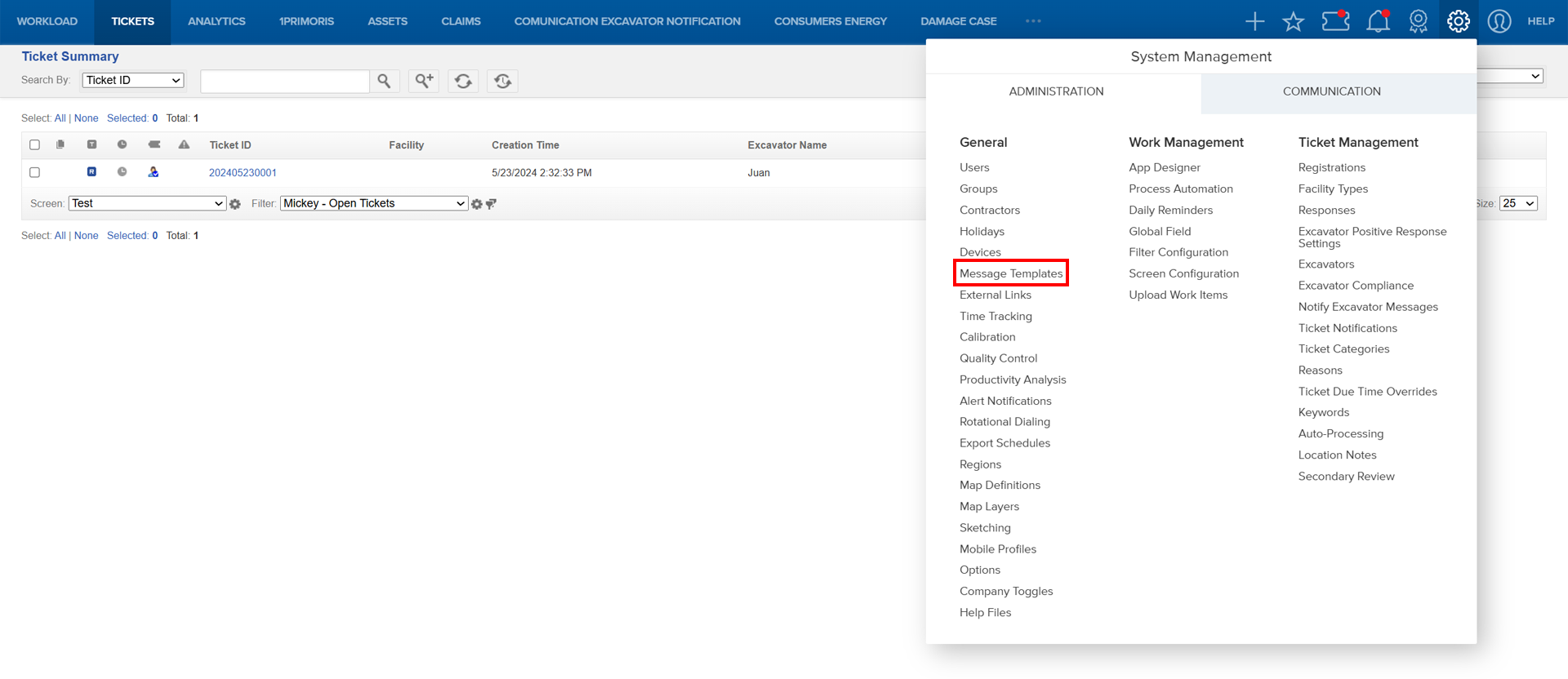
Things to Know:
Permissions: Only users with admin‑level permissions can create or edit message templates.
Platform Considerations: Message templates are best created and managed using a desktop browser. PDF formatting may not preview accurately on mobile devices.
Dynamic Content: Message templates use form fields enclosed in double brackets (
[[ ]]) to pull live data from tickets and work items.Image Rendering: Image size, width, and column layout can be controlled using supported tag attributes.
Template Availability: Message templates are available in both Process Automation, Response Configuration, and the Email Ticket action in Ticket Summary, allowing users to select a template when sending ticket emails.
Key Benefits/Use Cases:
- Standardized Excavator Messaging: Use ticket templates to define Terms & Conditions or excavator-positive responses. This ensures consistent legal language and compliance documentation.
- Custom PDF Reports for Work Items: Create item templates to include key work item data, related history, and attachments in formatted PDFs. Useful for audits or formal reporting.
- Automated Communications in Workflows: Leverage templates in process automation rules to send targeted notifications that are professional and informative.
How It Works:
Create a New Template
- Once you've navigated to the Message Template screen, click Create New Message Template on the upper right side of the screen.

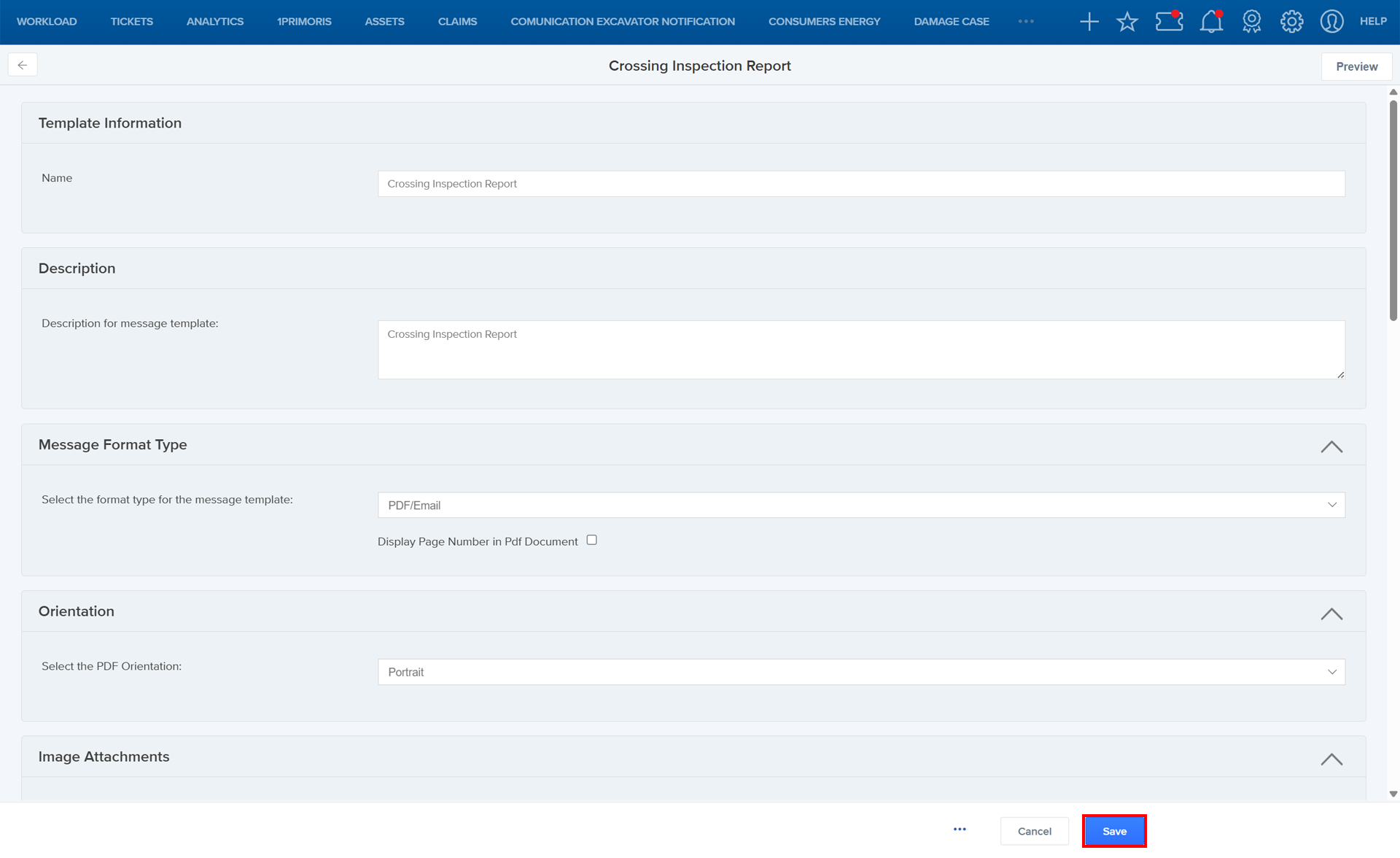
- In the Template Information section, enter a name and select whether the template is for Work Items or Tickets.

- Add a description for the message template in the Description section.

- Select the format type for the message template in the Message Format Type section.

Message Template Formats Email Sends the message content directly in the body of the email. PDF Used strictly for the Print to PDF or Share actions from the Work Items menu. This format does not send an email notification. PDF/Email Sends the message content in the email bodyand attaches the same content as a PDF file. - Choose the orientation of the message in the Orientation section.

- Choose the number of Image Attachments per page (up to 10).

- Use the For these Form(s) section to select the form (from the list provided) that the template will apply to.

- Type and Format Your Message
Use the tools at the top of the text box to format your message. You can adjust font size, add bullet points, and more.
Add Form Fields to Include Dynamic Info: To automatically pull in information from a form (like the assigned user or location), you can add form fields. These appear in double brackets, like this:
[[Assigned To]]or[[Location]].
Note: Do not delete the double brackets. If you do, the form data won’t show up in the message.Click the Add Form Field icon.
 In the window that appears, use the dropdown to pick a field. Once you've picked a field, select OK.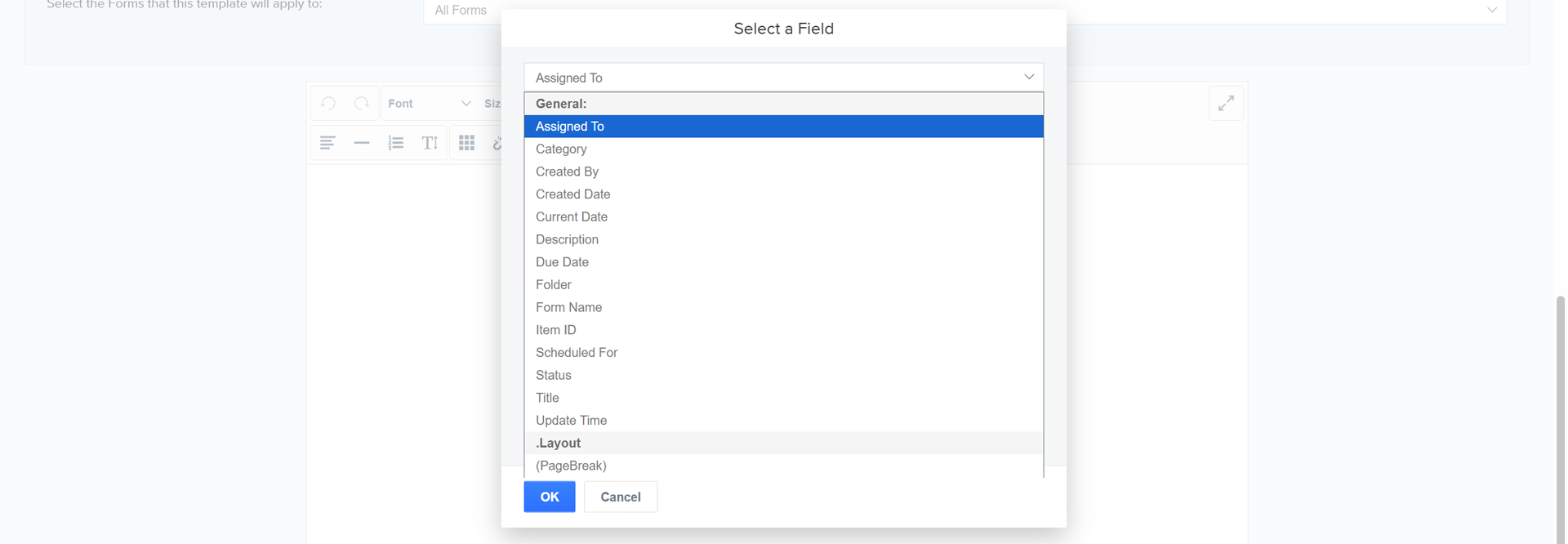
Common Form Fields Assigned to The person currently responsible for the item. Category A label set by an administrator to group similar forms. Created By The user who originally submitted or created the item. Created Date The date the item was first created. Current Date Today’s date (automatically inserted when used). Description A short explanation or summary of the item. Due Date When the item needs to be completed (including date and time). Folder The folder the item is stored in (used to help organize work). Form Name The name of the form used to create the item. Item ID A unique number automatically assigned to every item. Note Any extra notes related to the item. QR Code A scannable barcode linked to the item. QR codes can be resized by editing the tag attributes. Example: [[QR-Code:h=200]]Scheduled For The planned start date for the work. Status The current stage of the item (like Open, Closed, or a custom status created by your administrator). Title The form’s title (same as Form Name when creating a form).
Update Time The last time the item was changed, either created, modified, or updated through an action. - When working with photo attachment fields, you can control how image attachments display by specifying height, width, and columns within the form field tag.
Example syntax:[[Photographs:h=250;w=750;cols=3]]
Photographs – The name of the attachment form field
h – Image height in pixels
w – Image width in pixels
cols – Number of images displayed per rowColumn behavior:
Thecolsattribute is most relevant when Multiple Attachments is enabled on the form field.
Ifcolsis not specified, each image is displayed on its own row by default.
- When you've completed your form, click Save on the bottom-right corner of the form to save your template.

- Optional: To preview the message as it will appear to users, click the Preview button on the upper-right corner of the screen. Then, enter your email address and click Send to receive a test message.


Edit an Existing Template
- On the Message Template Summary page, in the Template Name column, select the template you want to edit. and make any desired changes.

- Save your changes.
How It Works:
Q: Why isn’t my form data appearing in the message?
A: Check that the form field is wrapped in double brackets ([[ ]]) and that the selected form is included in the template configuration.
Q: Why are my images displaying one per row?
A: If the cols attribute is not specified, images default to one per row. Add cols to control how many images display in each row.
Questions? Contact us!

Was this article helpful?
That’s Great!
Thank you for your feedback
Sorry! We couldn't be helpful
Thank you for your feedback
Feedback sent
We appreciate your effort and will try to fix the article