Billing Summary
Purpose/Overview
In this article, you’ll learn how to use Billing Summary to find tickets to bill and review billing information for each ticket response. Billing Summary lists every ticket response as its own line, including responses without charges. Billing staff can search, review prices and totals, and check ticket status in one place. It is intended for billing administrators and anyone responsible for reviewing billable One Call Center work.
Navigation Path:
To access this feature: Utilisphere > Billing > Billing Summary

Things to Know:
- Permissions: Access to Billing Summary is role-based. Confirm the required permission with your administrator.
- Caveats and behaviors:
- Each ticket response is a separate line, even if no charge applies.
- The Loaded Locate Count is the maximum number of locates the system can load. It can be lower than the Total Locate Count.
- If a bill has been modified, Bill Response and Bill Unit of Work show the new values. The original values are kept in Locate Response and Locate Units of Work.
- Searches are not case-sensitive.
- The most recent Search By search is saved as “Quick Search.”
- An advanced search with an empty Save As box overwrites the saved “Default” search.
Column Reference
| Column | Description |
|---|---|
| Bill Last Modified By | Person who last modified the bill |
| Bill Locate Date | Date of the bill (the Bill Date on the Billing Details page) |
| Bill Response | Response entered by the locator on the Ticket Details > Ticket Response window. If the bill is modified, this shows the new response. |
| Bill Unit of Work | Units of work entered by the locator on the Ticket Details > Ticket Response window. If the bill is modified, this shows the new units. |
| Facility | Facility in the ticket |
| Flat Price | Flat price from the response |
| Locate Response | Original locator response, retained if the bill is modified |
| Locate Units of Work | Original units of work entered by the locator, retained if the bill is modified |
| Ticket ID | Ticket identification number from the One Call Center |
| Total Price | Total price of the bill for the response |
| Unit Price | Unit price from the response |
Icons
The two leftmost columns show version and status.
| Column | Icons |
|---|---|
| Version | Newest version of a ticket; older version of a ticket |
| Status | Pending Research; Pending Research - Responded; Ticket in Folder; Ticket in Folder - Responded; Ticket Assigned; Ticket Assigned - Responded; Ticket Closed |
Totals
Totals appear below the lines containing bills, to the right of the screen/filter lists.
| Total | Description |
|---|---|
| Loaded Locate Count | Maximum number of locates the system can load. Can be a subset of the Total Locate Count. |
| Total Bill Unit of Work | Sum of the Bill Unit of Work column for all responses in the Loaded Locate Count |
| Total Locate Count | Total number of responses (rows) on the page. “Locates” are responses. |
| Total Price | Sum of the Total Price column for all responses on the Billing Summary page |
Key Benefits/Use Cases:
- Month-end invoicing: Search by Bill Locate Date, then create an Invoice Summary or Invoice Details report for each customer. Billing cycles close faster with fewer manual lookups.
- Billing corrections: Open a response from the Bill Response column to modify the bill. The original locator values are preserved, so you keep an audit trail while billing the correct amount.
- Third-party billing system integration: Export results to CSV for your accounting or billing system, using a Screen to control which fields are included. This avoids re-keying data.
How It Works:
Follow these steps to search for tickets on the Billing Summary.
Search for tickets.
In the top-left corner, choose an option from the Search By dropdown (Bill Locate Date, Ticket ID, or Ticket Text). Enter your term and press Enter or click Search.
For Ticket Text, you can use these formats:
- Default (phrase):
Oak Bridge Lanefinds the terms in the order typed. - Exact term:
"Oak" and "Bridge" and "Lane"finds all terms in any order. - Or:
"Oak" or "Bridge" or "Lane"finds at least one term.
Refine with Advanced Search (optional).
- Click Advanced Search to the right of the search bar.
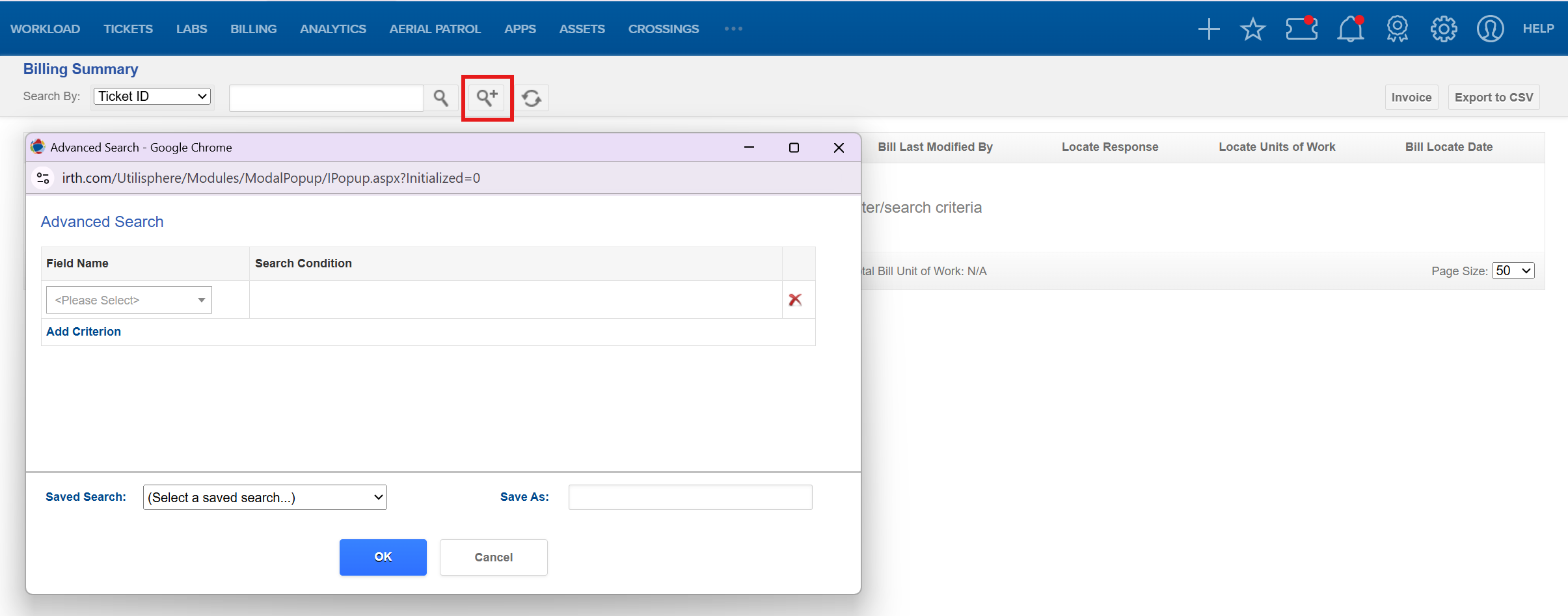
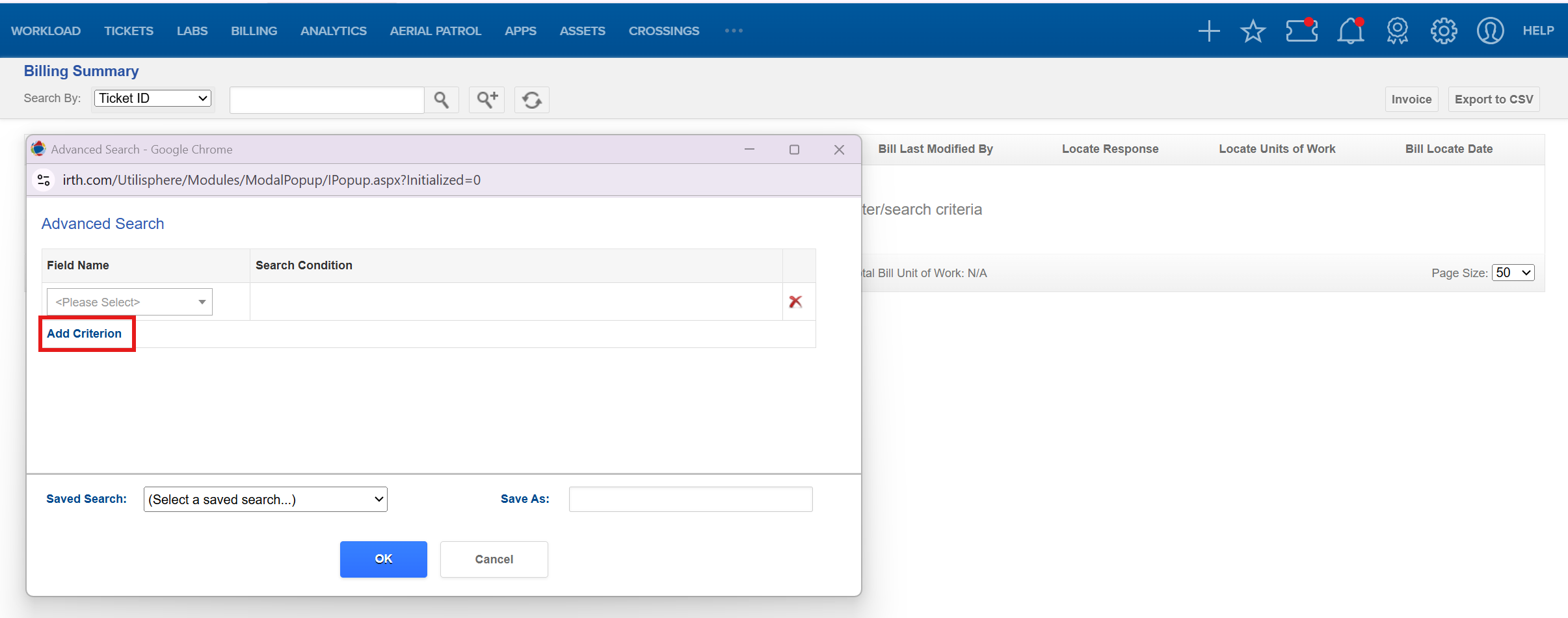
- Click Add Criteria, open the dropdown, and choose a field. Common fields include:
- Billable: Yes means the bill is charged to the customer. No means it is not.
- Bill Locate Date: The date the locate was performed.
- Bill Response: The response used for billing rates. It is usually the same as the Locate Response but can be changed.
- Customer Name: The customer you send the bill to.
- Status: Assigned, Closed, In Ticket Folder, or Pending Your Research.
- Ticket Type Category: Aerial, Damaged Utility, Design, Emergency, Meet, Recall, Regular, Revision, or Short.
Set the condition in the Search Condition column. Conditions vary by field. Click Add Criterion to add more.
- Enter a name in Save As to keep the search, or leave it empty to overwrite the Default search.
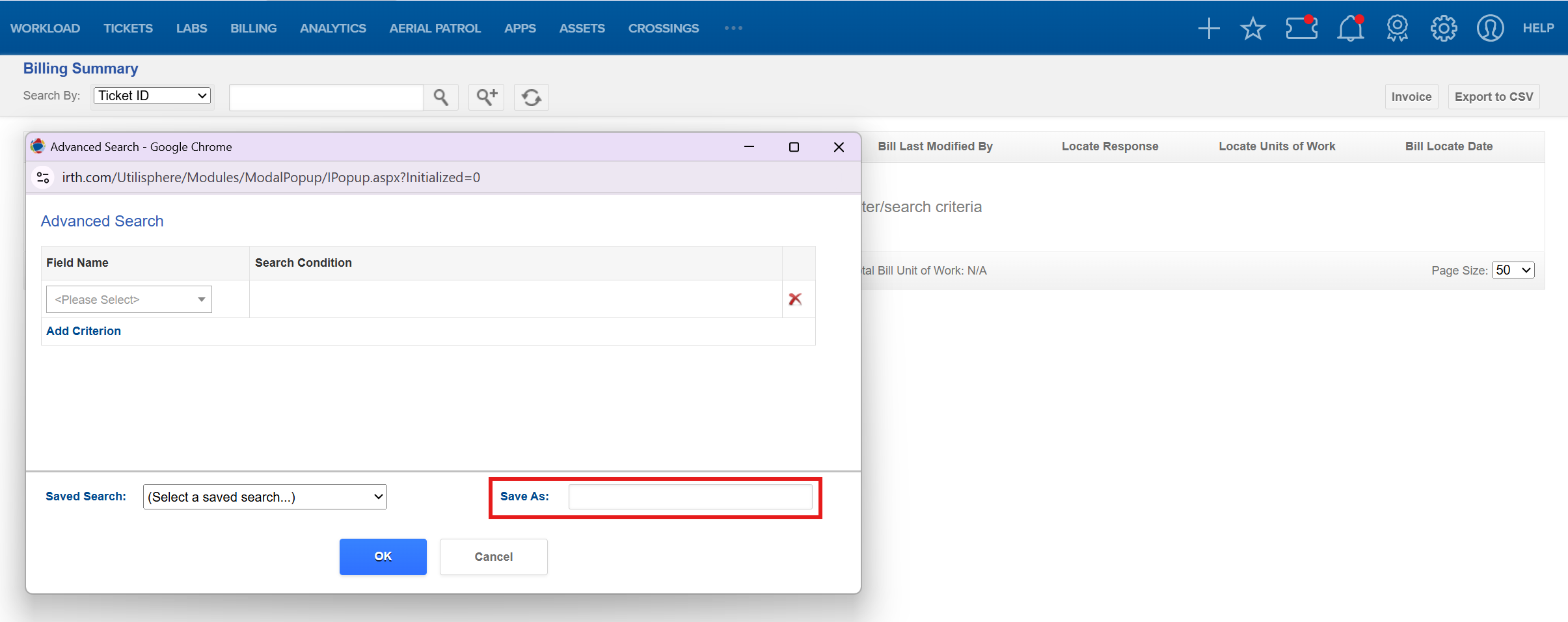
- Click OK. Click Refresh to rerun the most recent search.
Related Features:
FAQ/Troubleshooting:
Q: Why do I see multiple lines for one ticket?
A: Each response is a separate line, including responses without charges. A ticket with several responses appears several times.
Q: Where did the original response go after a bill was modified?
A: Bill Response and Bill Unit of Work show the updated values. The originals remain in Locate Response and Locate Units of Work.
Q: Why is my Total Locate Count higher than my Loaded Locate Count?
A: The system can load only a maximum number of locates. Narrow your search, for example, with a shorter Bill Locate Date range, so all results load.
Q: My saved search changed or disappeared. What happened?
A: An advanced search with an empty Save As box overwrites the Default search. Enter a unique name to keep a search separately.
Q: Why didn’t my Ticket Text search find the ticket?
A: The default search finds terms in the exact order typed. To find terms in any order, put each in quotes and join them with “and”. Searches are not case-sensitive, so capitalization is not the cause.
Questions? Contact us!

Was this article helpful?
That’s Great!
Thank you for your feedback
Sorry! We couldn't be helpful
Thank you for your feedback
Feedback sent
We appreciate your effort and will try to fix the article