Adding and Using Custom Fields
Purpose/Overview
In this article, you’ll learn how to add and use Custom Fields within the Tickets module to support your organization’s specific workflows. Custom Fields allow teams to capture additional, structured information, such as First Response Locator Name and First Response Date, and display that data in ticket screens, summaries, filters, and advanced search.
This feature helps solve the challenge of tracking and locating tickets based on important response details that are not included in standard ticket fields. It is intended for administrators and power users who configure ticket screens and filters, as well as end users who rely on those fields to review, search, and report on tickets. The overall value is improved visibility, consistency, and efficiency when managing ticket data.
Navigation Path:
To access this feature, go to:
 Ticket > Filters Configuration
 Tickets > Ticket Summary
Things to Know:
- Permissions Required: Only users in groups with Modify Screen permissions can add or modify ticket screens, custom fields, and filters. If your company administrators have not enabled this permission for your group, you will not see the options described in this article.
- User Access Variability: Not all users within a company will have access to Screen Configuration or Filter Configuration. Availability depends entirely on group permissions set by company administrators.
- Platform Behavior: Custom fields must be added to a screen and selected for Ticket Summary before they can be used in filtering or advanced search.
- Visibility Dependency: If a custom field is not included on the selected Ticket Summary screen, it will not appear as an option for advanced search.
Key Benefits/Use Cases:
Improved Ticket Tracking: Capture response details, such as who provided first response and when it occurred, directly on tickets.
Faster Ticket Search and Review: Filter and search tickets using custom criteria instead of relying on free‑text notes.
More Consistent Data Entry: Standardized fields improve reporting accuracy and reduce reliance on manual descriptions.
How It Works:
Add Custom Fields to a New Screen and Display Them in Ticket Summary
- Go to the Tickets tab and select Screen Configuration.
- Click Add a Screen.

- Enter a screen name and description, then click Add.

- Select the newly created screen from the list.

- Click Select Fields for this Screen.
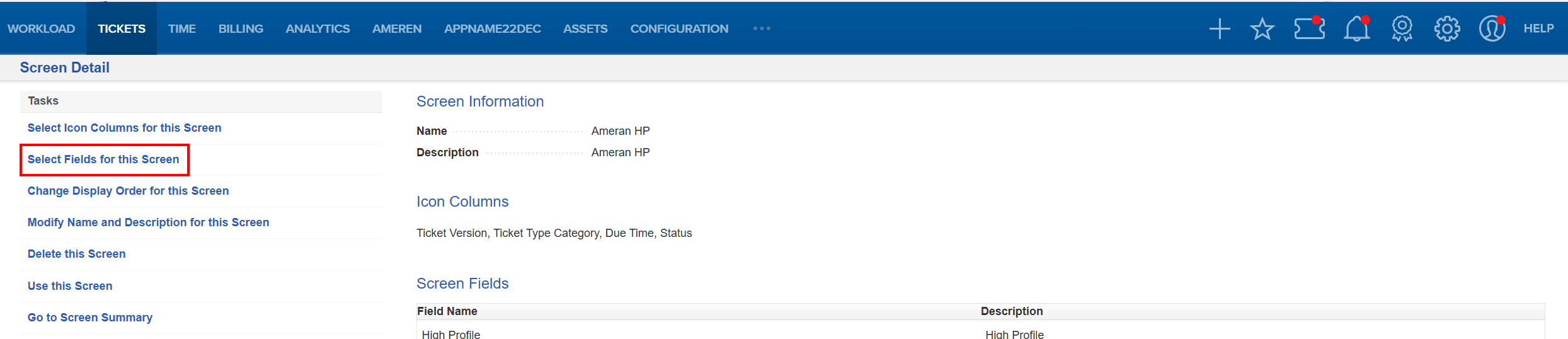
- In the search bar, enter First Response Locator Name, select the field, and click Save.
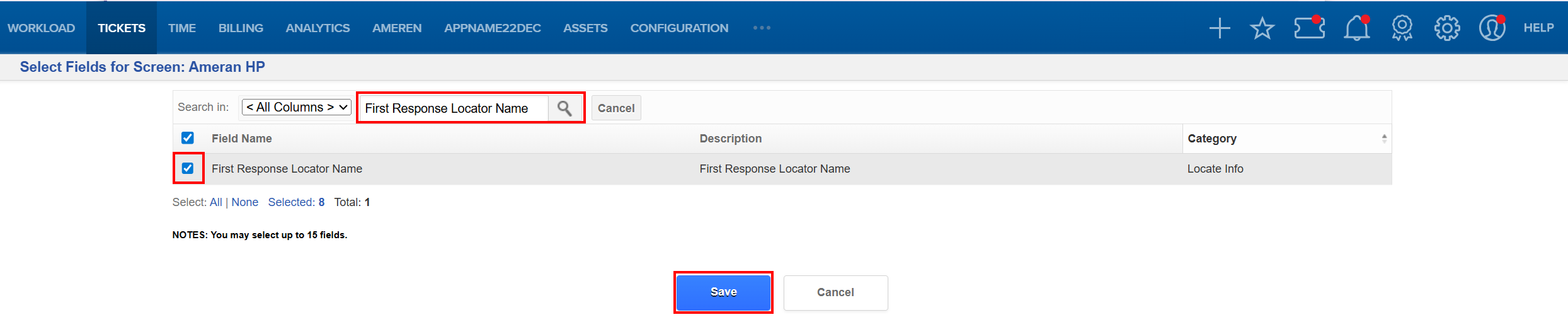
- Search for First Response Date, select the field, and click Save.
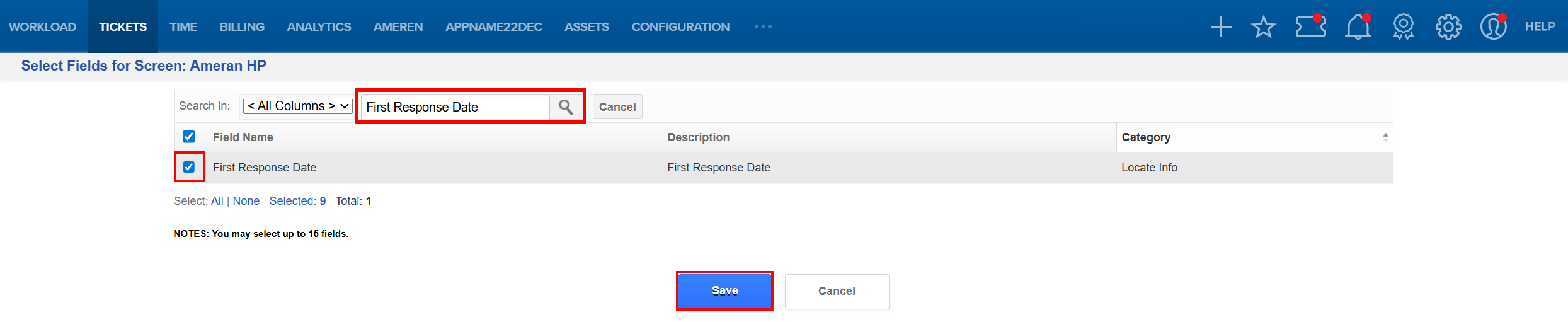
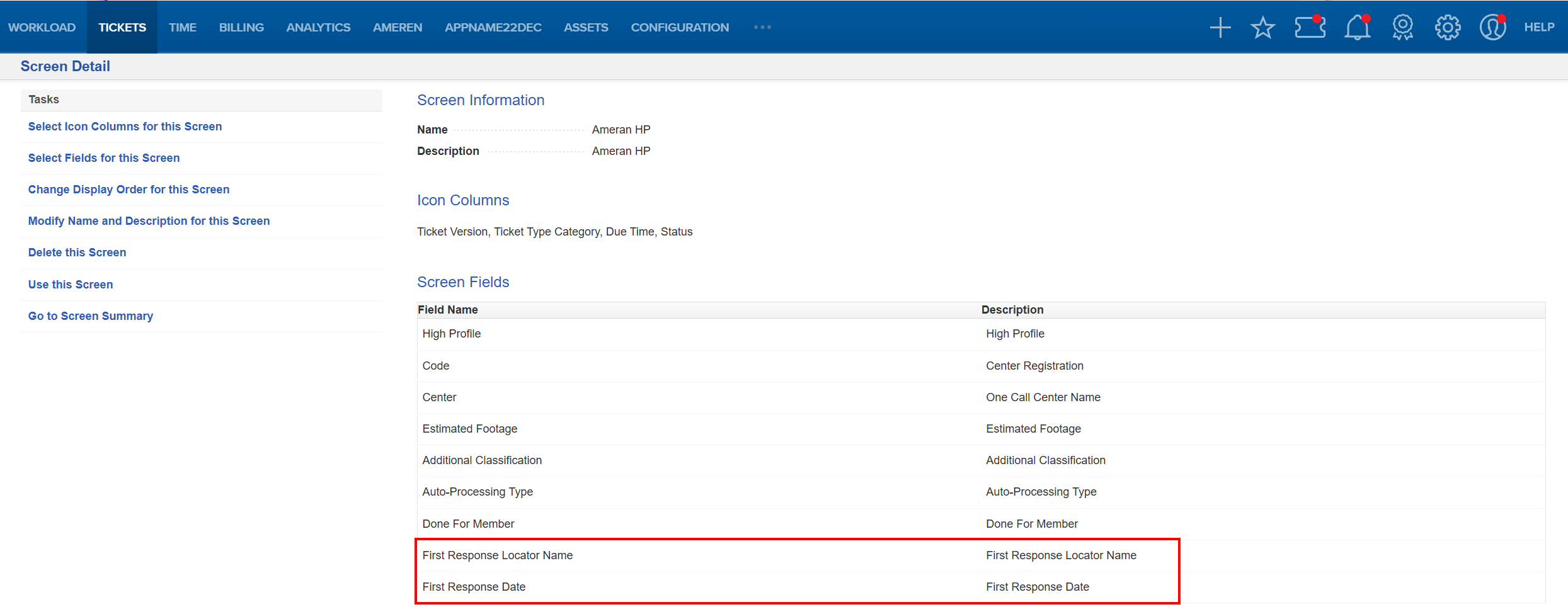
- Confirm that both fields appear in the Screen Fields section.
- Navigate to Ticket Summary and select your newly created screen.

- Verify that both custom fields you added appear on the Ticket Summary page.
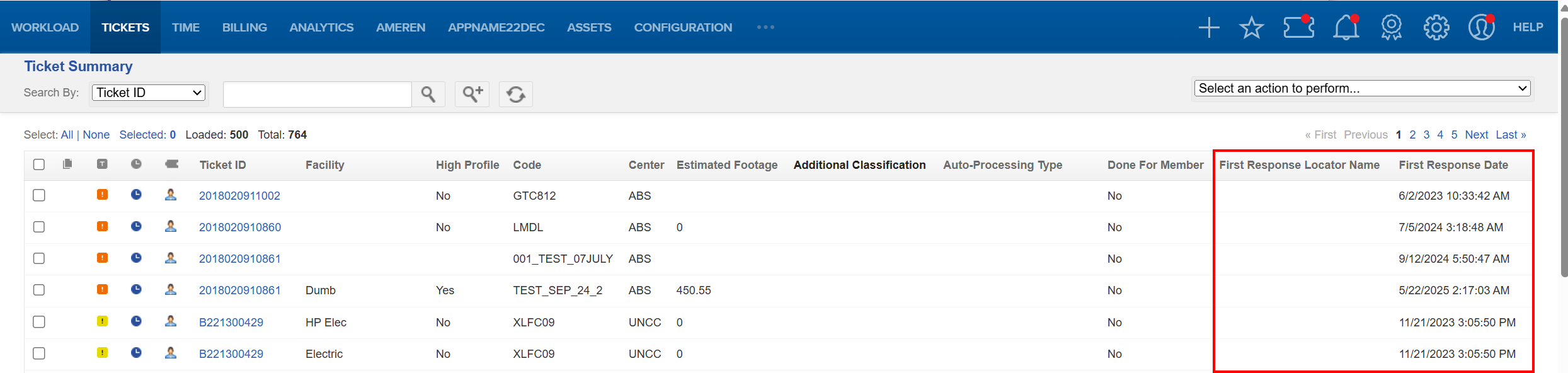
Create a Custom Filter Using Custom Fields
- Go to the Tickets tab and select Filters Configuration.
- On the Filter Summary screen, click Add a Filter.

- Enter a filter name and description, then click Add.

- On the Filter Summary screen, select the filter you created.

- On the Filter Detail screen, click Add a Criterion.

- Choose First Response Locator Name from the dropdown and click Next.

- Select one or more locator names and click Finish.
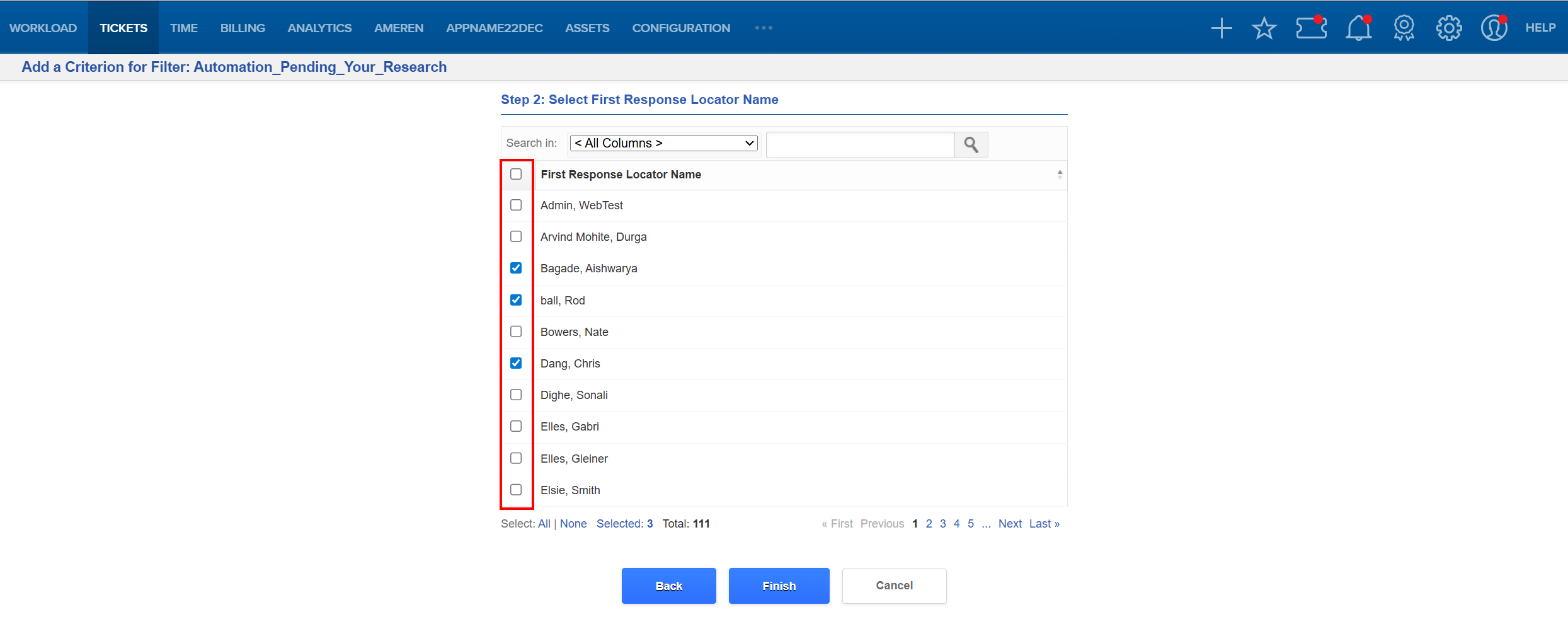
- Go through the same process to add another criterion, in this case, First Response Date.
- Choose the desired date or date range and click Finish.
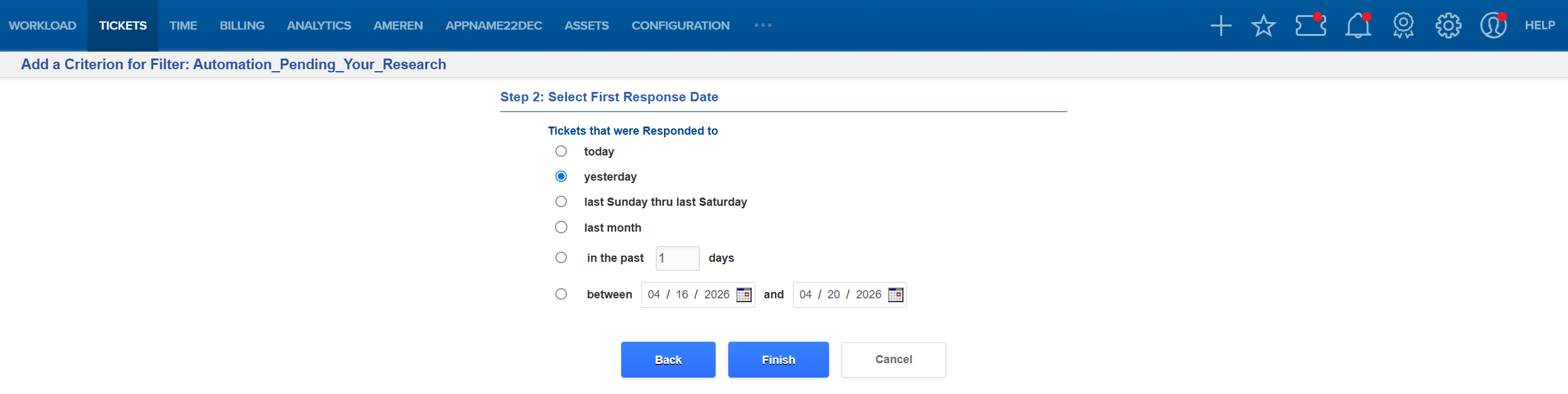
- On the Filter Detail screen, confirm that both criteria appear in the Filter Criteria section.
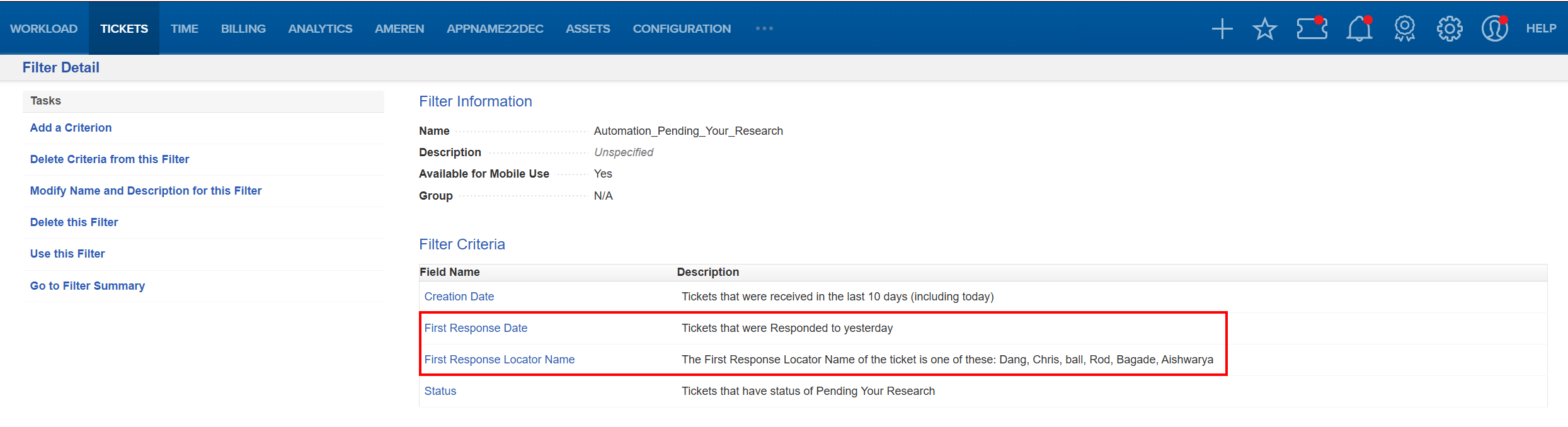
Perform an Advanced Search Using Custom Fields
- Go to the Tickets tab and select Ticket Summary.
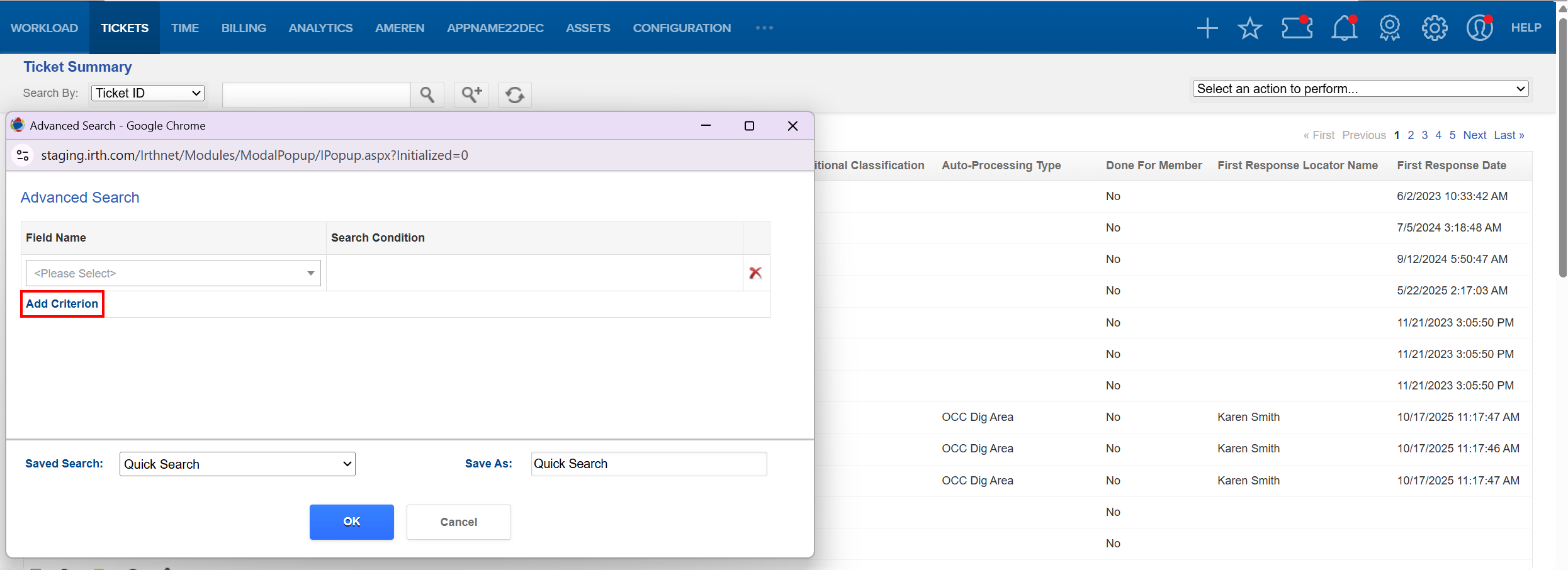
- Click the Advanced Search icon.

For First Response Locator Name:
- Click Add Criterion.
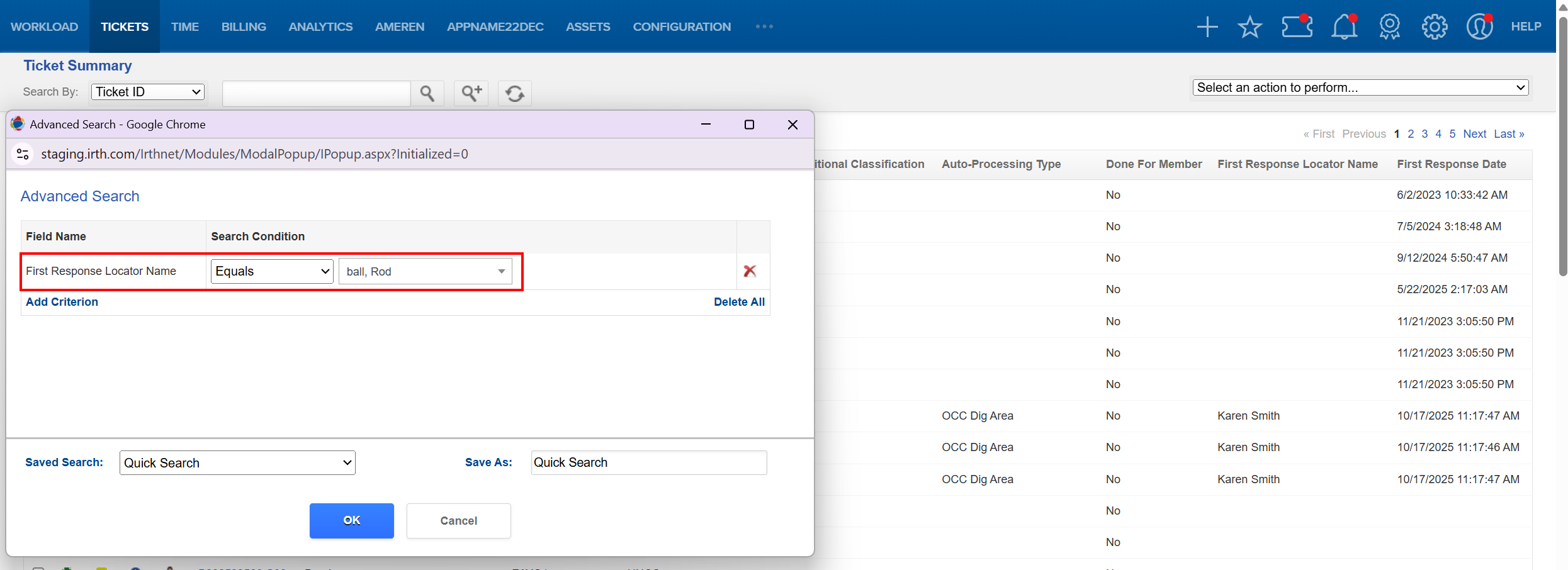
- Select First Response Locator Name and the appropriate locator name(s), then click OK.
For First Response Date:
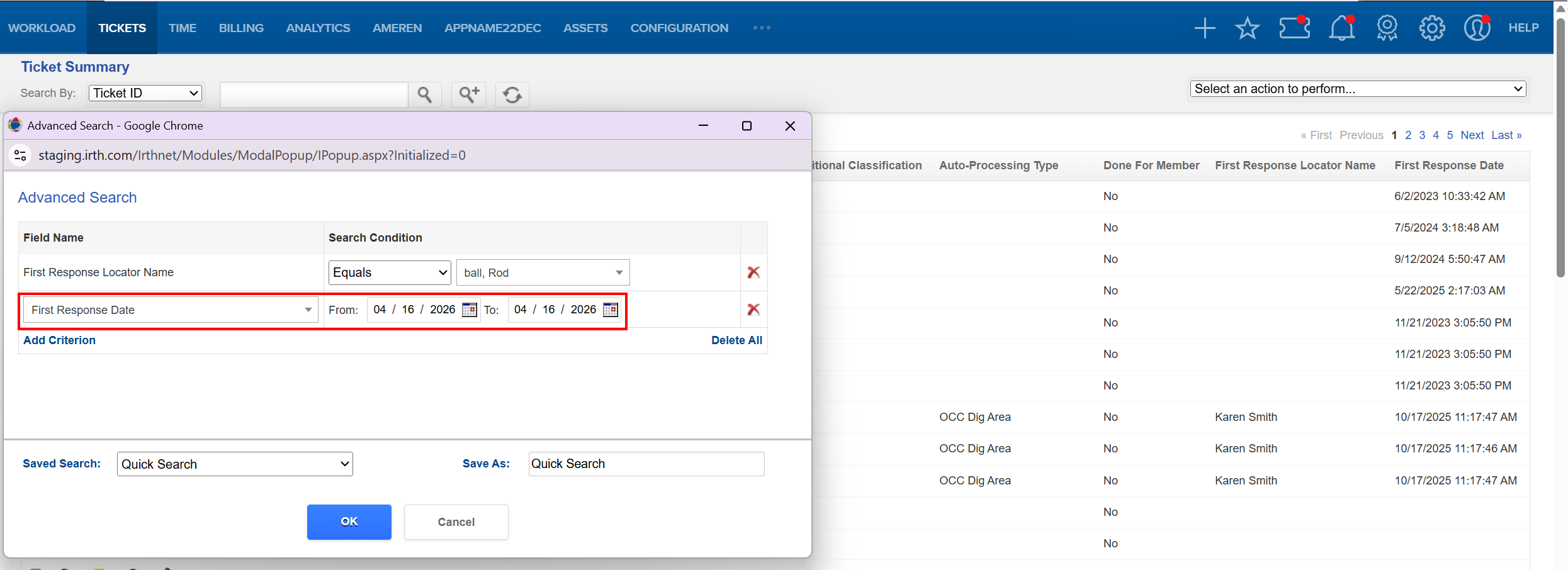
- Click Add Criterion.
- Select First Response Date and choose the desired date or date range, then click OK.
FAQ/Troubleshooting:
Q: Why don’t I see Screen Configuration or Filter Configuration?
A: Your user group likely does not have Modify Screen permissions. Contact your company administrator to confirm access.
Q: I added a custom field, but I can’t find it in Advanced Search. Why?
A: The field must be added to the selected Ticket Summary screen before it becomes available for advanced search.
Q: Can all users edit custom fields?
A: No. Only users in groups with the appropriate permissions can modify screens or filters.
Questions? Contact us!

Was this article helpful?
That’s Great!
Thank you for your feedback
Sorry! We couldn't be helpful
Thank you for your feedback
Feedback sent
We appreciate your effort and will try to fix the article